Make Text Bigger? Basics
You got a bigger monitor or your eyes just want a break, and now Windows text feels tiny. Windows lets you scale text and interface size independently, but the settings hide in two different places and the wrong one blurs older apps. This guide shows the clean way to enlarge text without breaking anything.
TL;DR / Quick Fix
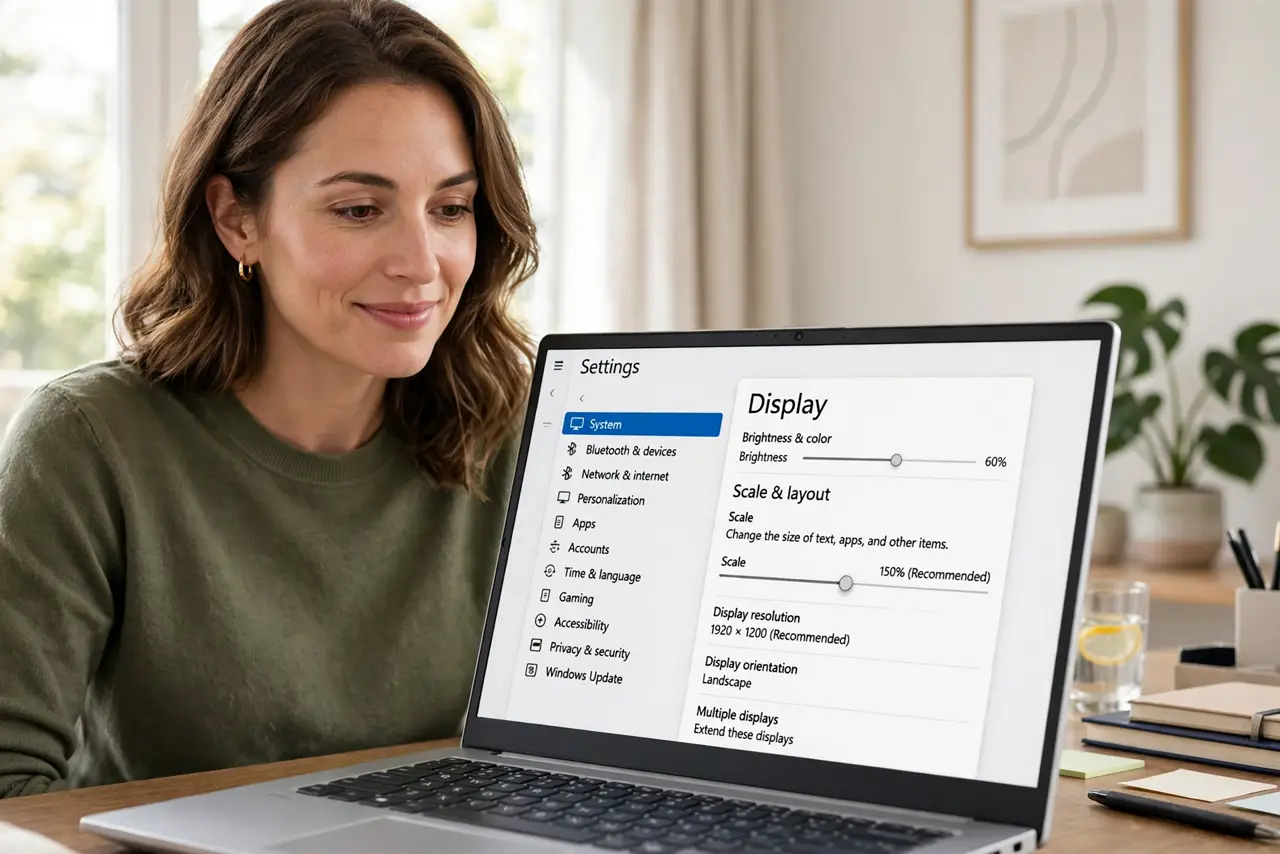
Quick fix: open Settings, then System, then Display, and raise the Scale setting to 125 or 150 percent. For text only, use Accessibility, then Text size, and drag the slider. Sign out and back in if some apps look blurry. Most modern apps handle scaling cleanly.
Follow these steps
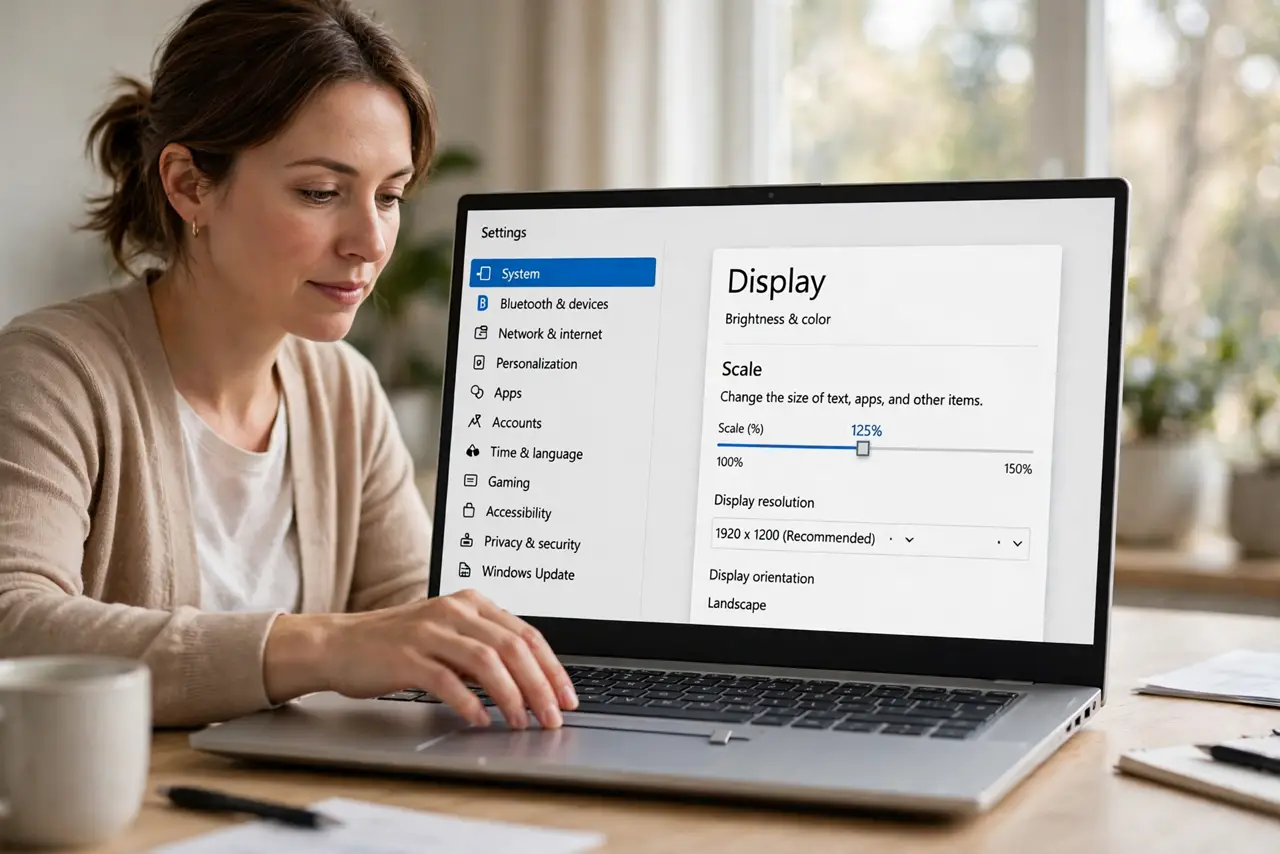
- Use Display scaling first. Open Settings, System, then Display, and change Scale to 125% or 150%. This enlarges text, icons, and windows together and is the right fix when everything feels small on a high-resolution screen.
- Enlarge text only if you prefer. Go to Settings, Accessibility, then Text size, and drag the slider. This grows text across apps without changing window sizes — ideal when icons are fine but words are hard to read.
- Sign out to fix blurry apps. Some older apps render blurry after a scale change until you sign out and back in. Windows even offers to fix blurry apps automatically — accept the prompt when it appears.
- Check per-app overrides. If one app ignores scaling or looks wrong, right-click its shortcut, open Properties, then Compatibility, and adjust the high-DPI override. One mismatched app-style holdout usually just needs this nudge.
- Match scaling across monitors. With two screens of different sizes, set each monitor's scale separately in Display settings. A size mismatch between monitors makes dragging windows across them feel broken.
- Test your main apps after. Open your browser, email, and most-used program and check readability. If one app fights the setting, its own zoom (Ctrl plus plus) can finish the job.
What NOT to do
- Do not crank scaling to 200% blindly. Oversized interfaces hide buttons and break layouts — step up gradually.
- Do not edit the registry for text size. The Settings sliders do the job safely; registry tweaks risk a broken display.
- Do not assume every old app scales. Legacy programs may stay tiny or blurry — use their built-in zoom instead of fighting Windows.
- Do not forget to sign back in. Skipping the sign-out leaves half your apps at the old size and looks like the setting failed.
Frequently asked questions
Why do some apps look blurry after scaling?
They were built before high-DPI screens existed. Signing out and back in fixes most; the Compatibility tab handles the stubborn ones.
What is the difference between Scale and Text size?
Scale enlarges everything including icons and windows. Text size grows only text. Use Scale for small high-res screens, Text size for tired eyes on normal screens.
Will bigger text break my games?
Games usually run at their own resolution and ignore Windows scaling. Your desktop gets bigger text; fullscreen games stay as they were.