USB Device Not Recognized After Sleep
Your USB drive, headset, or printer works fine until the PC sleeps — then Windows wakes up claiming the device is not recognized, and only unplugging and replugging fixes it. The usual culprit is Windows cutting power to the USB port during sleep to save energy. This guide shows how to stop that.
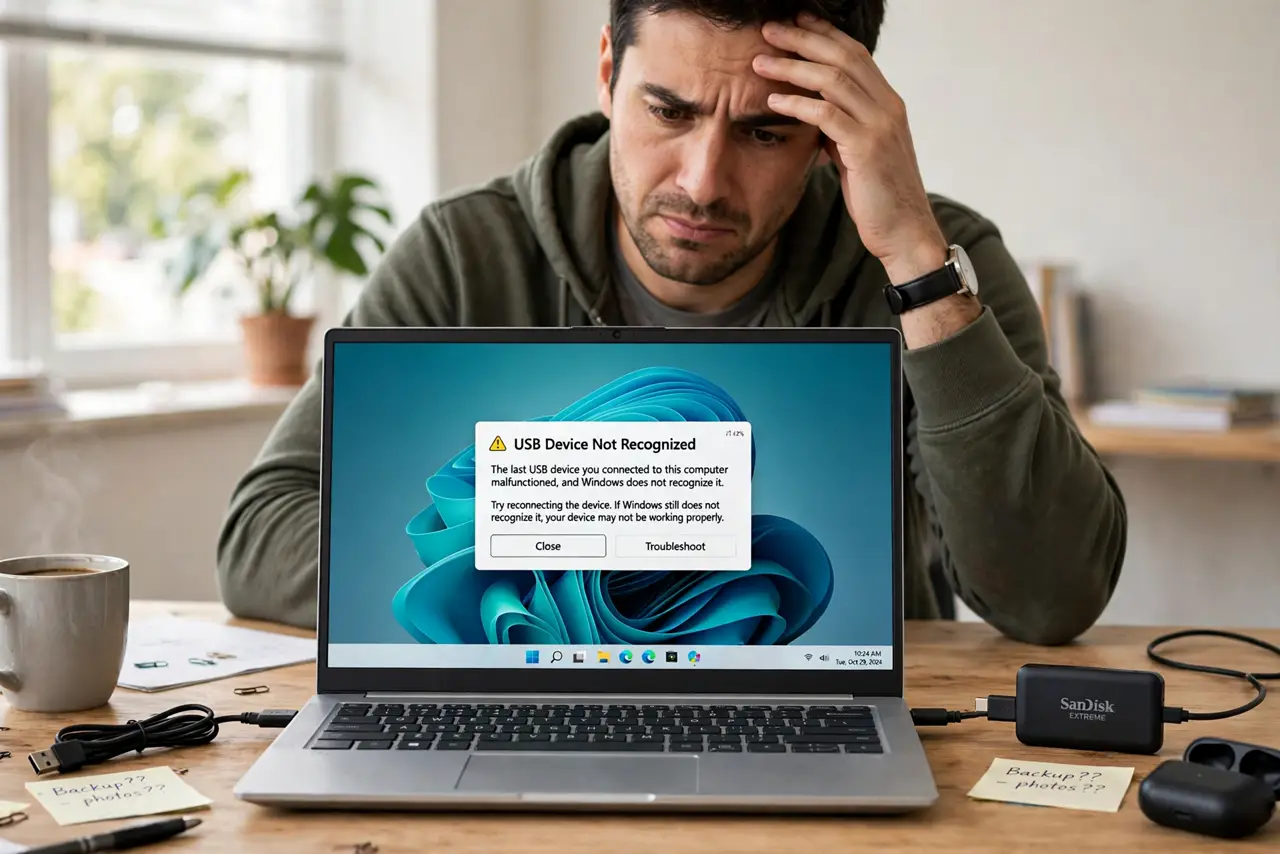
TL;DR / Quick Fix
Quick fix: in Device Manager, open each USB Root Hub's Power Management tab and uncheck 'Allow the computer to turn off this device to save power'. Also disable USB selective suspend in the power plan. Test with a sleep-wake cycle.
Follow these steps
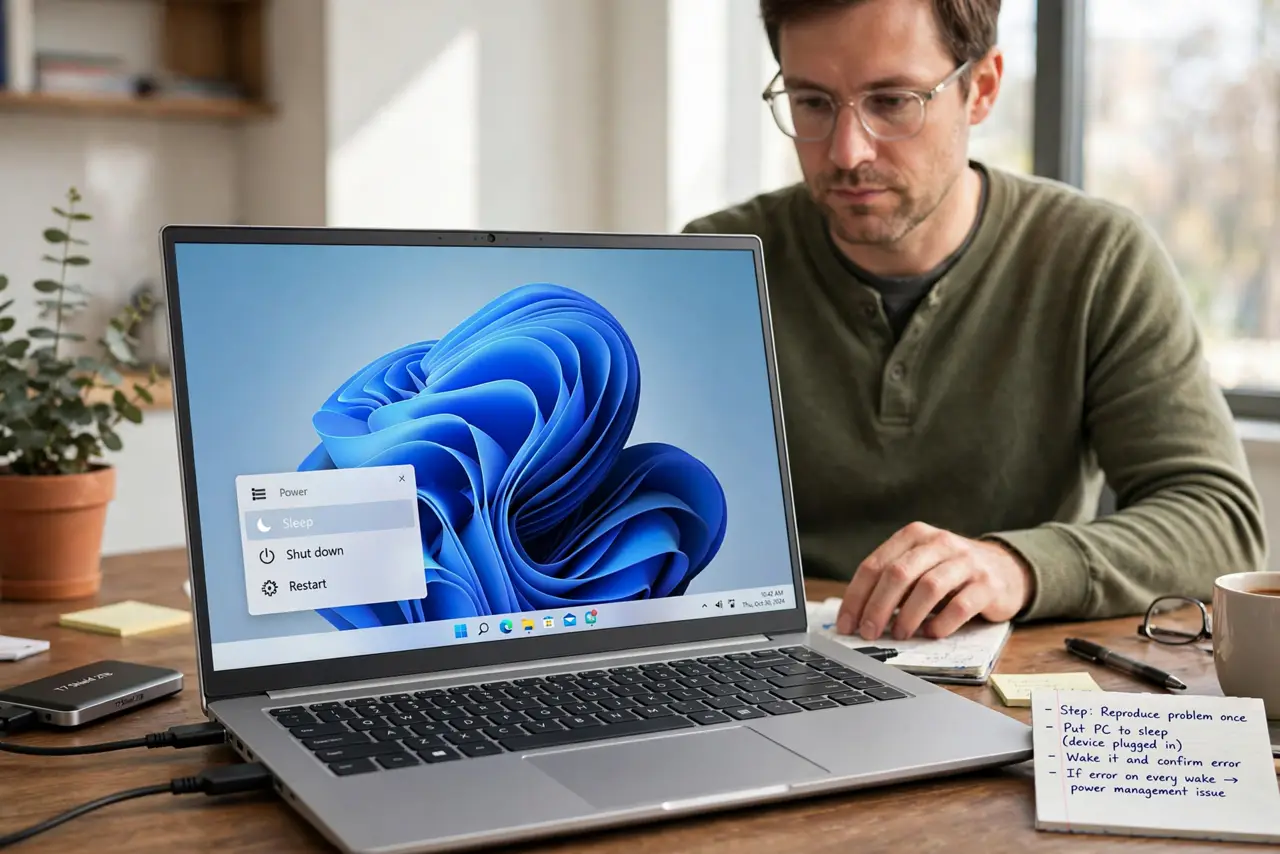
- Reproduce the problem once. Put the PC to sleep with the device plugged in, wake it, and confirm the error. Knowing it happens on every wake — not randomly — points to power management, not a dying device.
- Stop Windows powering off the USB hubs. Open Device Manager > Universal Serial Bus controllers. For each USB Root Hub, open Properties > Power Management and uncheck 'Allow the computer to turn off this device to save power'.
- Disable USB selective suspend. Go to Settings > System > Power & battery > Power mode settings, open the advanced plan settings, and set USB selective suspend to Disabled for both battery and plugged in.
- Try a different port type. Move the device from a hub to a port directly on the PC. Unpowered hubs starve devices after sleep, and a loose port can mimic the same symptom.
- Update the USB controller driver. In Device Manager, right-click the USB host controllers and choose Update driver. A stale controller driver can fail to re-enumerate devices after sleep.
- Test one full sleep-wake cycle. Put the PC to sleep for a few minutes, wake it, and check the device works without replugging. Repeat once more to be sure the fix holds.
What NOT to do
- Do not disable power saving on a laptop and forget it. The fix costs a little battery, so re-enable it if you later need maximum battery life.
- Do not keep using a hub that drops devices. If the device only fails through one hub, replace the hub instead of changing system settings.
- Do not yank the drive out while Windows says it is not recognized. Eject it properly first, or check it still works, to avoid corrupting data.
- Do not update the BIOS for this alone. USB-after-sleep issues are settings problems in nearly every case, not firmware problems.
Frequently asked questions
Why does my USB device fail only after sleep?
Windows powers down the USB port during sleep and fails to wake it properly. Disabling USB power saving fixes the wake-up.
Is it safe to disable USB selective suspend?
Yes. It uses slightly more power, but it cannot damage hardware — it only keeps ports powered.
What if the device fails on every port?
Then the device itself or its cable is likely failing. Test it on another computer before changing more settings.