Wake the PC for Backups
Your backup is scheduled for 2 a.m., and every morning the log says 'missed' — because the PC was asleep at 2 a.m., peacefully ignoring its chores. Windows can wake itself for the backup and go back to sleep after, but the permission is off by default and buried in Task Scheduler. Ten minutes here turns a backup that never runs into one that always does. This pairs well with the 3-2-1 backup rule for a complete strategy.
TL;DR / Quick Fix
Quick fix: if backups get skipped while your PC sleeps, let Windows wake it — open Task Scheduler, find your backup task, and tick 'Wake the computer to run this task' on the Conditions tab. Keep backup drives from sleeping too. The PC wakes, backs up, and returns to sleep.
Follow these steps
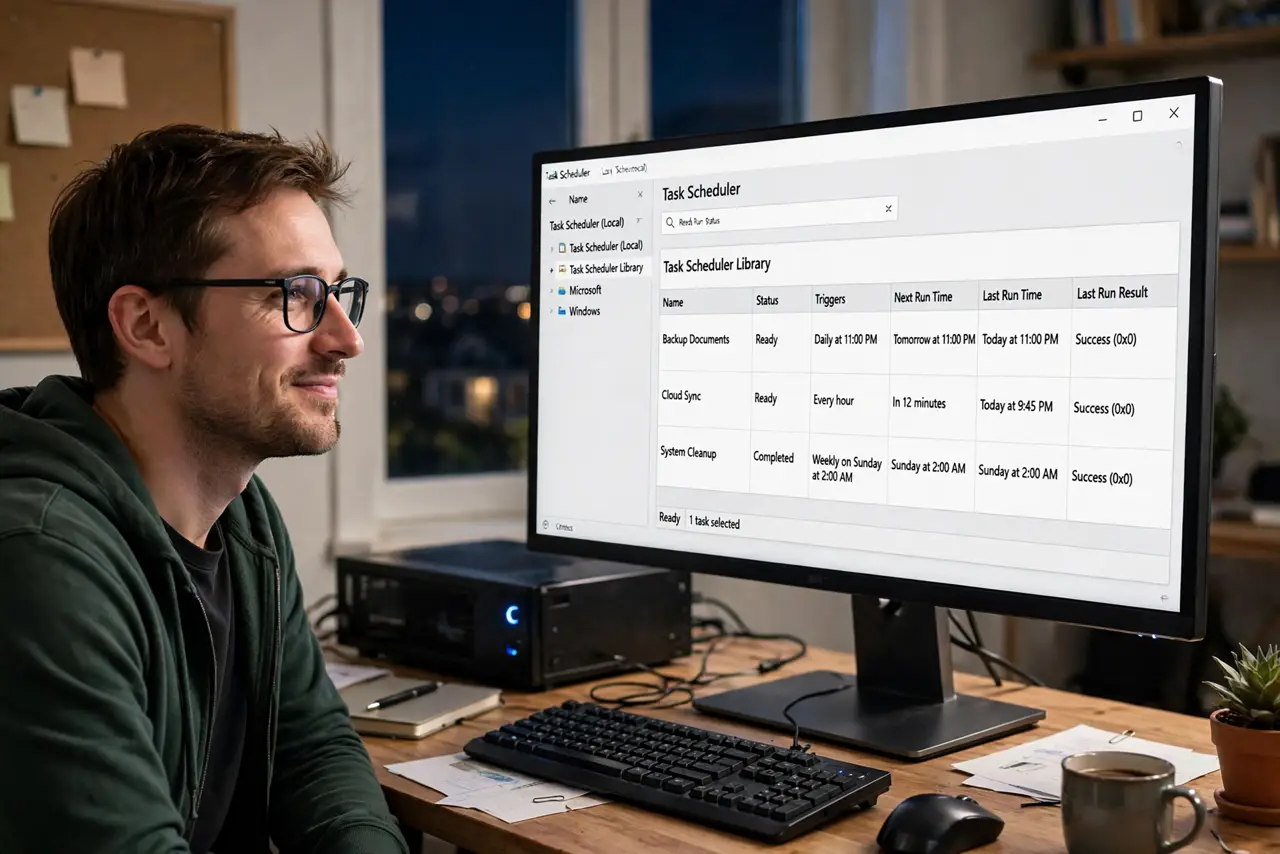
- Open Task Scheduler. Search for Task Scheduler in the Start menu and open it. This is Windows' alarm clock for automated jobs — your backup lives here as a task.
- Find your backup task. Look under Task Scheduler Library for your backup software's entry — vendor tasks usually carry the software's name. Double-click it to open Properties.
- Enable 'Wake the computer to run this task'. On the Conditions tab, tick 'Wake the computer to run this task' and click OK. You have just given the backup permission to rouse the sleeping PC.
- Allow wake timers in power settings. Open Power Options, then advanced settings, and set 'Allow wake timers' to Enable for your power plan. Without this, Windows may ignore the task's wake request — see wake timer basics if wakeups misbehave.
- Keep the backup drive awake. If the backup targets an external drive, make sure the drive is powered and not set to sleep independently. A woken PC with a sleeping drive still misses the backup.
- Verify with one overnight test. Check the backup log the next morning: it should show a completed run at the scheduled time. One confirmed success means the chain works — PC wakes, drive ready, backup runs, PC sleeps again.

What NOT to do
- Do not schedule backups for when the PC is fully shut down. Wake timers wake from sleep, not from powered-off — use sleep, not shutdown.
- Do not enable wake for every scheduled task. Backup only — a PC that wakes hourly for trivia never truly rests.
- Do not forget laptops on battery. Waking nightly on battery drains it — restrict the wake task to AC power in the Conditions tab.
- Do not assume the first missed run means failure. One missed backup after the change usually means a setting did not save — recheck the two toggles.
Frequently asked questions
Will the PC stay awake all night?
No — it wakes, runs the backup, and returns to sleep on its normal idle timer. The awake window is minutes, not hours.
What if the backup software has its own scheduler?
Then set the wake option there instead — many backup tools include a 'wake from sleep' checkbox in their own schedule settings, which does the same job.
Can I wake the PC for other tasks too?
Yes — any Task Scheduler task can wake the PC. Use sparingly; every wake is a small battery and wear cost.