Back Up Your WSL Distro
Your WSL Linux setup is finally perfect — dotfiles tuned, packages installed, projects configured — and it all lives inside a virtual disk that a botched Windows update or a careless command can destroy. Unlike your Documents folder, WSL distros are not covered by normal file backups. The fix is one command: wsl --export snapshots the entire distro into a single file you can store anywhere and reimport in minutes.

TL;DR / Quick Fix
Quick fix: back up WSL with wsl --export — open Terminal and run wsl --export DistroName C:\backup\distro.tar to save the entire Linux setup to one file. Store that file somewhere safe, ideally off the PC. Restore with wsl --import. Do this before major Windows updates or distro upgrades.
Follow these steps
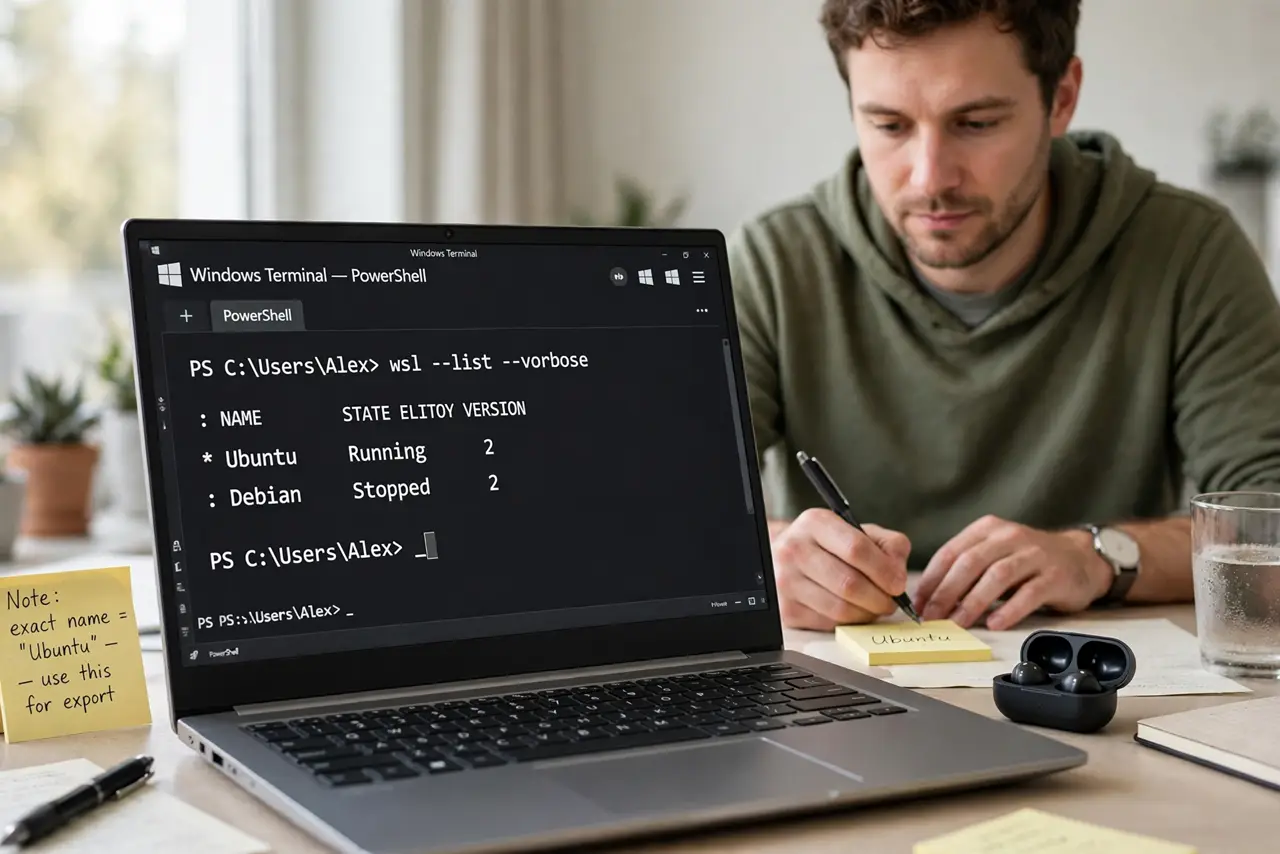
- List your distros. Open Terminal and run wsl --list --verbose to see installed distros and their states. Note the exact name — the export command needs it spelled right, and the default is not always what you assume.
- Shut the distro down cleanly. Run wsl --terminate followed by the distro name (or wsl --shutdown for all). Exporting a running distro can capture inconsistent state — thirty seconds of shutdown buys a clean snapshot.
- Export to a .tar file. Run wsl --export DistroName path\to\backup.tar — the whole filesystem, configs, and installed packages compress into one file. It takes a few minutes for large distros; let it finish.
- Store the backup off the machine. Copy the .tar to an external drive or cloud storage. A backup on the same disk it protects is a hope, not a plan — and keep it alongside your Dev Drive project backups if you use one.
- Know how to restore. If disaster strikes: wsl --import NewName path\for\disk path\to\backup.tar restores the distro under a new name. Test the restore once on a scratch import — a backup you have never restored is a rumor.
- Schedule it before risky changes. Export before major Windows updates, distro release upgrades, and experiments with system files. Regular monthly exports for active distros; the disk-space check is a good moment to export too, before cleaning.
What NOT to do
- Do not rely on File History for WSL. The distro lives in a virtual disk file that normal file backup handles badly — export is the supported path.
- Do not export while the distro is running. A live export risks a corrupted snapshot; terminate first, export second, every time.
- Do not keep the only copy on the same drive. Disk failure takes the distro and the backup together — off-machine copies are the point.
- Do not forget which distro is which. Name backup files with distro and date (ubuntu-2026-10-29.tar) — mystery .tar files get deleted in cleanups.
Frequently asked questions
How big will the backup be?
Roughly the size of your distro's used space — a lean dev setup might be a few GB, a heavy one tens of GB. The export does not compress much; plan storage accordingly.
Can I move WSL to another PC with this?
Yes — export on the old machine, copy the .tar over, import on the new one. It is the cleanest migration path, username and configs intact.
Does this back up my Windows files too?
No — only the Linux filesystem inside WSL. Windows files need their own backup; the two systems back up separately.