Zip Files Without Extra Software
You need to email a folder, and email does not do folders — it does files. Everyone says 'download a zip tool,' but Windows has zipping built in: right-click, Send to, Compressed folder. No installs, no trials, no bundled toolbars. Here is the built-in way, plus how to unzip what people send you.
TL;DR / Quick Fix
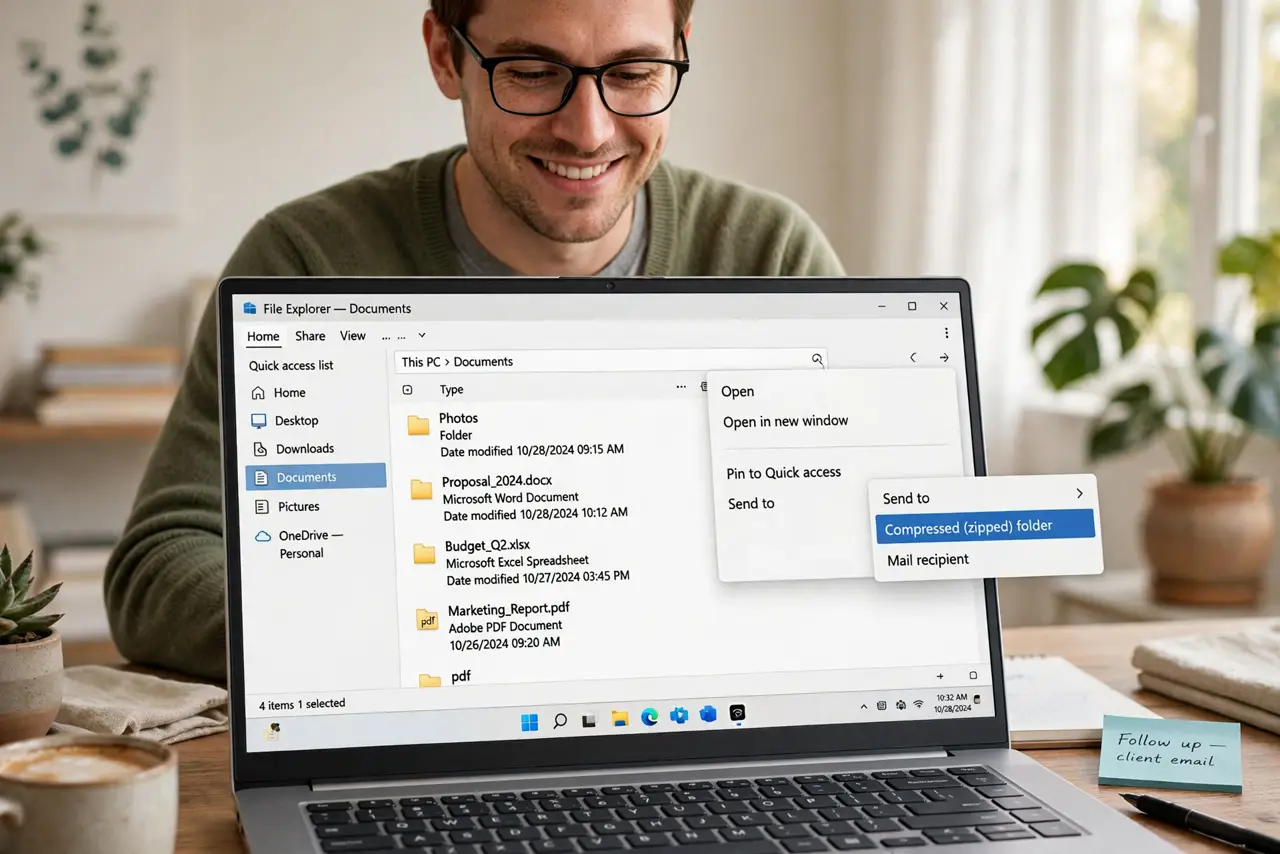
Quick fix: right-click the file or folder, choose Send to, then Compressed (zipped) folder. Windows creates the zip beside the originals. To unzip, right-click any zip and choose Extract All. No extra software needed on either end. It handles everyday archives perfectly.
Follow these steps
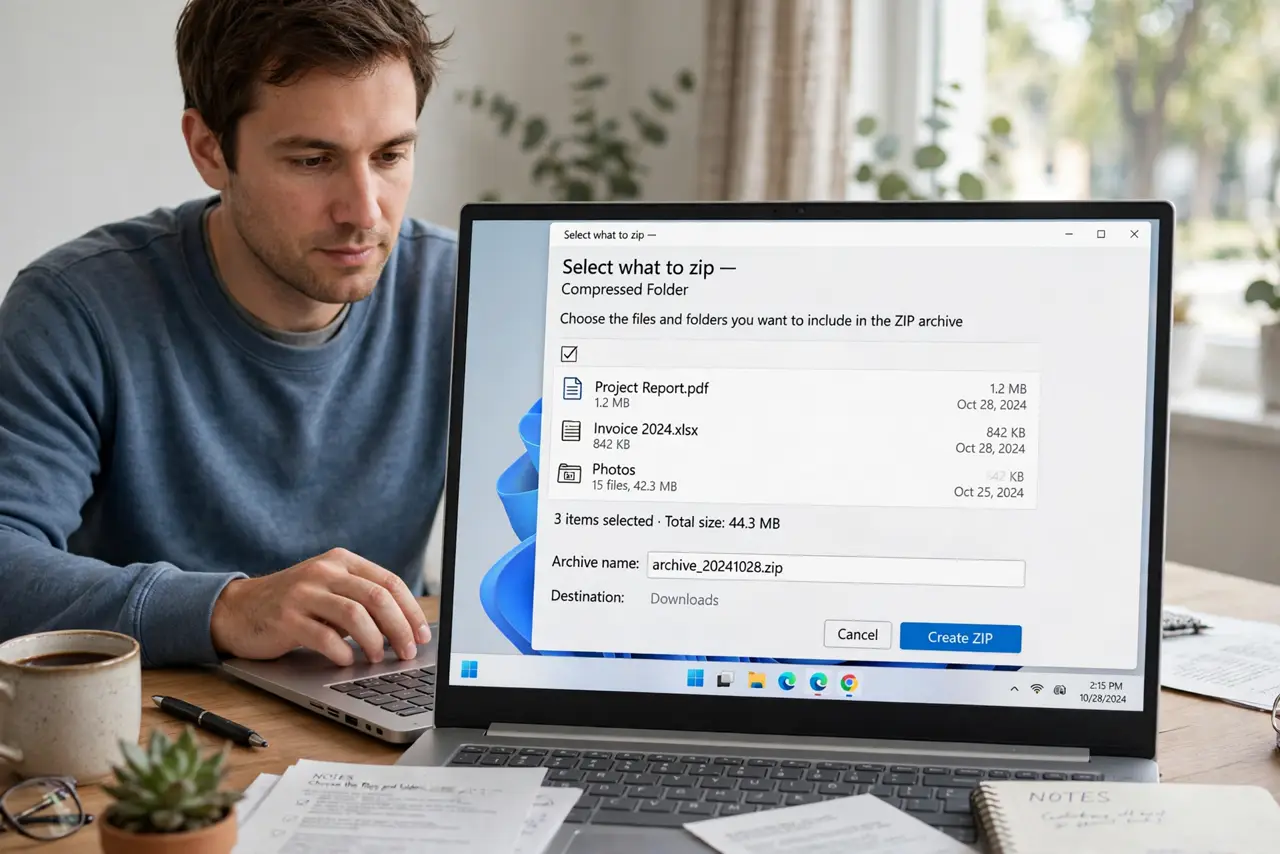
- Select what to zip. In File Explorer, click the folder or Ctrl-click multiple files. What you select is exactly what goes into the archive — check the selection before compressing.
- Right-click, Send to, Compressed folder. Right-click the selection, hover over Send to, and click Compressed (zipped) folder. Windows builds the zip right there — small selections are instant, big folders show progress.
- Find the new zip. The archive appears in the same folder, named after the first item with a .zip extension. It sits beside your originals — zipping copies, it never moves or deletes.
- Check the size before emailing. Right-click the zip, choose Properties, and check the size. Mail providers cap attachments around 20-25 MB — for bigger bundles, share a cloud link instead.
- Unzip with Extract All. Right-click any zip you receive and choose Extract All, then pick the destination. Windows unpacks everything into a folder — the built-in round trip is complete.
- Know when the built-in tool is enough. For everyday zipping and unzipping, it is. You only need third-party tools for passwords, exotic formats, or splitting archives — rare needs for most people.
What NOT to do
- Do not install a zip tool for basic zipping. The built-in tool handles everyday compress and extract without the adware risk of freeware.
- Do not delete the originals after zipping. The zip is a copy for sending — your originals are the real files.
- Do not expect big savings on photos and videos. Already-compressed files barely shrink; zipping them is about packaging, not space.
- Do not email giant zips. The 20-25 MB attachment cap is real — oversized zips bounce, embarrassing everyone.
Frequently asked questions
Where did my zip go?
It lands in the same folder as the originals. Sort by Date Modified if the folder is crowded — the zip is the newest item.
Can Windows make password-protected zips?
Not with the built-in tool — it makes plain zips. Passwords need third-party software, which is one of the few legitimate reasons to install one.
Why is the zip almost as big as the originals?
Photos, videos, and music are already compressed, so zipping repackages without shrinking. Documents and raw data compress dramatically.