The Editor in Word? Basics
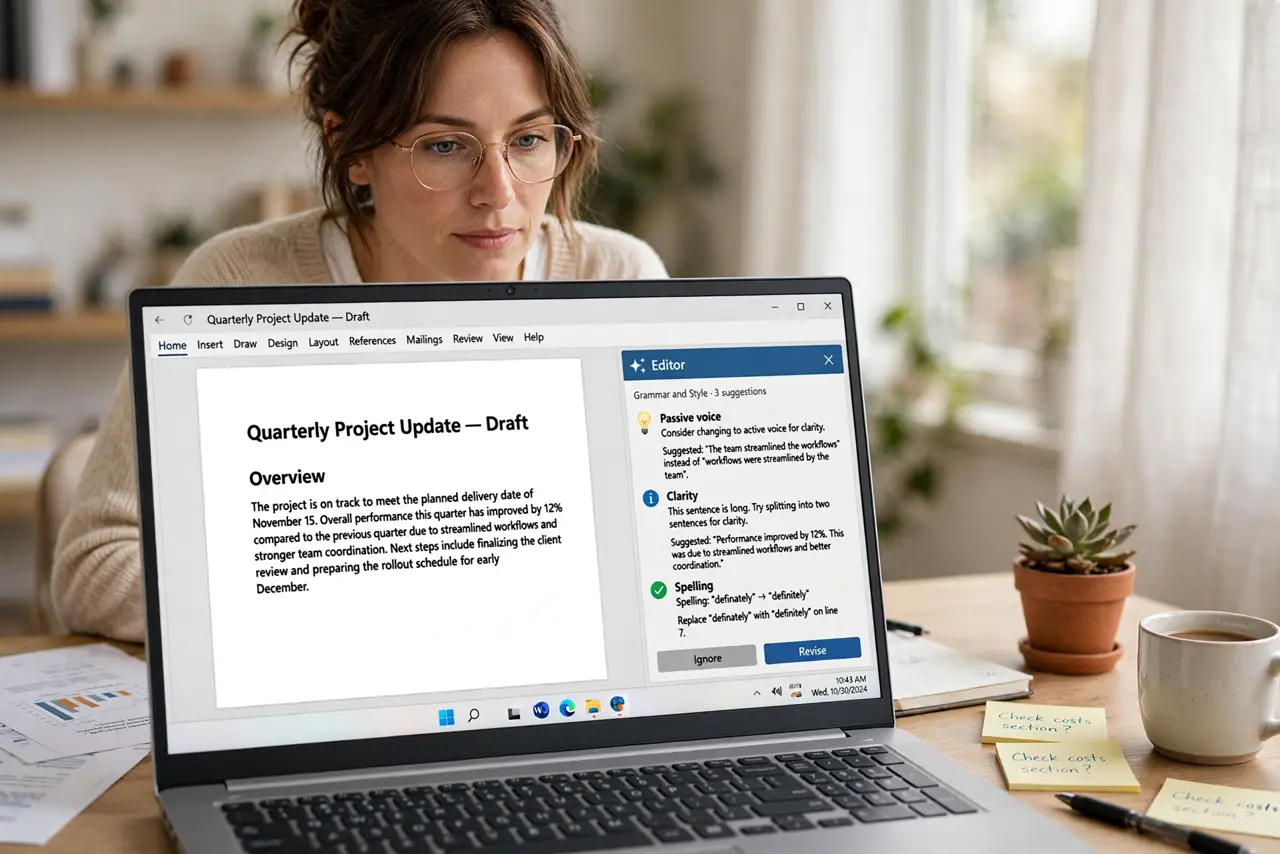
That little Editor button in Word — the one with the pencil — is Microsoft's built-in proofreader, checking spelling, grammar, clarity, and even tone as you type. Most people either ignore it entirely or click through its suggestions blindly. Used well, it catches the embarrassing errors; used badly, it rewrites your voice. Here is how to use it properly.
TL;DR / Quick Fix
Quick fix: Word's Editor proofreads spelling, grammar, clarity, and conciseness as you type — open it from the Review tab or press F7. Review each suggestion instead of accepting all; it is a sharp-eyed assistant, not an authority. Adjust its strictness in Options to match formal or casual writing.
Follow these steps
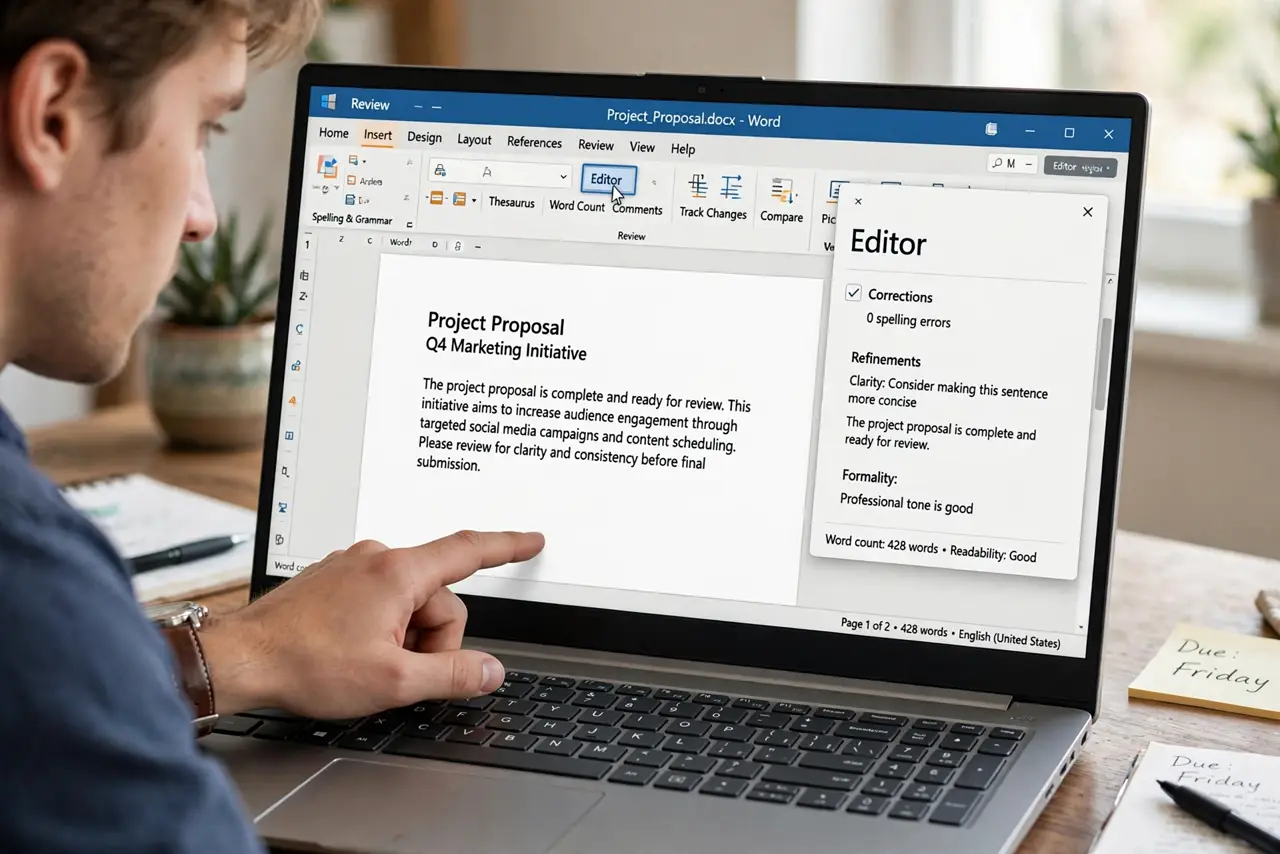
- Open the Editor pane. Go to the Review tab and click Editor, or press F7. It scans the whole document and groups issues: spelling, grammar, clarity, conciseness, and formality.
- Work through spelling first. Red underlines are spelling — the easy wins. Right-click each for suggestions, and use 'Add to Dictionary' for names and terms you use often so they stop flagging.
- Review grammar with judgment. Blue underlines are grammar and style. Read each suggestion in context — the Editor is often right about agreement errors, and often wrong about intentional style. You decide, not the algorithm.
- Use the clarity suggestions lightly. Conciseness flags ('in order to' → 'to') genuinely tighten writing. But formality and tone suggestions can sand off your voice — skip the ones that make you sound like everyone else.
- Set the strictness to match the document. File > Options > Proofing lets you choose which checks run. A formal report wants strict grammar; a casual draft does not need formality policing.
- Run a final pass before sending. Do one last F7 pass after all edits — new typos sneak in during revisions. Pair it with a read-aloud check to catch the errors your eyes skip.
What NOT to do
- Do not click 'Accept All' blindly. Bulk-accepting rewrites sentences in ways that change meaning — review each one.
- Do not let it flatten your voice. Formality and conciseness suggestions are optional style opinions, not rules.
- Do not assume no underlines means perfect. The Editor misses factual errors, wrong words used correctly ('their' vs 'there' in some contexts), and logic problems.
- Do not proofread only on screen at the end. Errors hide in familiar text — print or read aloud for the final check.
Frequently asked questions
Is Word's Editor as good as Grammarly?
For basic spelling and grammar it is comparable and built in. Dedicated tools add deeper style analysis, but Editor covers what most documents need.
Why is Editor flagging correct text?
It follows formal rules strictly — passive voice, long sentences, and regional phrasing all get flagged. Adjust the proofing options or ignore suggestions that do not fit your style.
Does Editor work offline?
Basic spelling and grammar work offline. The deeper refinement suggestions need an internet connection and a Microsoft 365 subscription.