Password-Protect a Doc
You email a salary spreadsheet and realize anyone who intercepts it can open it. Word's password protection encrypts the file itself — no password, no contents, even if the file leaks. It takes thirty seconds and beats hoping the email stays private.
TL;DR / Quick Fix
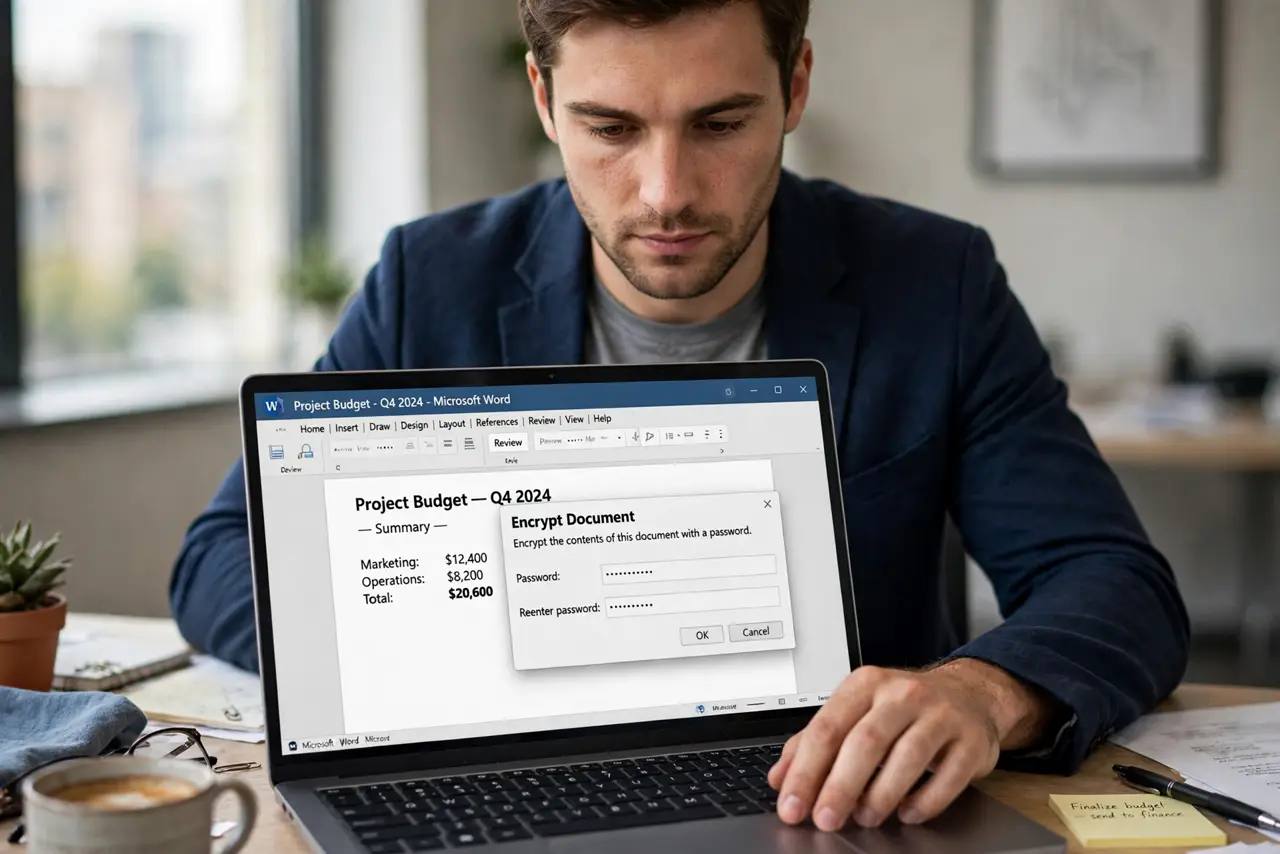
Quick fix: in Word, go to File, Info, Protect Document, Encrypt with Password, and set a password. Save the file — it is now encrypted. Share the password through a different channel than the file. There is no recovery if you forget it, so store it in a password manager.
Follow these steps
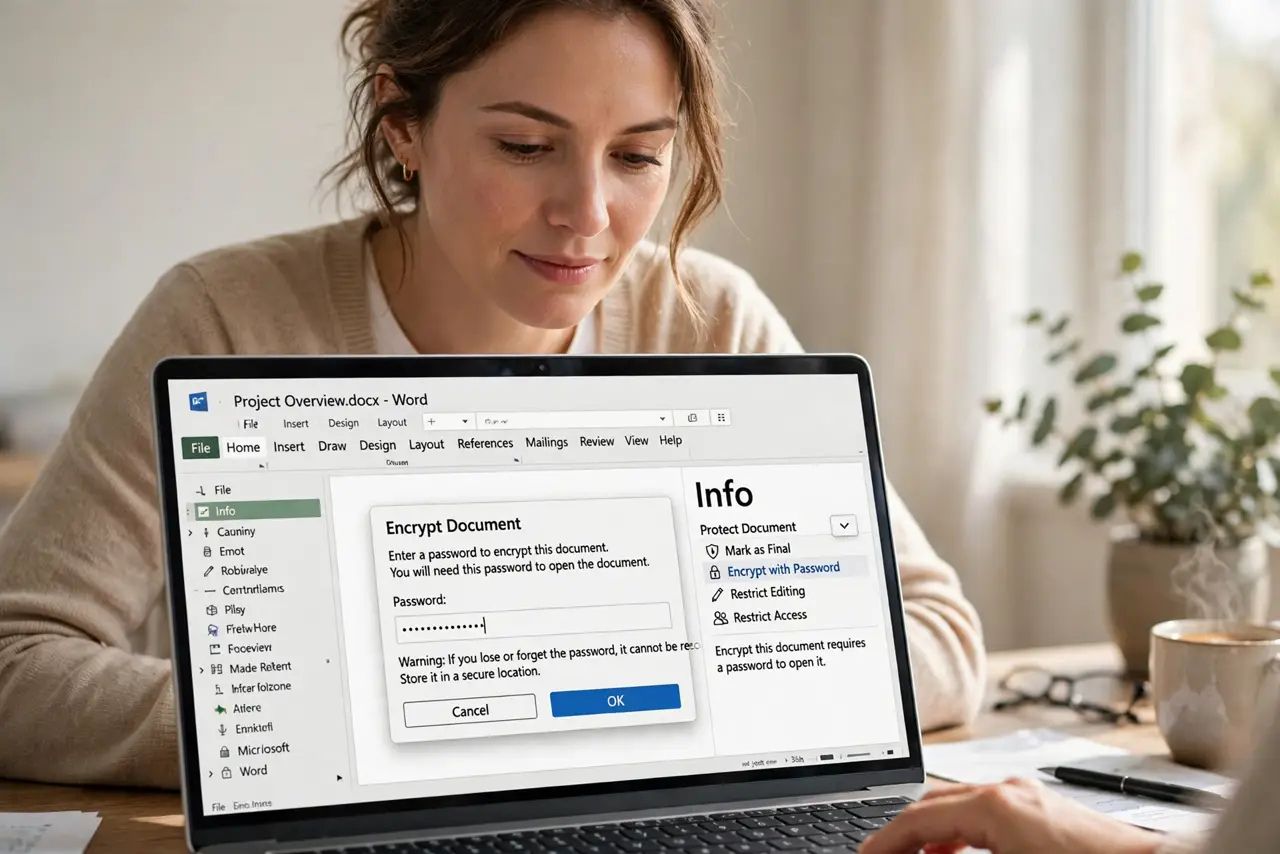
- Open Protect Document. Go to File, Info, Protect Document, Encrypt with Password. This is real encryption, not a polite request — the file scrambles without the password.
- Choose a strong password. Use a long passphrase you do not reuse elsewhere. A weak password on an encrypted file is a locked door with the key under the mat.
- Save to apply encryption. The password takes effect on save. Until you save, the file is still open — save, close, and reopen to verify the prompt appears.
- Share the password separately. Send the file by email and the password by text or call. Same-channel delivery defeats the purpose if the email is intercepted.
- Store the password safely. Put it in a password manager immediately. Microsoft cannot recover it — a forgotten password means a permanently locked file.
- Layer with editing locks if needed. For shared templates, combine encryption with editing restrictions so recipients can open it but not wreck it.
What NOT to do
- Do not use a password you will forget. There is no forgot-password link on an encrypted file — forgetting means losing the document.
- Do not email the password with the file. Separate channels or the encryption is theater.
- Do not rely on old Word formats. Save as .docx — ancient .doc encryption is weak and easily broken.
- Do not confuse restrict-editing with encryption. Locks stop editing; only a password stops opening.
Frequently asked questions
Can Microsoft recover my forgotten password?
No. The encryption is real and Microsoft holds no backdoor — a forgotten password permanently locks the file.
Is the whole file encrypted or just the text?
Everything — text, images, metadata. Without the password the file is unreadable noise.
Can I remove the password later?
Yes — reopen with the password, return to Encrypt with Password, clear the field, and save.