Format with Styles
If you format a Word document by selecting each heading and clicking bold, size 16, blue — then repeat fifty times — you are doing it the hard way. Styles let you define 'Heading 1' once and apply it everywhere, then change the whole document's look in seconds. This guide shows the workflow that makes long documents painless, and it powers the automatic table of contents too.

TL;DR / Quick Fix
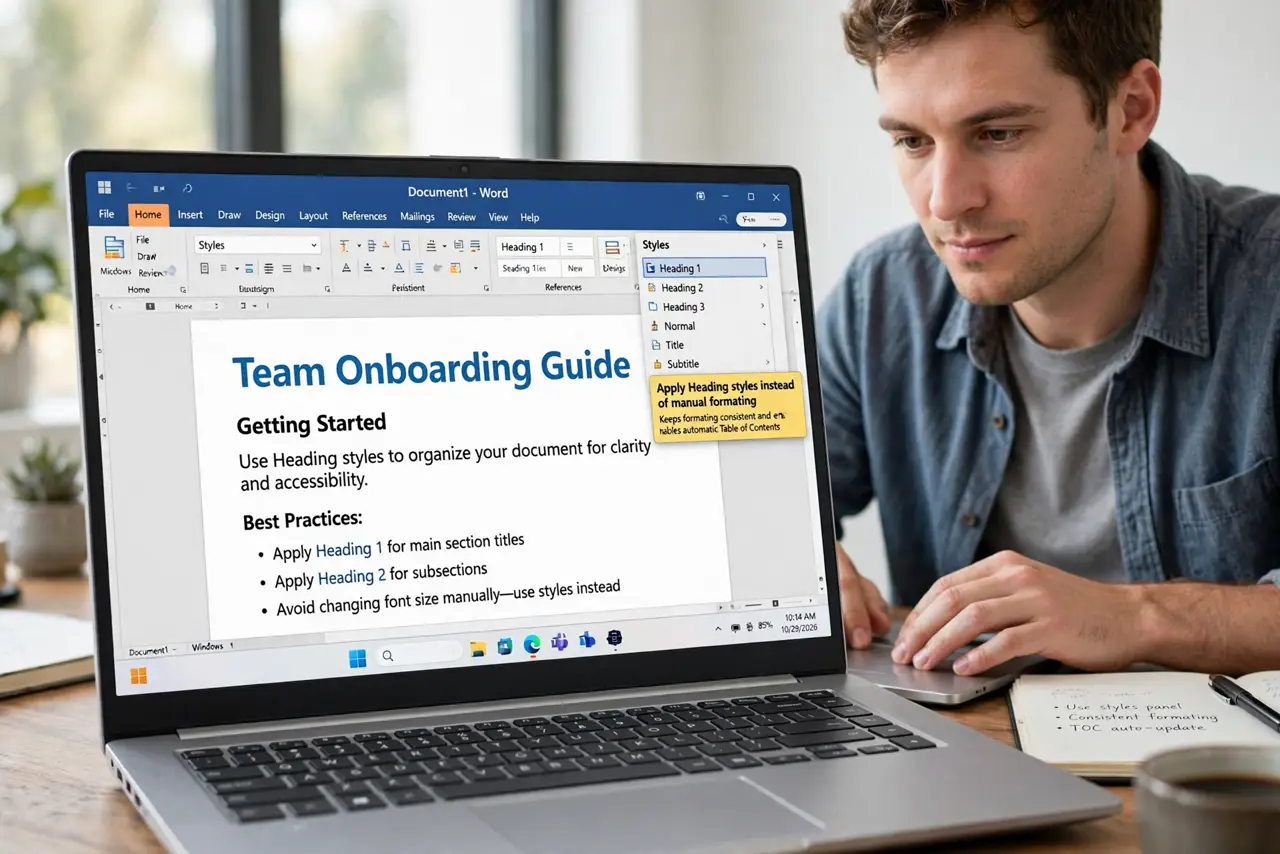
Quick fix: use the Heading 1, Heading 2, and Normal styles instead of manual bold and font sizes. Changing a style updates every matching paragraph at once. Right-click a style to modify it, and your whole document — including any auto-built table of contents — stays consistent with one click.
Follow these steps
- Apply Heading styles instead of manual formatting. Select a heading and click Heading 1 in the Styles gallery — do not just make it bold and big. The style carries the meaning, not just the look.
- Use Normal for body text. Keep body paragraphs on the Normal style. When every paragraph shares one style, a single change fixes the entire document.
- Modify a style to redesign everything at once. Right-click Heading 1, choose Modify, and change the font or color. Every Heading 1 in the document updates instantly — that is the whole payoff.
- Use Heading 2 and 3 for subsections. Nest your structure: Heading 1 for chapters, Heading 2 for sections, Heading 3 for subsections. This hierarchy is what navigation and tables of contents read.
- Create a custom style for repeated elements. If you format callout boxes or captions the same way repeatedly, save it as a new style. One definition, applied everywhere, changed once.
- Check the style of any paragraph instantly. Click into a paragraph and glance at the Styles gallery — the highlighted style tells you what it is. Mystery formatting becomes diagnosable.
What NOT to do
- Do not mix manual bold with Heading styles. Direct formatting overrides styles and creates documents that resist every bulk change.
- Do not skip heading levels. Jumping from Heading 1 to Heading 3 breaks navigation and accessibility tools.
- Do not format the table of contents by hand. Build it from styles so it updates itself — hand-typed TOCs rot on the first edit.
- Do not paste styled text without checking. Use 'Merge Formatting' paste so foreign styles do not pollute your document.
Frequently asked questions
What is the difference between a style and direct formatting?
A style is a named, reusable definition; direct formatting is a one-off override. Styles update everywhere at once; direct formatting must be fixed paragraph by paragraph.
Why does my document look different on another computer?
Usually missing fonts or conflicting direct formatting. Styles with common fonts travel much more reliably.
Can I copy styles to another document?
Yes — use the Style Organizer, or simply paste styled text and choose to keep source formatting to import the styles.