Personal Account on a Work Laptop? Separate Them
Signing into personal email, photos, or shopping on a work laptop mixes two lives that should stay apart. Work devices can be managed, backed up, or wiped by an employer, so personal accounts do not belong on them. Sign out, move your files, and use your own device for personal things. A two-factor sign-in on your personal accounts adds a second check if one was ever left signed in.
TL;DR / Quick Fix
Quick fix: List every personal account signed in. Sign out of personal email and cloud apps. Then work through the remaining steps in order, checking one change at a time, and stop for a technician if you see damage, swelling, or a burning smell.
Follow these steps
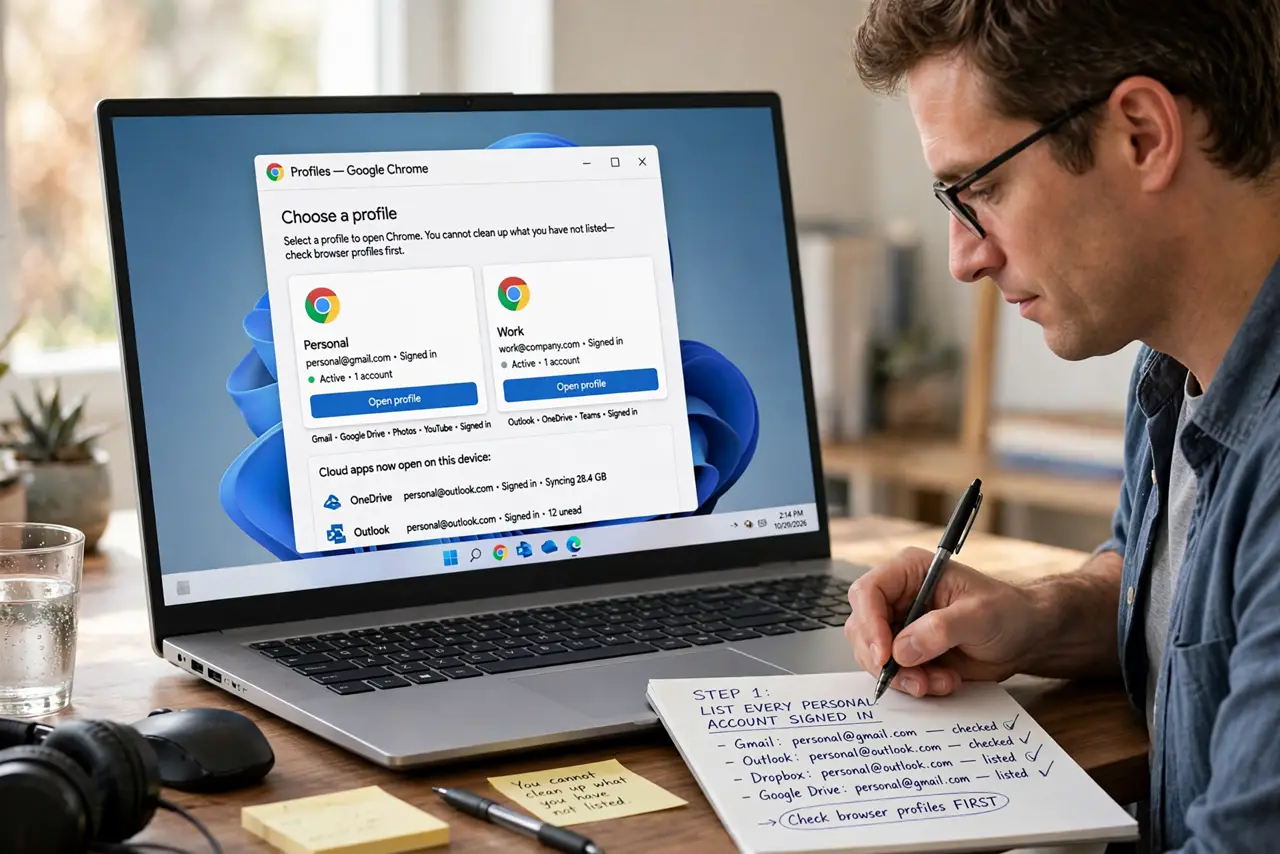
- List every personal account signed in. Open the browser, email, and cloud apps on the work laptop and write down every personal account you find. You cannot clean up what you have not listed, so check the browser profiles first.
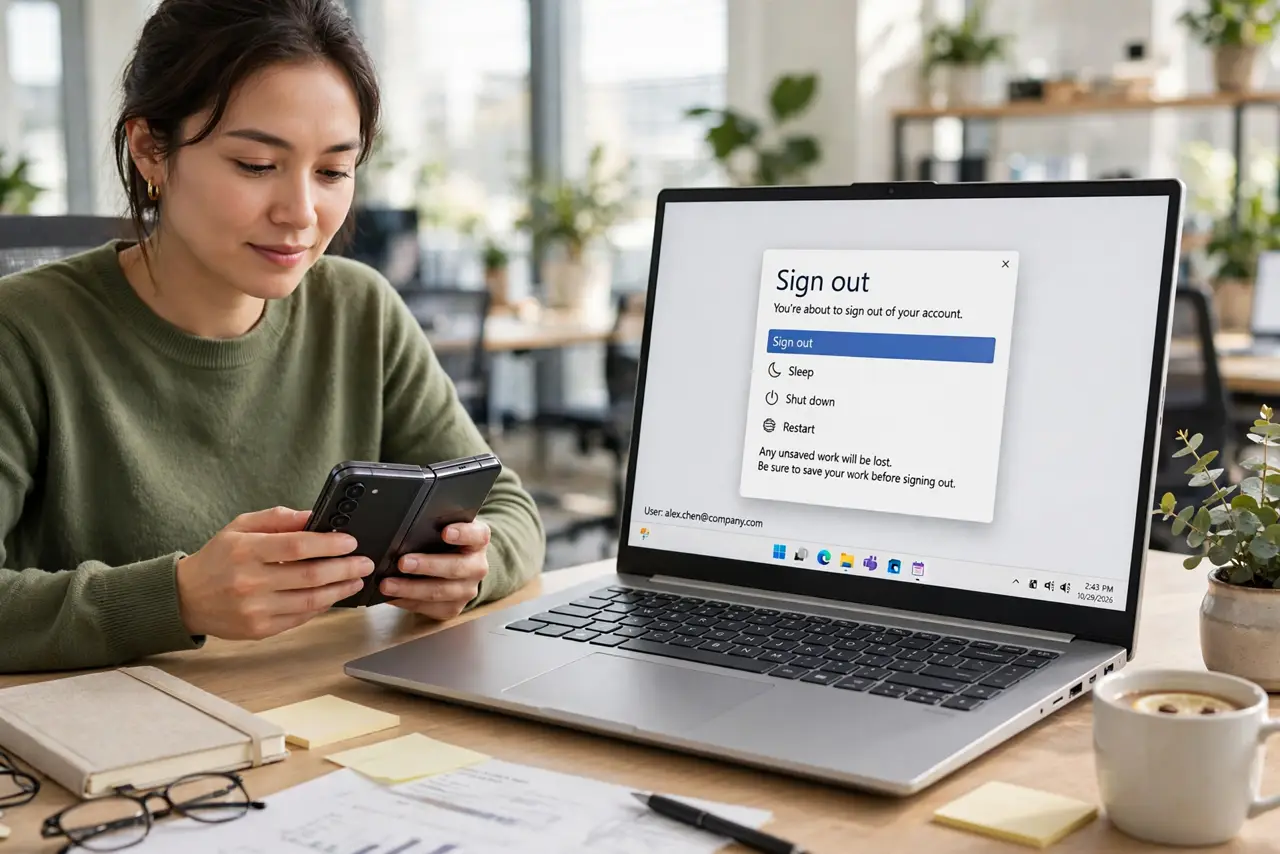
- Sign out of personal email and cloud apps. In each app, use Sign out, not just closing the window. Closing a tab leaves the account signed in, while signing out removes the session from that device.
- Move personal files to your own device. Copy personal photos, documents, and downloads to your own computer or a personal drive, then delete the copies from the work laptop. Check Downloads and Desktop, where personal files often hide.
- Remove personal browser profiles and saved passwords. Delete the personal browser profile, and in Passwords remove any personal login saved on the work laptop. Keep only work logins on a work device.
- Turn off personal sync on the work laptop. In browser and cloud settings, turn off sync for personal accounts so contacts, history, and passwords stop flowing onto the work device after you sign out.
- Check once more after a restart. Restart the laptop, open the browser and apps, and confirm no personal account signs itself back in. If one does, it is still saved somewhere, so remove that saved login and sign out again.
What NOT to do
- Do not keep personal files on a work laptop because it is convenient. A managed device can be wiped or returned, and convenience does not protect your files.
- Do not sign into personal banking on a work device. Work laptops can run management software you do not control, so keep banking on your own device.
- Do not assume closing a tab signed you out. Many apps stay signed in for weeks, so use the real Sign out option in each app.
- Do not mix personal and work files in one folder. Mixed folders make it easy to share the wrong file or lose personal files during a work backup.
Frequently asked questions
Can my employer see my personal account on a work laptop?
A managed work device can be monitored, backed up, or wiped by the employer, so treat anything on it as work-visible. Keep personal accounts off it.
Is signing out enough, or must I delete files too?
Signing out stops access, but personal files left on the disk are still there. Move them to your own device and delete the work-laptop copies.
What if I need one personal app for work?
Ask your manager or IT team first. If they approve it, use a separate work-approved account rather than your main personal account.