Set Up YouTube Kids
Regular YouTube is an autoplay rabbit hole of unboxing videos and stranger content — no place for a six-year-old. YouTube Kids is the walled garden: curated content, timers, search controls, and per-child profiles, all free. Fifteen minutes of setup turns the tablet from a worry into a safe babysitter.
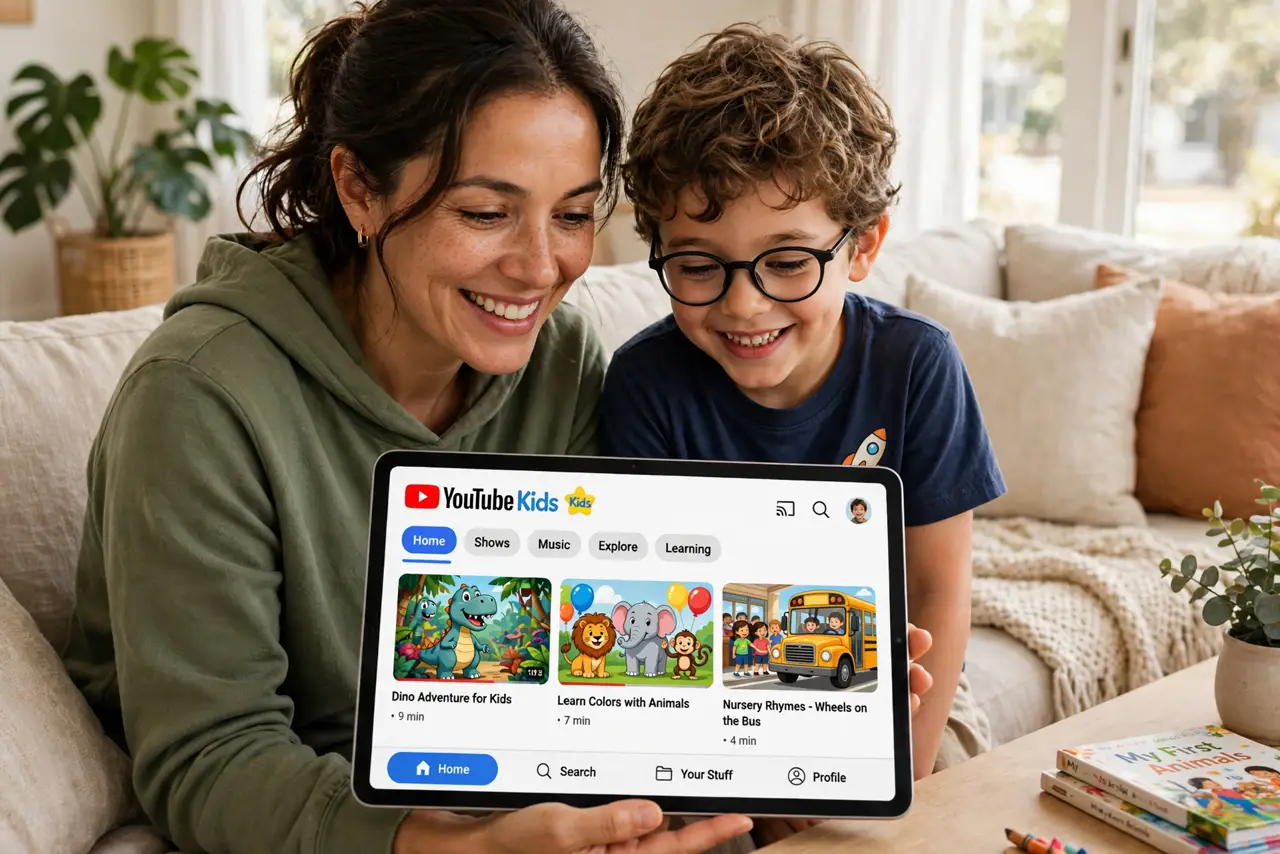
TL;DR / Quick Fix
Quick fix: install YouTube Kids, create a profile per child with the right age setting, turn off search for younger kids, and set the built-in timer. Review the watch history weekly together. It is a strong fence, not a perfect one — the conversation about weird videos still matters most.
Follow these steps
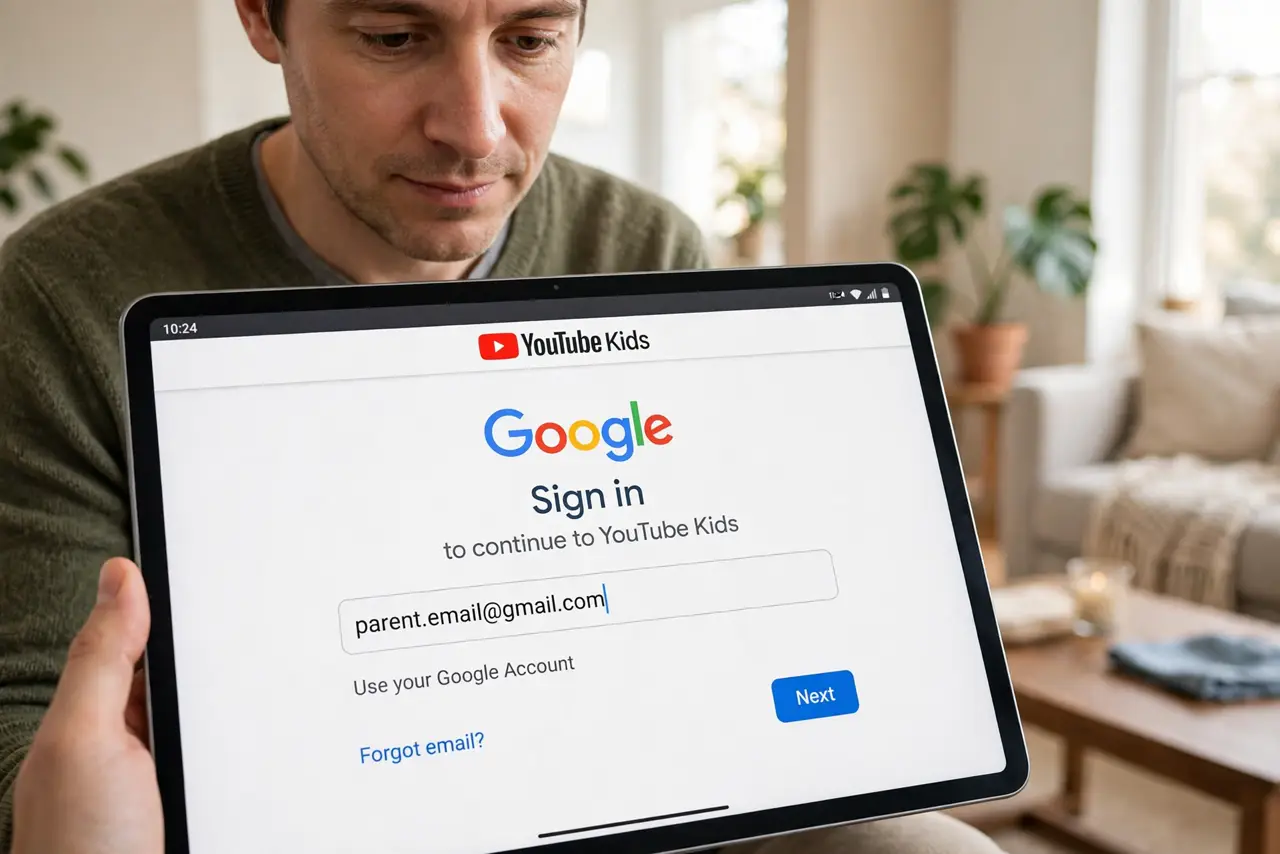
- Install YouTube Kids, not the main app. Get YouTube Kids from the app store and sign in with your Google account. Parental controls only exist in the Kids app — the main YouTube app has no child mode worth trusting.
- Create a profile per child. Set each profile to the right age band: younger, older, or approved content only. Siblings of different ages need different fences — one profile for all is a compromise nobody needs.
- Turn off search for little kids. With search off, kids browse only curated collections. Search on is fine for older kids, but pair it with history reviews — and note the purchase approval habit for the app store side.
- Set the built-in timer. YouTube Kids has its own screen-time timer independent of the OS. Set it so the app locks itself — no nightly negotiation required.
- Block and report as you go. When something odd slips through, block the channel and report it in the app. Curation improves with reports, and kids should learn the block button too.
- Review watch history together. The history shows exactly what they watched. A weekly skim plus a chat about anything weird beats any filter — see the broader kid-safety layers for the full picture.
What NOT to do
- Do not hand over the main YouTube app to a young child. Autoplay there is engineered for engagement, not for kids.
- Do not set one profile for kids of very different ages. The toddler and the tween need different content fences.
- Do not treat approved-content-only as fire-and-forget. Review the approved list as tastes change — stale lists get circumvented.
- Do not skip the timer. Without it, one more video stretches bedtime by an hour, every night.
Frequently asked questions
What ages is YouTube Kids for?
Officially under 13, with content bands for younger and older kids. Teens generally outgrow it and need the broader controls instead.
Is YouTube Kids completely safe?
No — odd content occasionally slips through curation. It is far safer than main YouTube, but history reviews remain wise.
Can I block specific channels?
Yes — block any channel or video from the app, and it stays blocked on that childs profile.