Zip Files the Easy Way
Email rejects your attachment, the upload stalls at 99%, or you need to send forty files without forty emails. Zipping bundles files into one smaller package that every computer knows how to open. It is built into Windows and Mac — no downloads, no accounts, no fuss.
TL;DR / Quick Fix
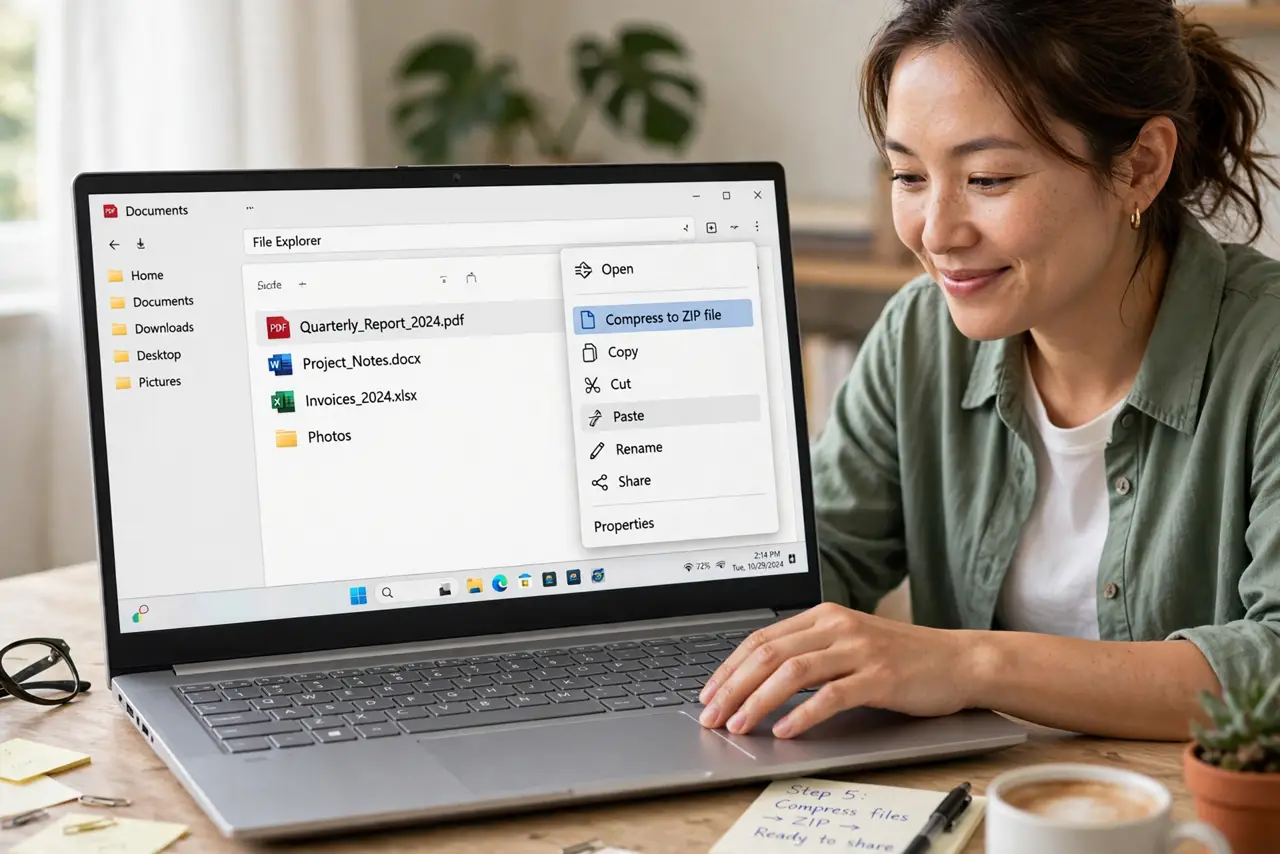
Quick fix: on Windows, right-click files and choose Send to, Compressed folder; on Mac, right-click and choose Compress. To unzip, double-click the archive. Zip shrinks documents and photos noticeably but barely touches already-compressed video — for big videos, share a link instead of attaching.
Follow these steps
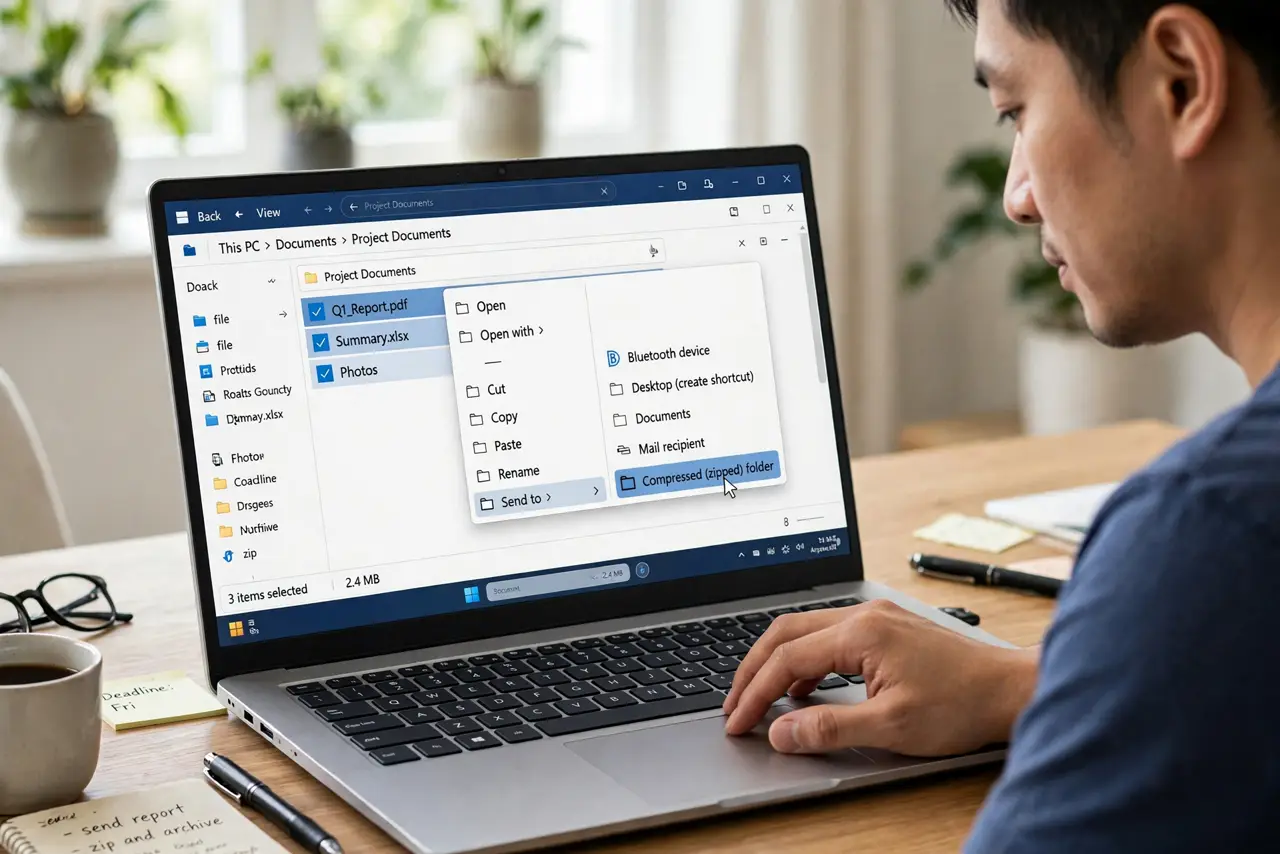
- Zip on Windows. Select the files, right-click, choose Send to, then Compressed (zipped) folder. Windows creates the archive in the same folder — rename it to something clear.
- Zip on Mac. Select the files, right-click, and choose Compress. For options like naming, see the Mac zip guide — the basics are one click.
- Unzip by double-clicking. On both systems, double-clicking a zip extracts it to a folder beside the archive. If that fails, check zip file not opening before assuming the file is corrupt.
- Zip a whole folder. Right-click the folder itself instead of selecting files one by one. The folder structure inside is preserved exactly.
- Know what shrinks and what doesn't. Documents, spreadsheets, and raw photos shrink a lot. Videos, MP3s, and JPGs barely shrink — they are already compressed.
- Send big files as links instead. If the zip is still too big for email, upload it to your cloud drive and share the link. Email attachments were never meant for gigabytes.
What NOT to do
- Do not zip files that are already zipped. Re-compressing gains nothing and just wastes your time.
- Do not email huge zips and hope. Most providers cap attachments around 25 MB — check the size before sending.
- Do not use zip as backup. A single archive is a single point of failure — keep real backups separately.
- Do not open zips from strangers blindly. Archives can hide malware — scan unexpected attachments and confirm the sender.
Frequently asked questions
What's the difference between Zip and RAR?
Both compress files; Zip opens natively everywhere while RAR needs extra software. For sharing, Zip is the universal choice.
Can I password-protect a zip?
Yes, on both systems with a few extra steps — useful for sensitive files sent by email.
Why is my zip almost as big as the originals?
The files were already compressed (video, JPG, MP3). Zip cannot squeeze what is already squeezed.