Authenticator App vs SMS Codes? Choose
Two-factor codes can arrive by text message or from an authenticator app, and both count as a second factor. But they are not equally safe: texts can be intercepted, while app codes stay on your phone. This guide compares the two so you can choose well.
TL;DR / Quick Fix
Quick fix: use an authenticator app instead of SMS codes wherever a site offers both. App codes cannot be intercepted like text messages, and they work without cell signal. Keep your backup codes somewhere safe, since losing your phone without them means a painful account recovery.
Follow these steps
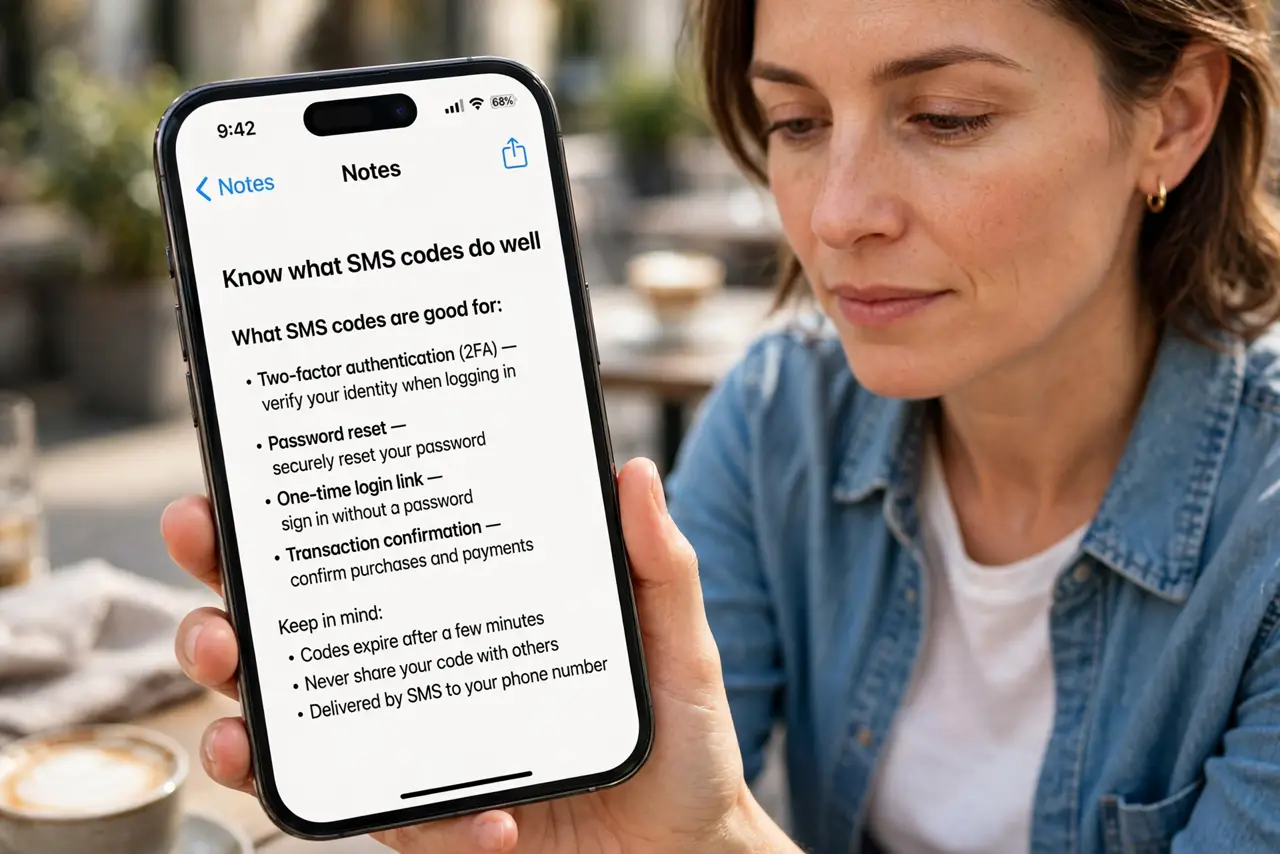
- Know what SMS codes do well. Text codes are easy and need no app. For accounts where nothing better is offered, SMS two-factor is still far better than a password alone.
- Know the SMS weakness. Text messages can be intercepted through SIM swapping, where a scammer convinces your carrier to move your number to their phone. Then your codes go to them.
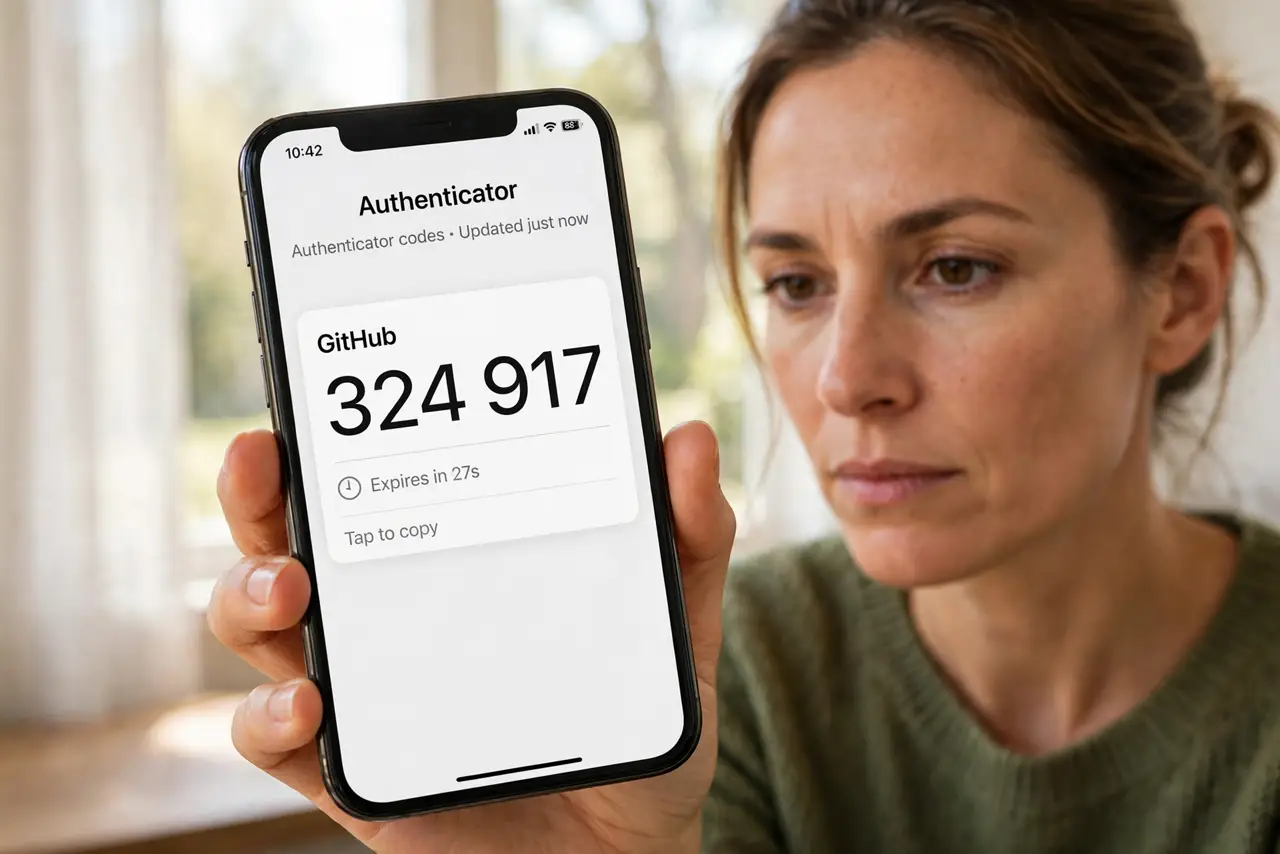
- Know what an authenticator app does. The app generates a new six-digit code every 30 seconds on your phone. The codes never travel over the network, so there is nothing to intercept. See how to set up two-factor if you have never done it.
- Set up the app on your important accounts. In each account's security settings, choose Authenticator app, scan the QR code with your app, and enter the code it shows. Start with email, banking, and social accounts.
- Save the backup codes. Every site shows one-time backup codes during setup. Print them or write them down and store them somewhere safe — they are your way back in if you lose the phone holding your codes.
- Turn off SMS where the app works. Once the app is set up and tested, remove the phone number as a two-factor method where the site allows it. That closes the SIM-swap hole for that account.
What NOT to do
- Do not screenshot the QR code and leave it in your photos. Anyone who sees it can clone your codes, so delete it after setup.
- Do not skip the backup codes. Without them, a lost or reset phone turns into a long account recovery process.
- Do not use the same phone number for SMS codes and account recovery on every site. Spread the risk where you can.
- Do not assume SMS is safe because you never had a problem. SIM swapping targets people quietly, and you only learn about it after the damage.
Frequently asked questions
Which authenticator app should I use?
Any reputable one works: Google Authenticator, Microsoft Authenticator, or your password manager's built-in one. Pick one that backs up to your cloud account so a lost phone is not a disaster.
Can I use an authenticator app on two phones?
Usually yes by scanning the same QR code on both during setup, or through the app's cloud sync. Do it at setup time, since the QR code is only shown once.
What if a site only offers SMS codes?
Use them — SMS two-factor still blocks most attacks. Just make sure that account also has a strong unique password.