Set Up Passkeys on Android
Your Android keeps offering passkeys and you're not sure where they live or what unlocks them. On Android, passkeys live in Google Password Manager and open with your screen lock — fingerprint, face, or PIN. Once you see the pattern, creating them becomes second nature.
TL;DR / Quick Fix
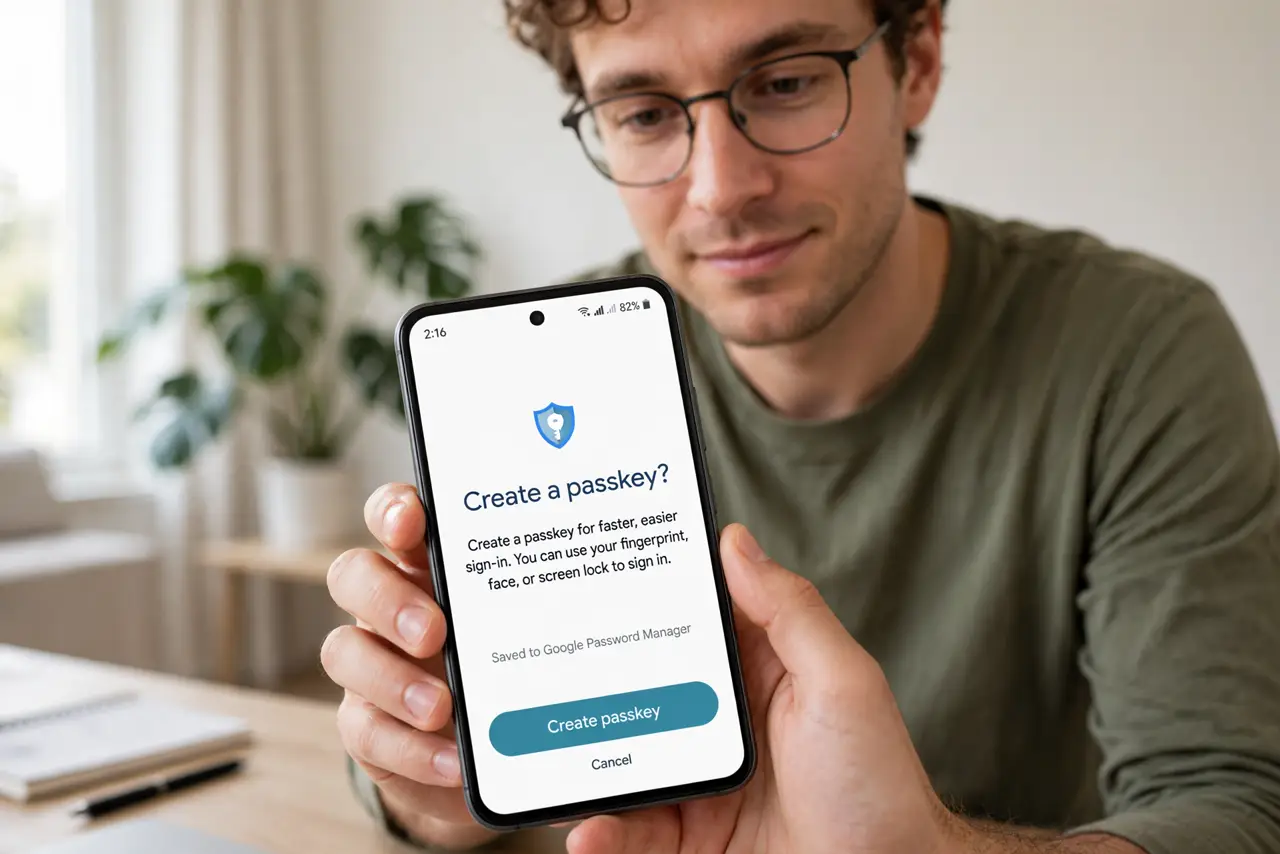
Quick fix: Android passkeys live in Google Password Manager and unlock with your screen lock — fingerprint, face, or PIN. When a site offers 'create a passkey,' accept it in Chrome; it's saved to your Google Account and syncs across devices. Keep your Google Account's recovery options current.
Follow these steps
- Understand where Android passkeys live. They're stored in Google Password Manager, tied to your Google Account — not in some app you must install. Learn the passkey basics if the concept is new.
- Make sure you have a screen lock set. Passkeys require a device screen lock — fingerprint, face, PIN, or pattern. No lock screen, no passkeys; set one in Settings, Security if needed.
- Create a passkey when a site offers it. In Chrome, when a site's security settings offer 'create a passkey,' accept. Your screen lock confirms — that's the whole ceremony, no password typed.
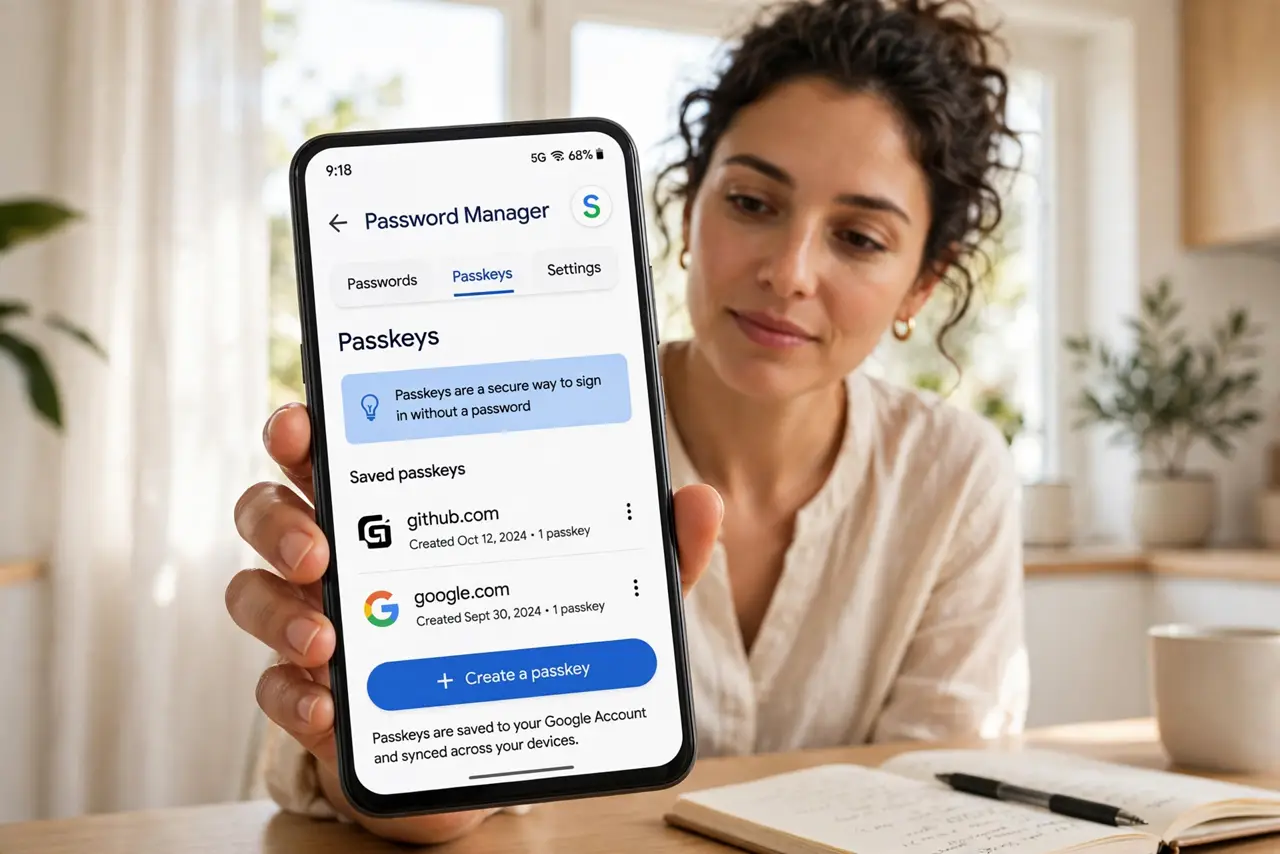
- Confirm it synced to your Google Account. Check Google Password Manager to see the passkey listed. Synced passkeys follow you to new phones — understand the sync details so you're never surprised.
- Test signing in with it. Sign out and sign back in via the passkey option. A two-minute test now beats a lockout discovery later.
- Keep your Google Account recovery current. Your passkeys' safety net is your Google Account's recovery options. If you lose the phone, recovery starts there — see the lost-phone plan.
What NOT to do
- Do not skip setting a screen lock. Passkeys physically cannot exist on Android without one — it's a requirement, not a suggestion.
- Do not assume every app supports passkeys yet. Browser sign-ins lead; some apps still want passwords — keep the password manager for those.
- Do not factory-reset without knowing your passkeys sync. They live in your Google Account, so they survive — but verify the sync before wiping.
- Do not share the Google Account holding your passkeys. Whoever holds the account holds the keys — keep it yours alone.
Frequently asked questions
Do passkeys work on Samsung phones?
Yes — Samsung phones use the same Google Password Manager passkeys, unlocked with Samsung's screen lock. The experience is identical.
What if I lose my phone?
Sign into your Google Account on a new Android and your synced passkeys return. Keep the account's recovery options current — that's the whole plan.
Passkey or password — which is safer?
Passkey, by a wide margin — nothing to phish, reuse, or leak. The site never holds a secret worth stealing.