Scan QR Codes on Android
Every restaurant table, parking meter, and event poster now has a QR code, and you are not sure your phone can even read them. Good news: nearly every modern Android scans QR codes with the built-in camera — no app needed. Here is how to do it, what to do when it does not work, and the scam to watch for.
TL;DR / Quick Fix
Quick fix: most Android phones scan QR codes from the camera app — point, then tap the link. If nothing happens, enable the QR toggle in camera settings or use Google Lens. No separate scanner app needed. Watch for sticker-covered codes in public — that is the classic QR scam.
Follow these steps
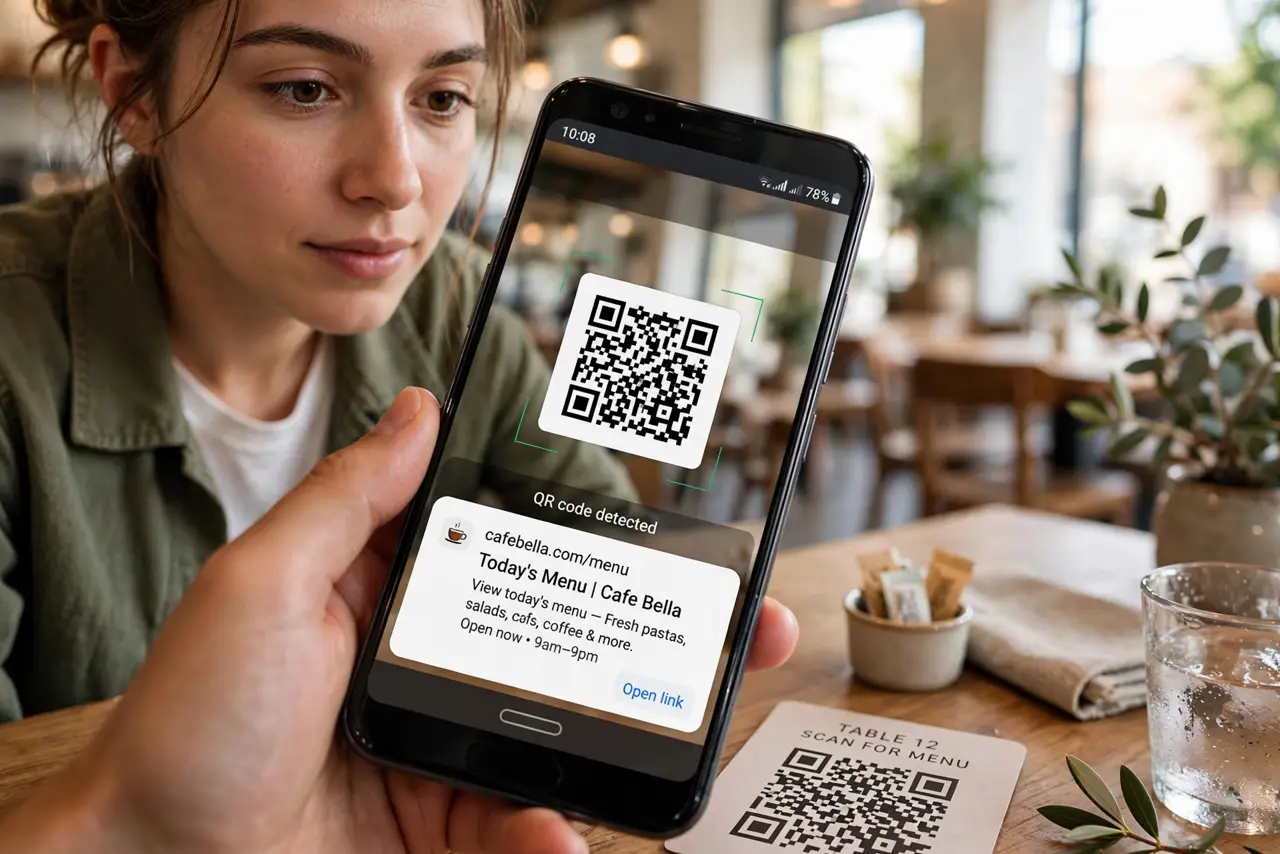
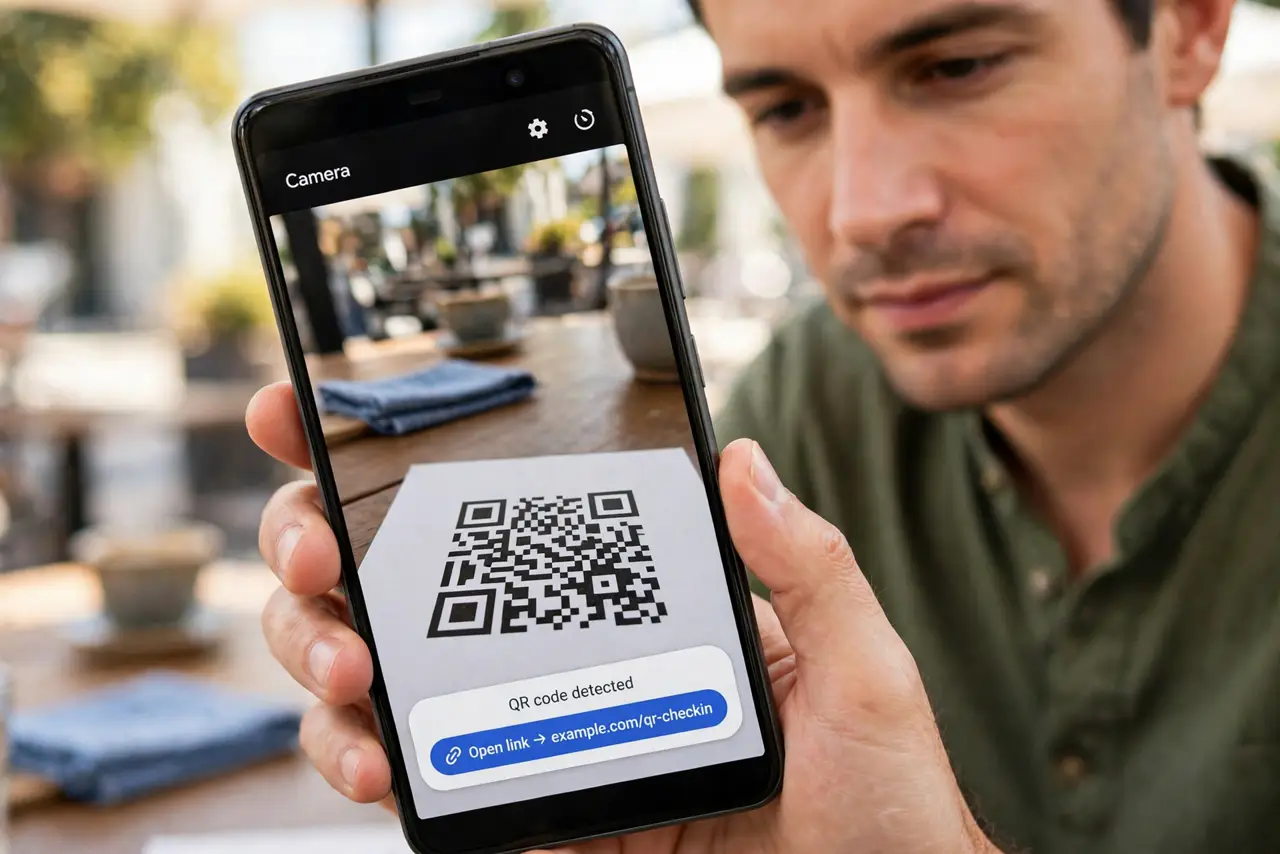
- Try the camera app first. Open the camera, point it at the QR code, and hold steady. Most Android phones (Samsung, Pixel, and others) detect codes automatically and show a tappable link.
- Enable the QR toggle if needed. Some camera apps hide QR scanning behind a setting. Open camera settings and look for Scan QR codes — one toggle, permanently on.
- Use Google Lens as backup. No toggle? Open Google Lens (in the camera app or as its own app), point, and tap the code. Lens scans anything the camera will not.
- Check the link before tapping. The preview shows the URL — read it. A QR code is just a link you cannot read with your eyes, so the preview is your only inspection. The QR phishing guide shows the red flags.
- Use the right tool for Wi-Fi codes. Restaurant table codes that join Wi-Fi work through the camera too — tap the prompt and Android joins the network. The Wi-Fi QR sharing guide covers making your own.
- Skip third-party scanner apps. The Play Store is full of QR scanners stuffed with ads and trackers. Your camera and Lens do the job with none of that — do not install one.
What NOT to do
- Do not scan sticker-covered codes in public. A sticker over a real parking-meter or restaurant code redirects to a scam — peel suspicion, not the sticker.
- Do not tap without reading the preview URL. Misspelled domains and URL shorteners hiding the destination are the classic QR traps.
- Do not install a random QR scanner app. Many are adware in disguise — the built-in camera is safer and faster.
- Do not enter payment details from a QR code blindly. Verify the business first — QR codes at checkout are a growing scam vector.
Frequently asked questions
Why will not my camera scan the code?
Usually the QR toggle is off, the code is too small or damaged, or you are too close. Enable the toggle, hold steady at 15–20 cm, and try Lens as backup.
Are QR codes safe?
The code itself is neutral — it is just a link. The danger is where it points, which is why previewing the URL matters. Treat every code like an unknown link.
Can I create my own QR codes?
Yes — free generators make them for URLs, Wi-Fi credentials, and contact cards. Your phone's Wi-Fi settings can generate a shareable network code directly.