Audit App Permissions
Your flashlight app wants your contacts, a game wants your location always, a photo editor wants your microphone — apps overreach daily, and permissions granted years ago linger forever. This guide audits every permission on your phone and revokes the absurd ones, continuing the mic audit across all sensors.
TL;DR / Quick Fix
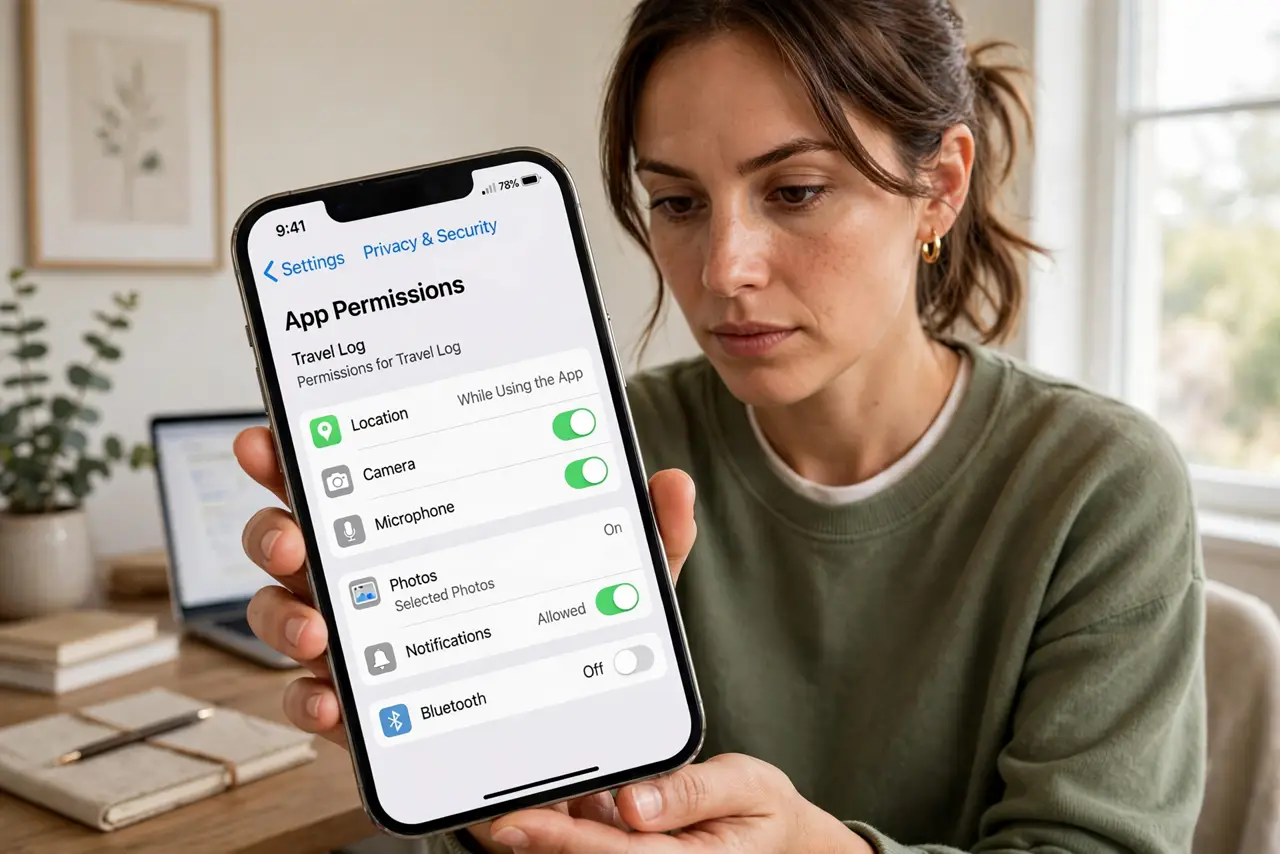
Quick fix: audit app permissions twice a year — review location, camera, mic, and contacts access per app and revoke what is not needed. Remove apps you no longer use instead of leaving permissions live. Fewer permissions means a smaller blast radius if an app misbehaves.
Follow these steps
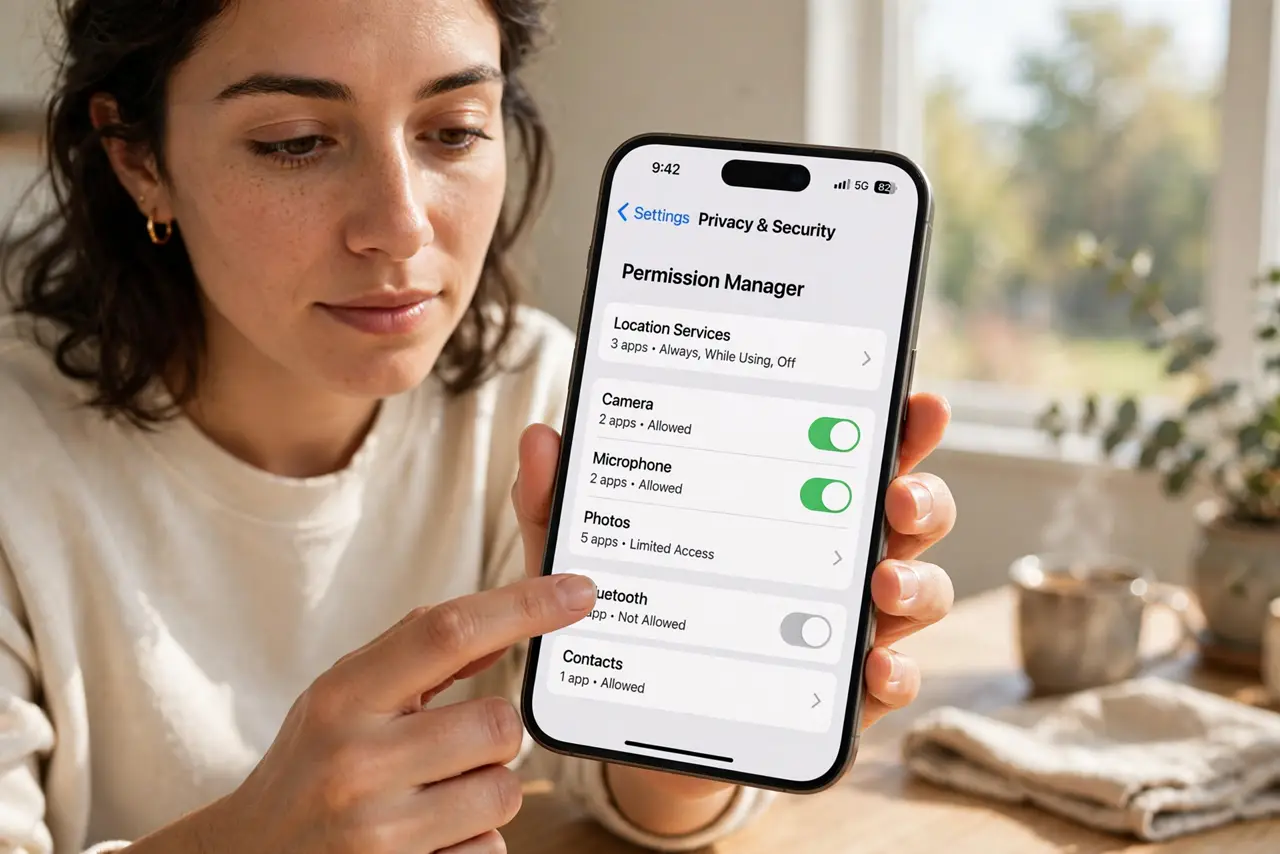
- Open the permission manager. iPhone: Settings, Privacy and Security — each category lists its apps. Android: Settings, Privacy, Permission Manager. One dashboard per sensor.
- Start with location. Location is the most abused permission. Set everything to While Using or Ask Every Time — 'Always' is rarely justified outside navigation and family tracking.
- Audit camera and mic. If you did the camera cover audit and mic audit, you are ahead — otherwise do them now. These two sensors deserve the strictest eyes.
- Check contacts and photos. Full contacts access for a game is absurd; full photo library for a meme app is too. Use Selected Photos and limited contacts where offered.
- Remove dead apps. An app you have not opened in a year should not hold live permissions. Delete it — revoking plus removing is the clean kill.
- Calendar a repeat audit. Permissions creep back with updates and new installs. A twice-yearly audit — same day as your password review — keeps the creep in check. And tighten ad tracking while you are in the privacy settings.
What NOT to do
- Do not grant 'Always' location casually. While Using covers nearly every legit need — Always is for navigation-grade exceptions.
- Do not assume new phones are clean. Restored backups carry old permissions forward — audit after every new device setup.
- Do not ignore 'only this time'. One-time grants are the perfect middle ground for rare needs — use them.
- Do not forget work profiles and kids' devices. Managed and family devices need their own audits — yours does not cover them.
Frequently asked questions
Will revoking break the app?
If it truly needs the permission, it will ask again when you use the feature. Revoke freely; legit needs re-request politely.
What is 'Precise' vs 'Approximate' location?
Approximate gives a rough area — enough for weather and local search. Reserve Precise for navigation and rideshares.
How often should I audit?
Twice a year, plus after installing anything permission-hungry. Five minutes keeps the list honest.