Set Up an Apple Watch
A new Apple Watch does very little until it is paired with an iPhone — and the pairing process, with its swirling animation and long sync, confuses plenty of first-timers. Get the order right and it takes about fifteen minutes; get it wrong and you loop through failures. Here is the clean path.
TL;DR / Quick Fix
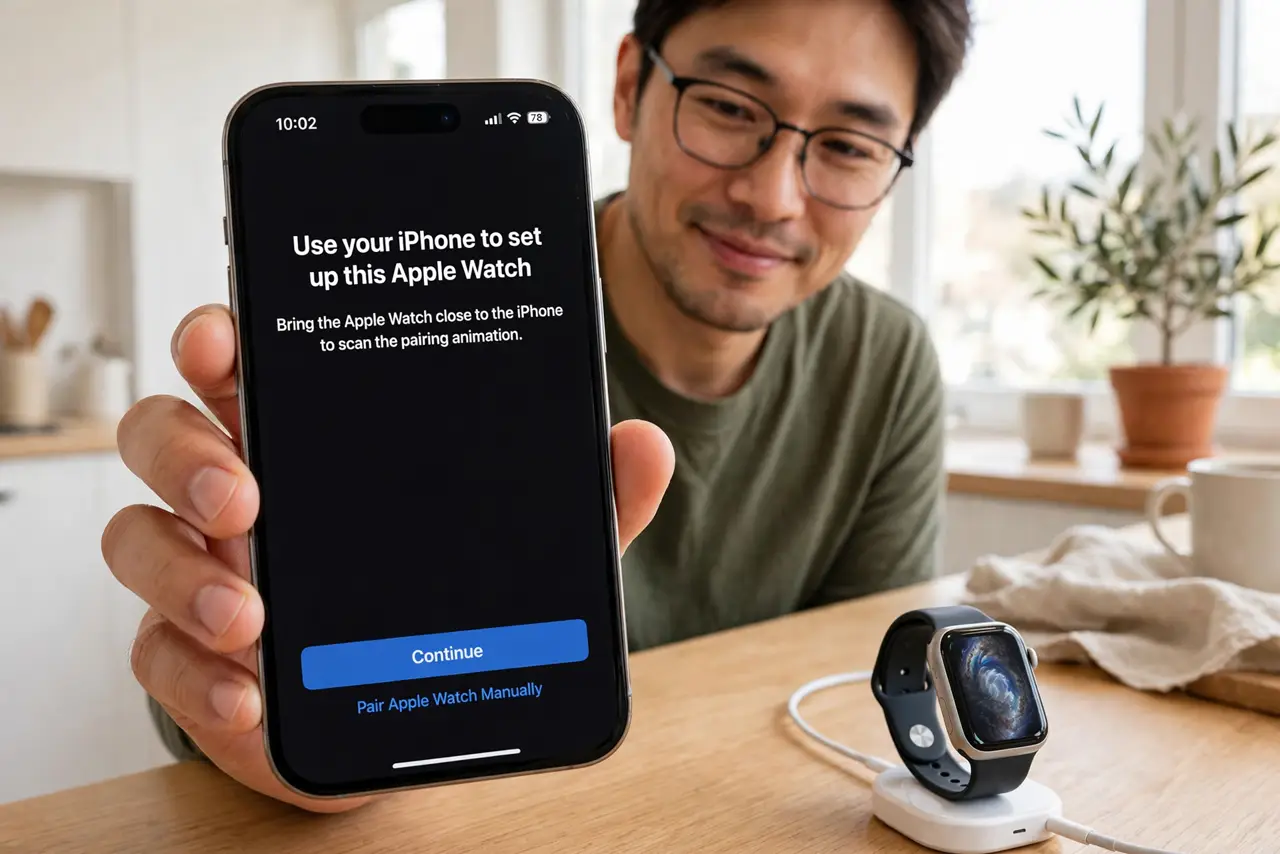
Quick fix: put the Apple Watch on its charger, hold it near your iPhone with Bluetooth on, and follow the pairing prompts. Sign in with your Apple ID when asked, choose your wrist and apps, then wait for the sync. Update watchOS before judging battery life.
Follow these steps
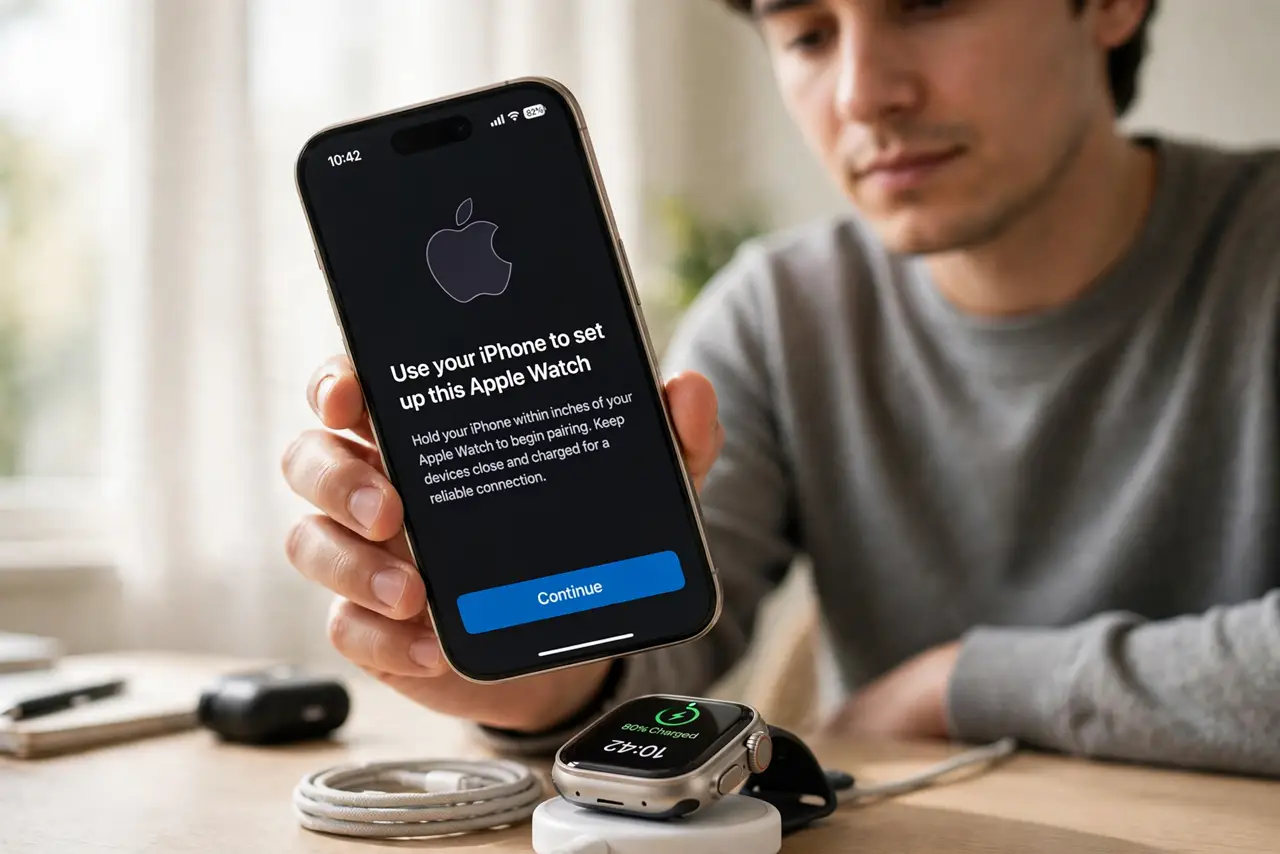
- Charge and position everything. Put the watch on its charger with a decent charge, and hold the iPhone within inches. Pairing over a weak battery or across the room is the top cause of mysterious failures.
- Start pairing from the Watch app. Open the Watch app on iPhone and tap Start Pairing, then point the camera at the watch’s animation. Manual pairing with the code works too if the camera will not cooperate.
- Sign in and choose your setup. Enter your Apple ID when asked, pick which wrist you wear it on, and choose which apps to install. Say yes to the health permissions you actually want — location, heart rate, notifications.
- Wait out the sync. The first sync copies apps and data and takes a while — keep both devices close, charged, and untouched. Interrupting it mid-sync is how you get a half-configured watch.
- Set up Apple Pay and safety features. Add a card to Apple Pay on the watch, and set up fall detection and emergency SOS with your details. These are the features that matter most when they matter at all.
- Update before judging anything. Install the pending watchOS update, then give it two full charge cycles. Launch software plus setup indexing makes day-one battery look worse than it is — see unlock-with-watch quirks if Mac unlocking acts up.
What NOT to do
- Do not pair across the room. Inches apart, both charged — distance and low battery cause most pairing failures.
- Do not interrupt the first sync. Walk away and let it finish; a half-synced watch behaves strangely for days.
- Do not skip the Apple ID sign-in. Half the watch’s features — App Store, Apple Pay, iCloud sync — need it.
- Do not judge battery on day one. Setup and indexing drain heavily; real battery life shows from day three.
Frequently asked questions
Can I pair an Apple Watch without an iPhone?
No — an iPhone is required for setup and most features. Family Setup lets a child’s watch pair through a parent’s iPhone with limited features.
Which iPhone works with a new Apple Watch?
Recent watchOS needs a recent iOS — check the box for the minimum version. An old iPhone that cannot update cannot pair a new watch.
How do I move my watch to a new iPhone?
Unpair from the old iPhone first (which backs it up), then pair to the new one and restore. Skipping the unpair step orphans the backup.