Find a Time in Google Calendar
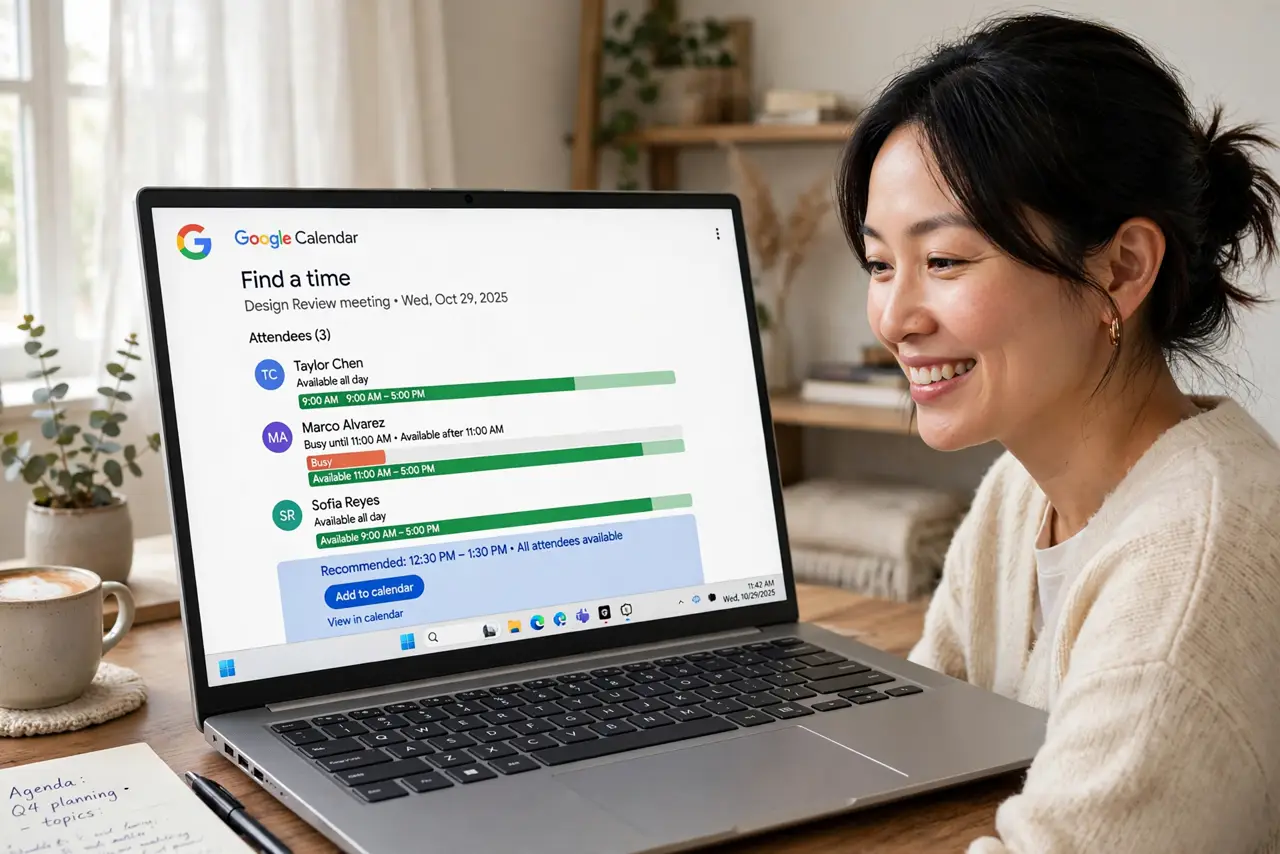
Proposing meeting times over email is a slow-motion negotiation nobody enjoys. Google Calendar Find a time view lines up everyone availability so the open slot picks itself. Here is how to use it and what to do when it shows nothing.
TL;DR / Quick Fix
Quick fix: create a Google Calendar event, add guests, and click Find a time to see everyone's availability side by side — white blocks are free for all. Pick one and save. Guests must share free/busy info for this to work; without it, propose two or three times instead.
Follow these steps
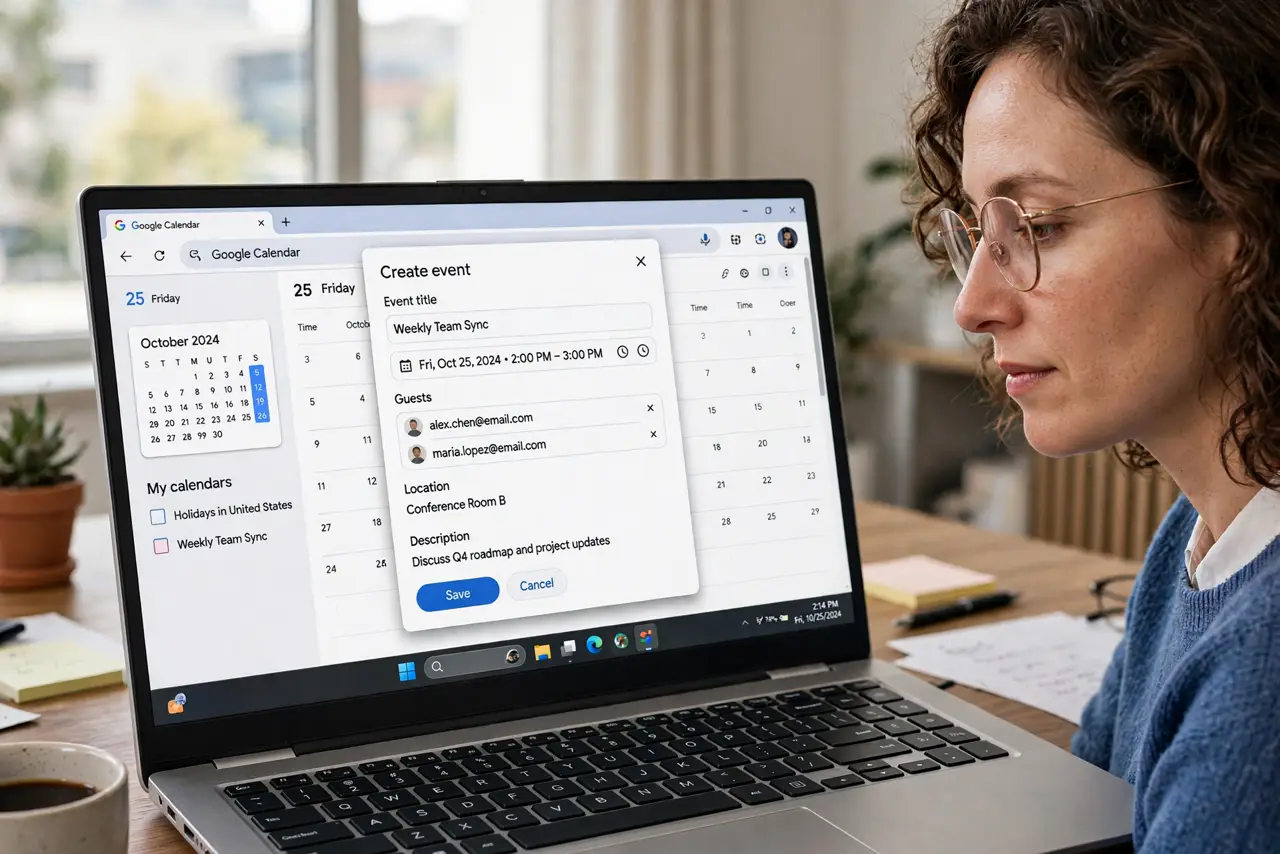
- Create the event with guests. New event, add every guest email first. Find a time has nothing to show until the guest list exists.
- Open Find a time. Click the Find a time tab next to Event details. The grid shows each guest day as availability bars.
- Read the shading. White is free for everyone; shaded blocks are busy. You need a white column across all rows — click it to set the time.
- Handle invisible guests. No bars for someone means they share nothing — ask them to share free and busy or propose times manually in the description.
- Propose backups for big groups. With many guests, list two or three candidate times in the description. The grid finds truth; options keep humans happy.
- Save and watch RSVPs. Save the event and track responses. One nudge after a day beats a second round of proposals.
What NOT to do
- Do not propose times by email when the grid exists. It is slower and always out of date.
- Do not book over someone out-of-office without asking. The shading told you — respect it.
- Do not invite the whole team to check availability. Required guests only; optional the rest.
- Do not forget time zones for remote guests. Add a second time zone so nobody does math wrong.
Frequently asked questions
Why can I not see a guest availability?
They have not shared free or busy with you, or they are outside Google Calendar. Ask them to share, or fall back to proposed times.
Does Find a time work on the phone app?
The mobile app shows a simpler suggested-times view. For the full grid, use a desktop browser.
What is the difference from Appointment slots?
Find a time serves one meeting with chosen guests; appointment slots let anyone book from your open hours.