Calendar Reminder Time Changed by Itself?
A reminder time changes by itself when the event time moves, a sync source overwrites it, or a notification setting resets it. Finding which one moved is the fix, because each cause needs a different correction.
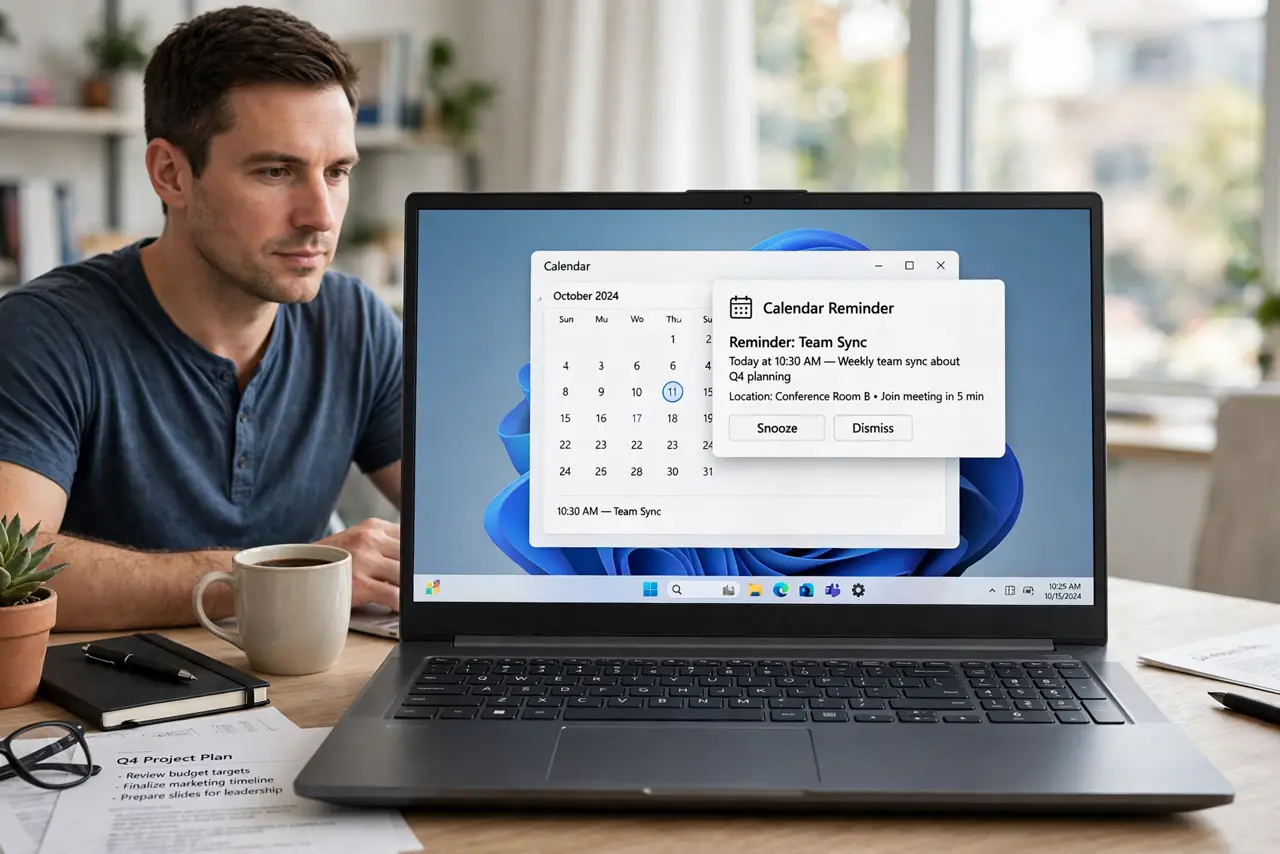
TL;DR / Quick Fix
Quick fix: open the event and check both the event time and the reminder setting, then check whether another device or calendar source changed it. Set the reminder again, save, and confirm it on the device you rely on. Last, confirm the reminder on your main device to confirm it.
Follow these steps
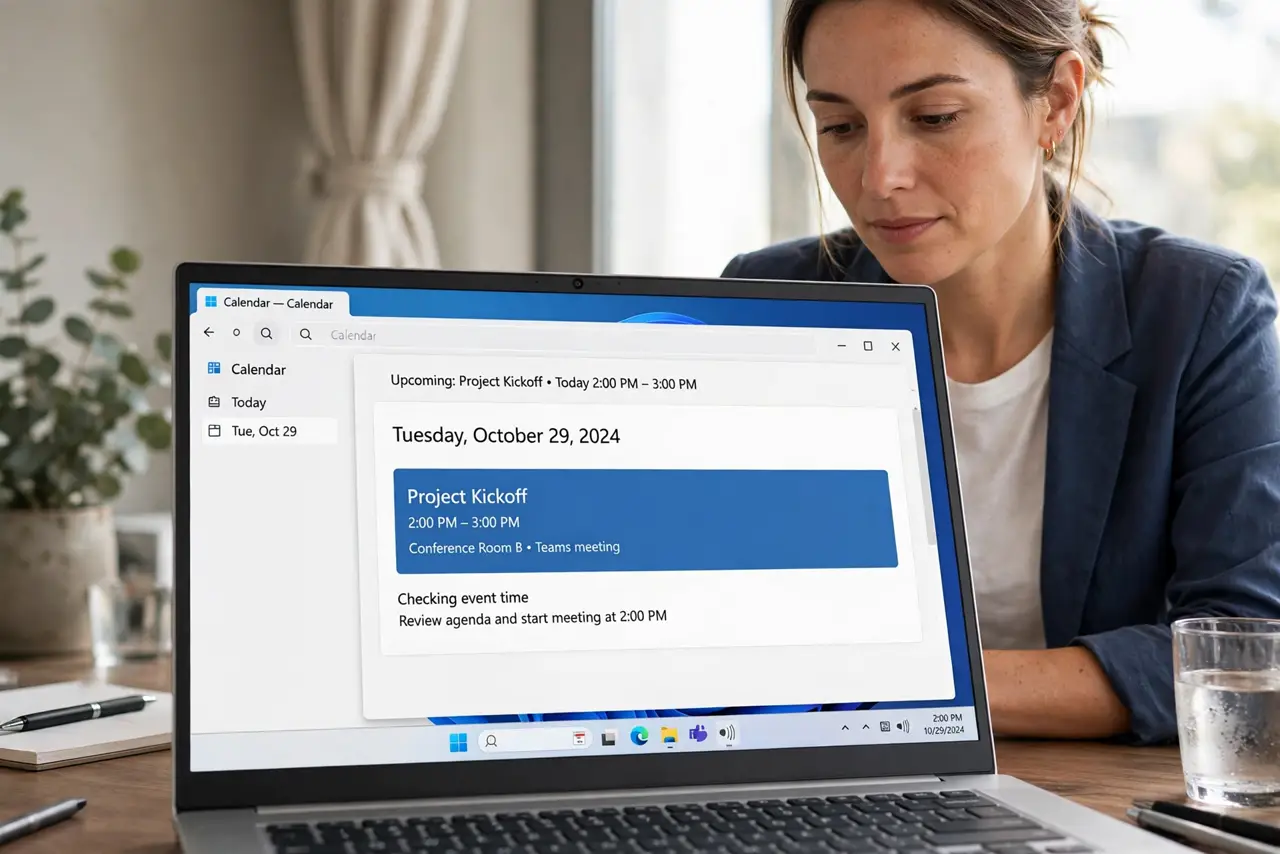
- Open the event and check the event time. Open the event and confirm the start time is still correct. A moved event drags its reminder with it, so the event time is the first suspect.
- Check the reminder setting on the event. Look at the reminder or notification field on the event itself. A reminder set to the wrong offset, such as a day instead of an hour, looks like a changed time.
- Check the reminder on another device. Open the same event on another device and compare the reminder. A difference between devices points to a sync problem rather than a single wrong setting.
- Check for a second calendar source. Confirm the event lives on only one calendar. Two sources syncing the same event can overwrite each other's reminder settings.
- Set the reminder again and save. Set the reminder to the time you want, save the event, and wait for sync. A deliberate save overwrites a stale value from another source.
- Confirm the reminder on your main device. Check the event on the device you rely on for reminders. The main device is the view that matters, even if another device still shows an old value briefly.
What NOT to do
- Do not set many reminders for one event to compensate. Multiple reminders create noise and hide the one that matters.
- Do not edit the same event on two devices at once. Simultaneous edits overwrite each other and move reminders.
- Do not ignore a reminder that changed once. A single change often signals a sync conflict that will repeat.
- Do not rely on a reminder you never tested. Check the next reminder actually fires at the set time.
Frequently asked questions
Why did my reminder move?
The event time moved, a sync source overwrote it, or the reminder setting itself was reset on another device.
Will fixing it on one device fix all devices?
Yes, after sync completes, provided no second source overwrites it again.
Should I use a default reminder for all events?
A sensible default helps, but check important events individually, since defaults do not fit every meeting.