Enforce SafeSearch
SafeSearch filters explicit content out of Google results — useful on a kid's device or a shared family computer. But it is a per-account, per-browser setting, not a force field: determined kids can bypass it, and it does nothing on other search engines. Here is how to set it properly and what to pair it with.
TL;DR / Quick Fix
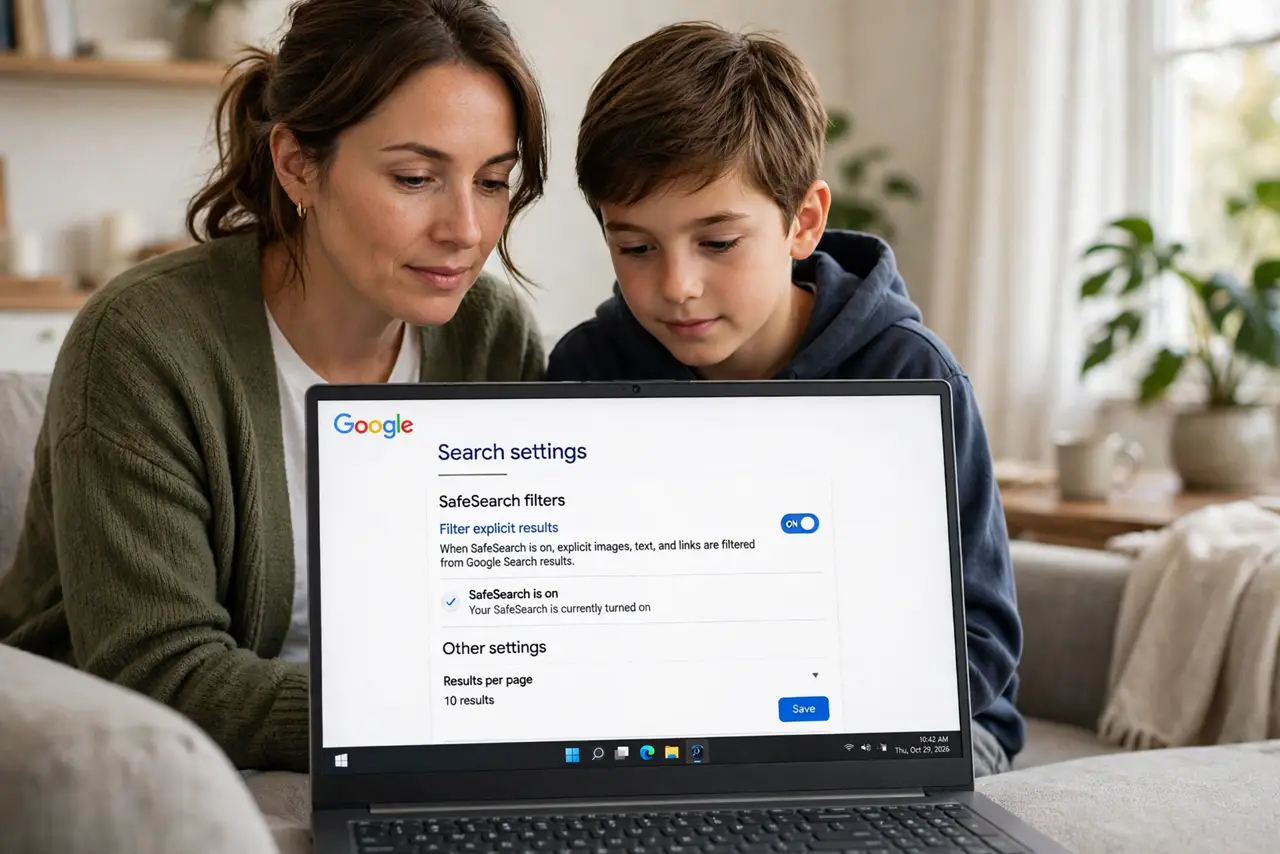
Quick fix: in Google Search settings, turn on SafeSearch to filter explicit results — and lock it with your Google account so it can't be switched off casually. It works per account and browser, not network-wide. For whole-home filtering, pair it with a family DNS filter.
Follow these steps
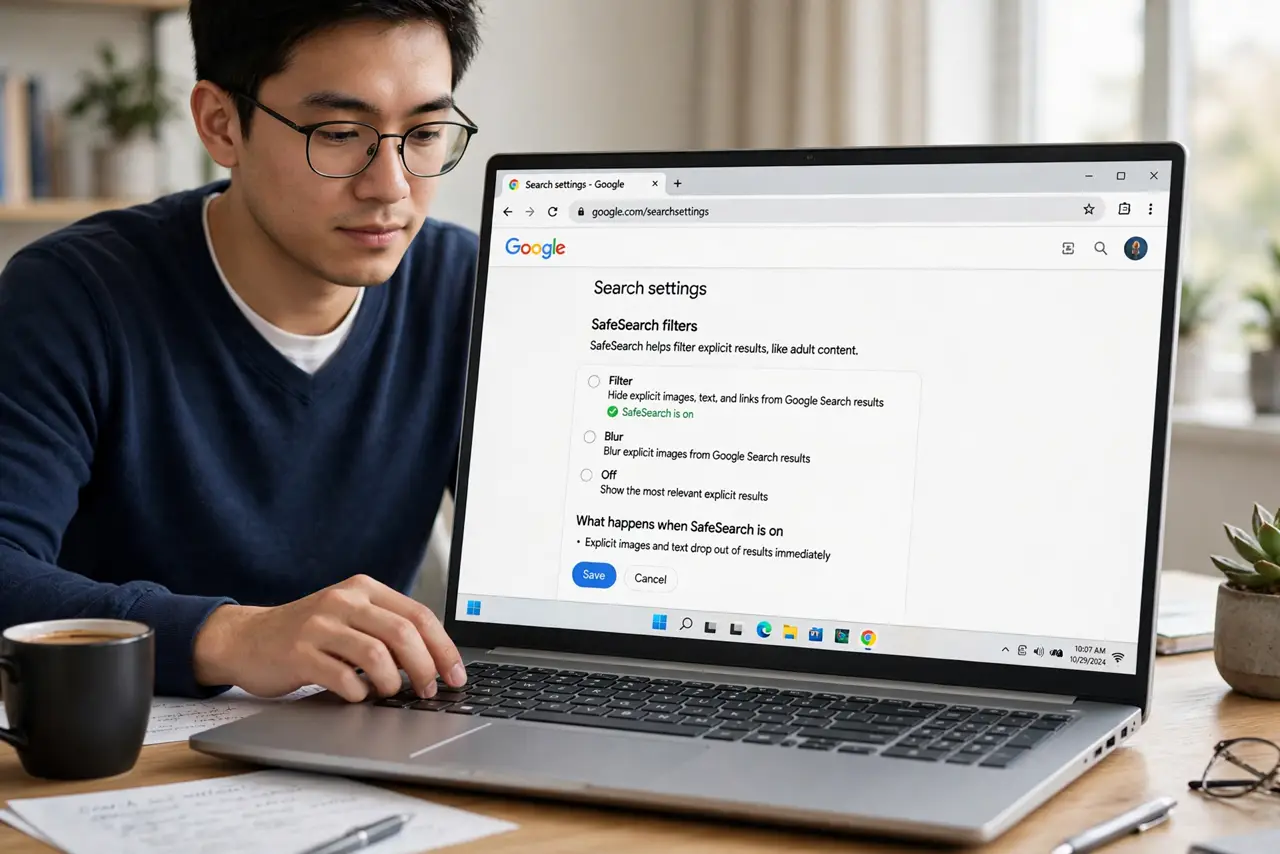
- Turn on SafeSearch. In Google Search settings (or the Google app), find the SafeSearch filter and set it to Filter or On. Explicit images and text drop out of results immediately.
- Lock it with your account. On a child's device, sign SafeSearch to your Google account and lock the setting — it then requires your login to change. Without the lock, anyone can toggle it back.
- Repeat it in every browser. SafeSearch is per-browser and per-account. Chrome, Safari, and any other browser on the device each need it set — check them all.
- Cover other search engines. Bing and DuckDuckGo have their own safe-search settings. If the device can reach them, set those too — Google's filter does not extend there.
- Add network-level filtering. For whole-home coverage, use a family DNS filter on your router. It applies to every device on the Wi-Fi, including ones you forgot to configure.
- Talk about it, don't just set it. No filter is perfect — explain why it is on and what to do when something slips through. Conversation covers the gaps technology cannot.
What NOT to do
- Do not treat SafeSearch as a babysitter. It filters search results; it does not block sites, apps, or direct URLs — supervision still matters.
- Do not set it once and forget it. Browser updates, new devices, and signed-out sessions can silently revert it — recheck periodically.
- Do not assume it works network-wide. SafeSearch covers Google in configured browsers only; the router-level filter from step 5 covers the rest.
- Do not rely on it on a device you do not control. School or friend devices have their own settings — this guide covers devices you manage. For device-level limits, see parental controls.
Frequently asked questions
Can kids bypass SafeSearch?
Easily, if it is not locked — switching browsers, signing out, or using another search engine all dodge it. Lock it and layer network filtering for real protection.
Does SafeSearch block websites?
No — it filters Google's results. A direct URL or a bookmark bypasses it entirely; that is what DNS filtering and parental controls are for.
Is there an equivalent for YouTube?
Yes — YouTube's Restricted Mode filters mature videos. Set it in the YouTube app and on the site separately; like SafeSearch, it is per-account and per-app.