Gmail Filters? Plain Basics
Your inbox fills with newsletters, receipts, and notifications faster than you can triage them. Gmail filters sort incoming mail automatically — by sender, subject, or keyword — and can label, archive, or delete it before you ever see it. One good filter saves dozens of daily decisions. Here is how to build your first filters without accidentally hiding important mail.
TL;DR / Quick Fix
Quick fix: Gmail filters auto-sort incoming mail by sender, subject, or words. Create one from any email via the three-dot menu → Filter messages like these. Start with newsletters: Skip Inbox, Apply label. Test new filters carefully first, so important mail never vanishes silently.
Follow these steps
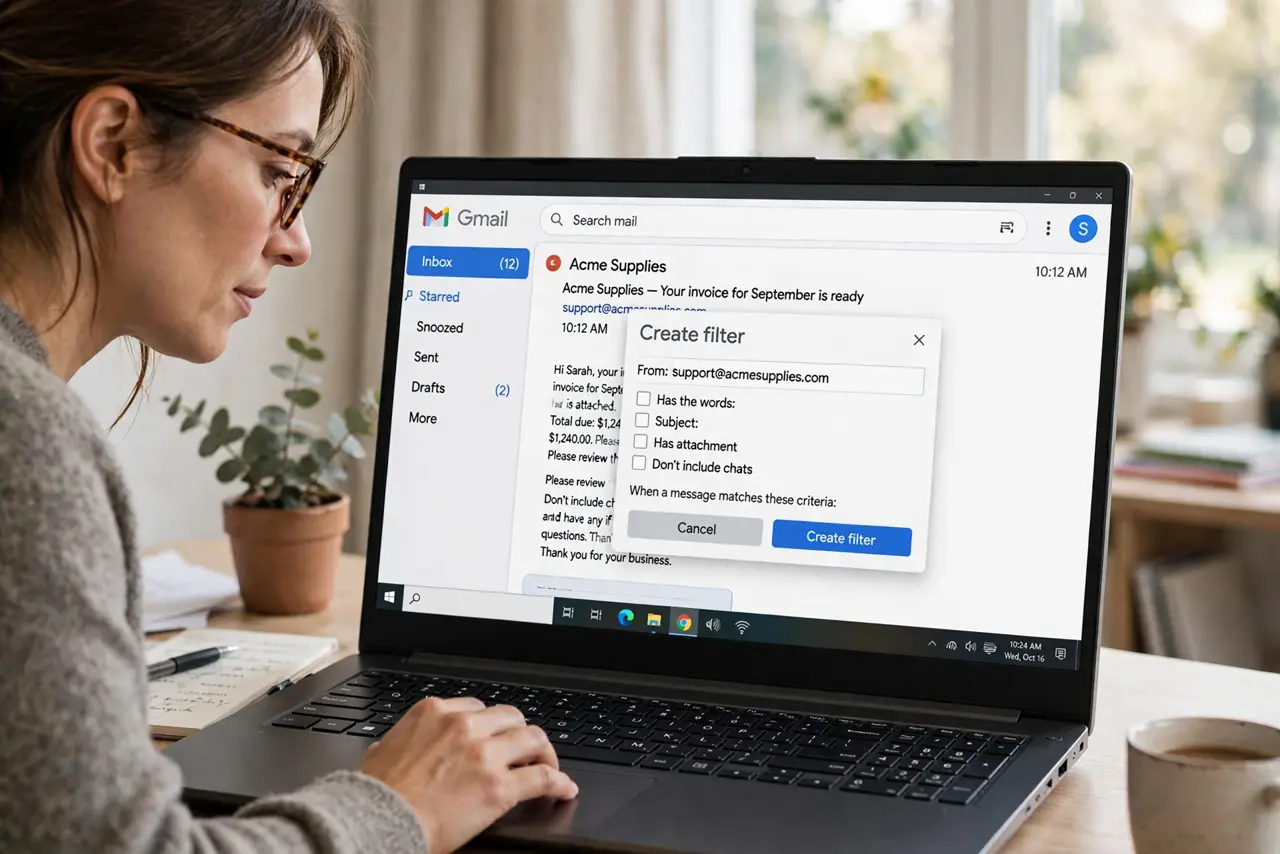
- Create a filter from a real email. Open a typical newsletter, click the three-dot menu, and choose 'Filter messages like these.' Gmail pre-fills the sender — the easiest reliable criterion. Click 'Create filter' to choose what happens to matching mail.
- Pick the action: label it. The safest first filter applies a label like 'Newsletters' so mail is categorized but still in your inbox. Labels are Gmail's folders — one email can carry several. See how filters and labels differ before building a big system.
- Graduate to Skip Inbox (Archive). Once a filter proves accurate, add 'Skip the Inbox (Archive it)' so matching mail files itself under its label. Your inbox shows only unfiltered mail. This is the step that actually empties an inbox.
- Use search operators for precision. Filters accept Gmail search syntax: 'from:amazon' for a sender, 'subject:receipt' for subjects, '-from:boss' to exclude. Combine criteria to avoid catching the wrong mail. Test the search in the Gmail search bar first — it shows exactly what the filter will catch.
- Apply to existing mail optionally. The 'Also apply filter to matching conversations' checkbox retro-sorts your backlog. Use it for newsletters you have been meaning to file. Skip it when you are unsure the filter is precise — you can always apply it later.
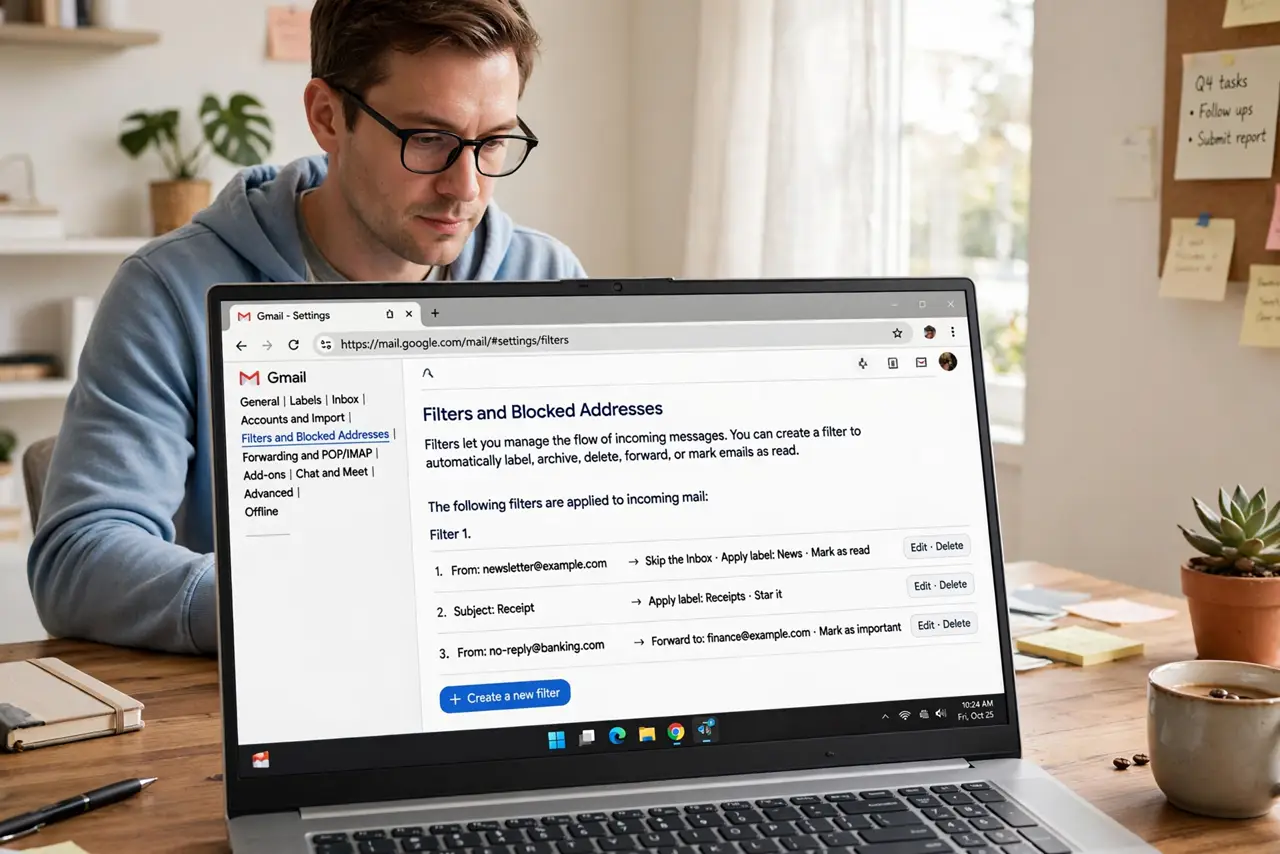
- Review filters periodically. Open Settings → See all settings → Filters and blocked addresses to audit. Delete filters for services you no longer use, and loosen any that send good mail to spam or the wrong label. A yearly five-minute review keeps the system trustworthy.
What NOT to do
- Do not start with 'Delete it.' A delete filter on a sloppy criterion destroys mail silently — archive and label first, delete only when the filter has proven itself for weeks.
- Do not filter by a single common word. 'Report' or 'update' will catch mail you actually need — combine sender plus subject for safety.
- Do not create dozens of filters at once. Build one, watch it for a few days, then add the next; debugging ten new filters is miserable.
- Do not forget filters exist when mail goes missing. Before panicking about a lost email, check Settings → Filters — an old filter is the usual suspect.
Frequently asked questions
Can a filter reply automatically?
Yes — choose 'Send template' as the filter action after creating a template in Gmail settings. Useful for 'thanks, received' acknowledgments on predictable incoming mail.
Do filters work on the Gmail phone app?
Filters run on Gmail's servers, so they apply no matter which app or device you use. You just cannot create or edit them in the mobile app — use a desktop browser for that.
What's the difference between a filter and a blocked sender?
A filter can label, archive, or categorize; blocking sends mail straight to spam. Use filters for mail you want filed, blocking for mail you never want to see.