Teach Gmail Tabs
Promotions and social updates keep landing in your Primary tab even though tabs exist for them. Gmail's tabs learn from you — dragging messages to the right tab teaches the system where similar mail belongs. A few minutes of training now means a cleaner Primary tab for months. Here is how to teach it.
TL;DR / Quick Fix
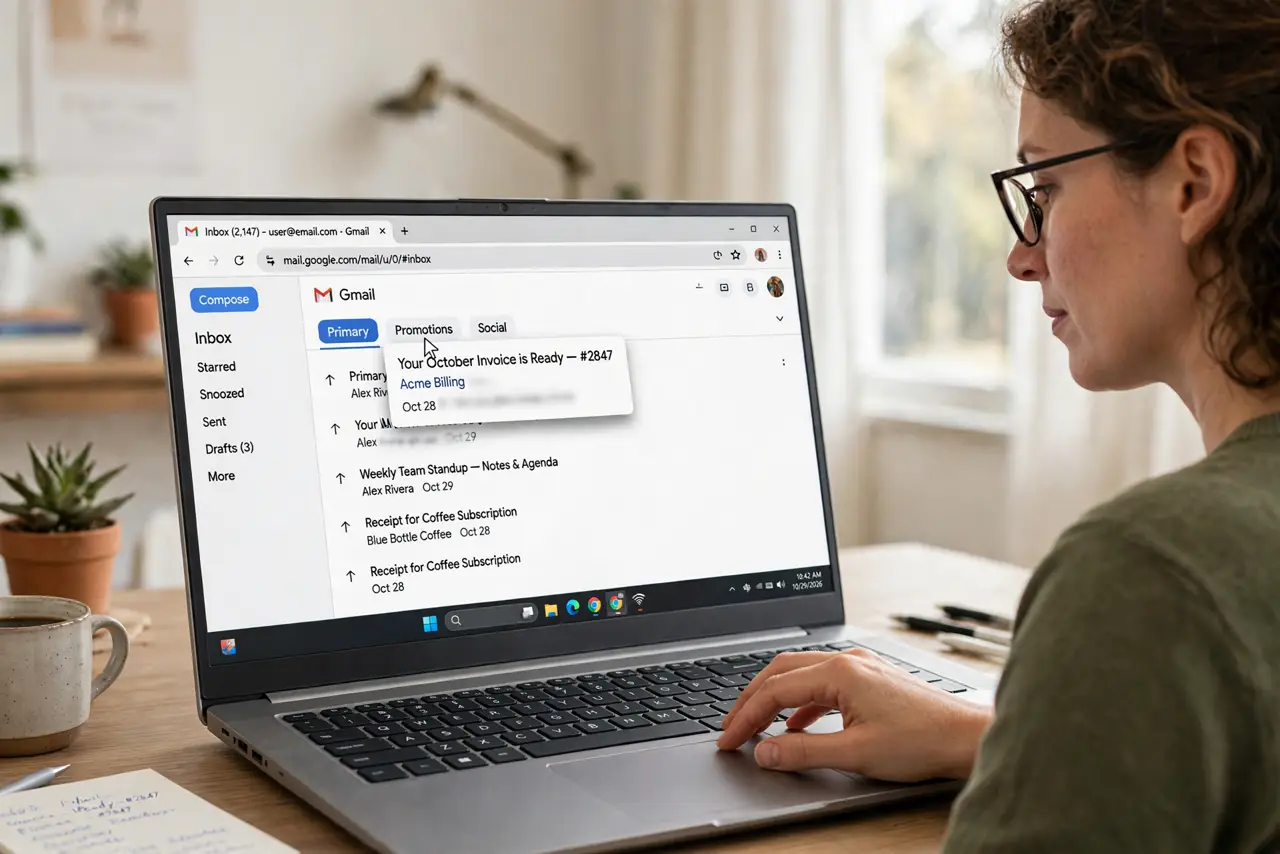
Quick fix: drag a misplaced email from Primary to the Promotions or Social tab and confirm when Gmail asks — that teaches the filter. Do this for a dozen messages and the tabs start sorting correctly on their own. Star or mark important anything that must stay in Primary.
Follow these steps
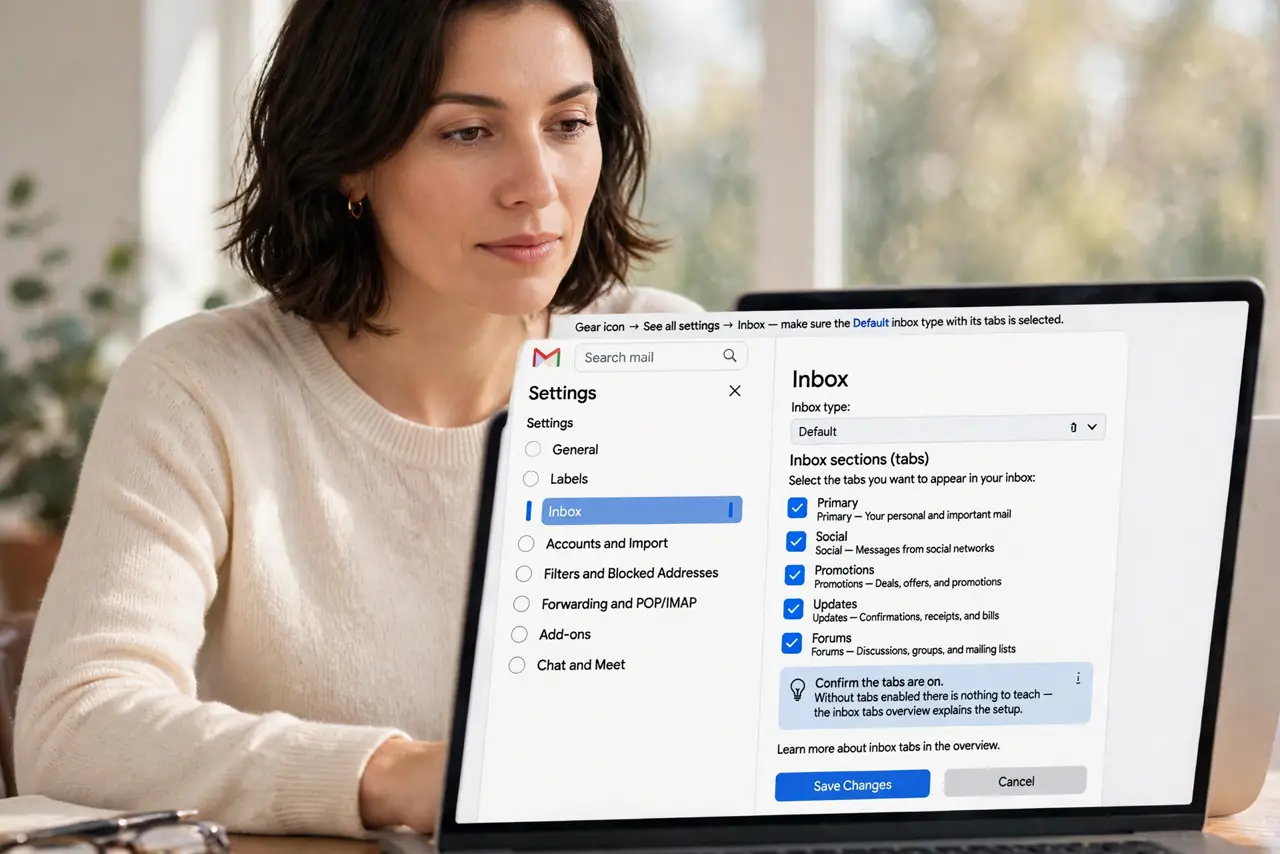
- Confirm the tabs are on. Gear icon, See all settings, Inbox — make sure the Default inbox type with its tabs is selected. Without tabs enabled there is nothing to teach — the inbox tabs overview explains the setup.
- Drag and confirm. Drag a promo email from Primary to Promotions. Gmail asks if future mail from that sender should go there — say yes. That single confirmation is the teaching moment.
- Train a dozen examples. Do this for ten to fifteen messages across a few days. The system learns sender patterns, not just one message — volume of examples is what makes it stick.
- Rescue the important ones. If a real email lands in Promotions, drag it back to Primary and confirm. Teaching works both directions, and this prevents missing bills or tickets.
- Use filters for stubborn senders. Some senders never learn. Make a filter that skips the inbox or always marks them, and the tab problem disappears permanently.
- Review the tabs weekly at first. Glance at Promotions and Social weekly so nothing important hides there while the system is still learning your habits.
What NOT to do
- Do not turn off the tabs in frustration. They work well once trained — killing them just dumps everything back into one pile.
- Do not expect instant learning. The system needs repeated examples; one drag teaches one sender, not the whole internet.
- Do not mark promos as spam to move them. Spam reports hurt legitimate senders and train the wrong system — dragging to the tab is the correct tool.
- Do not forget to check Promotions occasionally. Even a well-trained tab can misfile an order confirmation you actually need.
Frequently asked questions
How long until the tabs learn?
Usually one to two weeks of consistent dragging. Most people see a clear difference after about a dozen taught examples.
Why do some promos still hit Primary?
Senders that look personal — plain-text style marketing — confuse the classifier. Filters handle those better than tabs.
Can I create my own tabs?
Not custom tabs, but you can rename the spirit of the system with labels and filters that mimic extra tabs.