Install a Graphics Card
Your first graphics card upgrade is exciting and slightly terrifying — the card costs real money and the motherboard looks fragile. The process is straightforward if you respect the order: power off fully, seat the card until the latch clicks, and connect every power cable before you boot. This guide walks through each step safely.
TL;DR / Quick Fix
Quick fix: power down, unplug, and ground yourself; remove the old card, seat the new one firmly until the latch clicks, connect all power cables, and boot. Install fresh drivers from the maker's site afterward. If the screen stays black, reseat the card and check the power connectors first.
Follow these steps
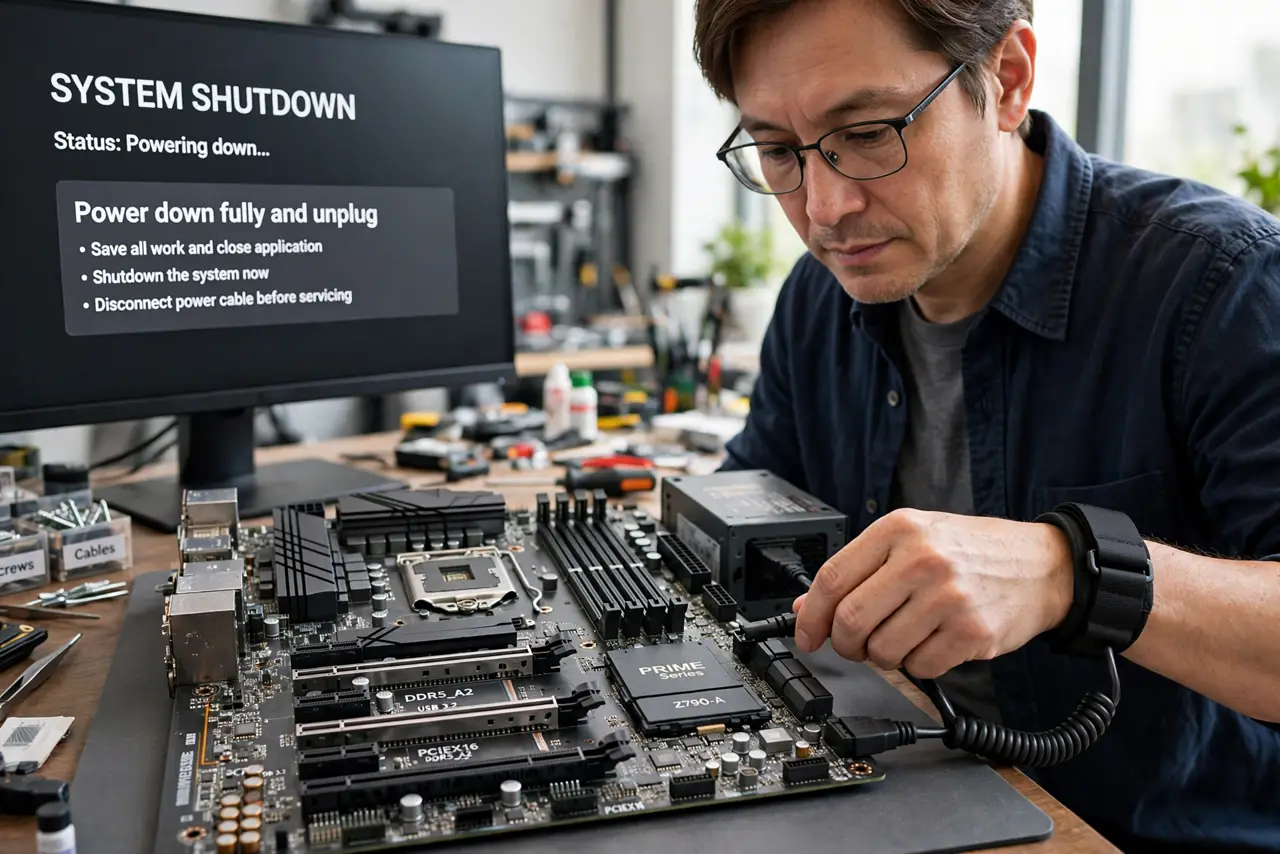
- Power down fully and unplug. Shut down the PC, flip the power supply switch off, and pull the plug. Press the case power button once to drain leftover charge — the motherboard should be fully dark before you touch anything.
- Ground yourself and open the case. Touch the metal case frame regularly or wear an anti-static wrist strap. Remove the side panel and locate the long PCIe x16 slot, usually the topmost long slot.
- Remove the old card if there is one. Unscrew the bracket, press the PCIe slot latch at the end of the slot, and pull the old card straight up. Disconnect its power cables first — never yank a card with cables attached.
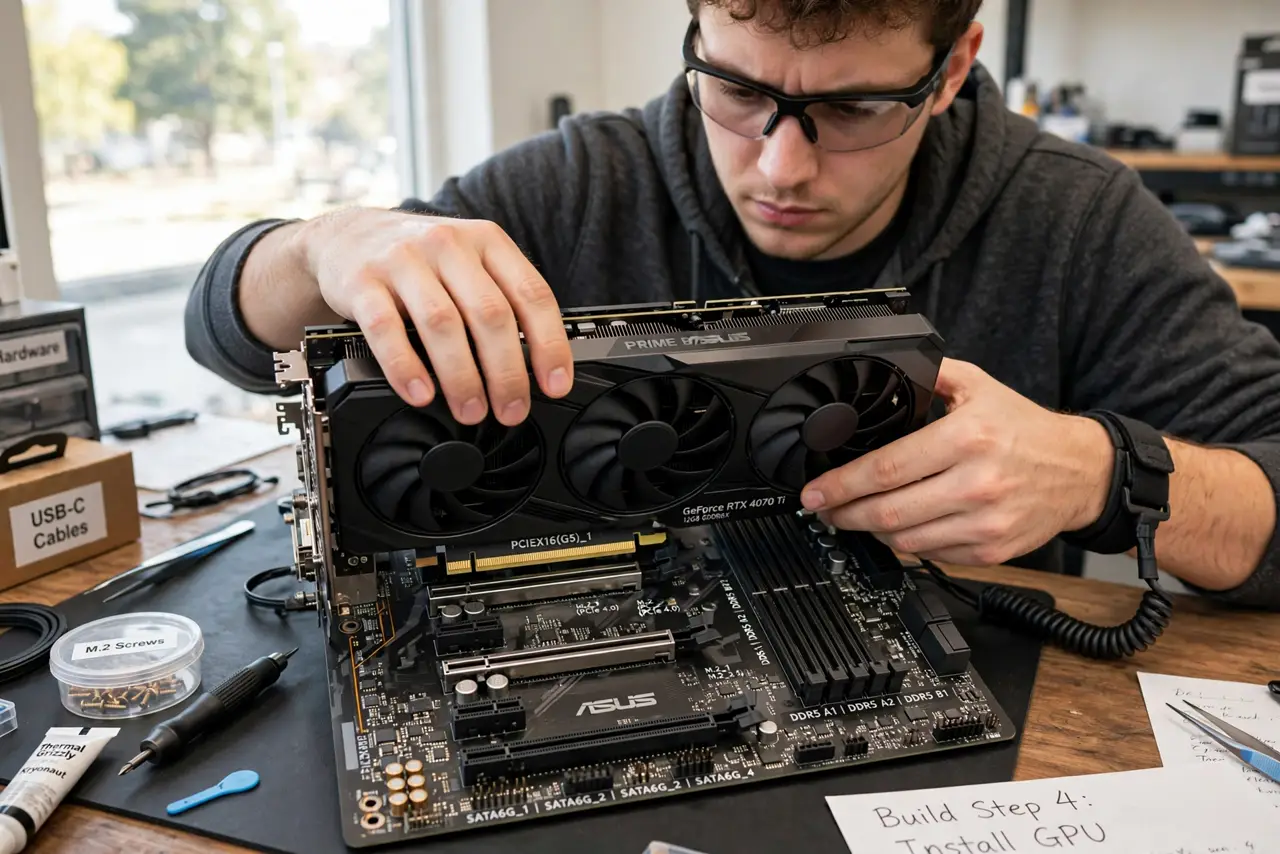
- Seat the new card until the latch clicks. Align the card's connector with the slot and press down evenly until the retention latch snaps shut. Screw the bracket to the case so the card cannot sag or wiggle.
- Connect every power cable the card needs. Plug in all required PCIe power connectors from the power supply — a card asking for two plugs will misbehave or refuse to boot with one. These click in firmly; a loose plug is the classic first-boot failure.
- Boot up and install fresh drivers. Close the case, plug the monitor into the NEW card (not the motherboard), and boot. Install the latest drivers from the maker's site, then check temperatures under load — and review radiator placement if you also run liquid cooling.
What NOT to do
- Do not plug the monitor into the motherboard after installing the card. The display must come from the new GPU or you will wonder why nothing improved.
- Do not force the card into the slot. If it will not seat, check alignment and whether the latch is open — PCIe slots accept only one orientation.
- Do not skip the power connectors. Modern cards need direct PSU power; the slot alone cannot feed them.
- Do not install drivers from the included disc. Download the current drivers from the maker — disc drivers are outdated on day one.
Frequently asked questions
How do I know if my power supply can handle the card?
Check the card's recommended PSU wattage and compare it to your supply's rating, with headroom to spare. An undersized PSU causes crashes under load.
Will the new card fit in my case?
Measure the card's length against your case's GPU clearance spec. Long cards collide with drive cages in compact cases.
Do I need to uninstall old drivers first?
It is good practice when switching brands. Use the maker's clean-install option or a driver removal tool before swapping.