DisplayPort Versions?
DisplayPort 1.2, 1.4, 2.0, 2.1 — and your monitor cable just says 'DP' with no version at all. DisplayPort versions decide what resolution and refresh rate your monitor can actually reach, and a mismatched cable is why a 4K 144Hz monitor sometimes runs at 4K 60Hz. The good news: the connectors are identical, so it is only ever a cable-and-port question. Here is the plain breakdown.
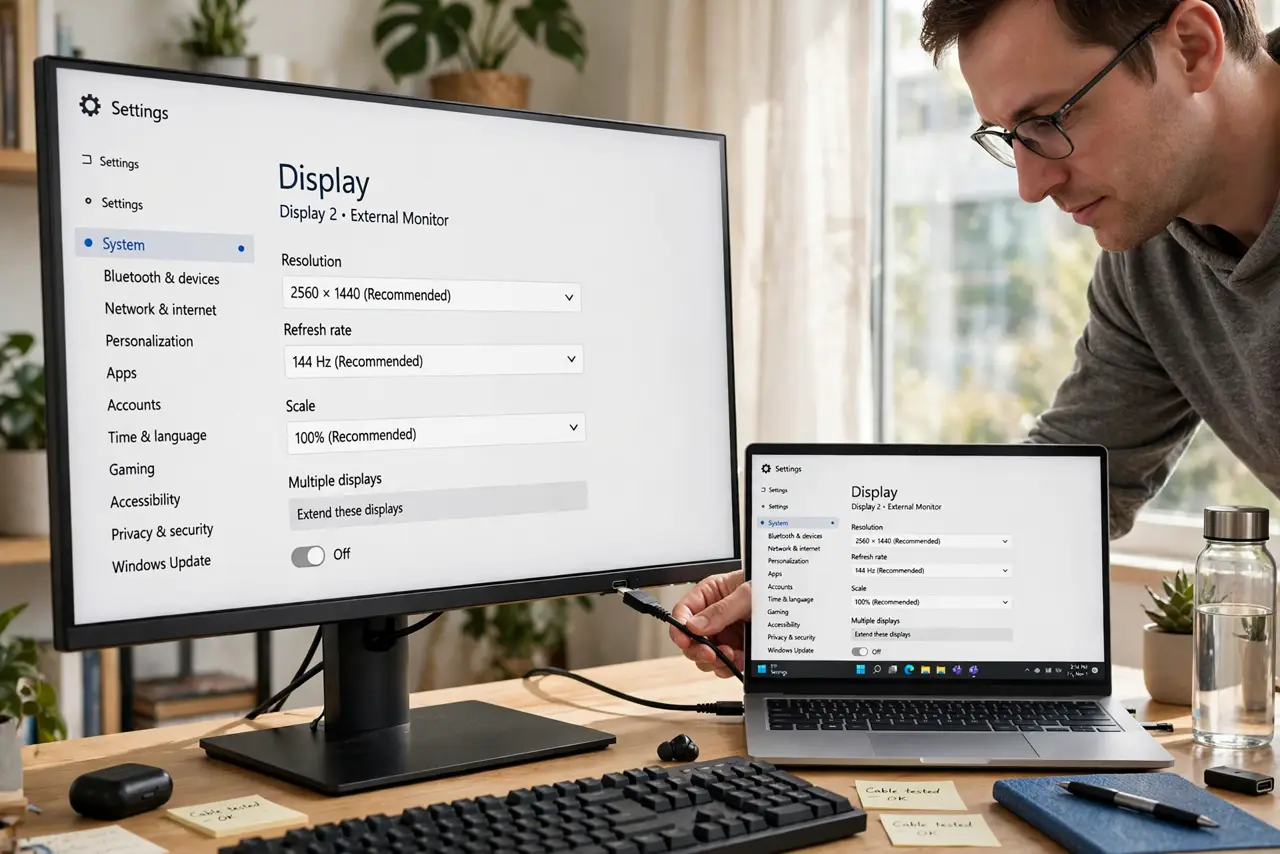
TL;DR / Quick Fix
Quick fix: DisplayPort 1.2 handles 4K at 60Hz; 1.4 adds 4K 120Hz+ and HDR; 2.0/2.1 push 8K and ultra-high refresh. The plugs are identical — the slowest of the cable, GPU port, and monitor port decides what you get. For most 4K gaming, 1.4 is the sweet spot.
Follow these steps
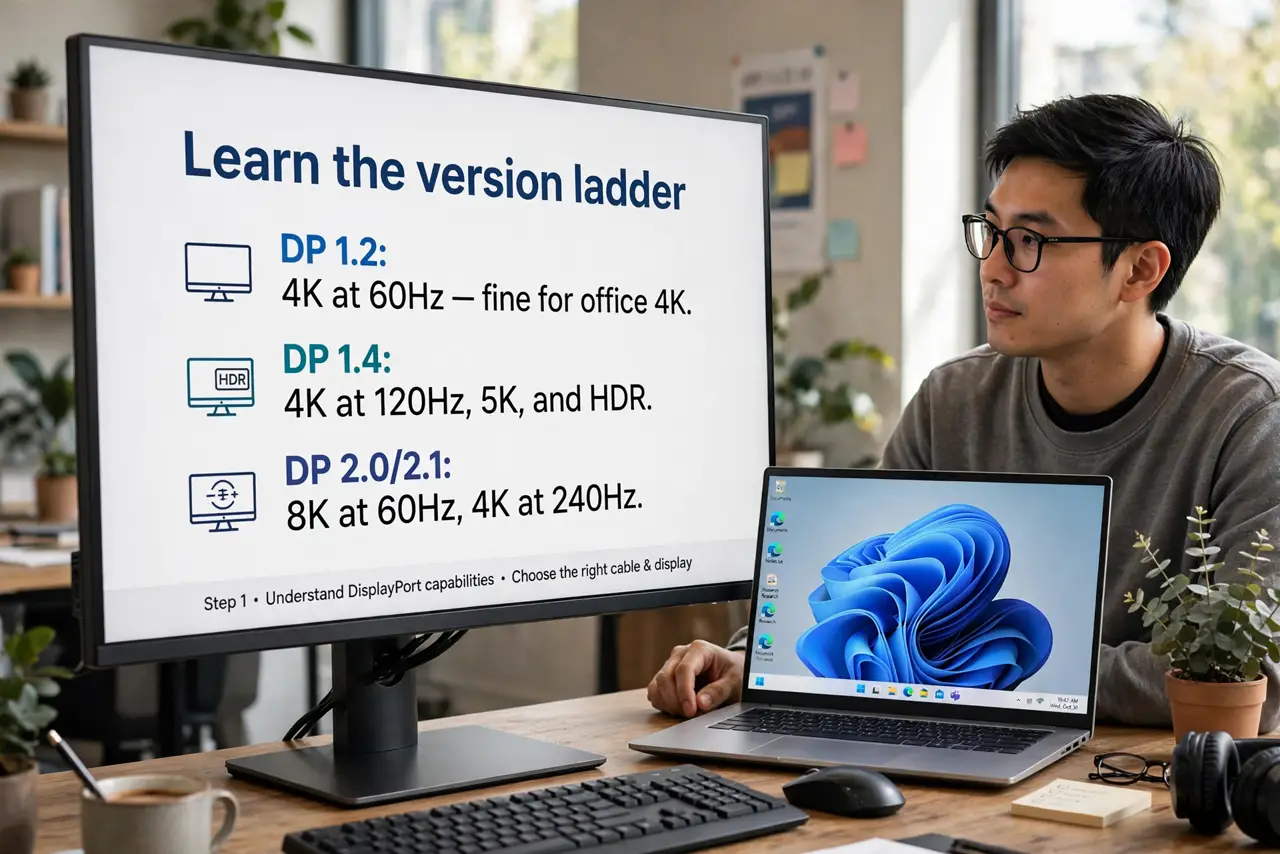
- Learn the version ladder. DP 1.2: 4K at 60Hz — fine for office 4K. DP 1.4: 4K at 120Hz+, 5K, and HDR via compression. DP 2.0/2.1: 8K at 60Hz, 4K at 240Hz+. Each step roughly doubles the bandwidth.
- Check all three links in the chain. Your GPU port, the cable, and the monitor port each have a version — the lowest one wins. A DP 2.1 GPU with a 1.2 cable gives you 1.2 performance, silently.
- Identify your cable's version. Cables rarely print their version clearly. If your monitor will not reach its rated refresh rate, the cable is suspect number one — buy a certified DP 1.4 (or 2.1) cable rather than trusting the mystery cable in the box.
- Match the version to your monitor. A 1080p 144Hz monitor is happy on DP 1.2. A 4K 144Hz gaming monitor needs DP 1.4 with DSC. An 8K or 4K 240Hz panel wants DP 2.1. Buying above your monitor's needs wastes money.
- Know about DSC compression. Display Stream Compression lets DP 1.4 punch above its raw bandwidth — visually lossless for nearly everyone. If your monitor and GPU both support DSC, a 1.4 cable often suffices where the raw numbers say otherwise.
- Troubleshoot 'no signal' methodically. Black screen after sleep or on a new monitor is usually cable, port, or a version handshake issue — see our DisplayPort no-signal guide before buying anything.
What NOT to do
- Do not assume the cable in the box matches the monitor. Bundled cables are often the cheapest version that technically works — not the one your panel deserves.
- Do not buy DP 2.1 for a 1080p monitor. The extra bandwidth sits idle; match the cable to the monitor's actual specs.
- Do not confuse DisplayPort with HDMI. Different plugs, different version ladders — a 'version 2.1' HDMI cable is not a DisplayPort 2.1 cable.
- Do not force the connector. DisplayPort has a locking tab — squeeze it to release. Yanking a locked plug damages the port.
Frequently asked questions
Is DisplayPort better than HDMI?
For PC monitors, usually yes — higher refresh rates at high resolutions, and features like daisy-chaining. For TVs, HDMI is the standard. See the DisplayPort vs HDMI comparison for the office case.
Why does my 4K monitor only do 60Hz?
One of the three links — GPU port, cable, or monitor port — is an older version, or DSC is off. Check each link's version starting with the cable.
Do I need a special cable for high refresh rates?
You need a cable rated for the version your setup requires — usually certified DP 1.4 for 4K high-refresh. The certification matters more than the brand.