USB Ethernet Adapters?
Thin laptops dropped the Ethernet port years ago — a USB Ethernet adapter brings wired networking back for the moments Wi-Fi cannot handle: big uploads, video calls that must not drop, hotel networks. They are cheap, usually plug-and-play, and one of the best ten-dollar upgrades for a laptop. Here is what to check before buying.
TL;DR / Quick Fix
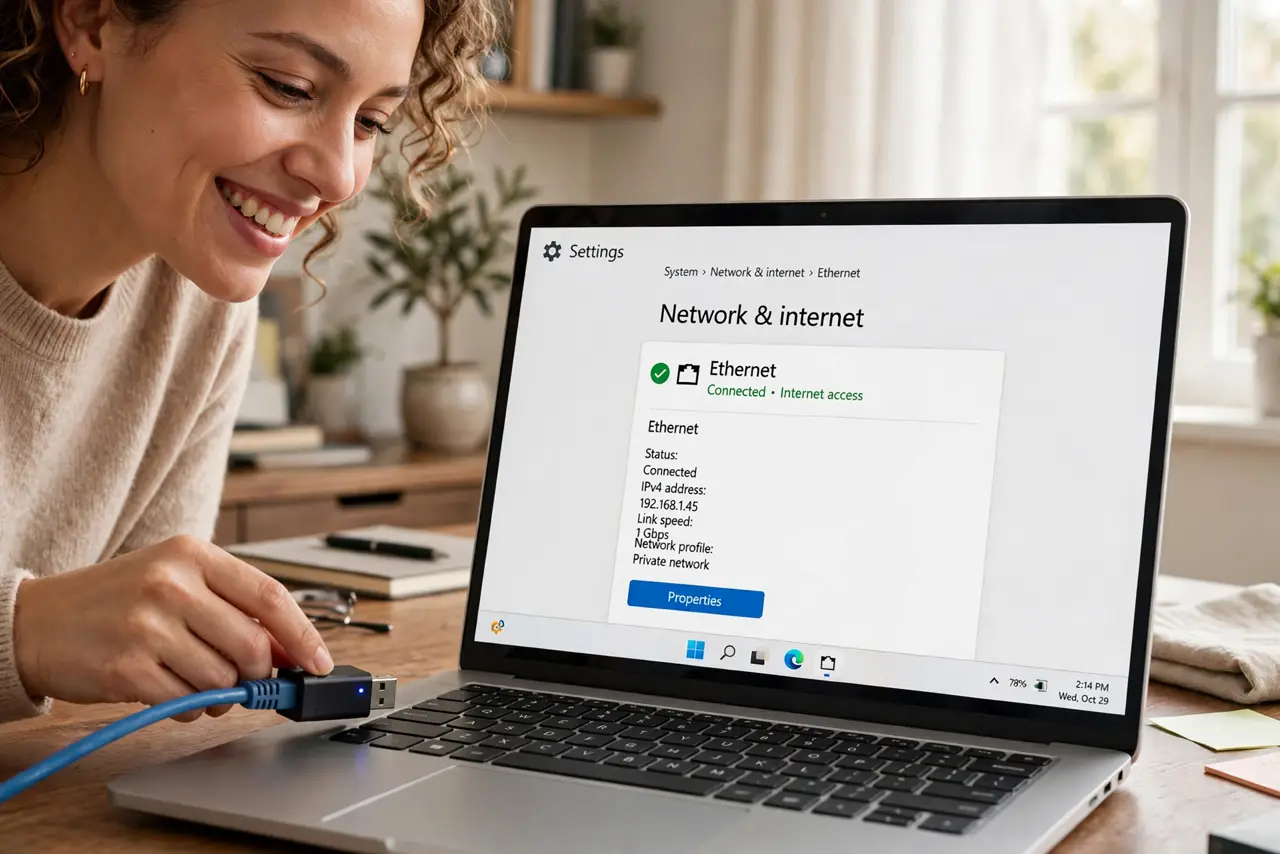
Quick fix: a USB Ethernet adapter adds a wired network port to laptops that lack one — plug it in and it usually just works. Get USB 3.0 or better for full gigabit speed; USB 2.0 caps near 100 Mbps. A USB-C hub with Ethernet covers docks-plus-wired in one.
Follow these steps
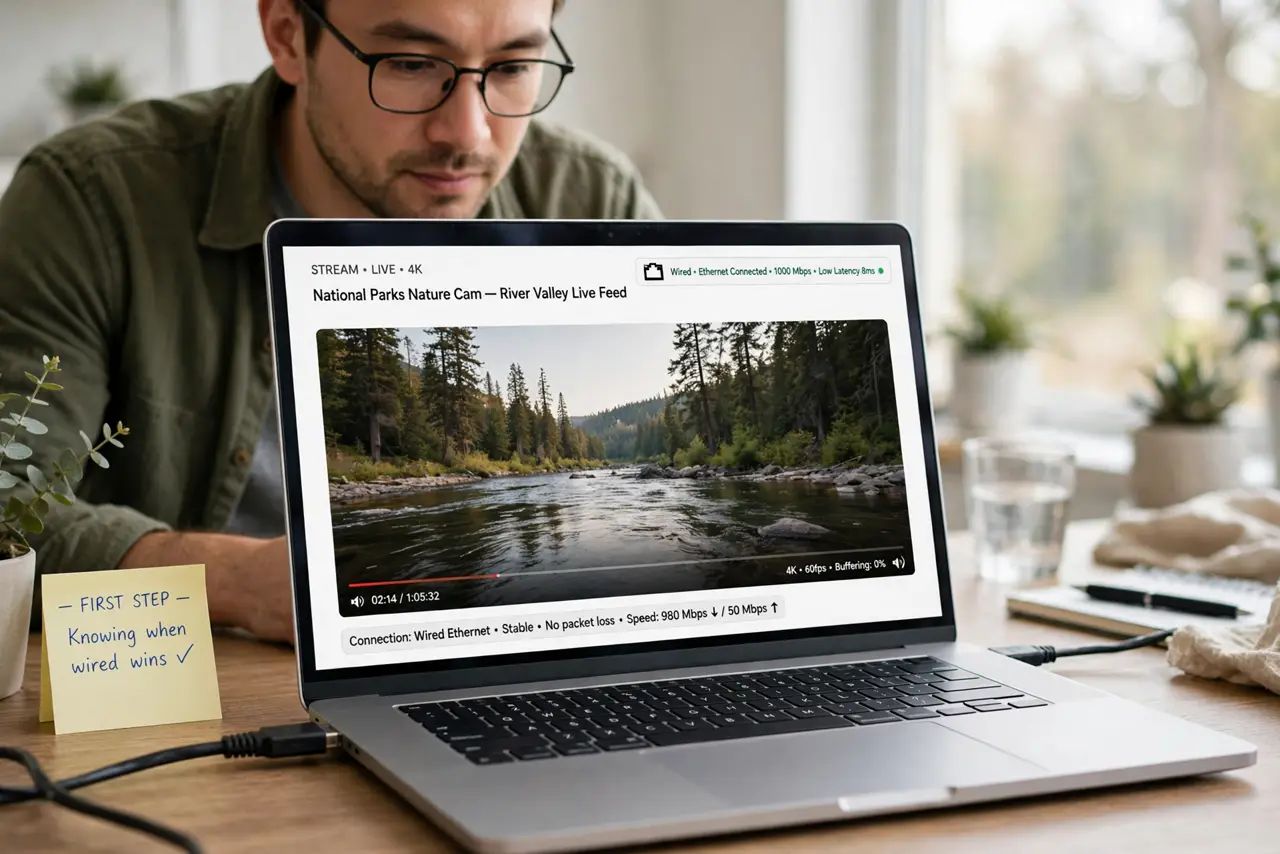
- Know when wired wins. Video calls, big uploads, gaming, and hotel Wi-Fi with login pages — anywhere stability beats convenience. If Wi-Fi works fine, you do not need the adapter.
- Get USB 3.0 or better. USB 2.0 adapters top out around 100 Mbps — a bottleneck on any modern connection. USB 3.0+ adapters deliver full gigabit. The price difference is tiny; the speed difference is not.
- Plug it in — it usually just works. Windows, macOS, and ChromeOS include drivers for common adapter chips. Plug in the adapter, connect the cable, and the wired connection typically appears within seconds.
- Check the cable too. A bad cable wastes a good adapter. Use at least Cat5e or Cat6 — ancient Cat5 cables cap your speed regardless of the adapter.
- Troubleshoot the 'unplugged' message. If the system insists the cable is unplugged with it clearly connected, the usual suspects are the cable, the port, or the driver — the unplugged cable guide walks through them in order.
- Consider a hub with Ethernet. If you also need USB-A ports or HDMI, a USB-C hub with built-in Ethernet replaces the single-purpose adapter — one dongle instead of two.
What NOT to do
- Do not buy USB 2.0 to save a few dollars. The 100 Mbps ceiling will bottleneck you on any decent connection — USB 3.0 is the minimum worth buying.
- Do not assume Wi-Fi is always worse. Modern Wi-Fi 6 close to the router beats a 100 Mbps USB 2.0 adapter — match the tool to the situation.
- Do not forget the other end. The adapter needs a router or switch port to plug into — check one is free before the big video call, not during.
- Do not leave it dangling. Adapters hanging off the laptop port stress the connector — rest it on the desk and give the cable slack.
Frequently asked questions
Do I need drivers?
Rarely — modern systems include drivers for the common chips. If yours is not recognized, the maker's site has the driver; avoid third-party driver tools.
Can I use it with a phone or tablet?
Many Android devices support USB Ethernet with an OTG adapter. iPhones and iPads generally do not — they are Wi-Fi or cellular only.
Why is my gigabit adapter slow?
Check three things: USB 3.0 port (not a USB 2.0 port), Cat5e+ cable, and a gigabit router port. One weak link caps everything.