HDMI Versions? Plain Guide
HDMI 1.4, 2.0, 2.1 — the cable looks the same, but the version decides whether you get 4K at 60Hz, 120Hz gaming, or a black screen. The version lives in the ports and the cable's rating, and mismatches cause the most confusing 'it should work' failures. Here is what each version actually unlocks and what to buy.
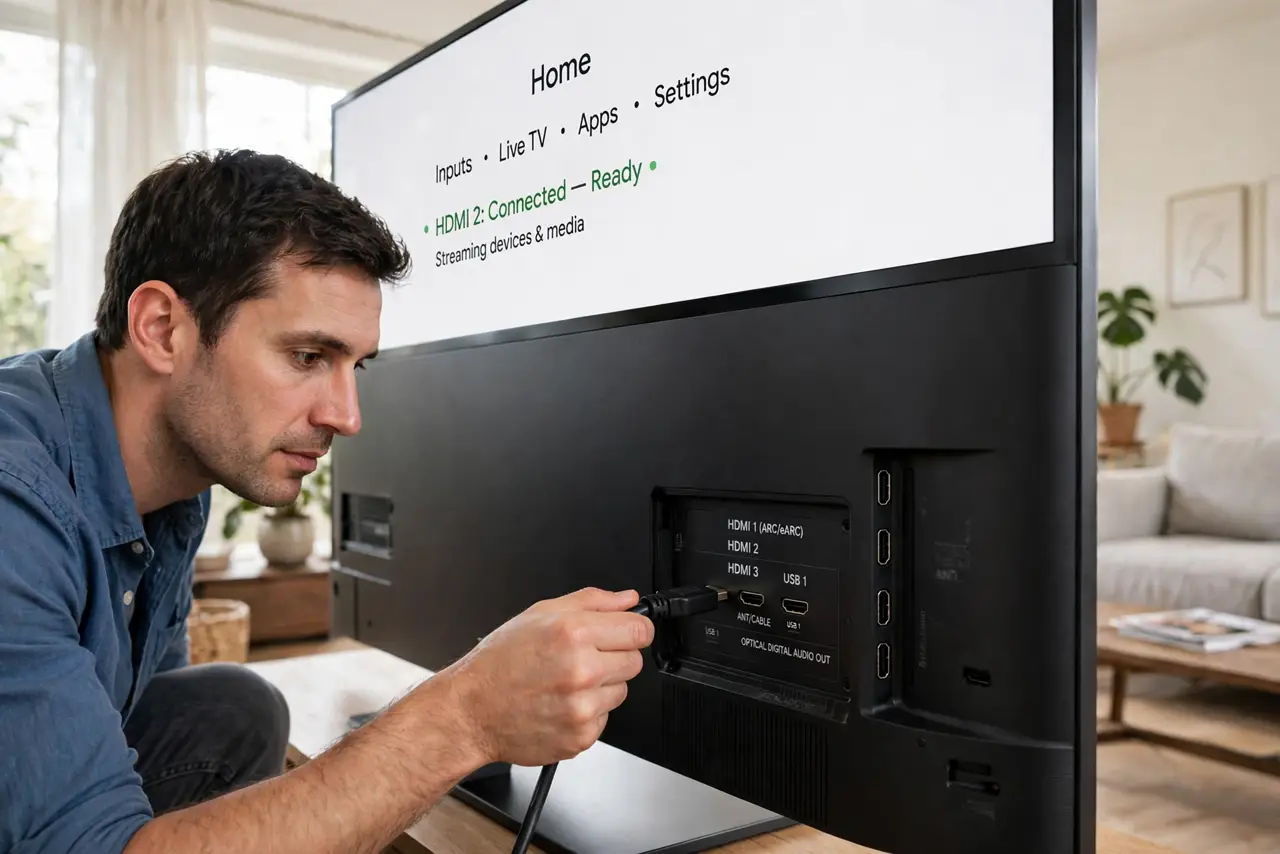
TL;DR / Quick Fix
Quick fix: HDMI 2.0 handles 4K at 60Hz; HDMI 2.1 adds 4K at 120Hz and 8K. The cable must be rated for the version — old cables bottleneck new ports. For most buyers, a certified Ultra High Speed (2.1) cable is cheap future-proofing. Match the port, cable, and display versions.
Follow these steps
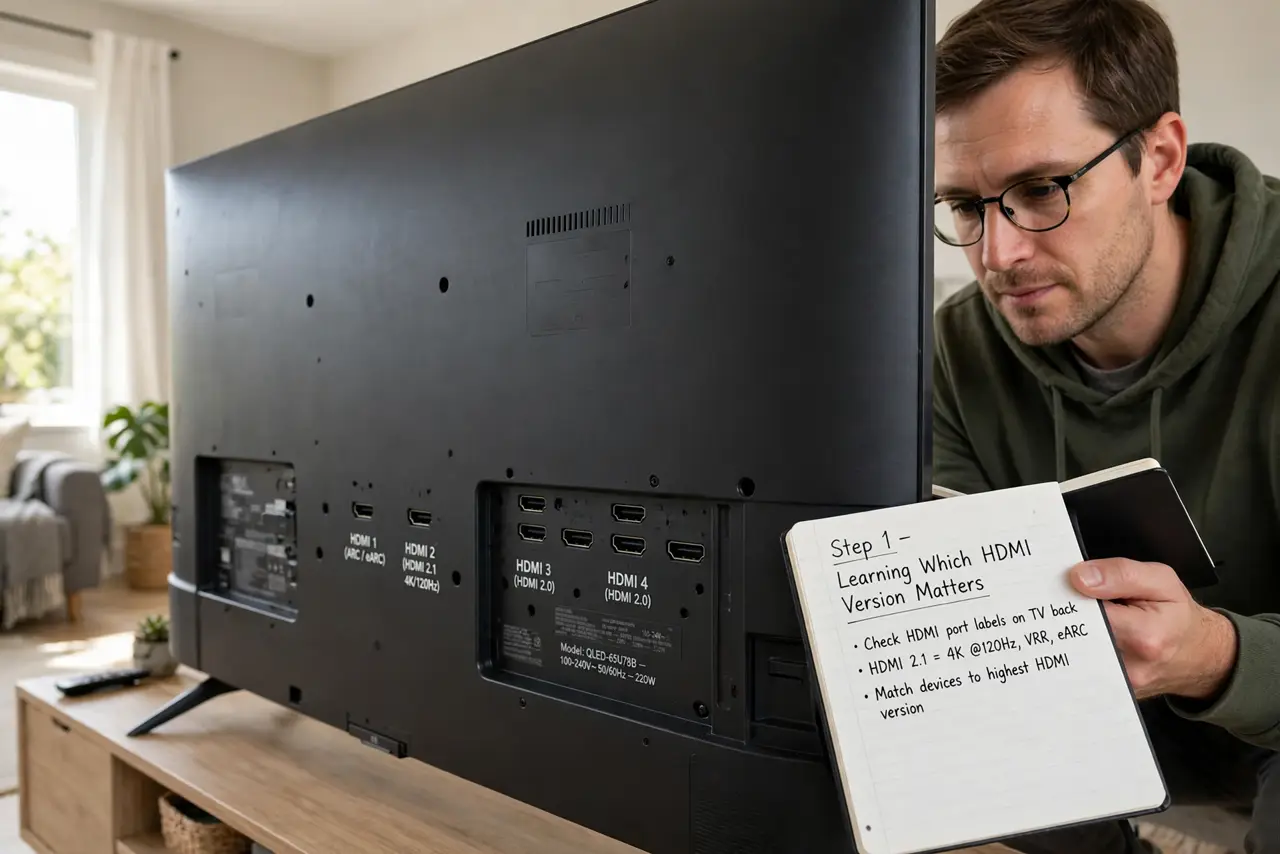
- Learn the versions that matter. HDMI 1.4: 4K at 30Hz, fine for movies. HDMI 2.0: 4K at 60Hz — the current mainstream. HDMI 2.1: 4K at 120Hz, 8K, and variable refresh for gaming. Older versions exist but you won't meet them on new gear.
- Check your ports' versions. TV and monitor specs list the HDMI version per port — and they're not always equal; the 'game' port is often the 2.1 one. Consoles and GPUs list theirs too. The chain runs at the lowest version among source, cable, and display.
- Buy the right cable rating. Standard, High Speed (2.0-capable), Ultra High Speed (2.1-capable) — the label matters more than the price. A certified Ultra High Speed cable costs little and covers everything. When 4K won't hit 60Hz, the cable rating is suspect number one.
- Match all three links. A new console (2.1) plus a 2.1 cable plus a 2.0 TV gives you 2.0 performance — the weakest link rules. Upgrade the actual bottleneck: usually the display or the cable, rarely the source.
- Don't fear the 'no signal' gremlin. Version mismatches usually degrade gracefully (lower refresh), but a dead port with a good cable has its own checklist — try another port and cable before blaming versions.
- Consider DisplayPort for PCs. For computer monitors, DisplayPort often beats HDMI — higher refresh support and a cleaner PC feature set. HDMI rules the living room; DisplayPort rules the desk. Pair that with the right refresh rate and the picture is complete.
What NOT to do
- Do not buy the most expensive cable. Certified Ultra High Speed cables are cheap — price is not a quality signal for digital cables.
- Do not assume all ports on one TV are equal. Check which port is 2.1 before plugging the console into a 2.0 one.
- Do not run very long passive HDMI cables for 2.1 speeds. Beyond ~3 meters, full bandwidth needs an active or fiber cable.
- Do not confuse HDMI version with HDCP. Version is bandwidth; HDCP is copy protection — a different cause of black screens.
Frequently asked questions
Will an old cable work at all?
Usually yes, at reduced capability — an old cable on new ports typically gives 1080p or 4K/30 instead of nothing. Complete failure is rarer than degraded performance.
Is HDMI 2.1 worth it without a new console?
For movies and office use, no — 2.0 covers 4K/60. For 120Hz+ gaming or 8K, yes, but only with a 2.1 display to match.
What's eARC?
Enhanced Audio Return Channel — sends high-quality audio from TV to soundbar over HDMI. It's a 2.1 feature worth using if you have a sound system.