How Much RAM Do You Need?
RAM is the most misunderstood spec on the box — too little and everything stutters, too much and you paid for capacity you will never touch. The right amount depends entirely on what you actually do, not on what sounds impressive. This guide maps real workloads to real numbers so you buy once and buy right.
TL;DR / Quick Fix
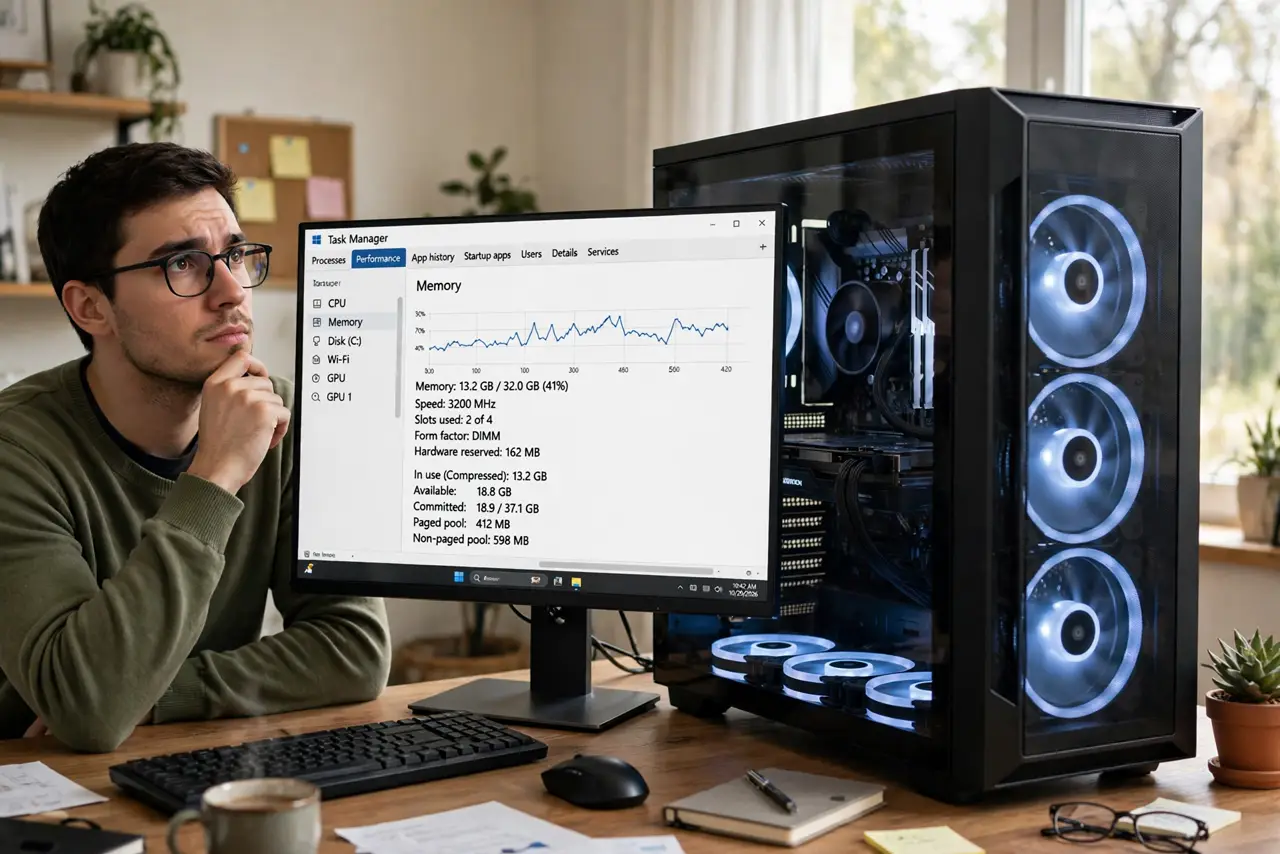
Quick fix: 8 GB is the floor for basic use, 16 GB is the sweet spot for most people, and 32 GB is for heavy multitasking or creative work. Check your current usage in Task Manager or Activity Monitor — if you are constantly above 80 percent, you need more.
Follow these steps
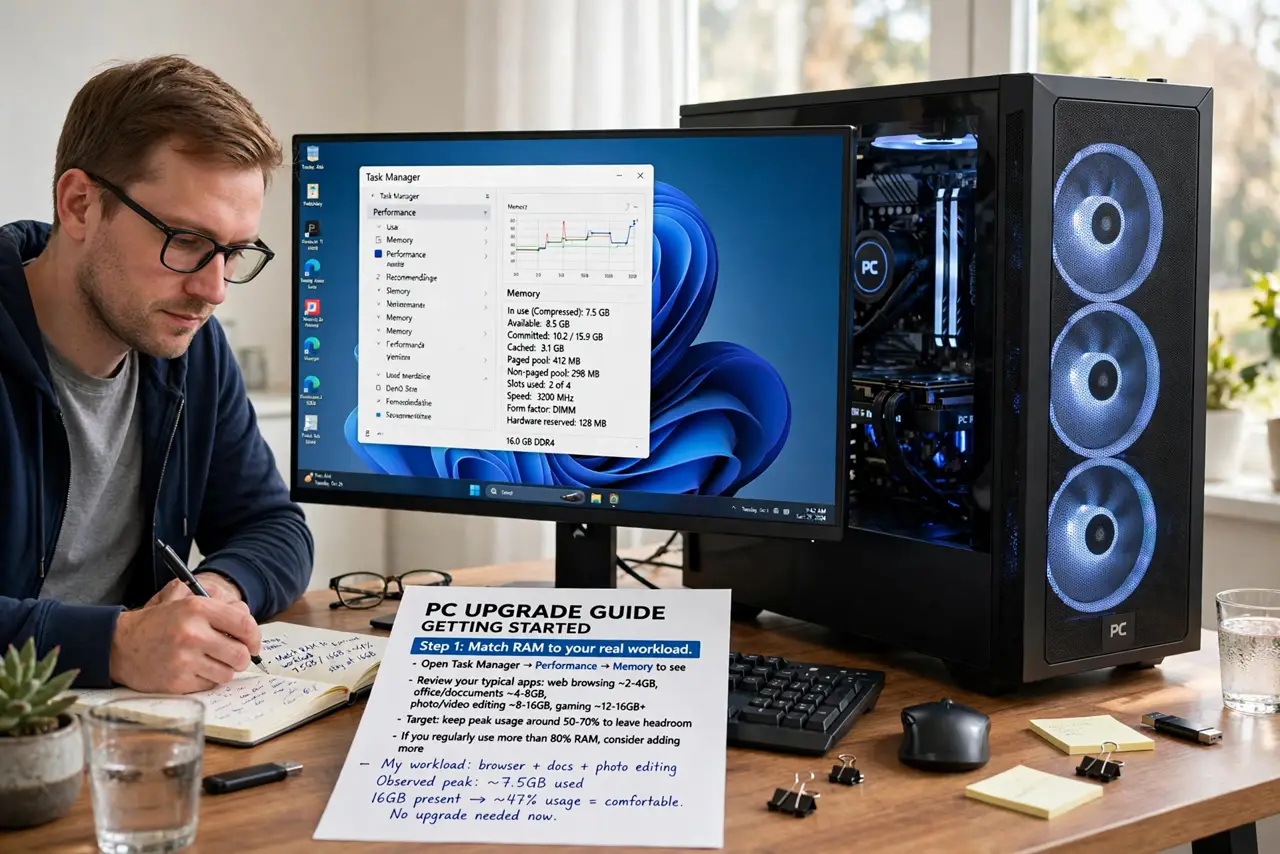
- Match RAM to your real workload. Web browsing, office apps, and streaming: 8 GB suffices. Dozens of tabs plus creative apps: 16 GB. Video editing, virtual machines, heavy gaming: 32 GB. Buy for your life, not a benchmark.
- Check what you use today. Open Task Manager or Activity Monitor during your heaviest hour. Consistently above 80 percent memory pressure means an upgrade helps; sitting at 50 percent means you are fine.
- Prefer 16 GB as the default buy. For a new computer in 2026, 16 GB is the sensible default — enough headroom for years of software bloat without paying the 32 GB premium most people never use.
- Remember RAM is not speed alone. Capacity and speed both matter — see how speed compares to capacity. But for stuttering and slowdowns, insufficient capacity is the usual culprit, not slow RAM.
- Check upgradability before buying. Some laptops solder RAM permanently — what you buy is what you keep. If it is soldered, buy more than you need today; if it has slots, you can start smaller and add later.
- Do not confuse RAM with storage. 8 GB of RAM and a 512 GB drive are different things. RAM is workspace; storage is the filing cabinet. A full drive causes its own slowdowns — see what SSD size you actually need.
What NOT to do
- Do not buy 32 GB 'to be safe' for email and browsing. Unused RAM is not faster — it is just money sitting idle.
- Do not add RAM to fix a slow computer blindly. A full drive, malware, or an aging processor cause identical symptoms — diagnose first.
- Do not mix wildly different RAM sticks. Mismatched capacity and speed can disable dual-channel mode and cause instability.
- Do not pay the manufacturer's RAM upgrade ransom without checking. Factory RAM upgrades are often double the price of the same sticks bought separately — when the machine has slots.
Frequently asked questions
Is 8 GB enough in 2026?
For light use — browsing, email, streaming, office docs — yes, barely. It is the floor, not the comfort zone; one heavy app or thirty tabs and you will feel it.
Will more RAM make my computer faster?
Only if you were running out. Going from starved to sufficient feels transformative; going from sufficient to abundant feels like nothing.
Can I add RAM to any computer?
Desktops almost always; laptops sometimes. Many thin laptops solder it — check the specs for 'soldered' vs 'SODIMM slots' before assuming.