Thunderbolt Versions?
Thunderbolt 3, Thunderbolt 4, Thunderbolt 5 — and every one of them uses the same USB-C plug as regular USB. No wonder buying a dock or cable feels like a gamble. Thunderbolt is Intel's high-speed standard for docks, monitors, and storage, and each version raises the bar on speed and display support. Here is what each version gives you and how to avoid paying for the wrong one.
TL;DR / Quick Fix
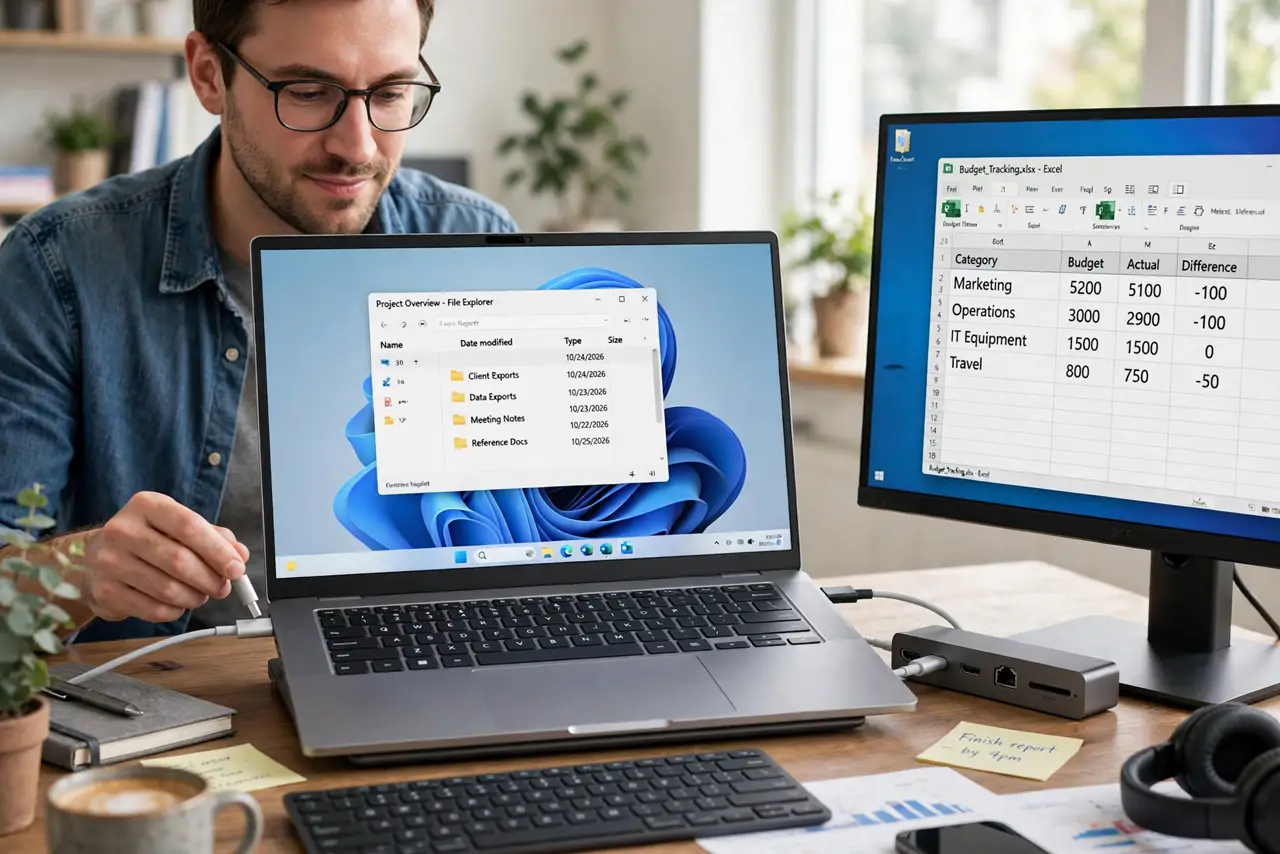
Quick fix: Thunderbolt 3 and 4 both run 40 Gbps; Thunderbolt 4 guarantees dual-4K support and stricter minimums, while 3 is hit-or-miss. Thunderbolt 5 doubles to 120 Gbps for high-end displays. Everything uses USB-C plugs, so check the version number — not the shape — before buying docks or cables.
Follow these steps
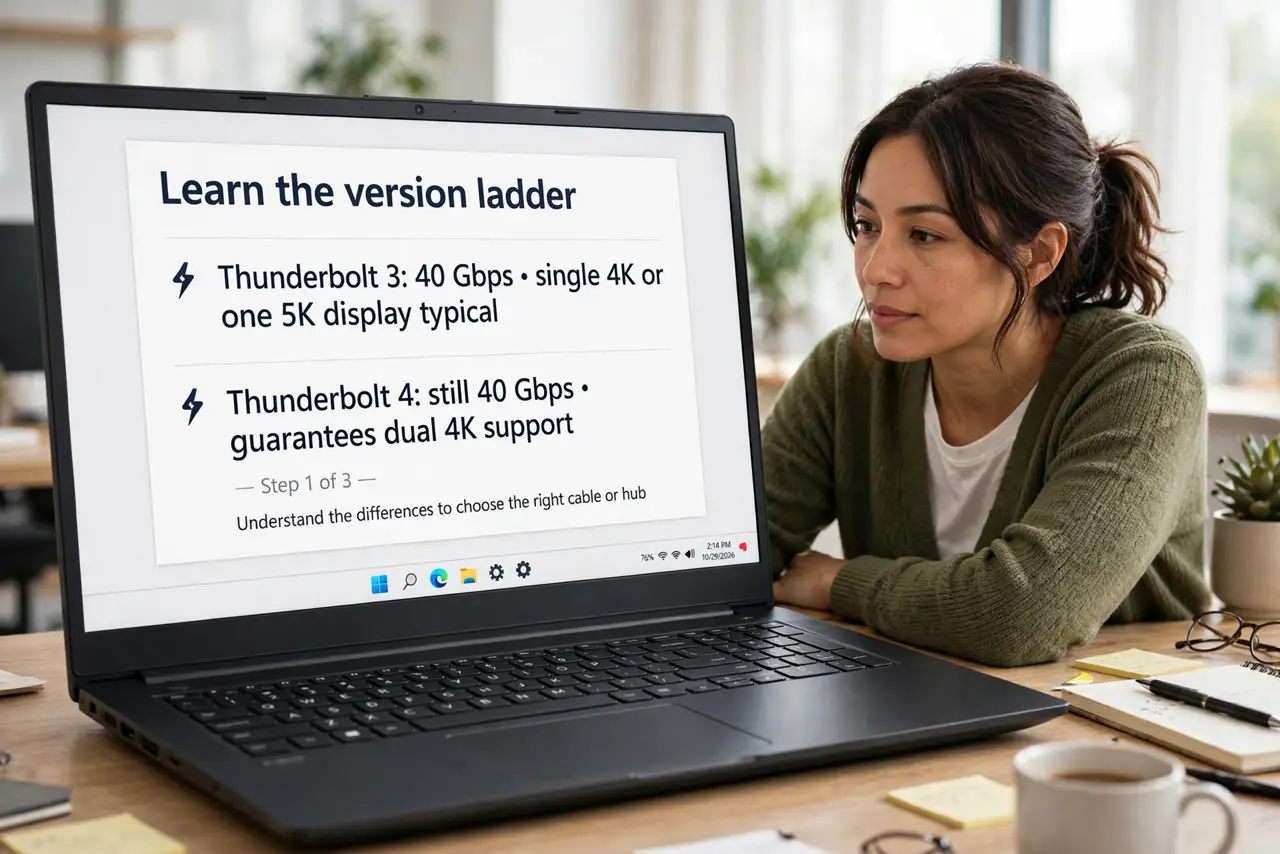
- Learn the version ladder. Thunderbolt 3: 40 Gbps, single 4K or one 5K display typical. Thunderbolt 4: still 40 Gbps, but guarantees dual 4K support, 32 Gbps PCIe data, and stricter certification. Thunderbolt 5: up to 120 Gbps video bandwidth for 8K and high-refresh displays.
- Understand the USB-C confusion. Thunderbolt uses the USB-C connector, but not every USB-C port is Thunderbolt. Look for the lightning-bolt symbol next to the port — no symbol, no Thunderbolt. Our cable identification guide shows how to tell cables apart too.
- Match the dock to your monitors. Driving two 4K monitors? You need Thunderbolt 4 (or a proven Thunderbolt 3 dock). A single 1080p monitor works on far cheaper USB-C docks — do not buy Thunderbolt for a job plain USB-C handles.
- Check the cable rating. Passive Thunderbolt cables only reach full speed at short lengths (under ~0.8 m); longer ones need expensive active cables. A random USB-C cable in a Thunderbolt dock silently drops you to USB speeds.
- Know it works with USB4. Thunderbolt 3/4 ports accept USB4 and regular USB-C devices — backward compatible, just slower. A Thunderbolt dock is a safe, if pricey, universal hub. See how the USB versions compare for the underlying speeds.
- Do not pay for Thunderbolt 5 yet (usually). Unless you drive 8K displays or huge storage arrays, Thunderbolt 4 covers everything at much lower prices. Buy for the monitors you own, not the ones you dream about.
What NOT to do
- Do not assume a USB-C port is Thunderbolt. Same plug, different capabilities — the lightning symbol is the only proof.
- Do not buy a Thunderbolt dock for one 1080p monitor. A basic USB-C dock does that job for a fraction of the price.
- Do not use a long passive cable and expect full speed. Beyond about 0.8 m, passive Thunderbolt cables throttle — you need active cables for distance.
- Do not mix up Thunderbolt 3's optional features. Dual-monitor support was optional on TB3 and guaranteed on TB4 — verify before buying a used TB3 dock.
Frequently asked questions
Can I plug a regular USB-C device into a Thunderbolt port?
Yes — Thunderbolt ports accept all USB-C devices, falling back to USB speeds. It is the universal donor of ports.
Is Thunderbolt worth it on Windows?
Yes, if you dock multiple monitors or fast storage — Windows supports Thunderbolt 3/4 widely now. Just confirm your specific laptop model actually includes it.
Thunderbolt 4 vs USB4 — which is better?
They overlap heavily at 40 Gbps. Thunderbolt 4 has stricter minimum specs (dual 4K guaranteed); USB4 minimums are looser. For docks, Thunderbolt 4 certification is the safer bet.