Laptop Webcam Covers?
That tiny camera above your screen can be switched on by software — and malware that hijacks it is a real, documented thing. A webcam cover is the cheapest possible insurance: a physical shutter that guarantees nobody sees you, no matter what the software says. They cost a few dollars, take seconds to install, and even cautious security pros use them.
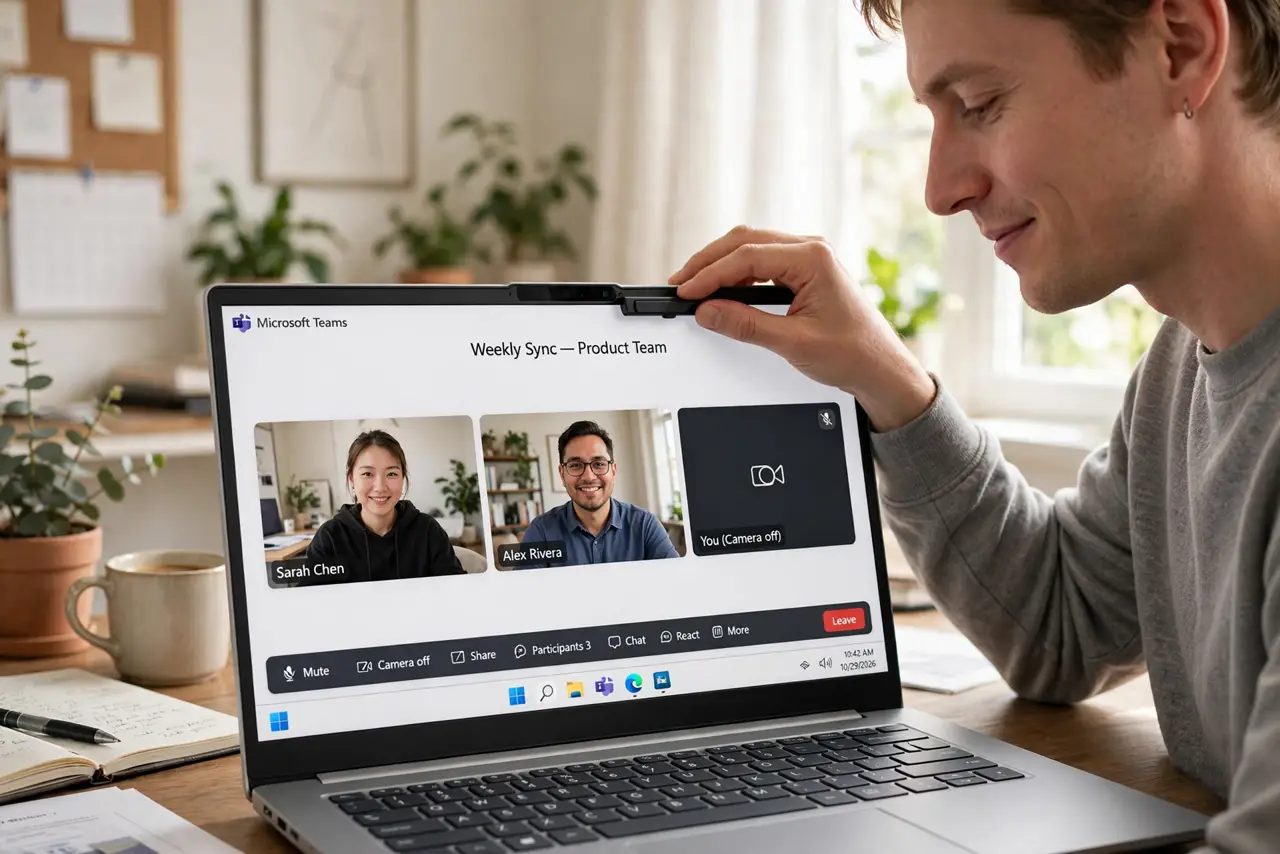
TL;DR / Quick Fix
Quick fix: a sliding webcam cover is cheap, reliable privacy — it physically blocks the camera so no software can see through it. Get an ultra-thin slider that fits under the closed lid. Also watch the camera indicator light: if it is on unexpectedly, investigate.
Follow these steps
- Understand why a physical cover beats software. Software can lie — malware can activate a camera while suppressing the indicator. A physical shutter cannot be overridden by code. That is the entire argument, and it is a strong one.
- Pick an ultra-thin slider. The cover must be thin enough that the laptop lid closes fully over it — thick covers crack screens on some ultrabooks. Look for 'ultra-thin' or 'laptop-specific' sliders, usually under a millimeter.
- Install it aligned, then test. Center the slider over the lens, press firmly, and open the camera app: sliding it shut should give you pure black. If the lens peeks out at the edges, reposition before the adhesive sets.
- Build the indicator-light habit. Your OS shows a light or icon when the camera is active. Glance at it the way you glance at a rearview mirror — a light you did not expect deserves a look at which app is using the camera.
- Know tape is the free alternative. A small piece of opaque tape works — it is what security-conscious people used for years. Covers just look better and slide open for calls without peeling adhesive each time.
- Cover the microphone question honestly. A webcam cover blocks video, not audio. If microphone spying worries you, that is a separate control — check app microphone permissions and mute when not on calls.
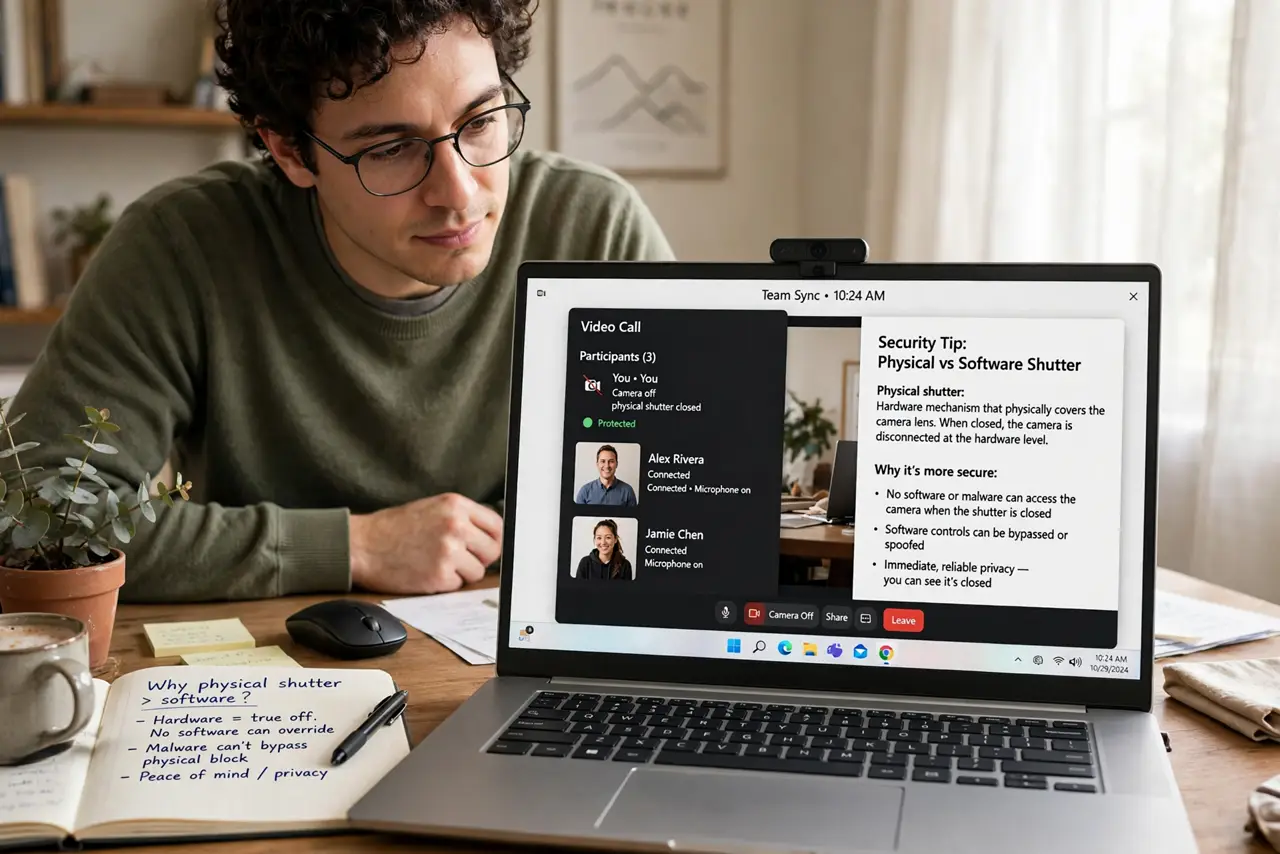
What NOT to do
- Do not use a thick cover on a thin ultrabook. Pressure from the lid can crack the screen — thinness is a requirement, not a preference.
- Do not assume the cover means you can skip software hygiene. It blocks the camera; phishing and malware still want your files and passwords.
- Do not cover the ambient light sensor by mistake. Some laptops put sensors near the camera — blocking them dims the screen oddly.
- Do not buy a cover before checking for a built-in shutter. Many business laptops now include a physical shutter — check yours first.
Frequently asked questions
Are webcam covers really necessary?
For most people they are cheap peace of mind rather than urgent defense. But camera-hijacking malware exists, and a two-dollar slider removes the question entirely.
Will a cover damage my screen?
Only if it is too thick for your lid to close. Ultra-thin laptop-specific covers are designed for the clearance — generic thick ones are the risk.
What about the microphone?
Covers do not block audio. Manage microphone access in your OS privacy settings and keep the mute habit on calls.