Location Access Per App?
A flashlight app wants your location, a game wants it 'always,' and you are not sure which apps actually need to know where you are. Both iPhone and Android let you set location access per app — never, once, while using, or always. A five-minute audit usually reveals several apps with more access than they deserve. Here is how to take control.
TL;DR / Quick Fix
Quick fix: review location access per app in Settings → Privacy → Location Services (iPhone) or Settings → Location → App permissions (Android). Give 'While Using' to maps and delivery apps, 'Never' to games and flashlights, and 'Always' to almost nothing. Your battery and privacy both improve immediately.
Follow these steps
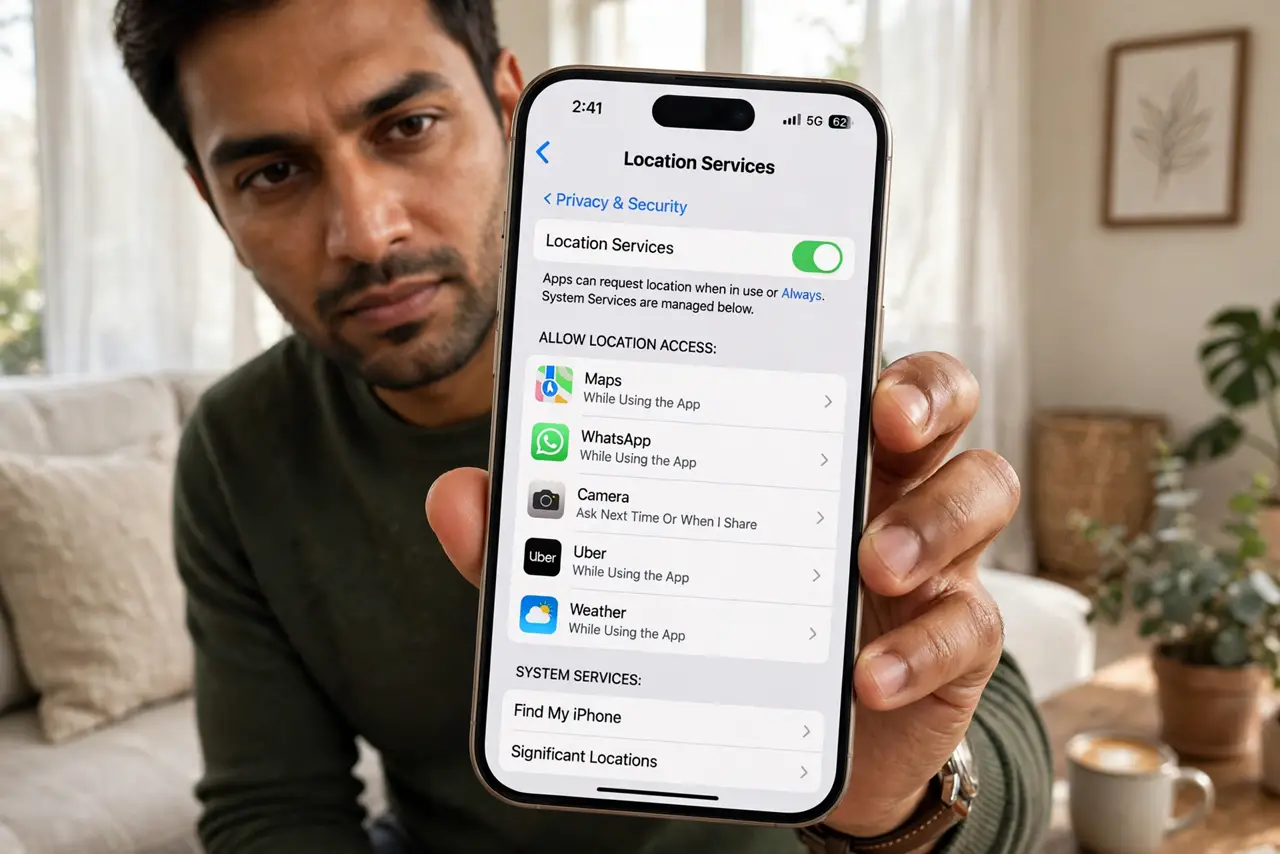
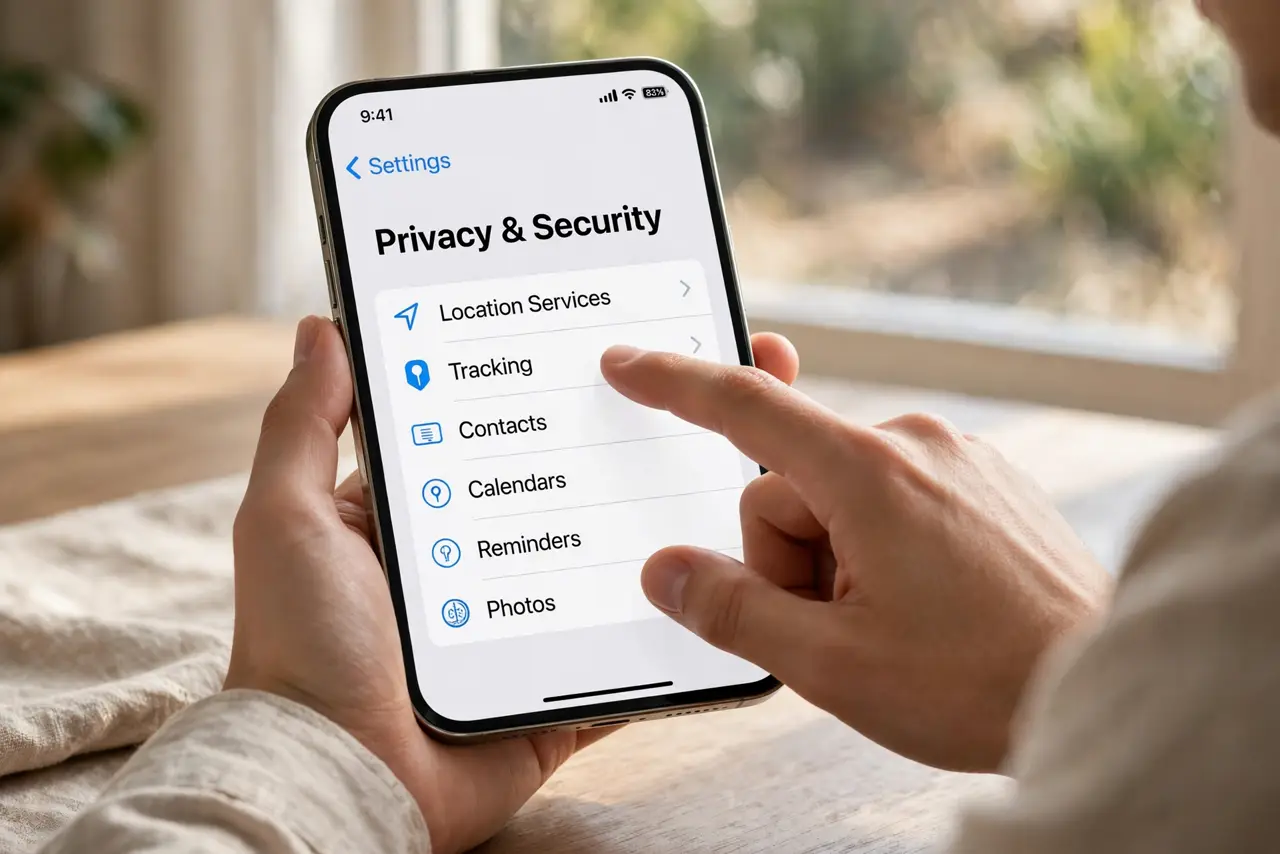
- Open the location settings. iPhone: Settings → Privacy & Security → Location Services. Android: Settings → Location → App location permissions. You will see every app that has ever asked, with its current setting. This list is the audit.
- Learn what each option means. 'Never' blocks entirely; 'Ask Next Time' prompts again; 'While Using the App' allows only in the foreground; 'Always' includes background tracking. 'Always' is the one to scrutinize — few apps genuinely need it. A background tracker is usually hiding behind this setting.
- Demote the obvious offenders. Games, flashlights, and shopping apps rarely need your location — set them to Never. If a flashlight app demands location, that is a red flag for data collection, not a feature. Be ruthless here; apps will ask again if they truly need it.
- Keep 'While Using' for the deserving. Maps, ride-sharing, delivery, and weather apps legitimately need location while open. 'While Using' gives them what they need with zero background tracking. This is the right default for most location-aware apps.
- Reserve 'Always' for almost nothing. Genuine 'Always' cases: family safety apps, automation tools, and Find My-style device locators. Everything else claiming to need it is usually monetizing your movements. iPhone periodically reminds you which apps use background location — act on those reminders.
- Check Precise Location too. Both systems let you grant approximate instead of exact location per app. Weather and news apps work fine with approximate; only navigation needs precise. Turning off Precise Location is a free privacy upgrade for most apps.
What NOT to do
- Do not grant 'Always' to social and shopping apps. Background location is valuable data — 'While Using' covers every legitimate need they have.
- Do not disable Location Services entirely in frustration. Emergency calls, Find My, and maps need the master switch — per-app control is the precise tool.
- Do not ignore the background-location reminders. When iOS tells you an app has been using your location in the background, it is inviting you to revoke it — accept the invitation.
- Do not assume a denied app is broken forever. If an app genuinely needs location later, it will ask again — denying now costs you nothing.
Frequently asked questions
Will turning off location break my apps?
Only location features break — maps will not navigate, ride apps cannot find you. Everything else keeps working. Grant 'While Using' to the apps where location is the point, and deny the rest.
Does location tracking drain the battery?
Background location is a real battery drain, especially with 'Always' apps polling GPS. Cutting background access is one of the most effective battery savings after screen brightness.
What is Precise Location?
Exact GPS coordinates versus an approximate area. Most apps work fine with approximate — only turn-by-turn navigation truly needs precise. It is set per app, right under the main location permission.