Use iPhone StandBy Mode
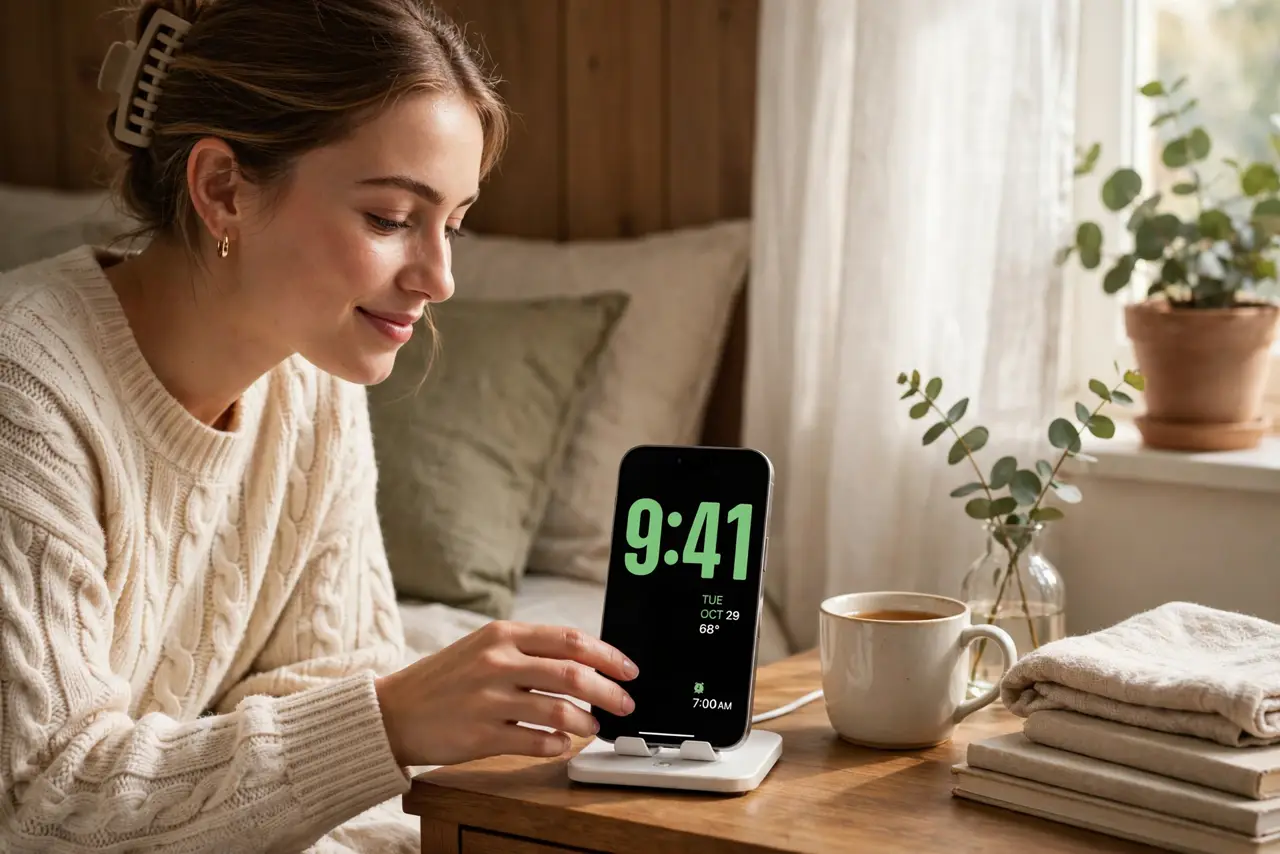
Plug your iPhone into its charger, turn it sideways, and it transforms into a bedside clock, a photo frame, or a widget dashboard — that is StandBy mode. It is one of those features you stumble on by accident and then cannot live without. If StandBy never appears, or it shows the wrong widgets, the cause is usually a setting or the angle you docked the phone.
TL;DR / Quick Fix
Quick fix: charge your iPhone, tilt it to landscape, and keep it still — StandBy appears automatically. Customize it with a long press to change clocks, photos, and widgets. It needs StandBy enabled in Settings under Display and Brightness, and works best on a stand or MagSafe charger.
Follow these steps
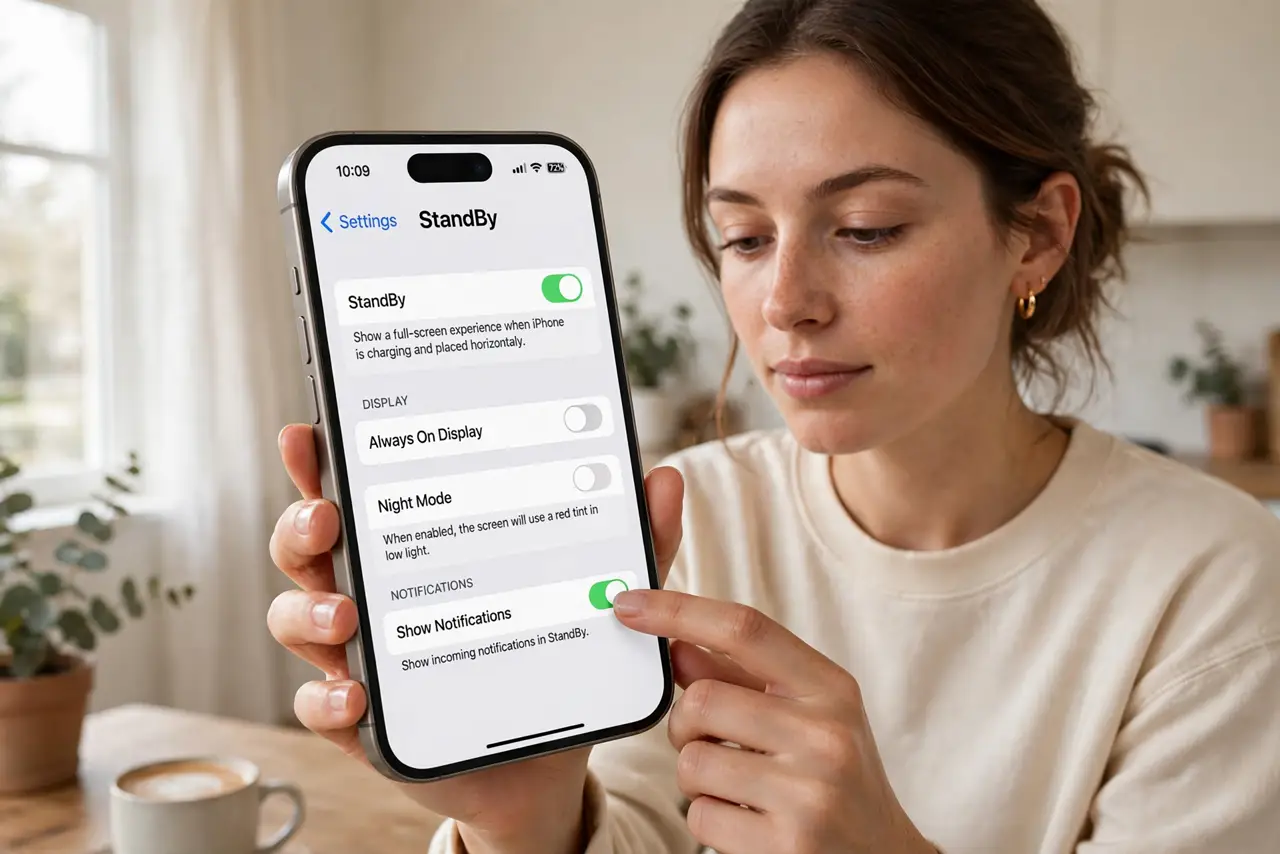
- Turn StandBy on in Settings. Go to Settings, then Standby, and make sure it is enabled. If StandBy never triggers, this switch is the first place to check.
- Charge and tilt the phone. Plug in the charger, rotate the iPhone to landscape, and set it down still. StandBy needs charging plus the sideways angle — holding it in your hand will not trigger it.
- Swipe between the three views. Swipe left and right to move between the clock view, the photo view, and the widget view. Each is a separate screen you can set up differently.
- Customize with a long press. Long-press any StandBy screen to edit it: change clock styles and colors, pick photo albums, or add widgets. This is also where you fix the wrong widgets showing problem.
- Set up Night Mode for the bedroom. In the StandBy settings, enable Night Mode so the clock turns dim red in the dark — easy on the eyes at 3 AM, as the night mode guide explains.
- Use a proper stand. StandBy shines on a MagSafe stand or any angled dock that holds the phone sideways and charging. Flat on the table in portrait, it stays an ordinary locked phone.
What NOT to do
- Do not expect StandBy while holding the phone. It only activates when charging, sideways, and motionless.
- Do not panic about battery. StandBy uses little power while charging — see the battery notes if the always-on screen concerns you.
- Do not forget it needs a recent iOS version. Older software simply does not have the feature — check for updates.
- Do not block the motion sensor. StandBy detects the tilt — a case that prevents the angle can stop it from triggering.
Frequently asked questions
Why won't StandBy turn on?
Check the StandBy switch in Settings, confirm the phone is charging and truly in landscape, and set it down still for a few seconds. A restart fixes stubborn cases.
Can I use StandBy without MagSafe?
Yes — any charger works, wired or wireless. MagSafe stands just hold the angle nicely; a regular dock or even leaning it carefully works too.
Does StandBy drain the battery overnight?
Barely, since the phone is charging. The screen dims aggressively in the dark, especially with Night Mode on.