Ride Transit with iPhone
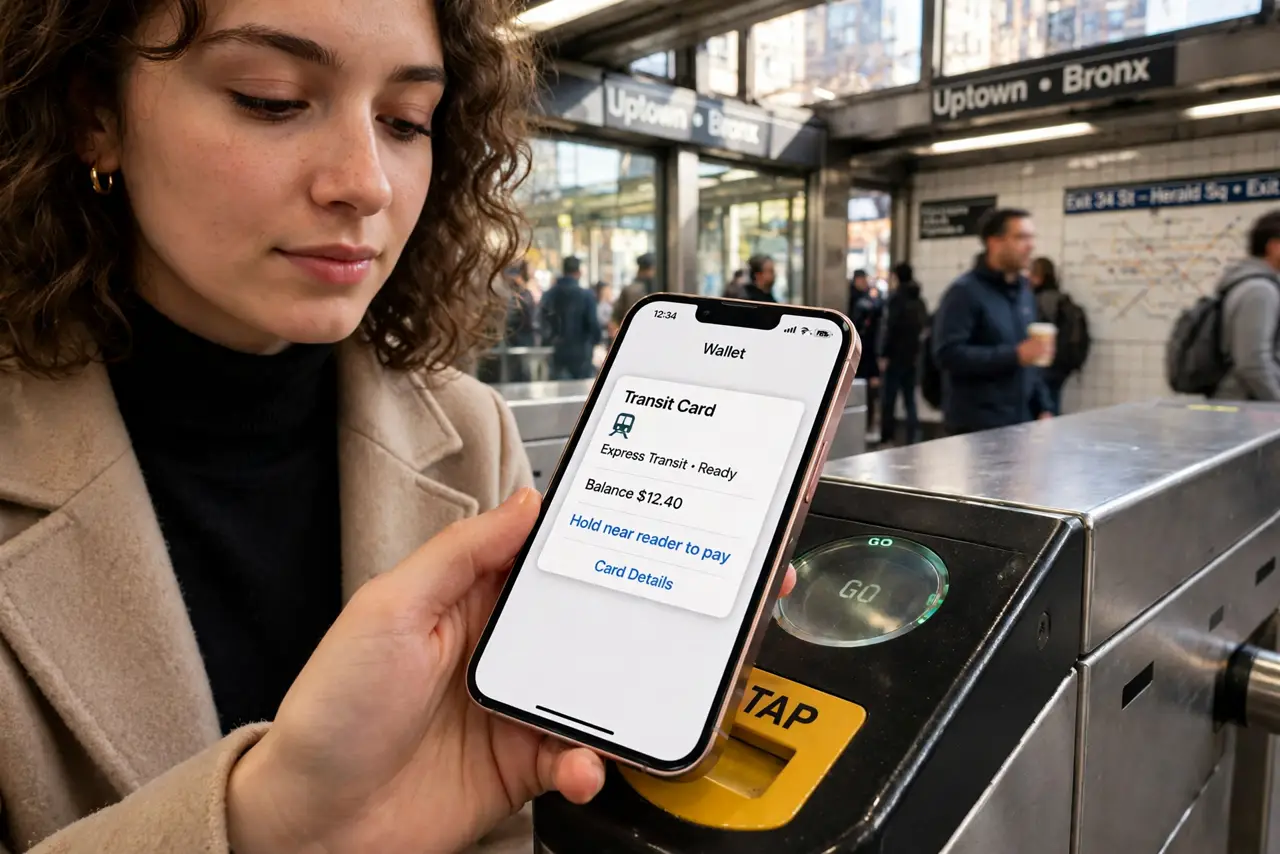
Fumbling for a fare card while the turnstile line builds behind you is a special urban stress. Apple Wallet holds your transit card, and Express Transit lets you tap through without unlocking — no Face ID, no passcode, just hold the phone near the reader. Here is how to set it up before rush hour.
TL;DR / Quick Fix
Quick fix: add your transit card to Apple Wallet and turn on Express Transit — then just hold the iPhone near the reader, no unlock or Face ID needed. Keep a backup payment card in Wallet for systems without transit cards. Check your balance in Wallet before rush hour.
Follow these steps
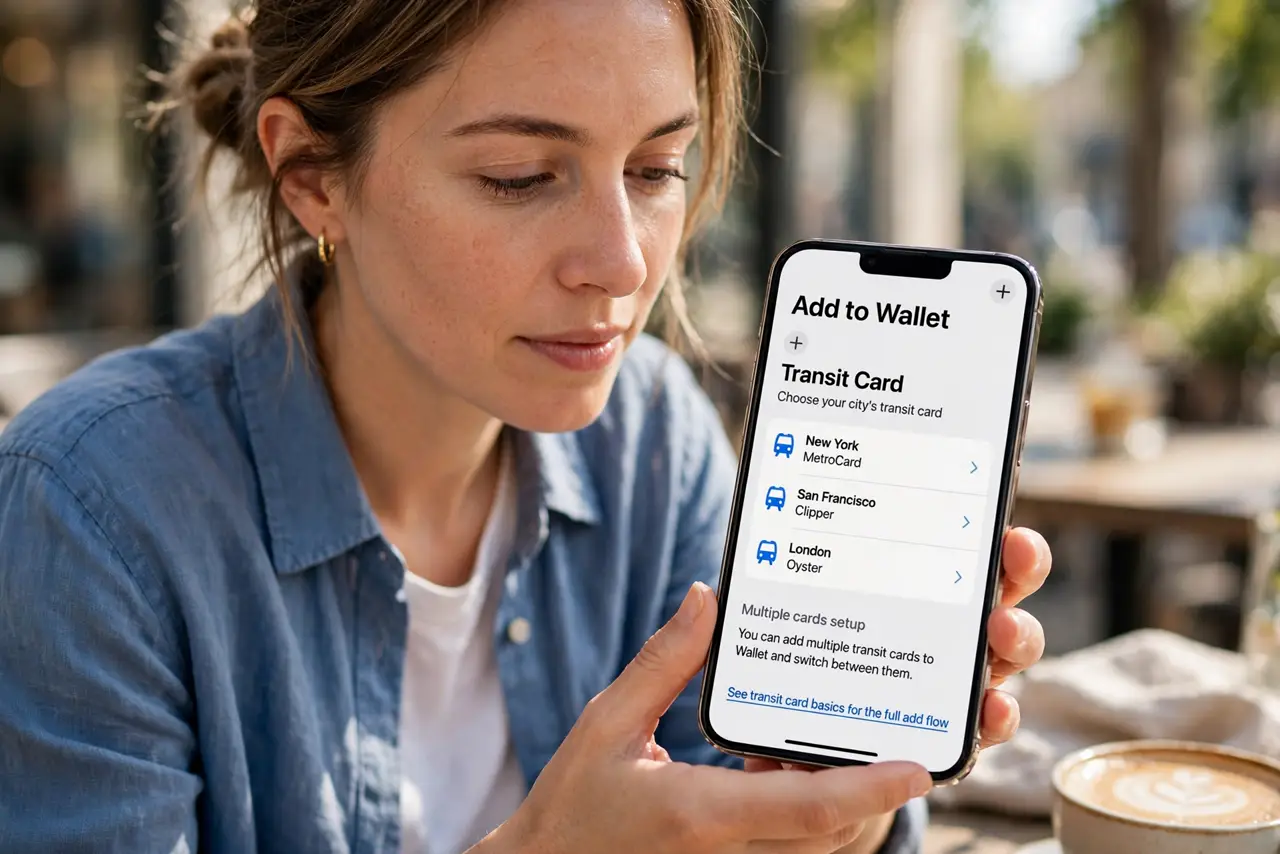
- Add your transit card. Open Wallet, tap the plus, and choose Transit Card. Pick your city's card — see the transit card basics for the full add flow, including the multiple cards setup.
- Turn on Express Transit. In Wallet settings for the card, enable Express Transit. This is the magic — the phone pays at readers without unlocking, even with a dead-ish battery on newer iPhones.
- Top up before rush hour. Add value in the Wallet app ahead of time. Topping up at the gate with a line behind you defeats the whole purpose.
- Keep a backup payment method. Some systems take contactless bank cards instead of transit cards — Android wallet transit works the same way. Keep one in Wallet for unfamiliar cities.
- Learn the Wallet basics. If Wallet is new to you entirely, the Wallet basics guide covers adding and managing any card type.
- Check the balance habit. Glance at the card balance in Wallet before leaving. A declined tap at the turnstile is avoidable with a five-second check.
What NOT to do
- Do not enable Express Transit on a card you rarely use. The wrong default card at the reader charges the wrong account — set the right one.
- Do not forget the phone still needs some battery. Express Transit works on low power, but a fully dead phone is a fully dead fare card.
- Do not top up at the gate. Do it at home on Wi-Fi — the gate is the worst place to discover a payment hiccup.
- Do not assume every city supports it. Check your transit system's site first — coverage is broad but not universal.
Frequently asked questions
Does Express Transit work with Face ID off?
That is the point — no unlock needed at all. Hold the phone near the reader and it pays.
What if my phone dies mid-trip?
Newer iPhones keep Express Transit alive for hours on reserve power. Older ones do not — keep the phone charged.
Can I use it for buses too?
Wherever the transit system accepts the card — buses, subways, ferries. It follows the card's acceptance, not the vehicle.