Monitors with KVM
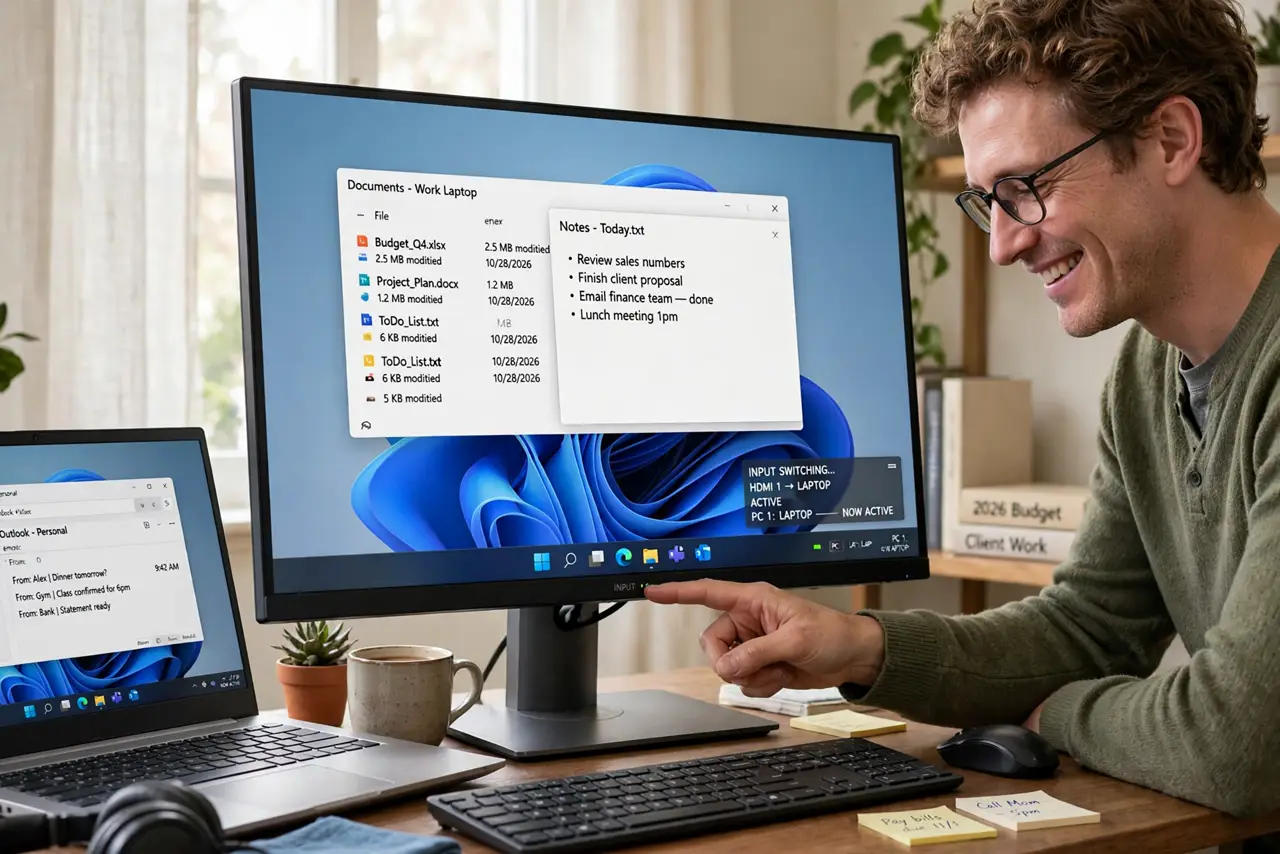
Two computers share your desk — work laptop and home PC — and you are swapping cables or juggling two keyboards like a DJ. Some monitors have a KVM switch built in: one button switches the screen, keyboard, and mouse between both machines. Here is how it works and what to check before buying.
TL;DR / Quick Fix
Quick fix: a monitor with built-in KVM lets one keyboard, mouse, and screen control two computers with a button press — check that its video ports and USB hub match both machines. It replaces a separate KVM box for simple two-PC desks. Confirm it supports your resolution before buying.
Follow these steps
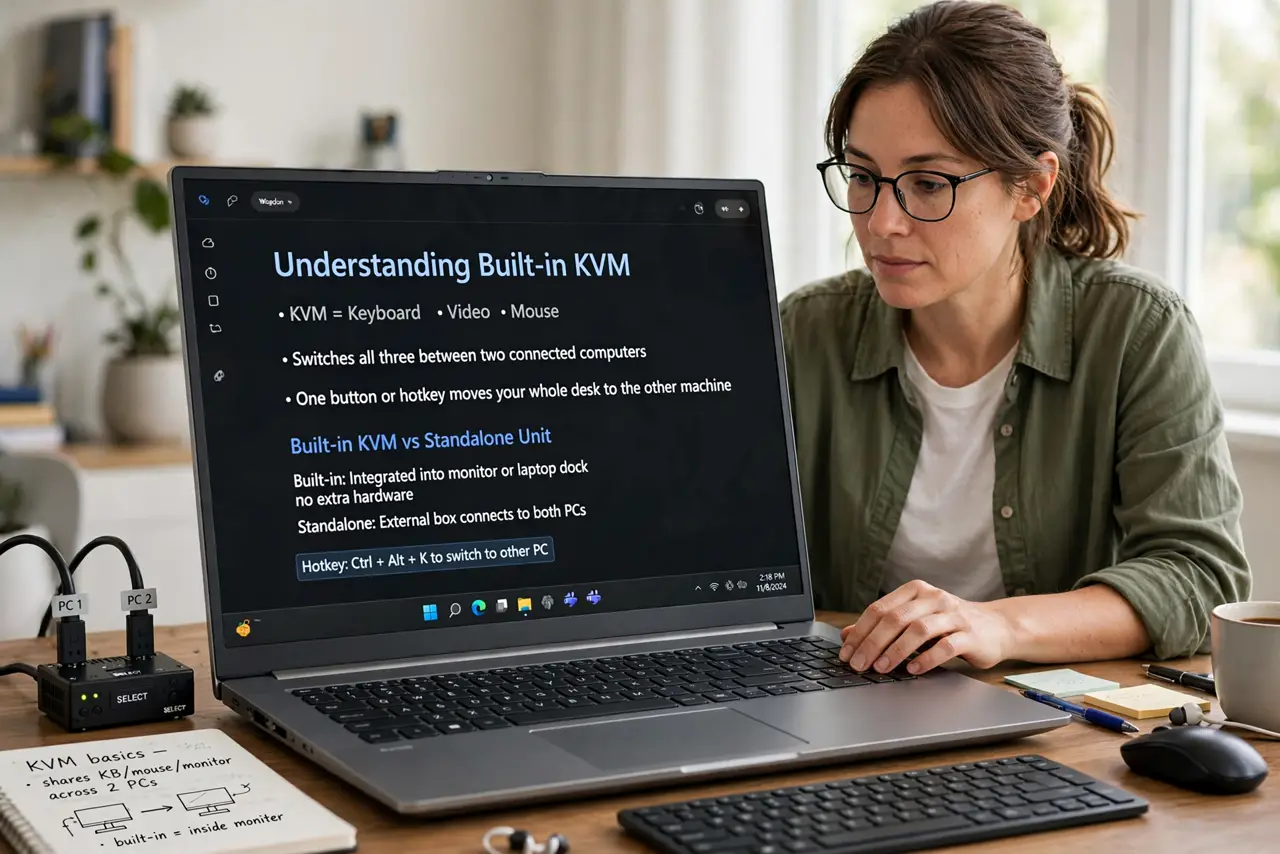
- Understand what built-in KVM does. Keyboard, video, mouse — the monitor switches all three between two connected computers. One button or hotkey moves your whole desk to the other machine. See the KVM switch basics for how standalone units compare.
- Check the video inputs. The monitor needs one input per computer — typically USB-C for the laptop and HDMI or DisplayPort for the desktop. Count your machines' outputs against the monitor's inputs.
- Verify the USB hub. Keyboard and mouse plug into the monitor's USB ports, which switch along with the video. Confirm enough ports for your peripherals — webcams and headsets count too.
- Match the resolution and refresh. The KVM path must handle your monitor's full resolution and refresh rate. A 4K 144Hz screen needs a KVM that actually passes 4K 144Hz — see the explainer for the specs that matter.
- Test the switching speed. A second or two of black screen is normal. If switching takes ten seconds or drops the USB devices, the implementation is poor — test during the return window.
- Consider when separate is better. Three or more computers, or fussy high-refresh gaming setups, may still want a dedicated KVM switch box. Built-in KVM shines at exactly two machines.
What NOT to do
- Do not assume every USB-C monitor has KVM. USB-C video and a USB hub do not equal KVM — the switching feature must be listed.
- Do not expect instant switching. A brief black screen during changeover is normal on nearly all KVM implementations.
- Do not forget the second computer's audio. Check whether audio switches too — many built-in KVMs leave audio on one machine.
- Do not buy for three computers. Built-in KVM is a two-machine feature; a third machine needs a separate switch.
Frequently asked questions
Is built-in KVM as good as a separate box?
For two computers at 60Hz, yes and simpler. For high-refresh gaming or three-plus machines, a dedicated box wins.
Can it switch between a Mac and a PC?
Yes — KVM is OS-agnostic for video. Keyboard layout quirks between systems are the only usual friction.
Does the monitor charge the laptop too?
Many KVM monitors do, over USB-C — check the power delivery wattage covers your laptop's needs.