One-Cable Monitor Setup
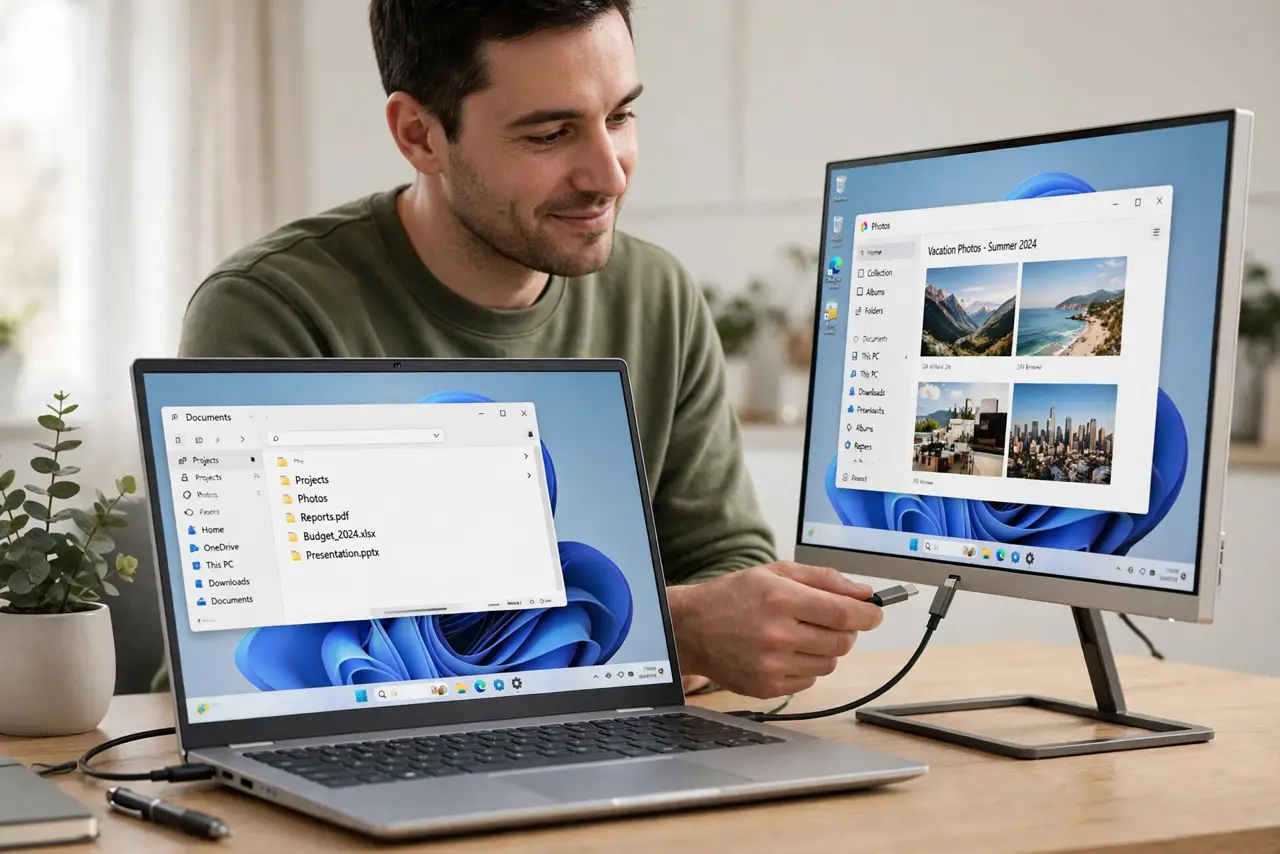
One cable from laptop to monitor carrying video, power, and USB data — no dock, no cable spaghetti, just a clean desk. That is the USB-C monitor promise, and it genuinely works when all three links cooperate: the laptop port, the cable, and the monitor. Miss one and you get a very expensive regular monitor. Here is the checklist.
TL;DR / Quick Fix
Quick fix: a USB-C monitor can carry video, power, and USB data over one cable — but your laptop's port must support video output. Use the cable that came with the monitor, since many USB-C cables are charge-only. Plug peripherals into the monitor's USB ports and enjoy the single-cable desk.
Follow these steps
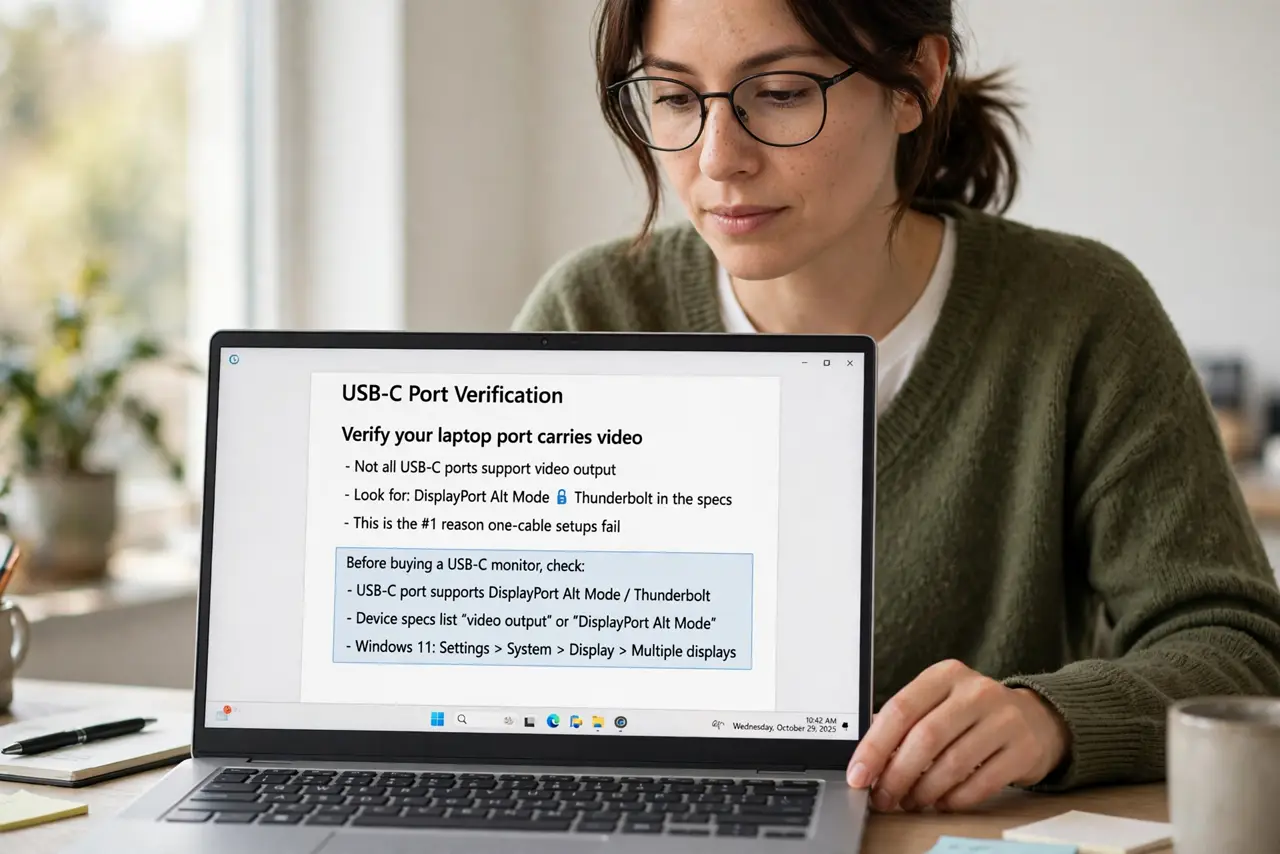
- Verify your laptop port carries video. Not all USB-C ports do — look for DisplayPort Alt Mode or Thunderbolt in the specs. This is the number one reason one-cable setups fail. See the full USB-C monitor requirements before buying.
- Use the included cable. Many USB-C cables are charge-only and cannot carry video at all. The cable in the monitor's box is rated for the job — replacements must explicitly list video support.
- Check the power delivery wattage. The monitor charges your laptop over the same cable. Confirm its wattage covers your laptop — a 65W monitor slowly drains a laptop that wants 90W under load.
- Plug peripherals into the monitor. Keyboard, mouse, and drives go into the monitor's USB hub; one cable carries them all to the laptop. That is the dock experience without a separate dock.
- Set the laptop to stay awake closed. For clamshell mode, set closing the lid to do nothing while plugged in. Otherwise the setup sleeps the moment you close the laptop.
- Test wake-from-sleep early. Some laptop and monitor pairs refuse to wake the external screen reliably — see the not detected fixes if yours misbehaves. Test during the return window.
What NOT to do
- Do not assume every USB-C port carries video. Data-only USB-C ports are common and will never drive a monitor.
- Do not use a random phone-charger cable. Charge-only cables look identical and silently fail at video — use the included one.
- Do not ignore the wattage math. An underpowered monitor charger means the battery drains during heavy work despite being plugged in.
- Do not daisy-chain through adapters. Each adapter is a failure point — go direct cable wherever possible.
Frequently asked questions
Why does my USB-C monitor show no signal?
Almost always the cable (charge-only) or the port (no video output). Swap to the included cable first, then verify the port spec.
Can I charge and use USB devices through the monitor?
Yes — that is the point. The monitor acts as hub and charger simultaneously over the single cable.
Is Thunderbolt required?
No. Regular USB-C with DisplayPort Alt Mode handles one 4K monitor fine. Thunderbolt matters for dual 4K or 5K setups.