Monitor Ghosting? Check Overdrive
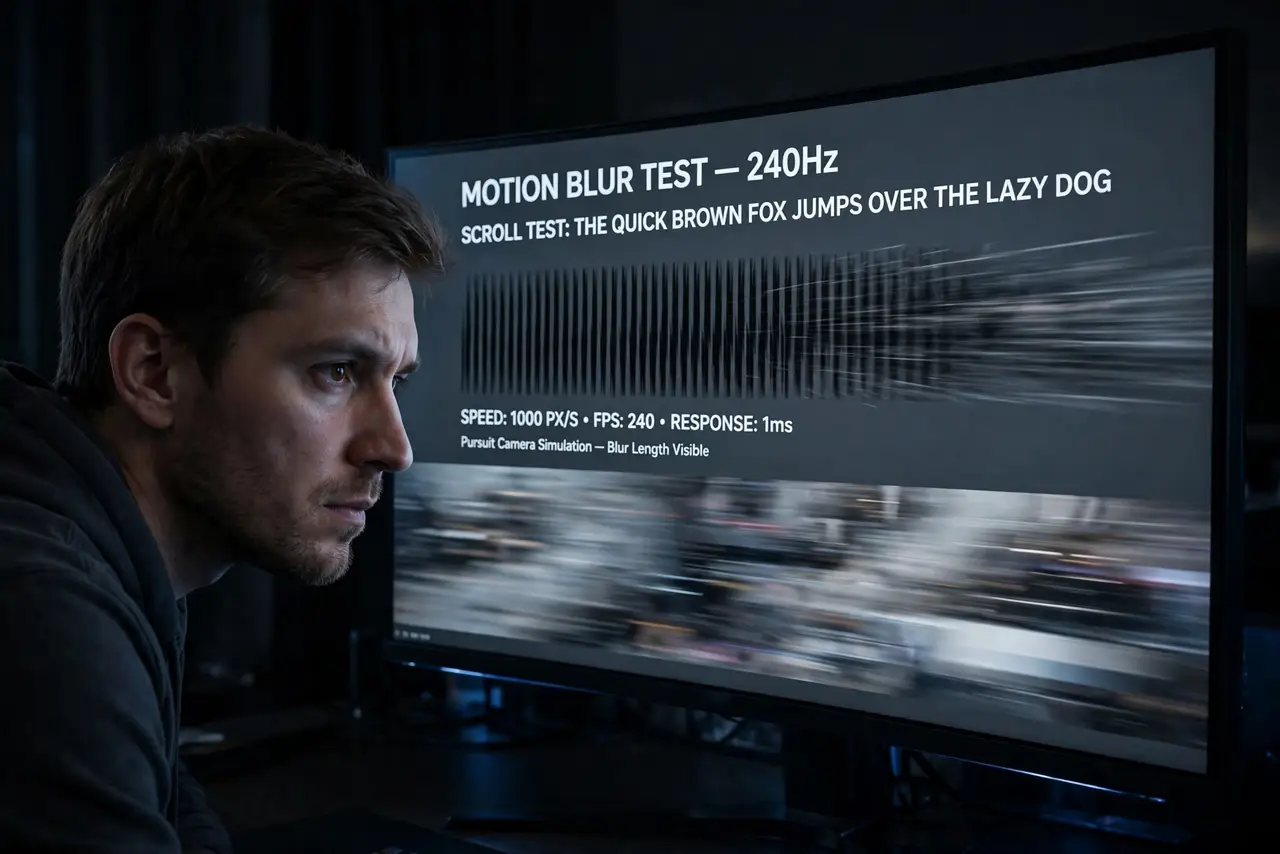
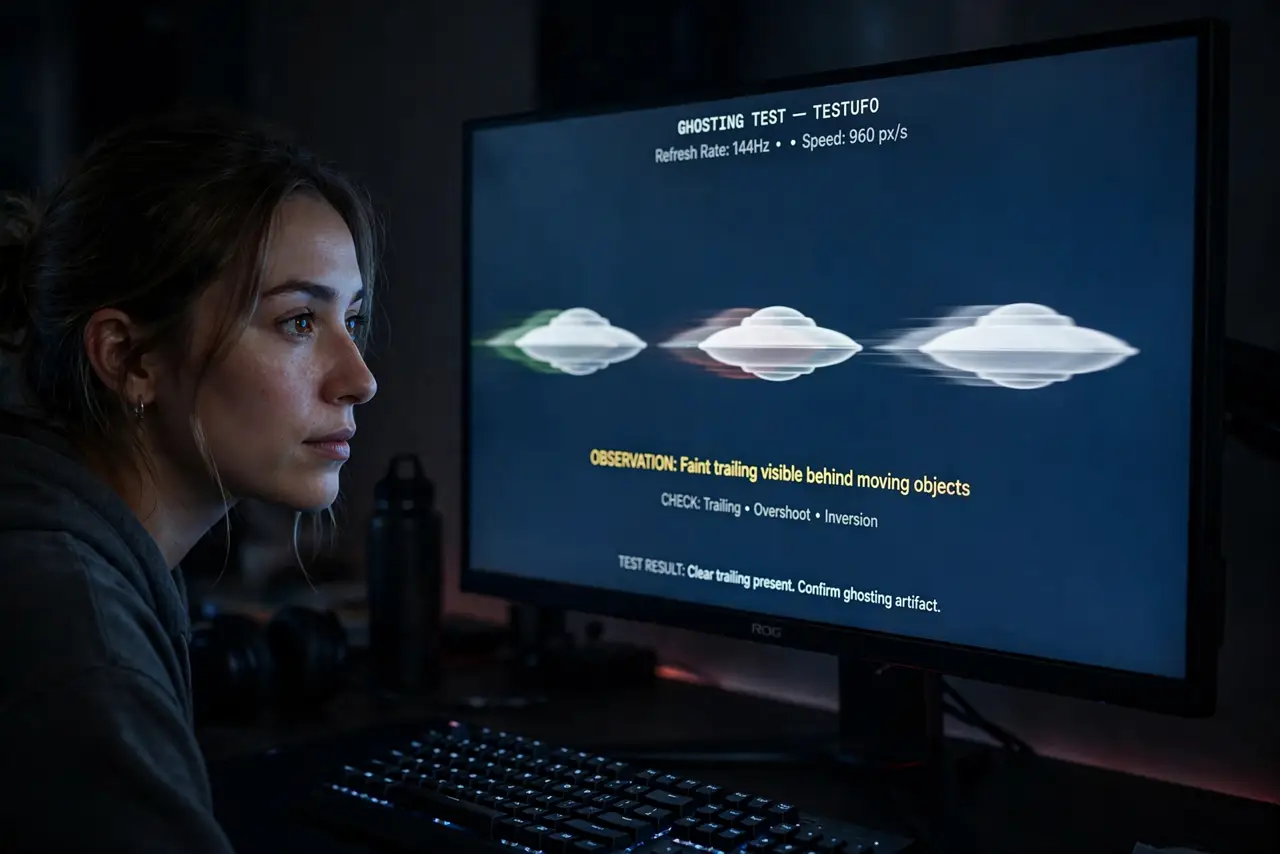
Fast motion leaves a faint trail — text smears when you scroll, game enemies drag shadows. That is ghosting: pixels too slow to keep up. The monitor's overdrive setting speeds pixels up, but set wrong it creates its own artifact. Here is how to dial it to the sweet spot.
TL;DR / Quick Fix
Quick fix: open the monitor's on-screen menu and find Overdrive or Response Time — set it to Medium or Normal, not the maximum. Max overdrive causes inverse ghosting (bright halos). Test by scrolling text fast: clean text with no trails or halos is the goal.
Follow these steps
- Confirm it is ghosting, not blur. Ghosting leaves a distinct trail behind moving objects. Uniform softness is just a slow panel or low refresh rate — different problem.
- Open the monitor's own menu. Overdrive lives in the monitor's on-screen display, not in Windows. Look under Gaming, Picture, or Response Time sections.
- Set overdrive to the middle. Medium/Normal is the sweet spot on most panels. Manufacturers tune the middle setting; the extremes are for spec sheets.
- Avoid the maximum setting. Max overdrive overshoots pixels, creating inverse ghosting — bright halos that look worse than the original smear.
- Test with scrolling text. Scroll a text-heavy page fast. Clean edges mean success; trails mean more overdrive needed, halos mean back it off.
- Recheck after changing refresh rate. Overdrive tuning is rate-dependent on some monitors. If you changed the refresh rate, re-verify the overdrive setting.
What NOT to do
- Do not max out overdrive hoping for the best. The strongest setting almost always overshoots into ugly halos.
- Do not confuse ghosting with motion blur. Blur is the panel's nature; ghosting trails are the tunable artifact.
- Do not judge overdrive from a still image. It only matters in motion — test scrolling and games, not wallpapers.
- Do not expect a budget 60 Hz panel to match a fast gaming monitor. Overdrive helps; it cannot rewrite the panel's physics.
Frequently asked questions
What is inverse ghosting?
Bright halos trailing moving objects — pixels overshooting their target color because overdrive is set too aggressively. Back the setting down.
Does overdrive damage the monitor?
No. It just drives pixels harder electrically. The worst outcome is ugly artifacts, never hardware damage.
Why does overdrive look different per refresh rate?
Pixel timing interacts with the frame rate. Some monitors store one overdrive value that suits 144 Hz but overshoots at 60 Hz.