Share Outlook Calendars
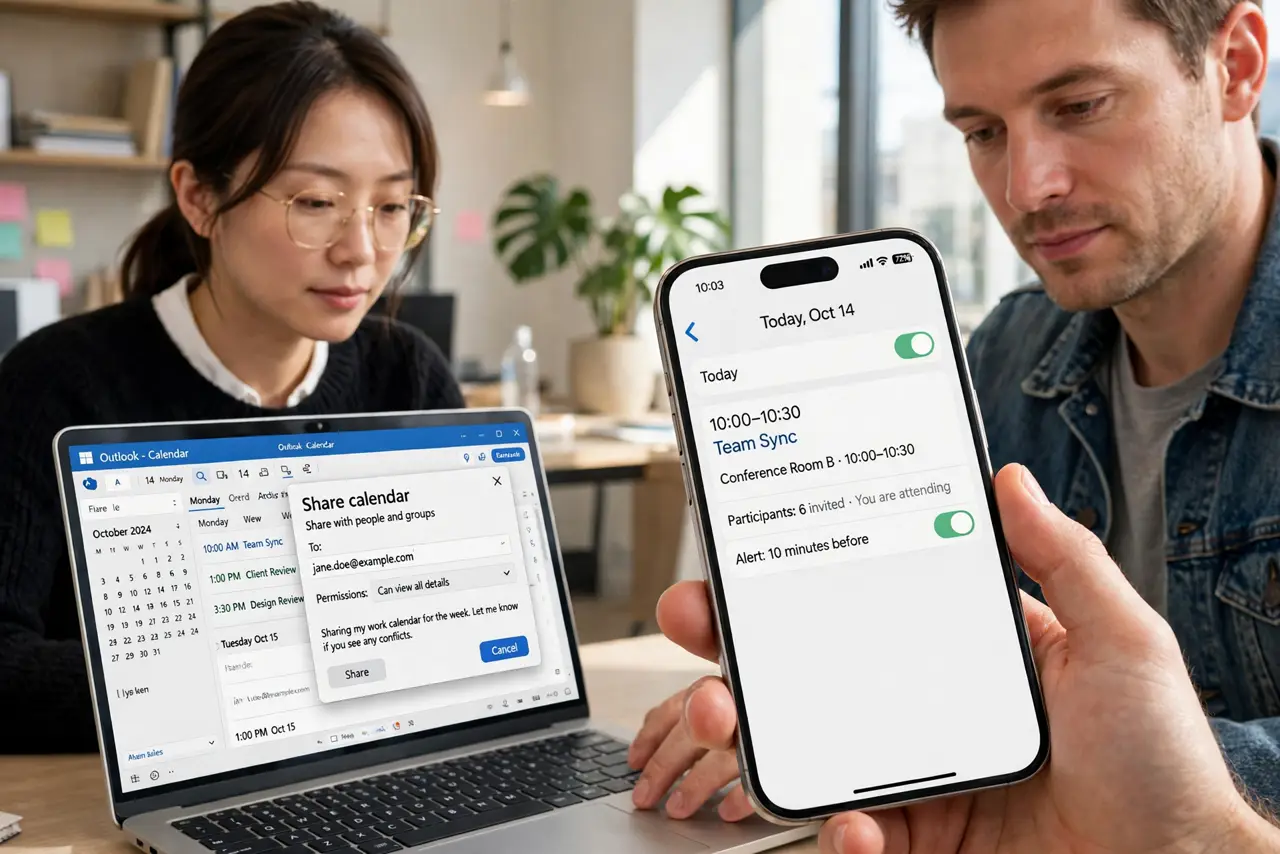
Team scheduling dies in email threads — are you free Tuesday, how about Thursday, wait which timezone. Sharing your Outlook calendar ends it: teammates see when you are free and propose times that work. Here is how to share with the right detail level and keep control.
TL;DR / Quick Fix
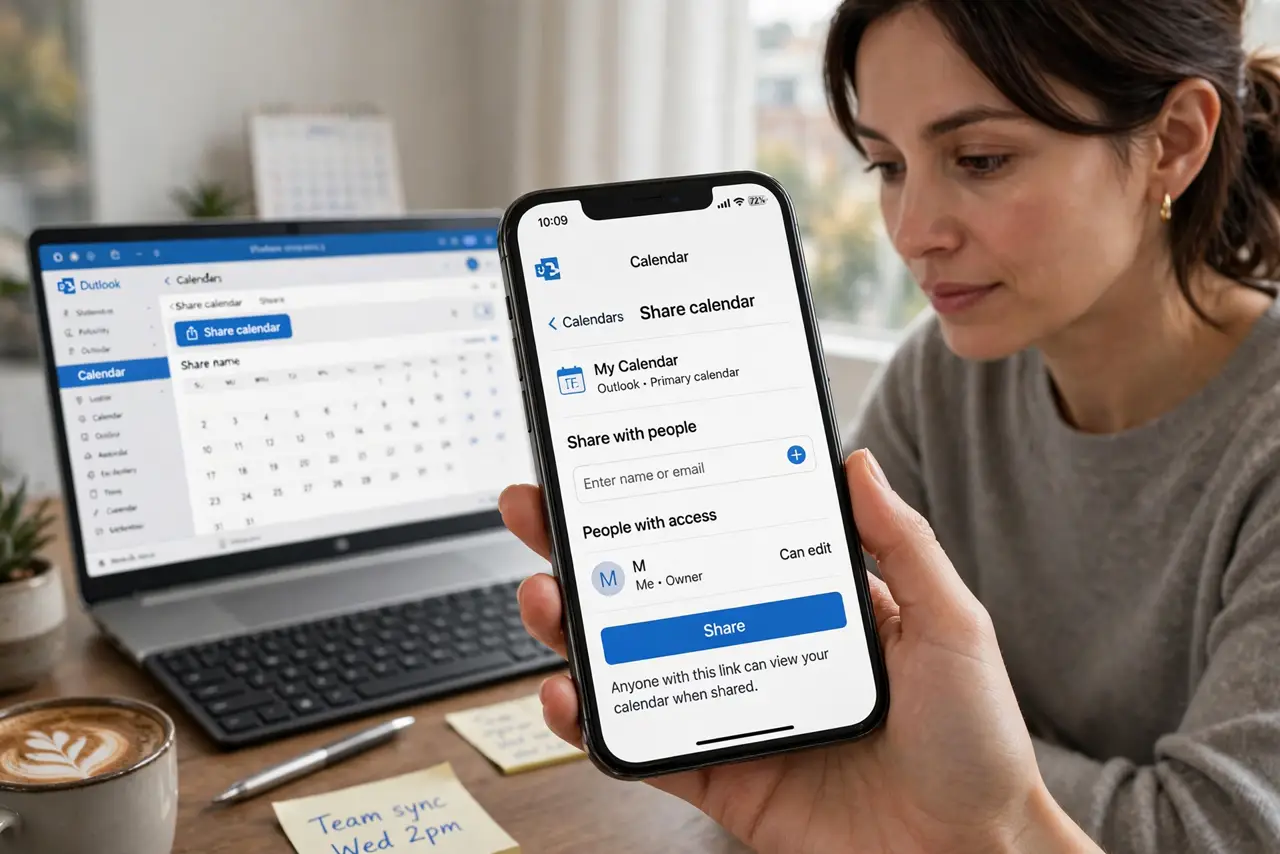
Quick fix: in Outlook on the web, open the calendar, click Share, and invite teammates by email — choose whether they see full details or just free and busy. They accept once and your calendar stays in sync. For family, the same flow shares with anyone.
Follow these steps
- Open the calendar sharing. In Outlook on the web or desktop, open the calendar view and find Share calendar. The web version has the smoothest flow.
- Invite by email. Enter teammates' addresses and choose the permission level — view free/busy, view details, or edit. Least privilege wins: most people only need free/busy.
- Choose the detail level. Full details for close teams, free/busy for everyone else. You can share differently with different people — see the free/busy sharing options for the nuances.
- Accept their shares back. Calendar sharing works both ways — accept teammates' invites so you can see their availability too. Mutual visibility is what kills the email threads.
- Troubleshoot sync issues. If a shared calendar stops updating, see the not updating fixes — and the family sharing guide for the personal side.
- Poll for the hard cases. When calendars alone cannot settle it, see the meeting poll flow for proposing times democratically.
What NOT to do
- Do not share full details company-wide. Free/busy is enough for most colleagues — details are for your team, not the org chart.
- Do not forget mobile sync. Shared calendars need a moment to appear on phones — check the phone app after accepting.
- Do not share and forget. Review who can see your calendar quarterly — ex-teammates with access are a quiet leak.
- Do not double-book through the cracks. Tentative holds beat memory — block time provisionally while threads resolve.
Frequently asked questions
Can I share with non-Outlook users?
Yes — publish a link or send an ICS invitation. They see it in whatever calendar they use.
What is the difference between sharing and delegating?
Sharing shows availability; delegating lets someone manage your calendar. Share for visibility, delegate for assistants.
Why can't they see my calendar?
They may not have accepted, or permissions are set to free/busy only. Check the share status in calendar settings.