Password Manager vs Browser Autofill?
Your browser already fills in passwords, so why install a password manager? The two look similar but differ in security, syncing, and extra features. This guide compares them plainly so you can pick the right password storage for you.
TL;DR / Quick Fix
Quick fix: for most people, a password manager beats browser autofill — it syncs across all browsers and phones, stores more than passwords, and locks with one password. Browser autofill is fine for casual use but stays tied to one browser. Either way, turn on a device lock first.
Follow these steps
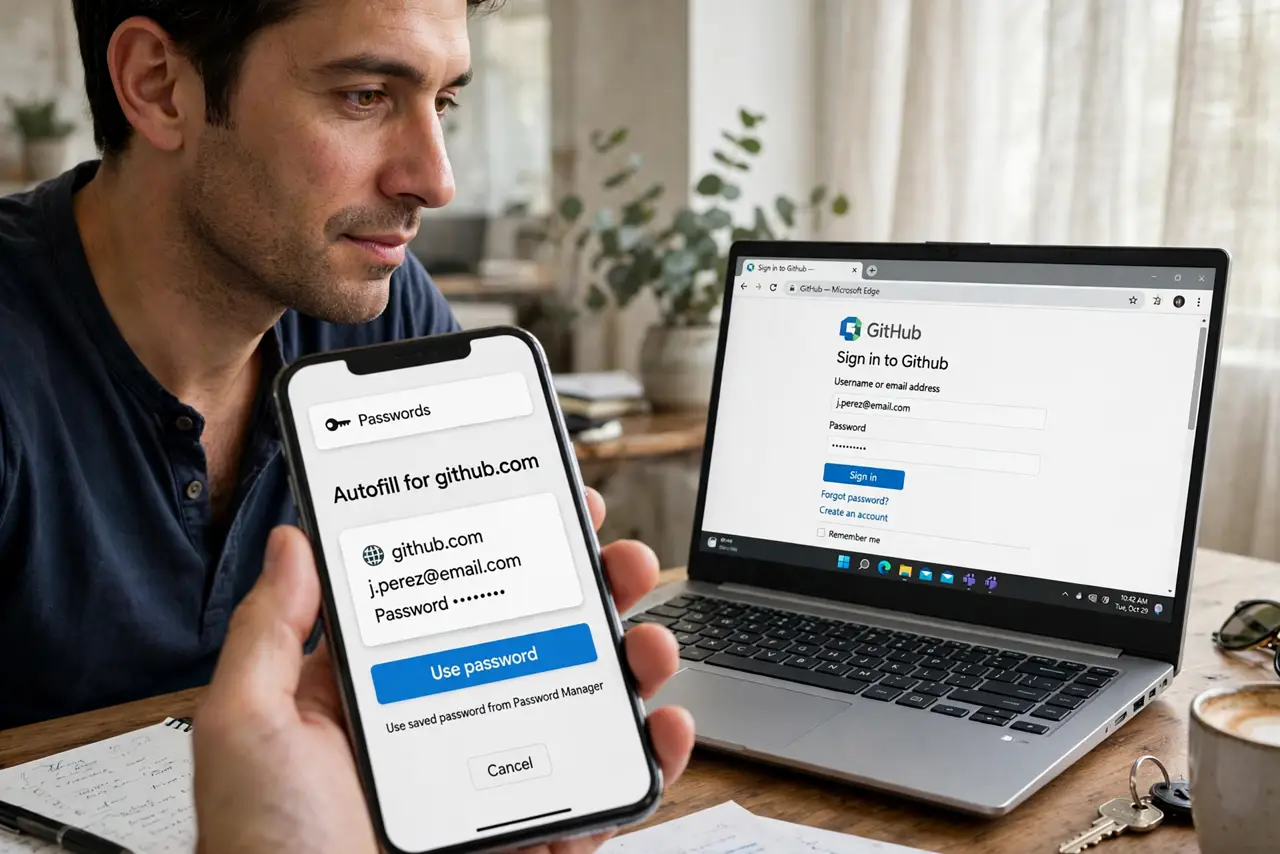
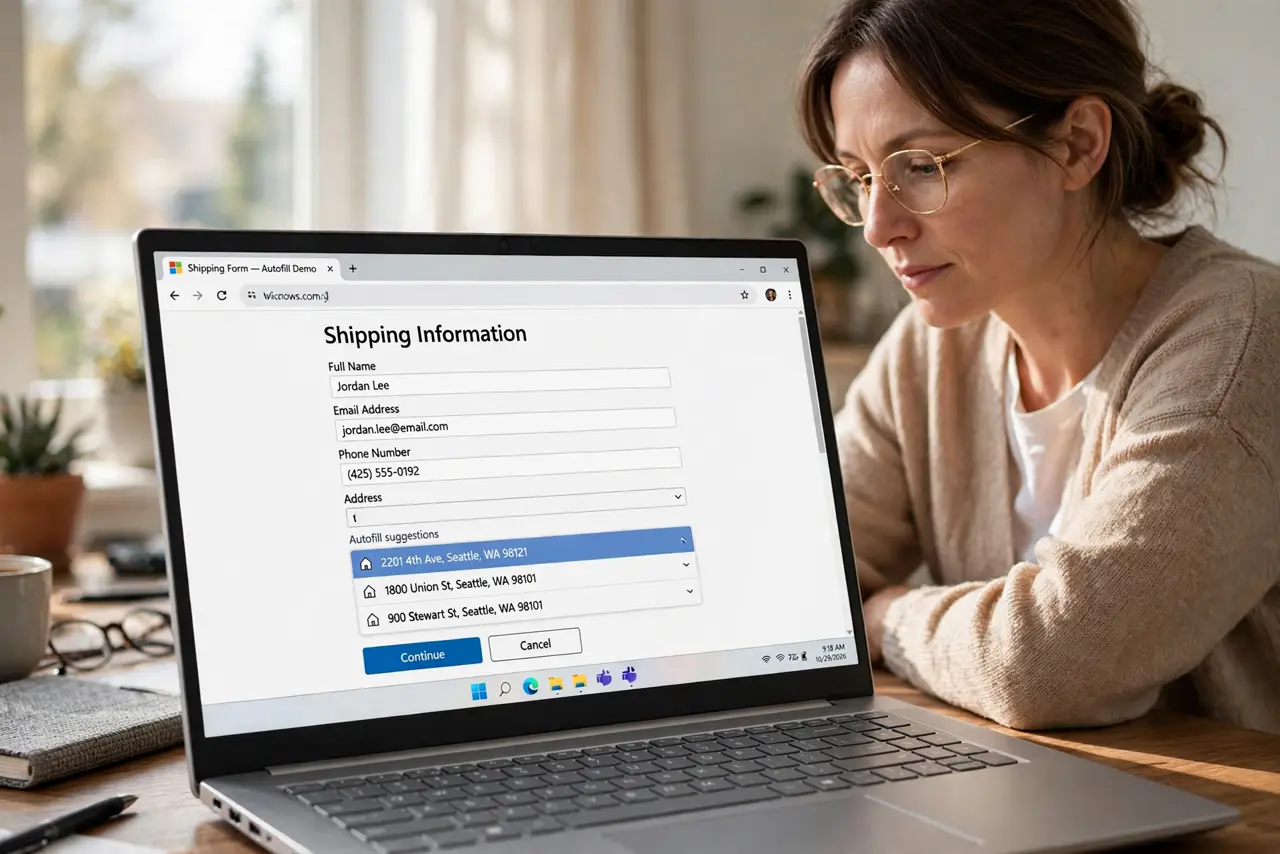
- See what browser autofill already does. Chrome, Safari, Edge, and Firefox save and fill passwords for free. It works well if you live inside one browser on one or two devices.
- See what a manager adds. A dedicated password manager syncs across every browser and phone, generates strong passwords, stores secure notes and cards, and warns about reused or leaked passwords.
- Compare the security model. Both encrypt your saved passwords. A manager adds one strong master password plus optional two-factor lock, while browser autofill often relies only on your device login.
- Compare syncing across devices. Browser autofill syncs only within the same browser brand. A manager fills logins in any browser and any app on your phone, which matters if you mix Chrome, Safari, or Firefox.
- Weigh cost and effort. Browser autofill costs nothing and needs no setup. Most managers have a solid free tier, and moving your saved passwords over takes about fifteen minutes with their import tool.
- Pick one and commit. Choose the manager if you use several browsers or want the extra features; keep browser autofill if your setup is simple. Using both at once causes double prompts, so turn one off.
What NOT to do
- Do not run two password fillers at once. A manager plus browser autofill will fight over every login box, so disable the browser's offer to save passwords after you switch.
- Do not skip the master password strength. A weak master password undoes the whole point, so make it long and unique.
- Do not store passwords in plain notes. A notes app or spreadsheet with no encryption is far weaker than either autofill option.
- Do not forget a backup of your vault. Save the manager's recovery code somewhere safe, or a lost master password can lock you out.
Frequently asked questions
Are password managers safer than browser autofill?
Slightly, mainly because of the master password and cross-device design. Both encrypt your data, but a manager keeps working even if you switch browsers.
Can I move my saved passwords from Chrome to a manager?
Yes. Export them from Chrome's password settings and import the file into the manager, then delete the exported file right away since it is unprotected.
Is browser autofill safe on a shared computer?
Not really. Anyone who opens the browser may access your logins, so learn how to sign out fully on a public computer and avoid saving passwords there.