Browser Extensions? Safety
Browser extensions are tiny apps that live in your browser -- ad blockers, password managers, coupon finders -- and they are also one of the most abused corners of software. A useful-looking extension can read every page you visit, and malicious ones do exactly that. The safe approach: few extensions, from trusted makers, reviewed regularly.
TL;DR / Quick Fix
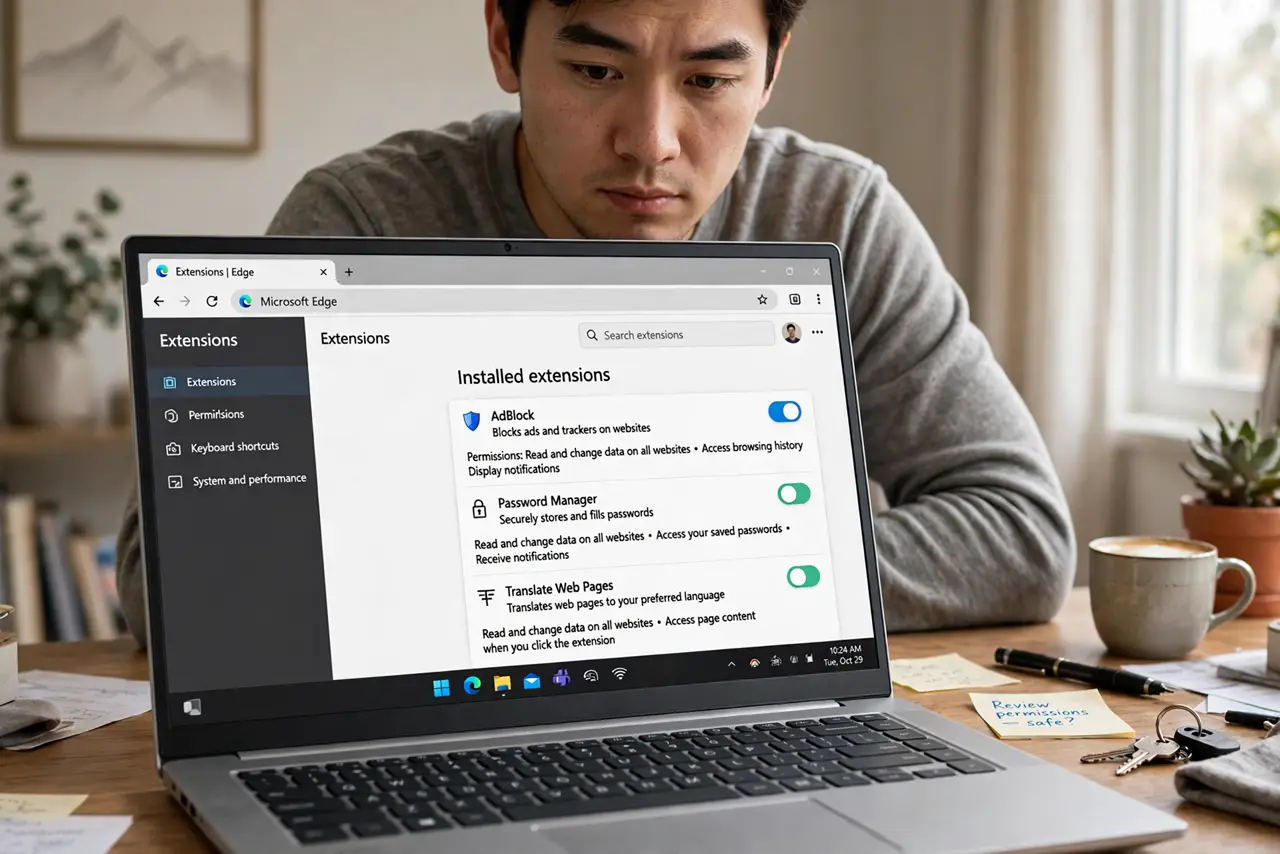
Quick fix: treat extensions like apps -- install few, only from the official store, and only from makers you trust. Review the installed list quarterly and remove anything unused. Read the permissions: an extension asking for 'all sites' access should have a very good reason.
Follow these steps
- Understand what extensions can do. Extensions run inside your browser with the permissions you grant -- reading pages, modifying content, watching traffic. A coupon extension with full page access sees your banking too.
- Install only from official stores. The Chrome Web Store, Firefox Add-ons, Edge Add-ons -- these have review processes, imperfect but real. Random download sites and email links are how malicious extensions arrive.
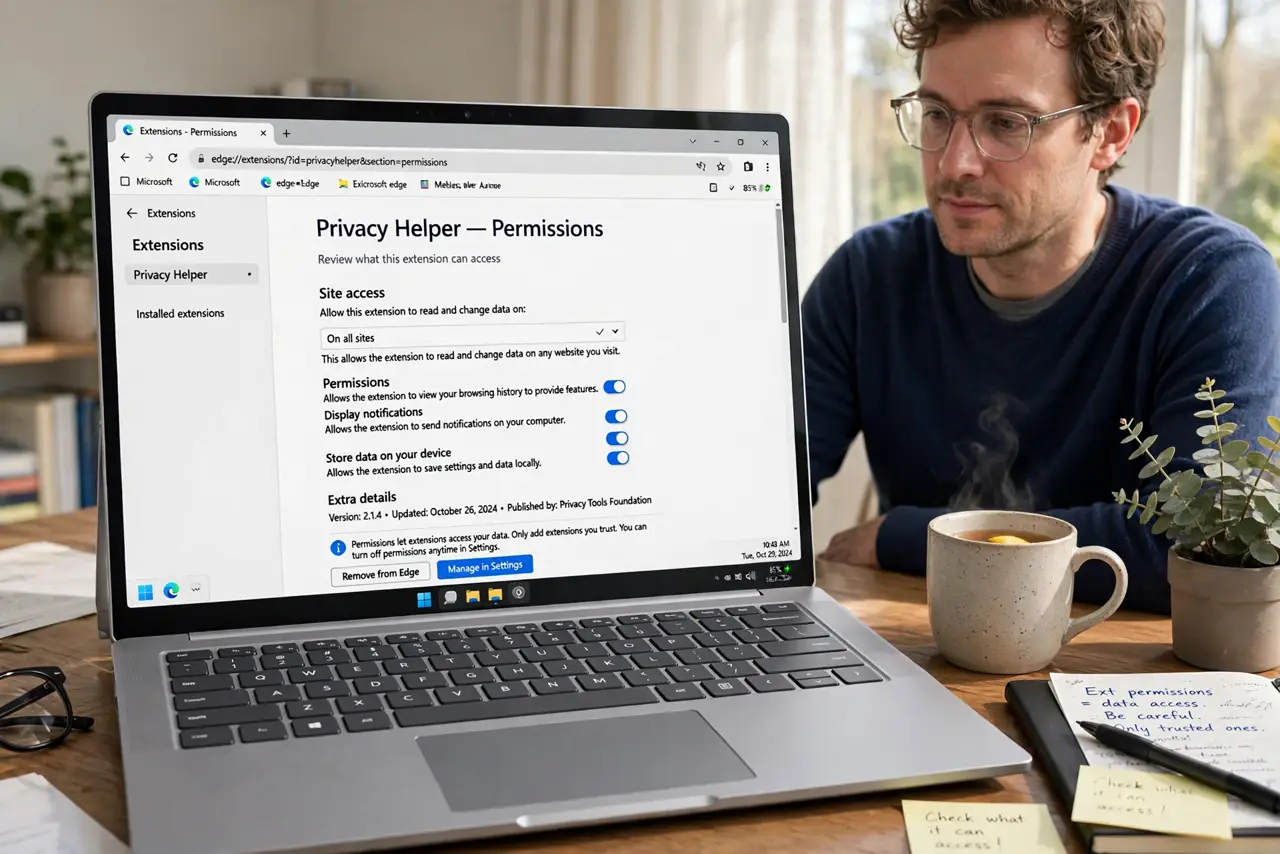
- Read the permissions before installing. An ad blocker needs broad access; a weather widget does not. If the permission list looks excessive for the job -- especially all-sites access -- walk away.
- Audit your extensions quarterly. Open the extensions page and remove everything you do not actively use. Fewer extensions means less attack surface -- and often a faster browser, since extensions slow pages.
- Watch for behavior changes. An extension that suddenly shows ads, changes your search engine, or demands new permissions may have been sold or compromised -- the search-hijack guide covers that exact scenario. Remove first, investigate later.
- Prefer the few you truly need. Ad blocker, password manager, maybe one or two more. If your extension count needs scrolling, you have too many -- each one is trust you are extending.
What NOT to do
- Do not install extensions from email links or popups. 'Update Flash Player' style prompts are malware delivery -- official stores only.
- Do not grant all-sites access casually. That permission reads everything you browse -- reserve it for extensions that genuinely need it.
- Do not keep extensions you 'might use someday.' Unused extensions still run, still update, and still get compromised -- remove them.
- Do not ignore new permission requests. An update demanding broader access deserves scrutiny -- it may signal new ownership with new intentions.
Frequently asked questions
Are browser extensions safe?
Reputable ones from official stores, mostly -- but every extension is code running in your browser. Minimize count, vet makers, review permissions.
How do I remove an extension?
In the browser's extensions page, click Remove. Removing deletes its access immediately -- no uninstaller needed.
Can extensions steal passwords?
Ones with broad page access technically can see what you type. This is why minimal, trusted extensions matter -- especially around logins.