Passkeys? Plain Explanation
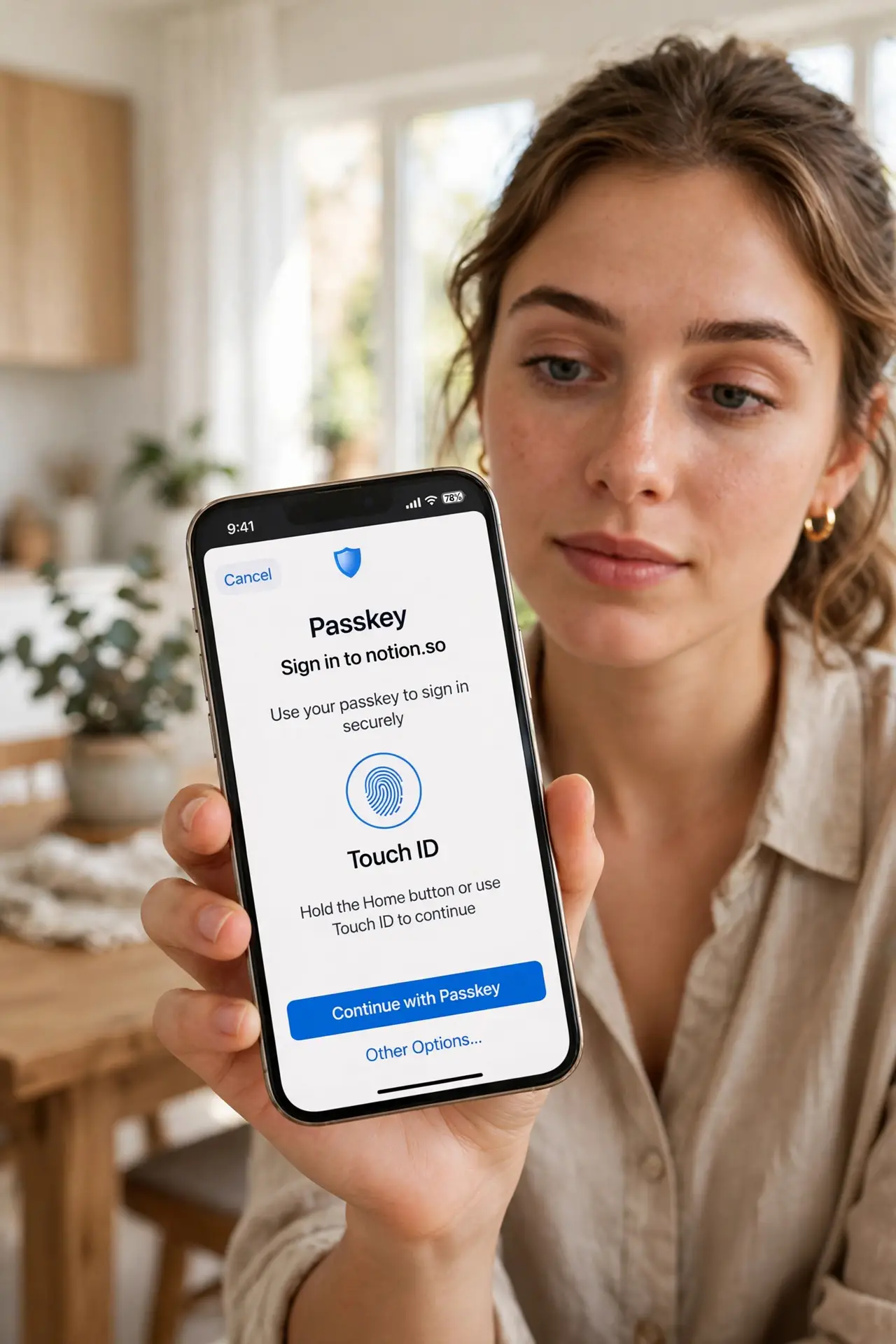
Passkeys are the industry's attempt to kill the password: instead of a string you type, your device holds a cryptographic key and proves it is you with your fingerprint or face. No password to phish, no password to leak in a breach, no password to reuse. They are genuinely safer — but the transition is confusing. This guide makes it plain.
TL;DR / Quick Fix
Quick fix: passkeys replace passwords with a cryptographic key stored on your device, unlocked by your fingerprint or face. They cannot be phished or leaked like passwords. Create them when sites offer the option, keep them synced, and keep a backup sign-in method until the transition settles.
Follow these steps
- Understand the core idea. A passkey is a pair of cryptographic keys: the site holds the public half, your device holds the private half. Signing in proves you hold the private key — nothing you type ever travels, so there is nothing to steal in transit.
- See why phishing fails against them. A fake login page cannot use your passkey — the cryptographic check includes the real site's identity. This is the breakthrough: unlike passwords or codes, passkeys simply do not work on imposter sites.
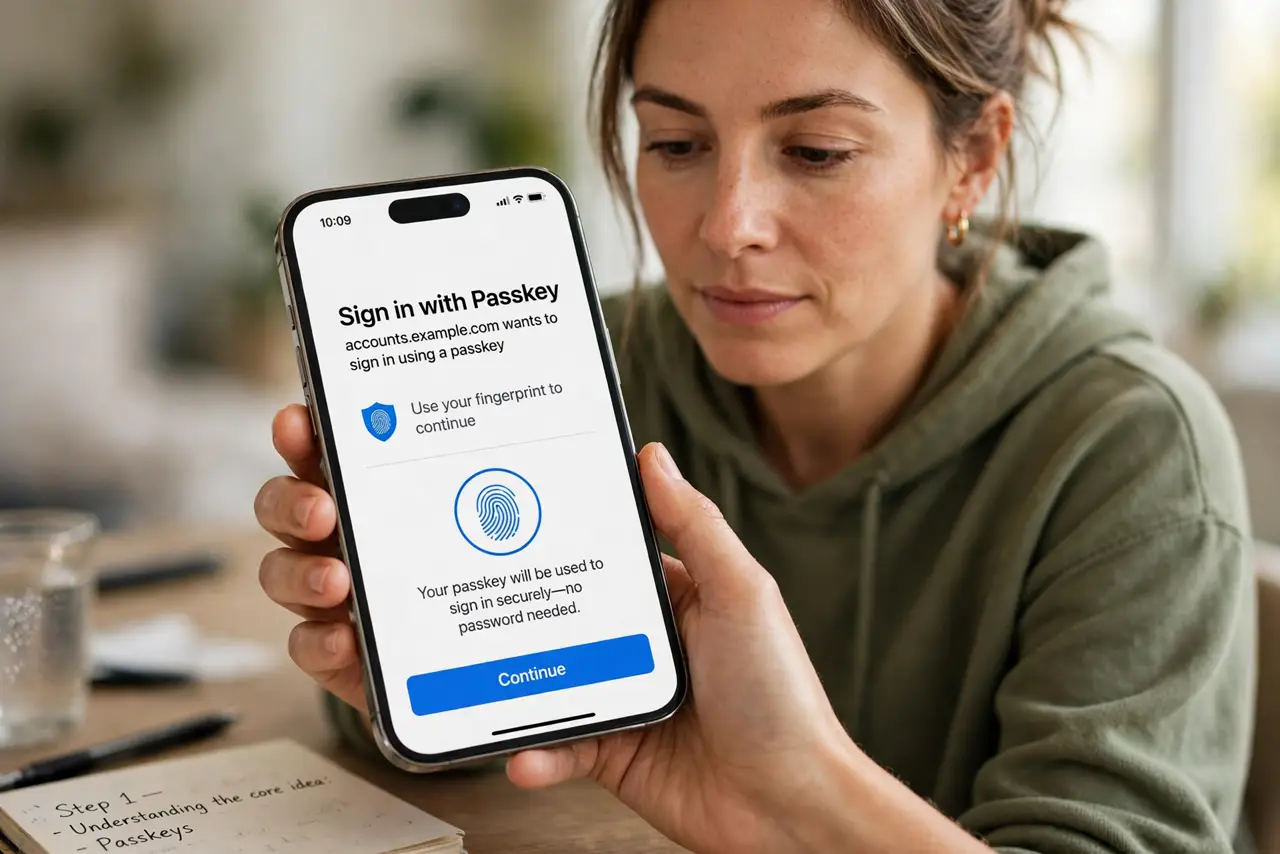
- Create one where offered. When a site offers 'create a passkey' in security settings, accept. Your phone or password manager generates and stores it — the Android setup walkthrough shows the flow, which is nearly identical on iPhone.
- Keep them somewhere synced. A passkey locked to one lost phone is a lockout. Store passkeys in a cloud-synced password manager or the platform keychain that syncs across your devices — sync is the safety net.
- Keep a backup sign-in method. During the transition, keep your password or authenticator app enabled as a fallback. Passkey-only lockouts are rare but miserable — redundancy is cheap insurance.
- Know the manager tradeoff. A synced manager means convenience and recovery; a device-bound key means maximum security with maximum lockout risk. For most people, synced wins — compare with the passwords vs manager breakdown.
What NOT to do
- Do not delete your password the day you create a passkey. Keep a fallback sign-in method until passkeys are boring and routine for you.
- Do not store your only passkey on a single unsynced device. One lost phone without sync equals a very bad week of account recovery.
- Do not assume every site supports them yet. Adoption is growing but patchy — passwords are not dead, just increasingly optional.
- Do not share passkeys like passwords. They are bound to your device's biometrics; sharing means exporting, which most managers handle badly or not at all.
Frequently asked questions
What happens to my passkeys if I lose my phone?
If they are synced through your platform account or password manager, you sign in on the new device and they reappear. If they were device-bound only, you fall back to account recovery — which is why sync matters.
Are passkeys really safer than a password manager?
For phishing resistance, yes — passkeys cannot be tricked onto fake sites. A good password manager plus a strong master password remains excellent; passkeys remove the phishable step entirely.
Can I use passkeys on a computer without biometrics?
Yes — your phone can act as the authenticator via Bluetooth, approving the login with its fingerprint or face. The computer never needs its own sensor.