A Password Manager? Basics
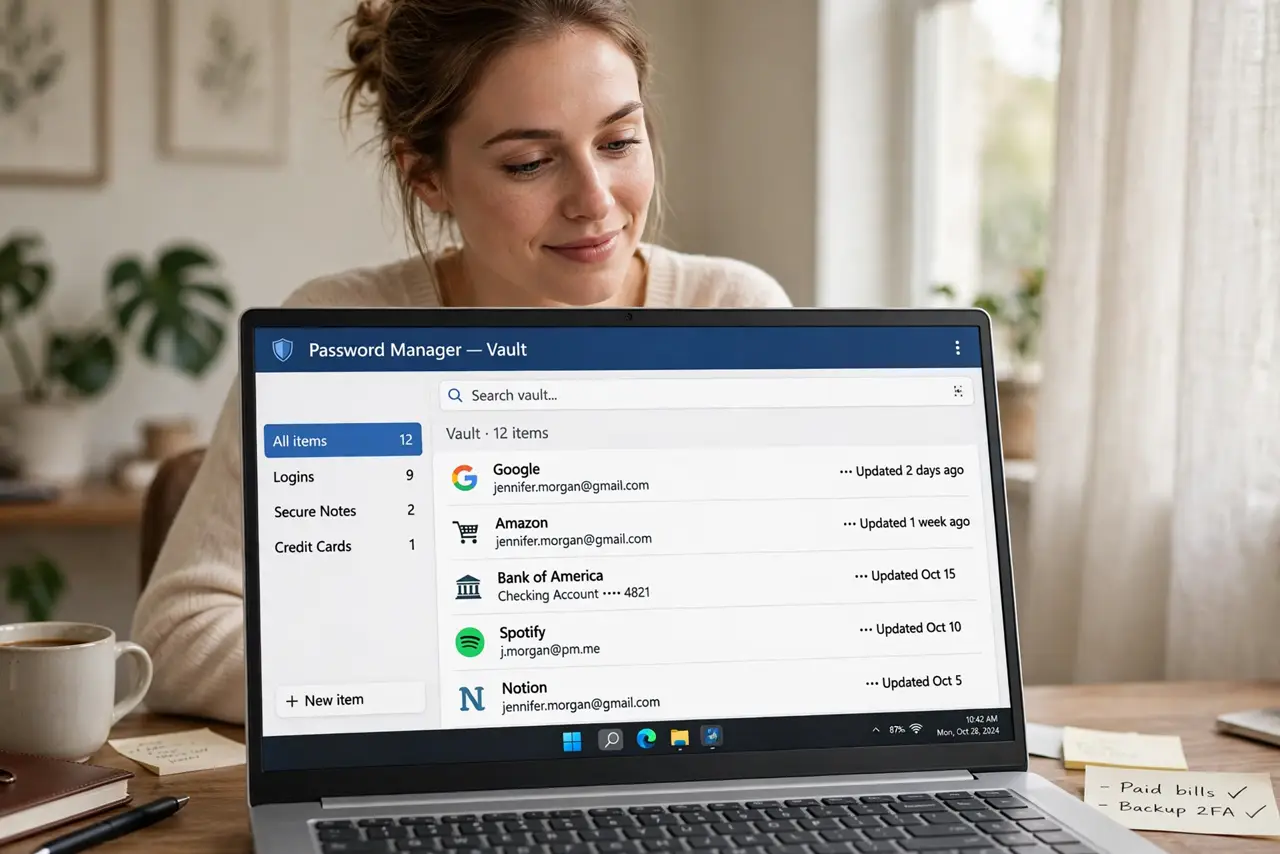
You're reusing three passwords everywhere because remembering fifty unique ones is impossible — and that's exactly what attackers count on. A password manager remembers them all: it generates strong random passwords, fills them in automatically, and locks everything behind one master password. It's the single biggest security upgrade most people can make.
TL;DR / Quick Fix
Quick fix: install a reputable password manager, create one strong master password, and let it generate unique passwords as you log in to sites. Change your most important accounts (email, bank) first. From then on, you remember one password — the manager handles the rest.
Follow these steps
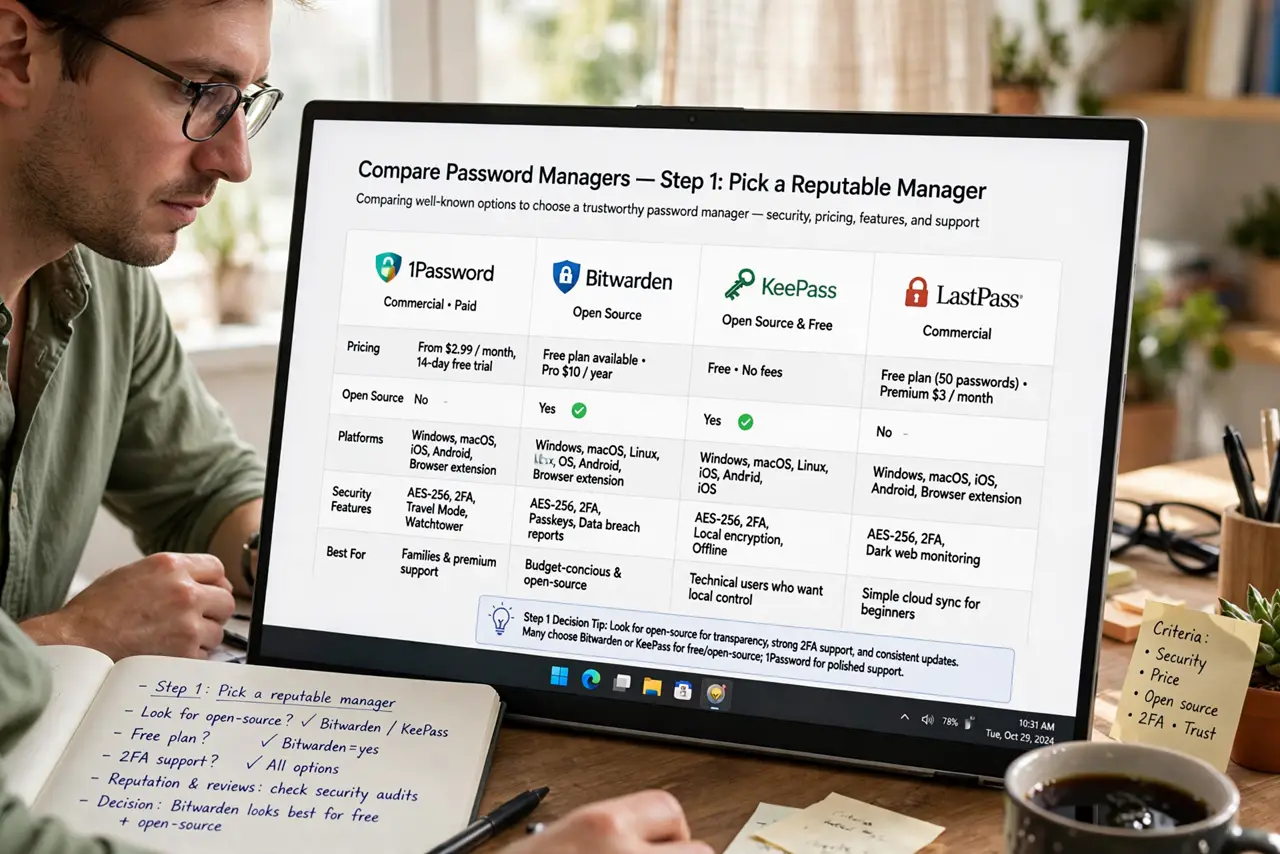
- Pick a reputable manager. Choose a well-known manager with independent security audits — free tiers from the big names cover most people. Avoid obscure apps with no audit history; see the setup walkthrough when you're ready.
- Create a strong master password. This one password protects everything, so make it long and unique — four or five random words work well. It's the only password you'll ever memorize again; see master password tips for crafting it.
- Let it generate passwords. When you create or change a login, use the manager's generator for a long random password. You never need to see, type, or remember these — that's the point.
- Change critical accounts first. Start with email (the master key to everything), then banking, then social media. Work down the list over a week — you don't have to do all fifty accounts tonight.
- Enable autofill. Let the manager fill logins in your browser and phone. Autofill also defeats phishing: it won't fill your bank password on a fake bank site — see autofill vs browser saving for why that matters.
- Set up emergency access. If something happens to you, trusted contacts need a way in. Most managers offer emergency access or a printed recovery kit — see emergency access and set it up now, not later.
What NOT to do
- Do not reuse your master password anywhere else. If it's used on another site and leaks, your entire vault is exposed — it must be unique.
- Do not store the master password in the manager itself. That's circular — keep it memorized plus a paper copy somewhere safe, like a locked drawer.
- Do not skip two-factor on the vault. The master password plus 2FA means a stolen password alone isn't enough — enable it on day one.
- Do not keep using weak passwords 'because the manager is new.' Migrate important accounts first; every reused password left alive is still a breach waiting to happen.
Frequently asked questions
What if the password manager gets hacked?
Reputable managers use zero-knowledge encryption — they never see your actual passwords. Breaches have exposed emails, not vault contents. It's still vastly safer than reusing passwords.
Is the browser's built-in saver enough?
It's better than nothing, but dedicated managers offer stronger generation, cross-device sync, and breach alerts. See the head-to-head for the full comparison.
What happens if I forget the master password?
Most managers can't recover it — that's the security model. This is why the printed recovery kit matters; see forgotten master password before it happens.