WhatsApp Privacy? Basics
WhatsApp messages are end-to-end encrypted, which is great — but your profile photo, last seen, status, and read receipts are visible by default, and your number is your identity. A few minutes in the privacy settings closes most of the exposure: who sees you online, who can add you to groups, and who sees your photo. Here is the sensible setup.
TL;DR / Quick Fix
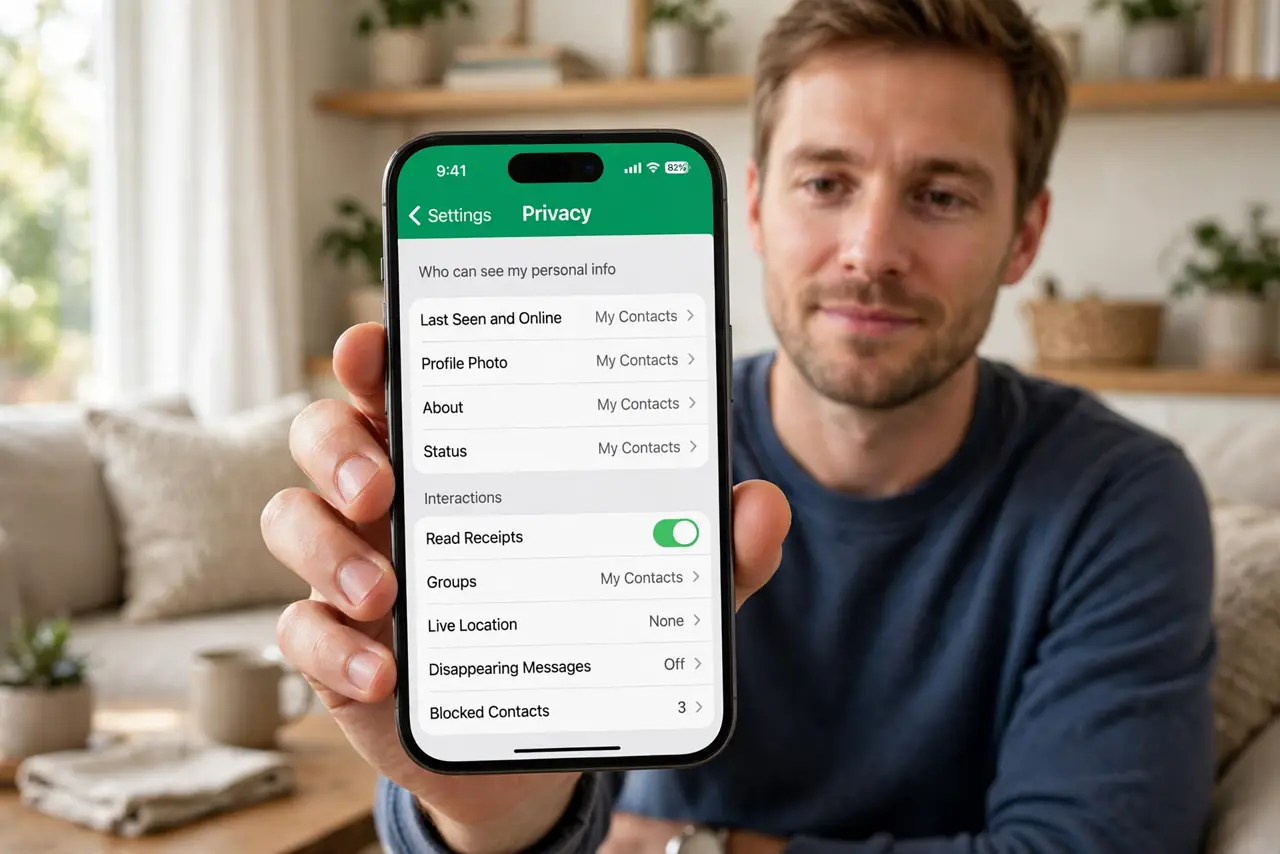
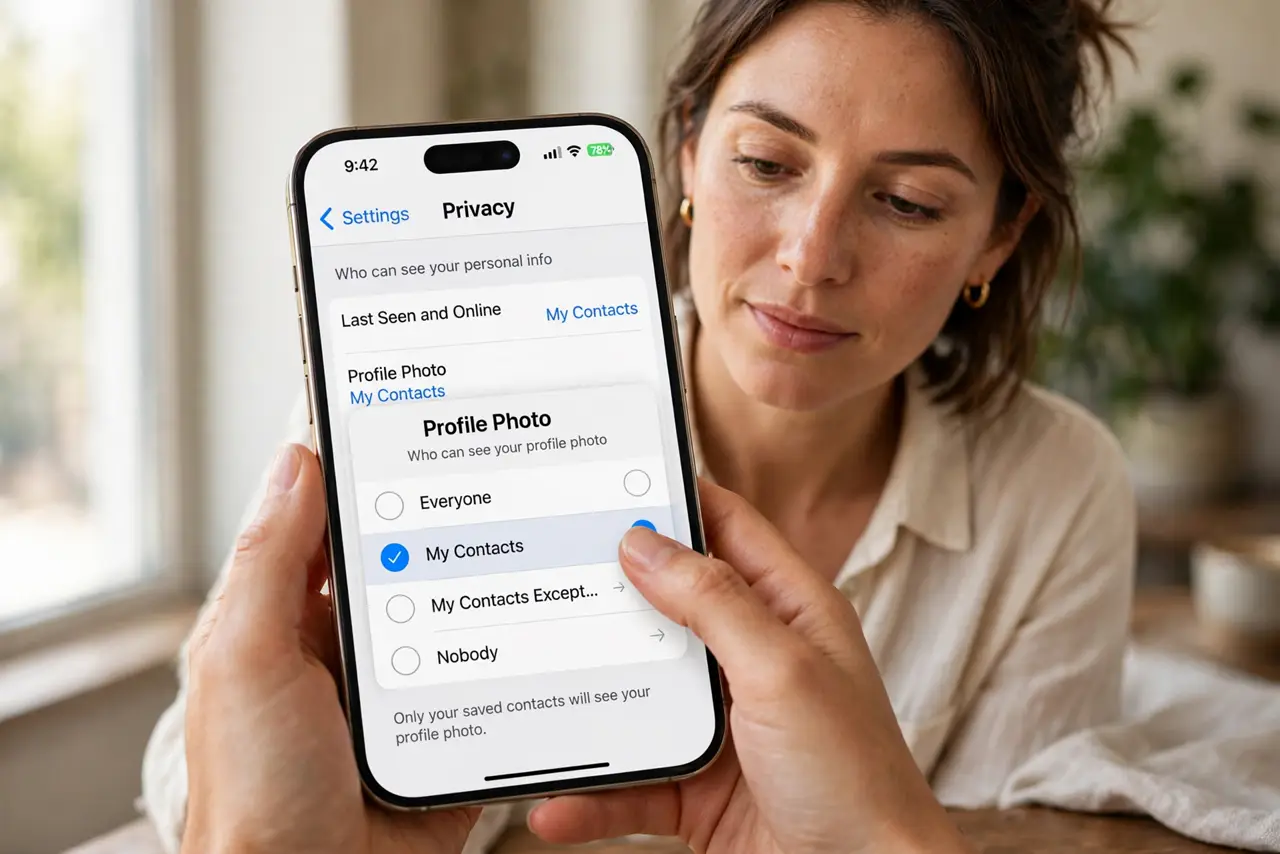
Quick fix: open WhatsApp, Settings, Privacy. Set Last seen and online, Profile photo, About, and Status to My contacts. Turn off Read receipts if you want. Set Groups to My contacts so strangers cannot add you. Review blocked contacts yearly. Encryption protects message content; these settings protect everything around it.
Follow these steps
- Set visibility to My contacts. Open Settings, Privacy. Change Last seen and online, Profile photo, About, and Status from Everyone to My contacts. Strangers with your number will see almost nothing — the single most effective change.
- Lock down group adds. In Privacy, tap Groups and set it to My contacts. Random group invites are a top spam vector; this stops strangers from dropping you into crypto and scam groups. Admins you do not know can still message you to ask first.
- Decide about read receipts. Turning off Read receipts hides the blue ticks — but you also stop seeing them for others. It is a fair trade if read pressure stresses you out; keep it on if you rely on delivery confirmation.
- Use disappearing messages for sensitive chats. Open a chat, tap the contact name, and enable Disappearing messages with a 24-hour or 7-day timer. Old messages vanish automatically — useful for anything you would not want screenshotted months later.
- Verify a backup strategy. WhatsApp chats back up to the cloud, and a stuck backup is the usual sign something needs attention. Check Settings, Chats, Chat backup and confirm a recent date — privacy means little if you lose everything to a broken phone.
- Review blocked contacts and sessions. Once a year, open Privacy, Blocked contacts and clear out the stale ones. On desktop, check Linked devices and remove any computer you no longer use.
What NOT to do
- Do not leave everything on Everyone. Defaults expose your photo, status, and online times to anyone with your number.
- Do not assume encryption covers metadata. Message content is encrypted; who you talk to and when is still visible to the service.
- Do not join groups from unknown invites. Stranger group adds are the main delivery route for WhatsApp scams.
- Do not share verification codes. Anyone asking for your WhatsApp code is hijacking your account — WhatsApp never asks for it.
Frequently asked questions
Can strangers see my messages?
No — messages are end-to-end encrypted, so only you and the recipient can read them. Strangers can still see your profile details unless you restrict them, which is what this guide fixes.
Should I turn off read receipts?
It is personal preference. Off means no blue ticks for anyone, including you seeing theirs. Many people find it reduces messaging pressure.
Are WhatsApp calls private too?
Yes, calls use the same end-to-end encryption as messages. Your carrier and WhatsApp cannot listen in.