Power Up Trello
Trellos free boards are wonderfully simple — until your workflow outgrows them. Power-Ups are the official extensions: calendars, voting, custom fields, integrations that bolt extra capability onto a board without leaving Trello. A few well-chosen ones turn a simple board into a real system.
TL;DR / Quick Fix
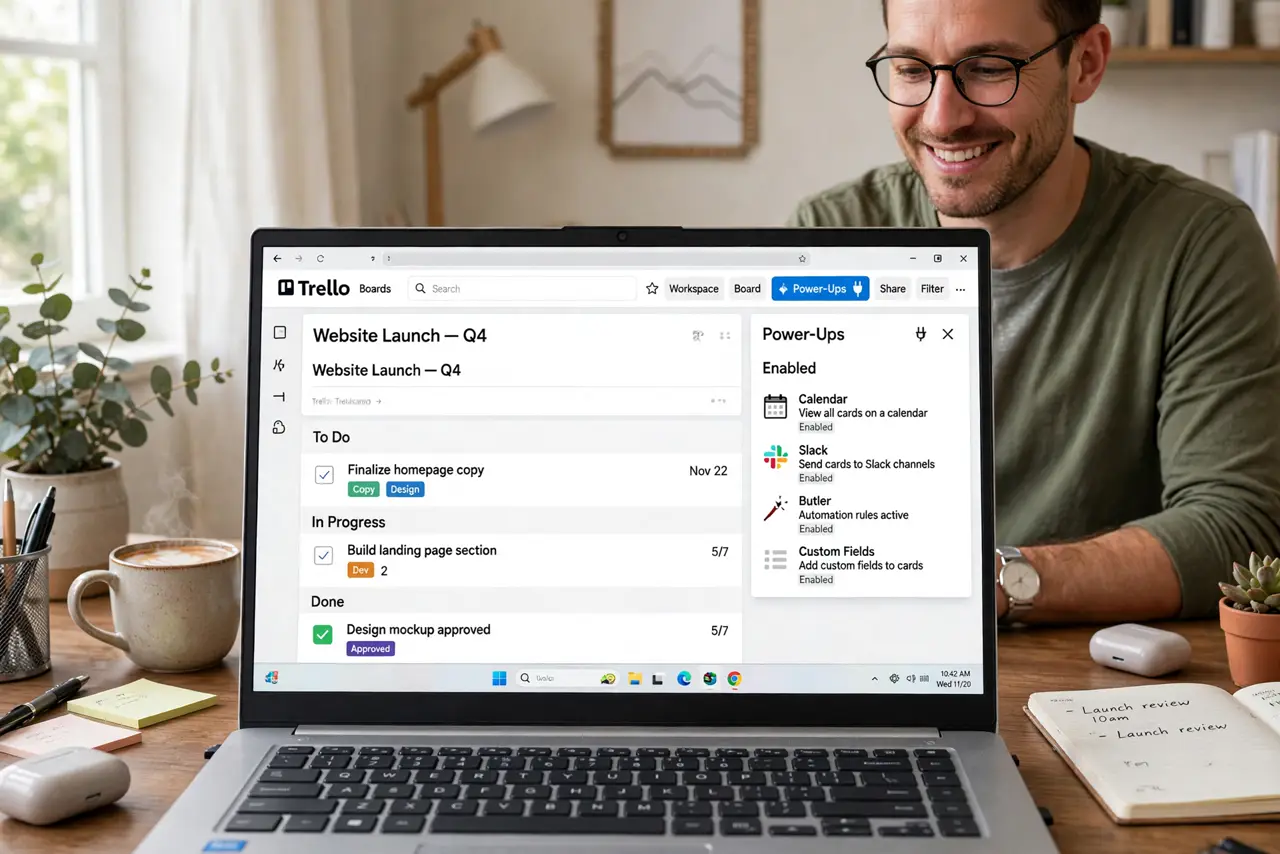
Quick fix: open your Trello board menu, browse Power-Ups, and enable one at a time — Calendar for deadlines, Custom Fields for structure. Free plans include a limited number, so pick the ones matching your actual bottleneck. One Power-Up solving a real pain beats five installed on hope.
Follow these steps
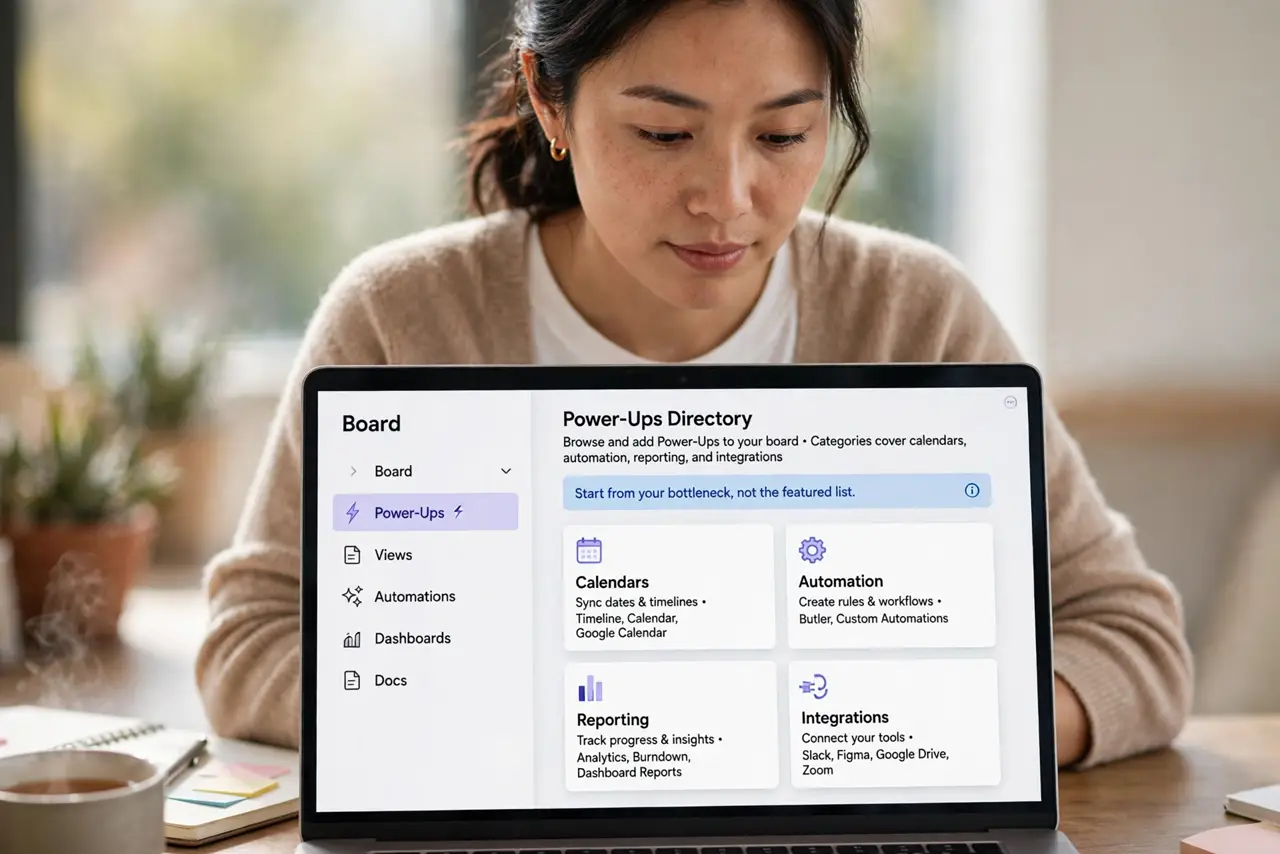
- Open the Power-Ups directory. From the board menu, choose Power-Ups and browse. Categories cover calendars, automation, reporting, and integrations — start from your bottleneck, not the featured list.
- Enable the Calendar Power-Up first. Deadlines you can see get met. The calendar view turns due dates into a visual plan — the highest-value Power-Up for most boards.
- Add Custom Fields for structure. Dropdowns, checkboxes, dates on cards — structure beats free-text chaos when boards grow. Define the fields once, use them forever.
- Automate with Butler. Treloos built-in automation moves cards, sets due dates, and tidies completed work. The card automation tricks save the daily board-maintenance minutes that compound.
- Integrate carefully. Slack notifications, drive attachments — integrations help when they replace manual copying. Each one should kill a chore, not add a feed.
- Audit quarterly. Disabled boards accumulate Power-Ups like barnacles. Review what is enabled every few months — the basics refresher keeps the foundation honest.
What NOT to do
- Do not enable ten Power-Ups at once. Each adds complexity; add one, live with it, then consider the next.
- Do not pay for premium before hitting free limits. Most personal boards never need the paid tier.
- Do not automate what you have not done manually. Automation of a broken process just breaks faster.
- Do not build the perfect system before using it. A working simple board beats a planned elaborate one.
Frequently asked questions
Are Power-Ups free?
A limited number are included on free plans; more come with paid tiers. Start free — most personal needs fit.
What is the best Power-Up?
Calendar, for almost everyone. Custom Fields second. Everything else depends on your workflow.
Can Power-Ups slow Trello down?
Heavy ones on huge boards can. If the board lags, disable the non-essentials first.