A Two-Monitor Workflow That Actually Works
Two monitors should double your productivity, but most people just duplicate the chaos across twice the pixels. The trick is giving each screen a job and managing windows deliberately. This guide shows a two-monitor setup that actually works.
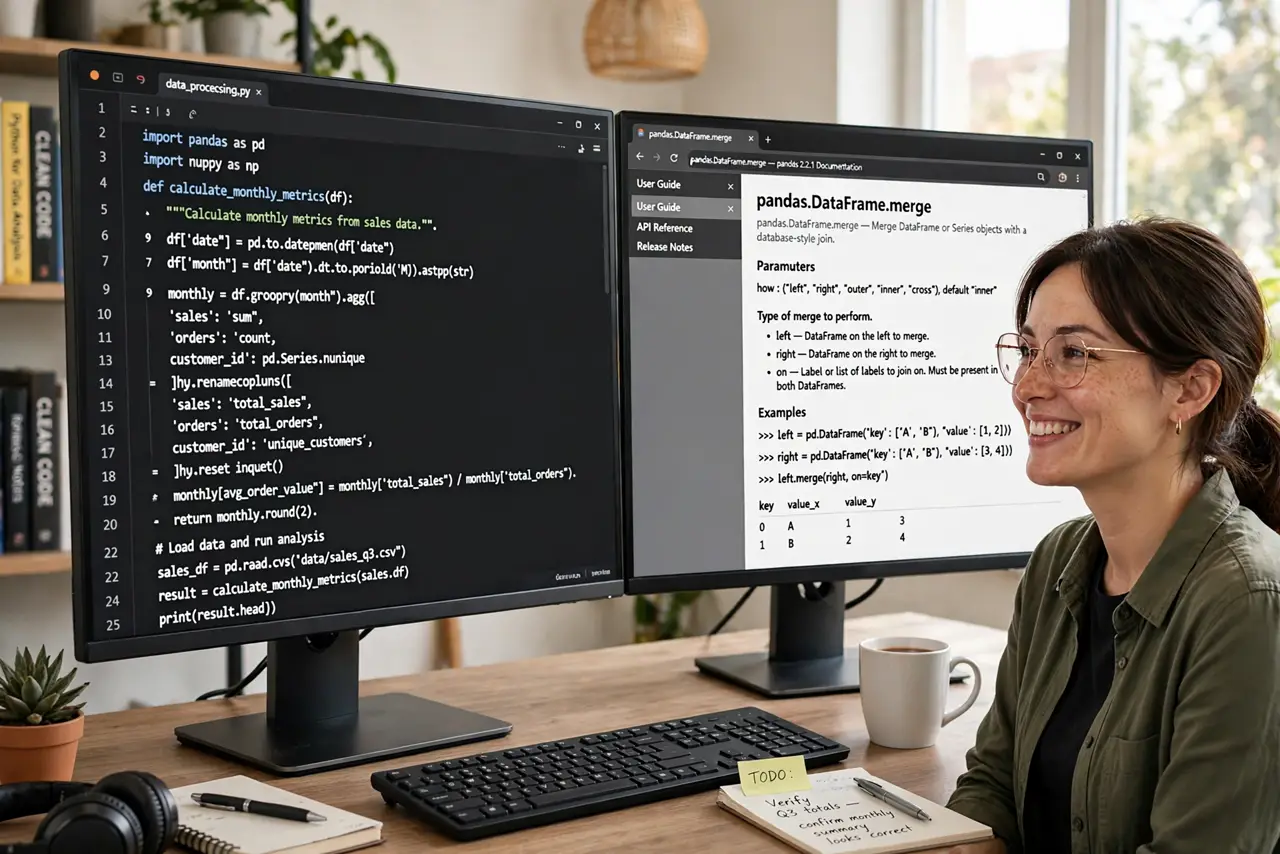
TL;DR / Quick Fix
Assign each monitor a role: one for active work, one for reference and communication. Learn the window-snap shortcuts to place windows fast. Keep the primary monitor directly in front of you and match text scaling so moving between screens feels seamless.
Follow these steps
- Put the primary monitor front and center. Place your main screen directly in front of you at eye level, with the second monitor angled to the side. The primary screen gets your spine's attention; the second gets glances.
- Give each screen a job. Run active work on the primary and reference material — docs, chat, email — on the secondary. Fixed roles end the daily window shuffle, and stop apps from opening on the wrong monitor by setting their preferred display.
- Learn the snap shortcuts. Use the window-snap keys to throw windows left, right, or into corners instantly. Dragging windows across two screens by hand is slow and imprecise.
- Match scaling between monitors. Set text scaling so windows look the same size on both screens. Mismatched scaling makes every drag-across feel broken.
- Keep the taskbar sane. Choose whether the taskbar spans both screens or lives on the primary only. One clear taskbar beats two half-useful ones.
- Declutter at day's end. Close or minimize everything on the secondary screen when you finish. A fresh second screen tomorrow beats yesterday's leftover tabs.
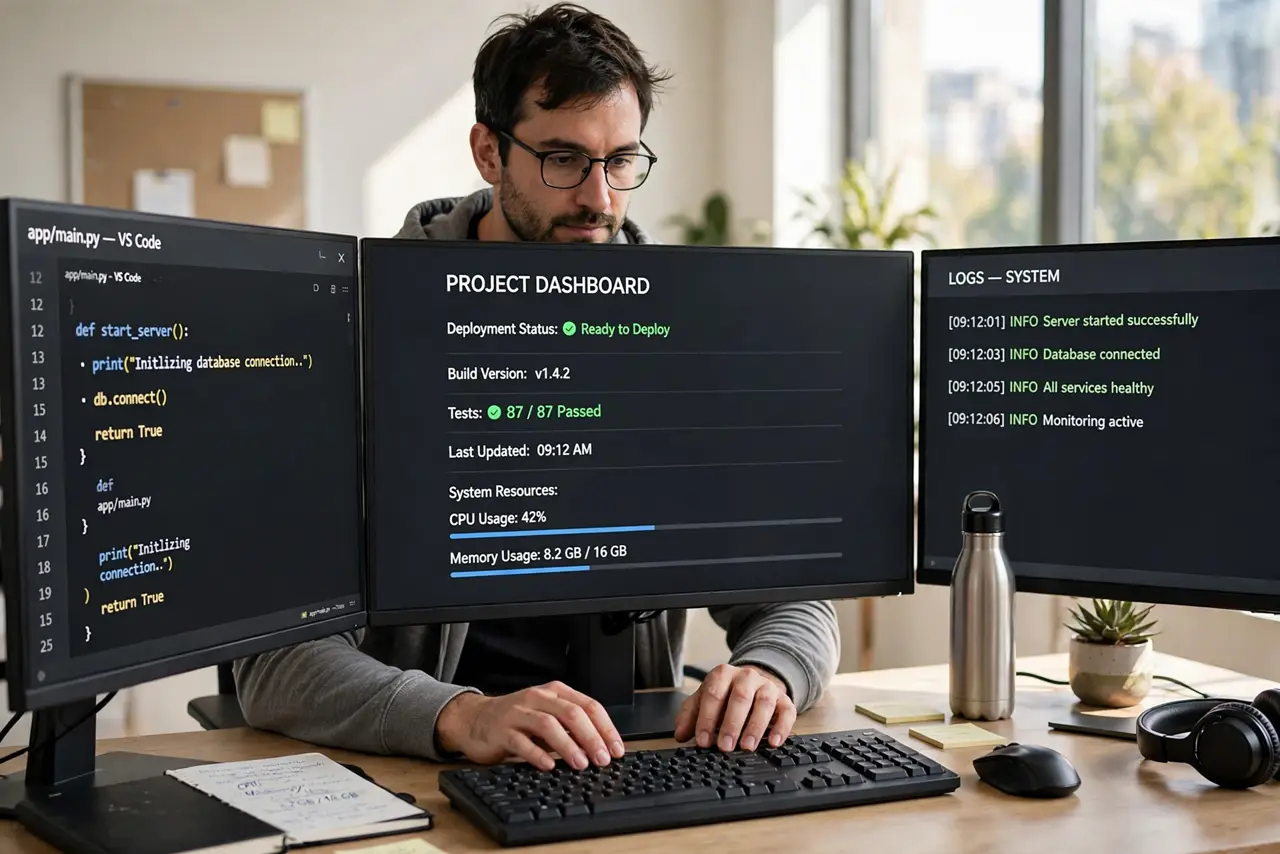
What NOT to do
- Do not mirror the displays. Mirroring wastes the second monitor entirely — extend the desktop instead.
- Do not put the primary monitor off to the side. Neck strain will erase every productivity gain.
- Do not maximize everything on both screens. Snapped halves and quarters use the space better than fullscreen sprawl.
- Do not ignore mismatched scaling. Tiny text on one screen and huge text on the other breaks the flow.
Frequently asked questions
How should I arrange two monitors?
Primary directly in front of you, secondary angled to your dominant side, tops roughly level with each other.
What goes on the second monitor?
Reference material: documentation, chat, email, calendars. Active creation stays on the primary.
Is a second monitor worth it?
For reference-heavy work, yes — it ends the constant alt-tabbing. For single-focus writing, one good monitor often wins.