Change Your DNS Servers
Some sites load slowly, a few never resolve, or your ISP's default name servers feel sluggish and nosy. DNS is the phone book that turns names into addresses, and Windows lets you swap the default for a faster or more private one. It is a two-minute change, fully reversible.
TL;DR / Quick Fix
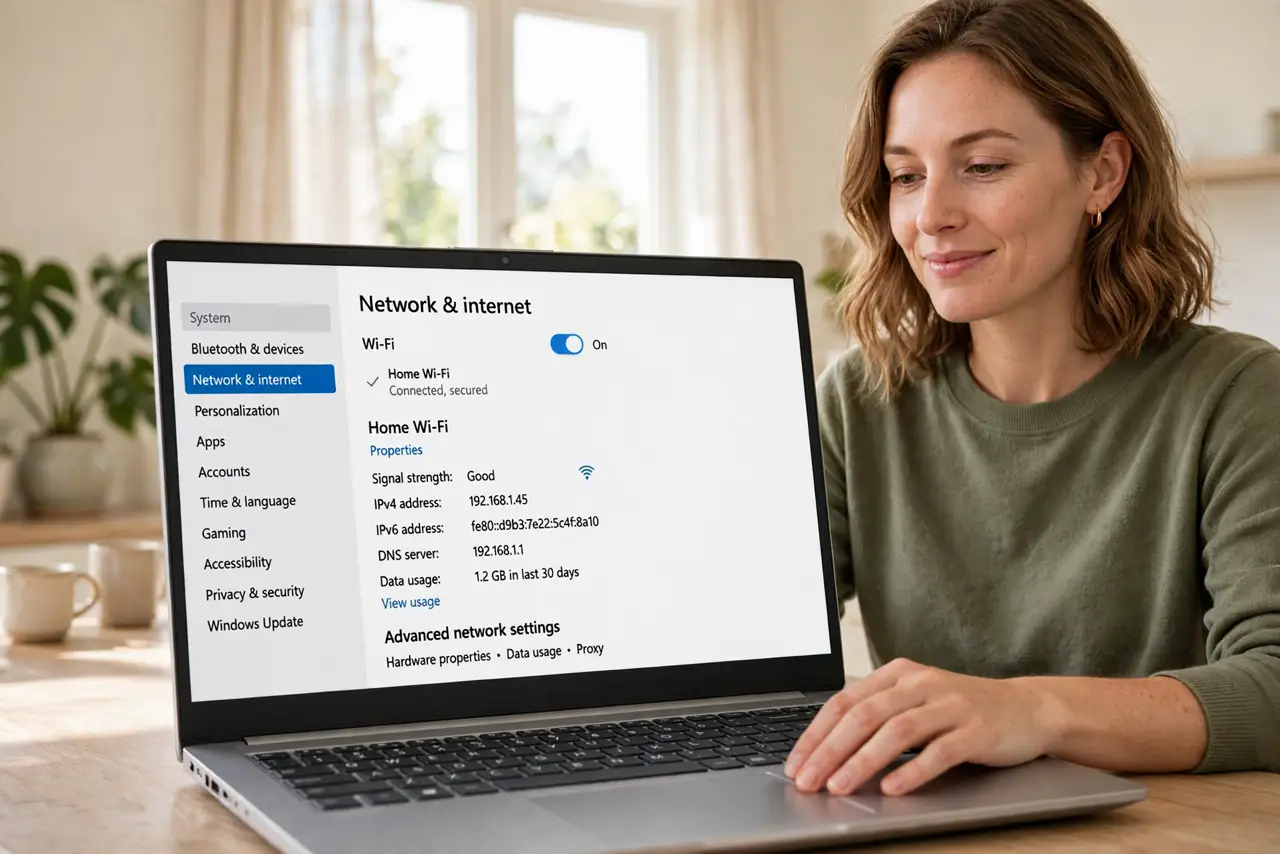
Quick fix: open Settings, go to Network & internet, then your connection's properties, and set DNS to manual with a public resolver like 1.1.1.1 or 8.8.8.8. Flush the old entries afterward. This often fixes slow name lookups and odd blocked pages. If anything misbehaves, switch back to automatic.
Follow these steps
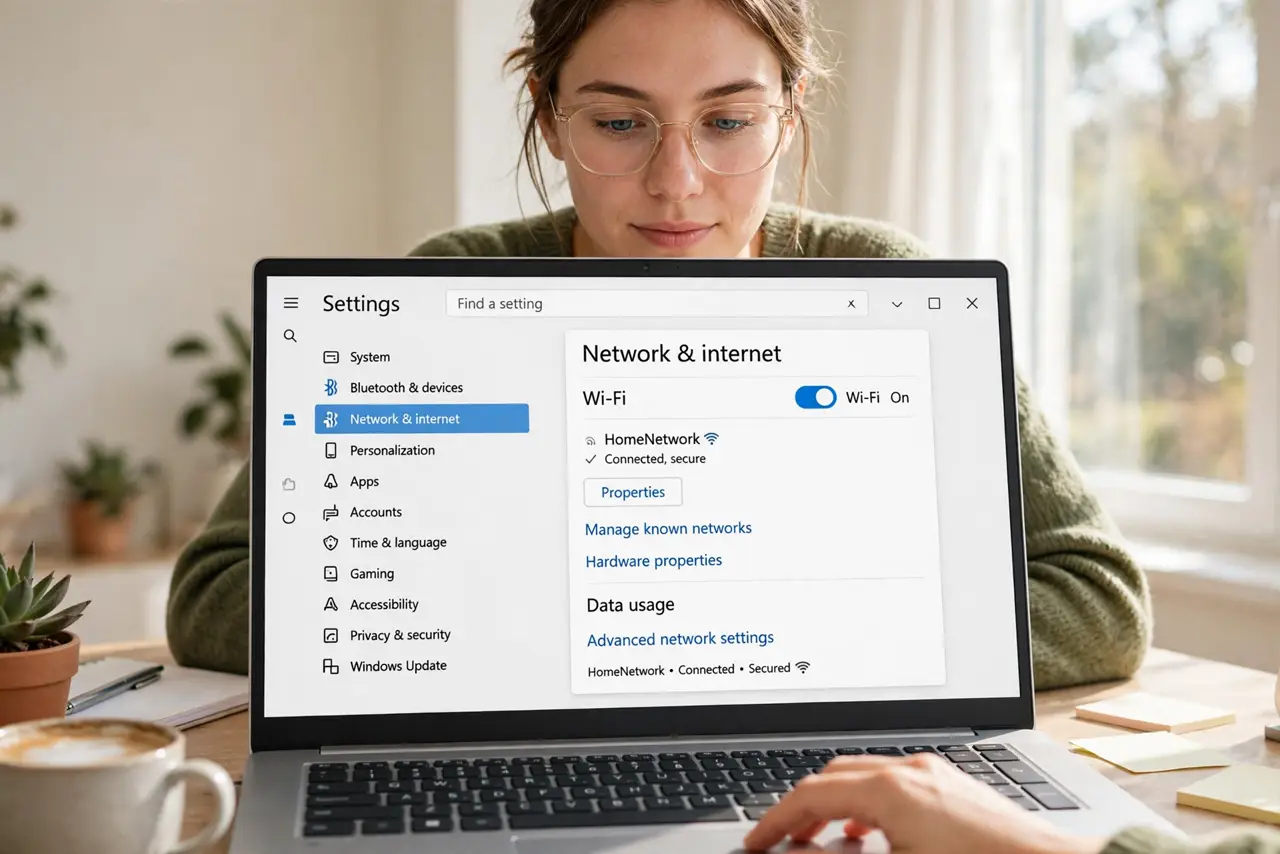
- Open your connection's settings. Settings > Network & internet, then click Wi-Fi or Ethernet depending on how you connect. Choose the active network.
- Find the DNS assignment. Click the network name, then look for DNS server assignment and click Edit. It probably says Automatic (DHCP) right now.
- Switch to manual and enter servers. Change the dropdown to Manual, enable IPv4, and type your chosen servers — for example 1.1.1.1 and 1.0.0.1, or 8.8.8.8 and 8.8.4.4. Save.
- Flush the old DNS cache. Open Command Prompt and run ipconfig /flushdns so Windows stops using the stale entries from the old servers.
- Test a few sites. Load several different sites. If they all resolve quickly, the change worked — the speed effect is most visible on first visits.
- Know you can also set DNS on the router. Changing it on the router covers every device at once. See router vs device DNS to decide which spot is right for you.
What NOT to do
- Do not type random DNS addresses from a forum comment. Stick to well-known public resolvers — a malicious server can redirect your banking.
- Do not change DNS on a work laptop without asking IT. Corporate networks often require their own servers for internal sites.
- Do not expect DNS to fix slow downloads. It only speeds up the name lookup at the start, not the transfer itself.
- Do not forget you changed it. If a site breaks months later, the manual DNS entry is a prime suspect — switch back to automatic to test.
Frequently asked questions
Will changing DNS make my internet faster?
Slightly, sometimes. It shortens the lookup before each new site loads, which you feel on first visits. It cannot speed up the actual download — see whether DNS speeds things up or slows them down for the nuance.
Is it safe to use 1.1.1.1 or 8.8.8.8?
Yes — both are major public resolvers with plain-English privacy policies. For extra privacy, look into encrypted DNS.
Why do some sites still not load?
If DNS is fine but pages stall, the problem is elsewhere — the connection itself, a VPN, or the site. Revert to automatic DNS to rule your change out.