Pin Folders to Quick Access?
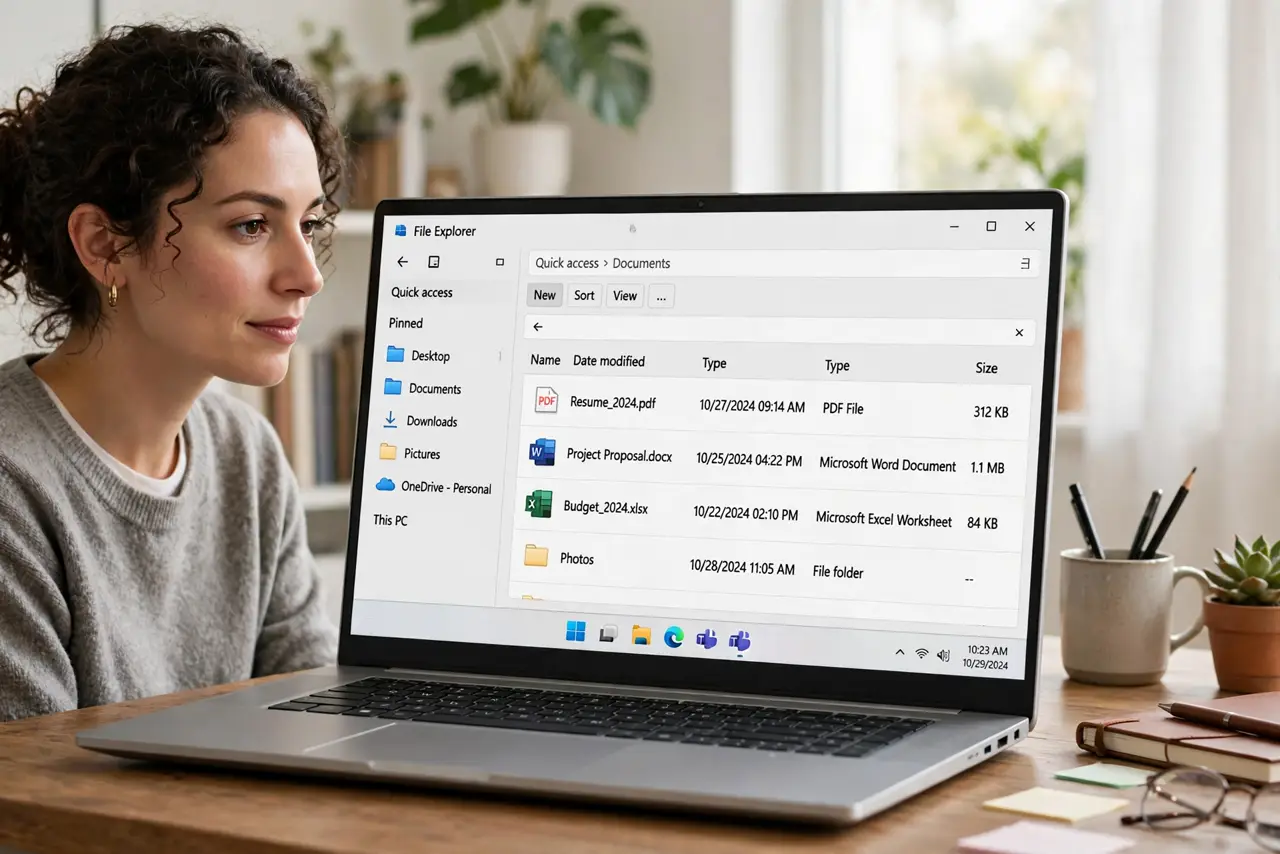
Quick Access is the sidebar in File Explorer that puts your favorite folders one click away — but only if you pin them. By default Windows guesses with 'frequent folders,' which rearranges itself maddeningly. Pinning your real work folders locks them in place. It takes seconds per folder and saves hundreds of clicks a month. Here is how.
TL;DR / Quick Fix
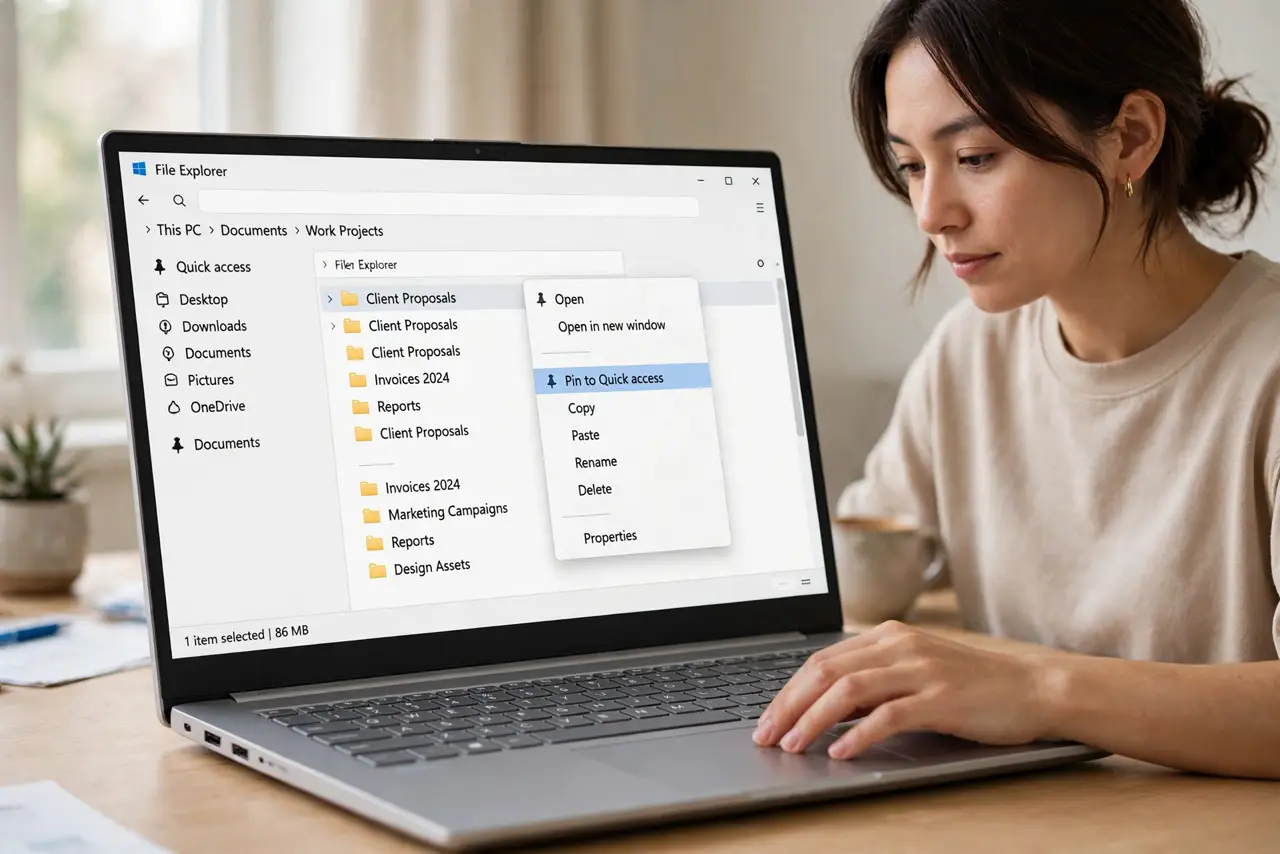
Quick fix: in File Explorer right-click any folder and choose Pin to Quick Access. It appears at the top of the sidebar permanently. Right-click a pinned folder to unpin it. To stop Windows adding its own guesses, open Folder Options and uncheck Show frequently used folders.
Follow these steps
- Pin a folder in two clicks. In File Explorer, navigate to the folder, right-click it, and choose Pin to Quick Access. It jumps to the top of the navigation pane. Repeat for the four or five folders you open daily — more than that defeats the purpose.
- Unpin what you do not use. Right-click any pinned folder and choose Unpin from Quick Access. Prune quarterly; a sidebar of twenty folders is just a second Desktop.
- Stop Windows' auto-guessing. Open Folder Options (View, Options), and under Privacy uncheck 'Show frequently used folders in Quick Access.' Now the sidebar shows only what you pinned — stable, predictable, yours.
- Drag to reorder pins. Pinned folders can be dragged up and down in the sidebar. Put today's project at the top; archive folders sink to the bottom.
- Know pins are shortcuts. A pinned folder is a pointer, not a copy. Deleting the real folder breaks the pin; unpinning never deletes anything. Safe to experiment freely.
- Fix vanishing pins. If pins keep disappearing, you are hitting the pin-reset problem — a known Windows quirk with fixes. Also check missing folders if the whole section looks wrong.
What NOT to do
- Do not pin your entire drive. Five pins help; twenty pins are clutter — pin only daily-use folders.
- Do not confuse pinning with copying. Unpinning is safe, but deleting the actual folder behind a pin deletes your files.
- Do not leave frequent-folders on if it annoys you. Windows' guesses reshuffle constantly — turn them off for a stable sidebar.
- Do not pin network folders that vanish. Pins to disconnected drives just show errors — pin local folders instead.
Frequently asked questions
How many folders should I pin?
Four to six daily-use folders. Quick Access is a speed dial, not a filing cabinet — if everything is pinned, nothing is quick.
Will unpinning delete my files?
No. Unpinning removes only the shortcut. Your files stay exactly where they were.
Why do my pins keep disappearing?
A known Windows quirk resets pins, especially after updates. The pin-reset guide has the fixes; re-pinning takes seconds once you know.