Run Linux on Windows
Some developer tools only speak Linux, but you do not want to give up Windows. The Windows Subsystem for Linux (WSL) runs a real Linux environment inside Windows — no dual-boot, no virtual machine window juggling. Install it from one command and you get both worlds on one desktop.
TL;DR / Quick Fix
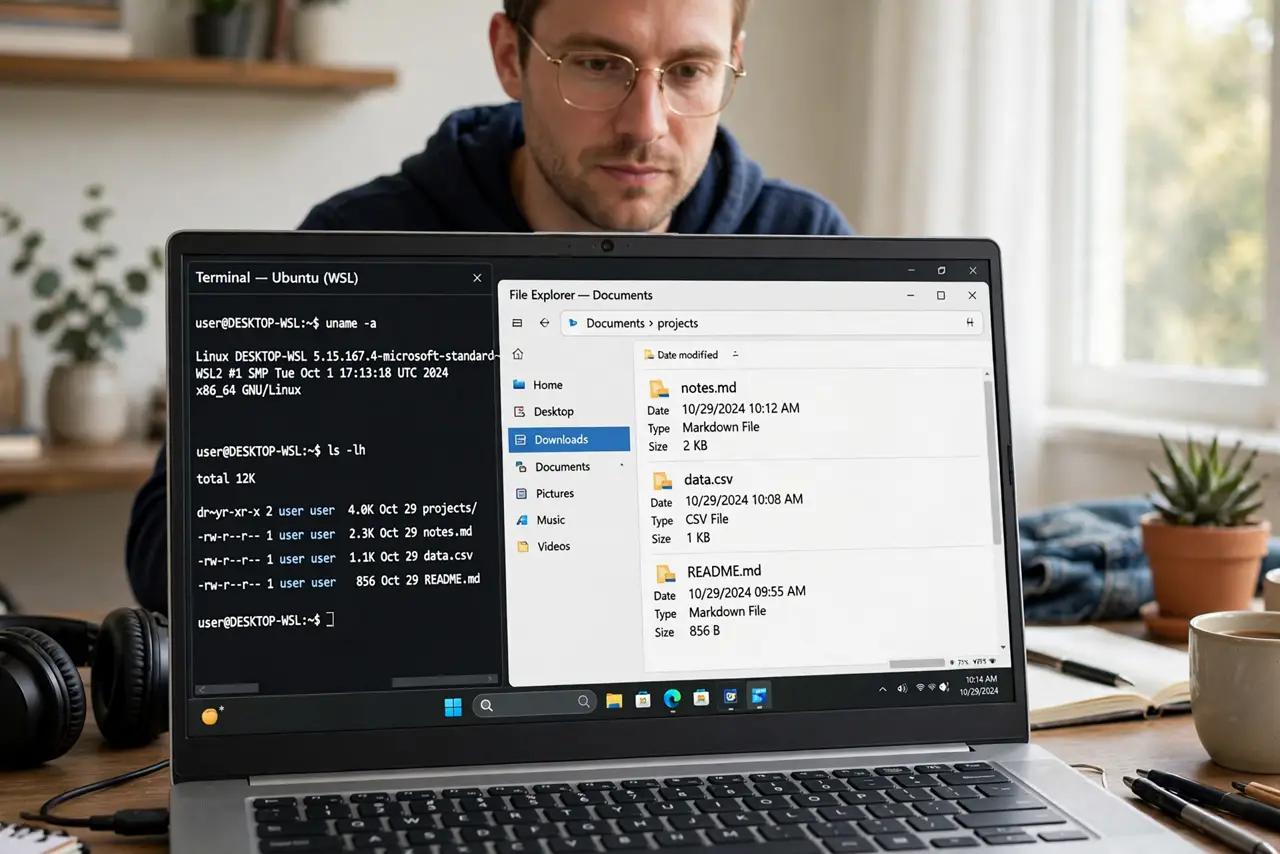
Quick fix: WSL runs real Linux inside Windows — install it with one command, pick a Linux distribution, and launch it from Start. Windows files are reachable from Linux and vice versa. It is ideal when developer tools need Linux; skip it if you only browse and write documents.
Follow these steps
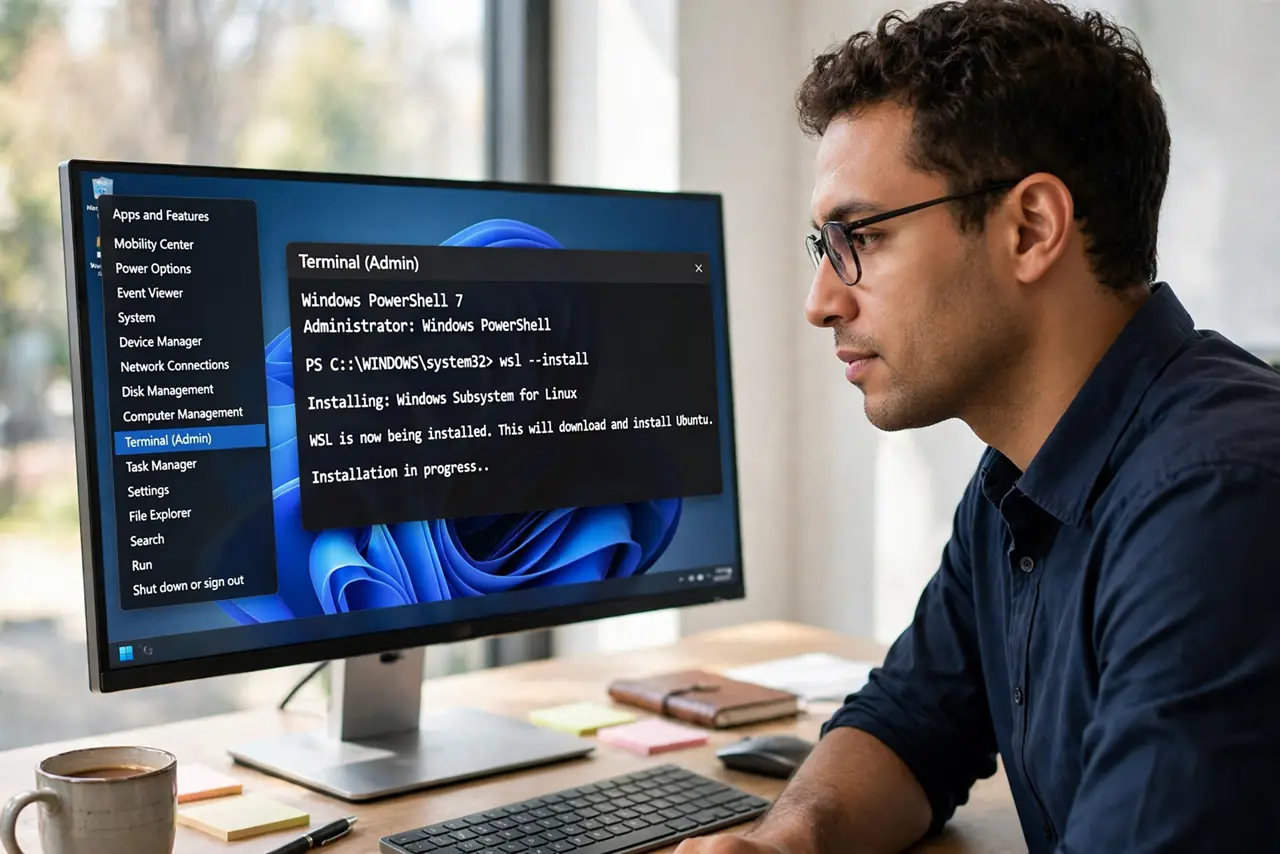
- Open a terminal as administrator. Right-click the Start button and choose Terminal (Admin). WSL installs from the command line — one command does the whole job.
- Run the install command. Type wsl --install and press Enter. Windows enables the subsystem and installs a default Linux distribution. See the full install walkthrough if anything errors out.
- Restart when prompted. The install needs a reboot to finish enabling virtualization features. Save your work and restart — it is quick.
- Create your Linux username. On first launch, the Linux terminal asks for a username and password. This is separate from your Windows account — pick something simple you will remember.
- Learn the file bridge. Your Windows drives appear under /mnt/c in Linux, and your Linux files are reachable from Explorer through the WSL network path. Move project files across freely — the two systems share the disk.
- Update and maintain it. Inside Linux, run your distributions update commands regularly. WSL is a real Linux install — it needs the same updates. Watch for disk space ballooning if you install lots of packages.
What NOT to do
- Do not install WSL expecting it to speed up a slow PC. It adds a Linux layer; it does not fix Windows performance problems.
- Do not store critical files only inside the Linux filesystem without backups. It is convenient, not immortal — back it up like everything else.
- Do not follow random scripts that disable Windows security to fix WSL. Legitimate WSL needs no security downgrades.
- Do not confuse WSL with dual-boot. There is no partitioning and no reboot-to-switch — read the WSL versus virtual machine comparison to pick the right tool.
Frequently asked questions
Is WSL the same as dual-booting Linux?
No. Dual-boot replaces your boot process and partitions the disk; WSL runs Linux as a lightweight layer inside Windows with no partitioning.
Can WSL run graphical Linux apps?
Yes on Windows 11 — GUI apps open as normal windows. It works well for developer tools, less so for GPU-heavy apps.
How do I remove WSL?
Unregister the distribution from the command line and turn off the Windows feature. Your Windows install is untouched.