What Are Authenticator Codes?
You log in, and the site asks for a six-digit code from an app on your phone — that is a TOTP code, a time-based one-time password. It changes every 30 seconds and proves you hold the phone, not just the password. It is the single biggest upgrade you can make to your account security. Here is what those codes are and how to set them up without locking yourself out.
TL;DR / Quick Fix
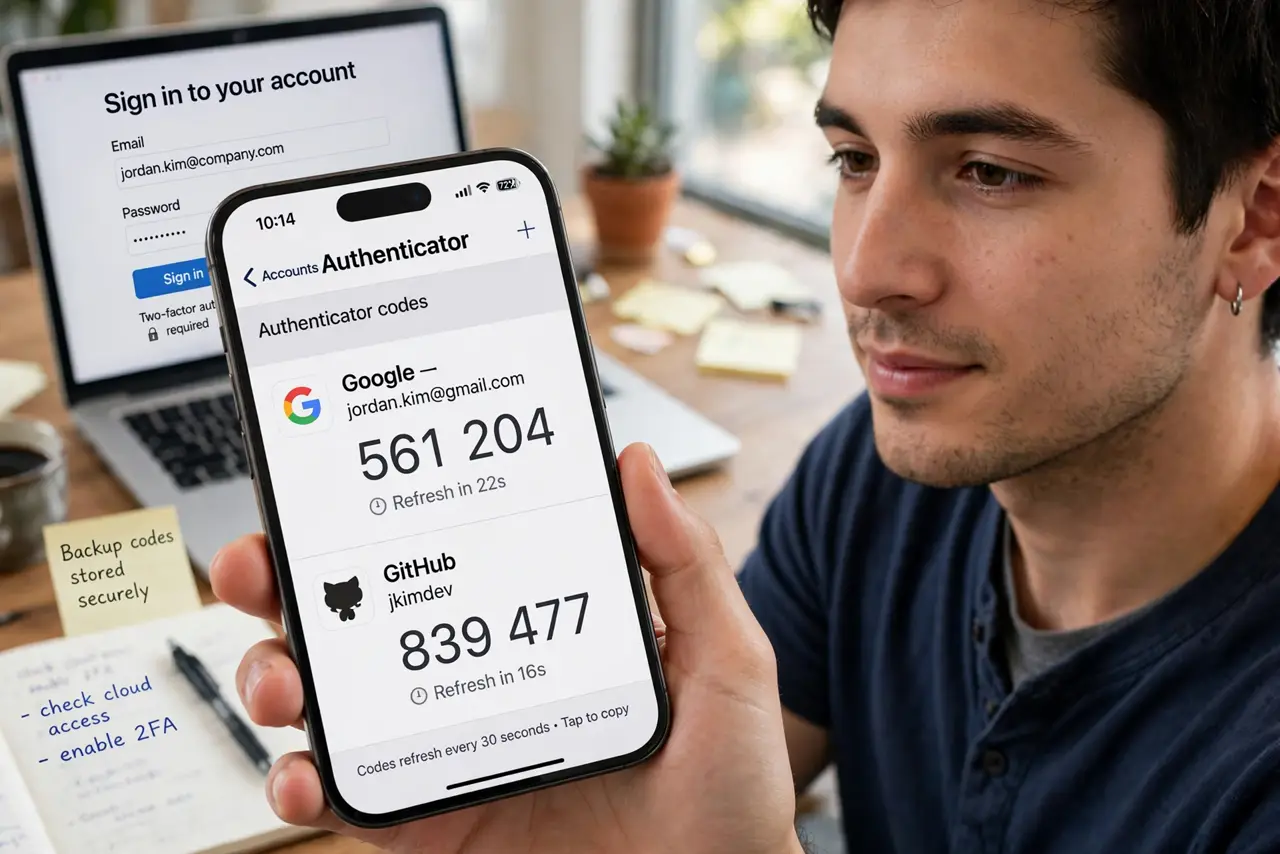
Quick fix: authenticator codes are numbers that change every 30 seconds and prove you hold the device. Set them up by scanning a QR code with an authenticator app, then save the backup codes somewhere safe. Never lose both the app and the backups — that is how lockouts happen.
Follow these steps
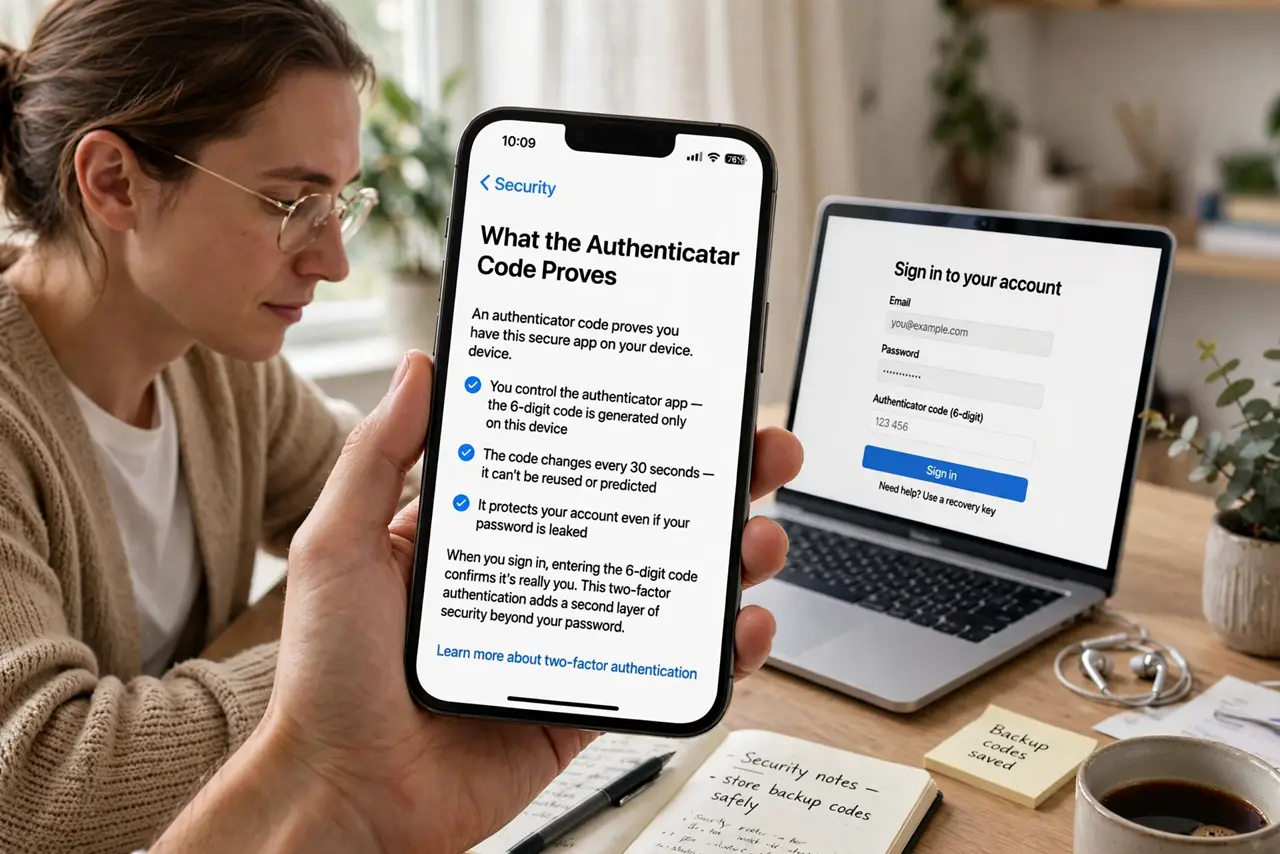
- Understand what the code proves. Your password proves you know a secret; the authenticator code proves you hold the phone. An attacker needs both, which is why this stops most account takeovers cold.
- Get an authenticator app. Use your phone's built-in option or a reputable authenticator app. Pick one that offers encrypted cloud backup — see the two-factor setup guide for the full walkthrough.
- Scan the site's QR code. In the site's security settings, choose authenticator app and scan the QR code shown. The app starts generating codes immediately — enter the current one to confirm pairing.
- Save the backup codes. The site shows one-time backup codes during setup. Print them or store them in your password manager — they are your way back in if the phone is lost. Learn where to keep them safely.
- Test a login right away. Log out and log back in with a fresh code. Confirming it works now beats discovering a setup mistake during an emergency.
- Plan for a new phone. Before switching phones, transfer the codes or keep the old phone until the new one works. Read the new-phone transfer guide before you wipe anything.
What NOT to do
- Do not screenshot the setup QR code and leave it in your photos. Anyone with that image can clone your codes.
- Do not skip saving backup codes. Doing it later is the number-one cause of permanent lockouts.
- Do not share a code with anyone, ever. Real support staff never ask for your authenticator code — anyone who does is scamming you.
- Do not rely on SMS codes where an app is offered. SIM-swapping attacks can intercept texts; app codes cannot be intercepted that way.
Frequently asked questions
What happens if I lose my phone?
Use the backup codes you saved during setup to log in, then set up the authenticator on the new phone. Without backup codes, you face the site's account recovery process, which can take days.
Why does my code say it is incorrect?
Your phone's clock is probably off — these codes depend on accurate time. Enable automatic date and time in settings and try the next code.
Are authenticator apps safer than texted codes?
Yes. Texted codes can be intercepted through SIM swapping; app codes are generated on your device and never travel over the network.