Set Up a New Router
The box is open, the new router is shinier than the old one, and the quick-start guide assumes you already know what a modem is. Setting up a new router is genuinely a twenty-minute job — but the order of operations matters, and a few settings skipped now become headaches later. This guide walks the whole setup cleanly, from unplugging the old box to securing the new one. If the old router still works, the reboot vs reset guide might save you the trouble.
TL;DR / Quick Fix
Quick fix: unplug the old router, connect the new one to the modem, and follow its app-based setup — name your network, set a strong password, and update the firmware. Keep the old Wi-Fi name and password if you want every device to reconnect automatically.
Follow these steps
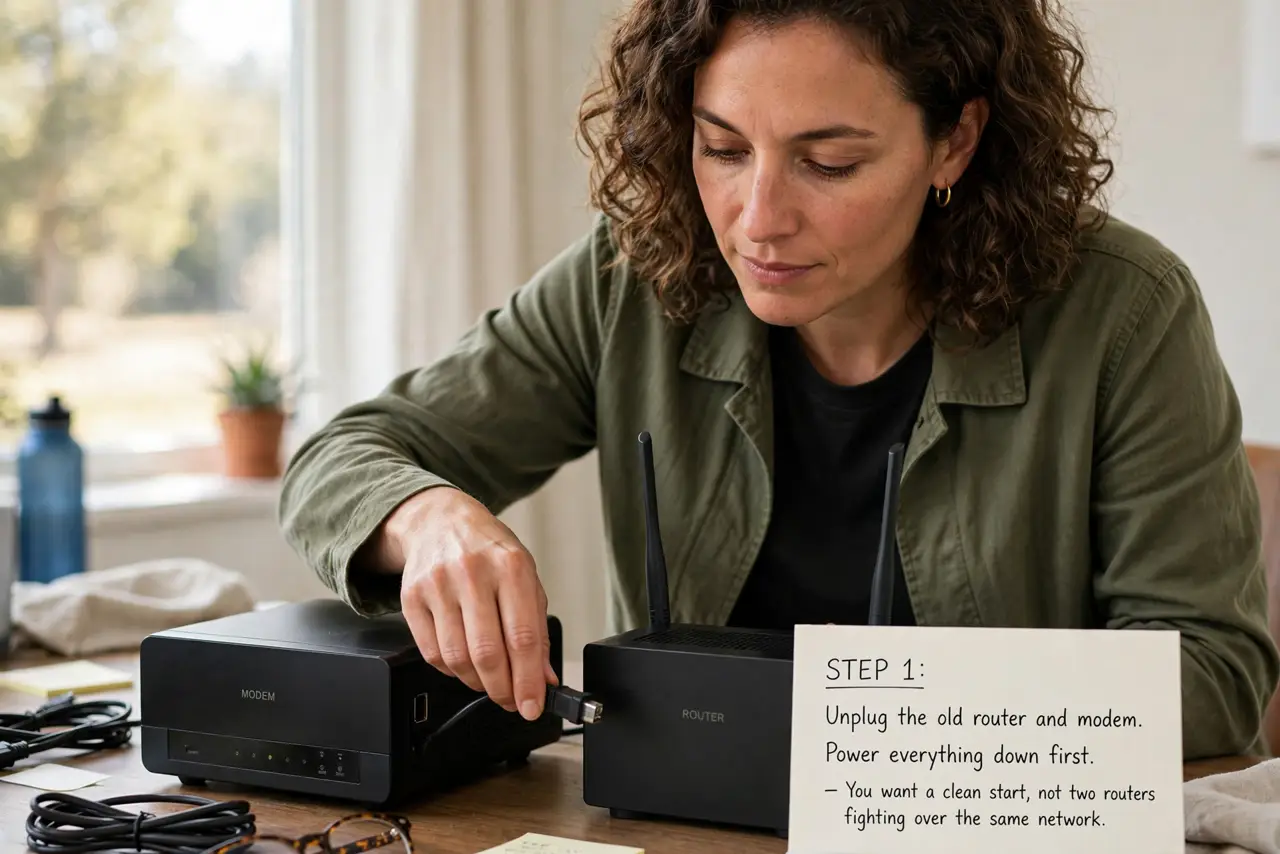
- Unplug the old router and modem. Power everything down first. You want a clean start, not two routers fighting over the same network.
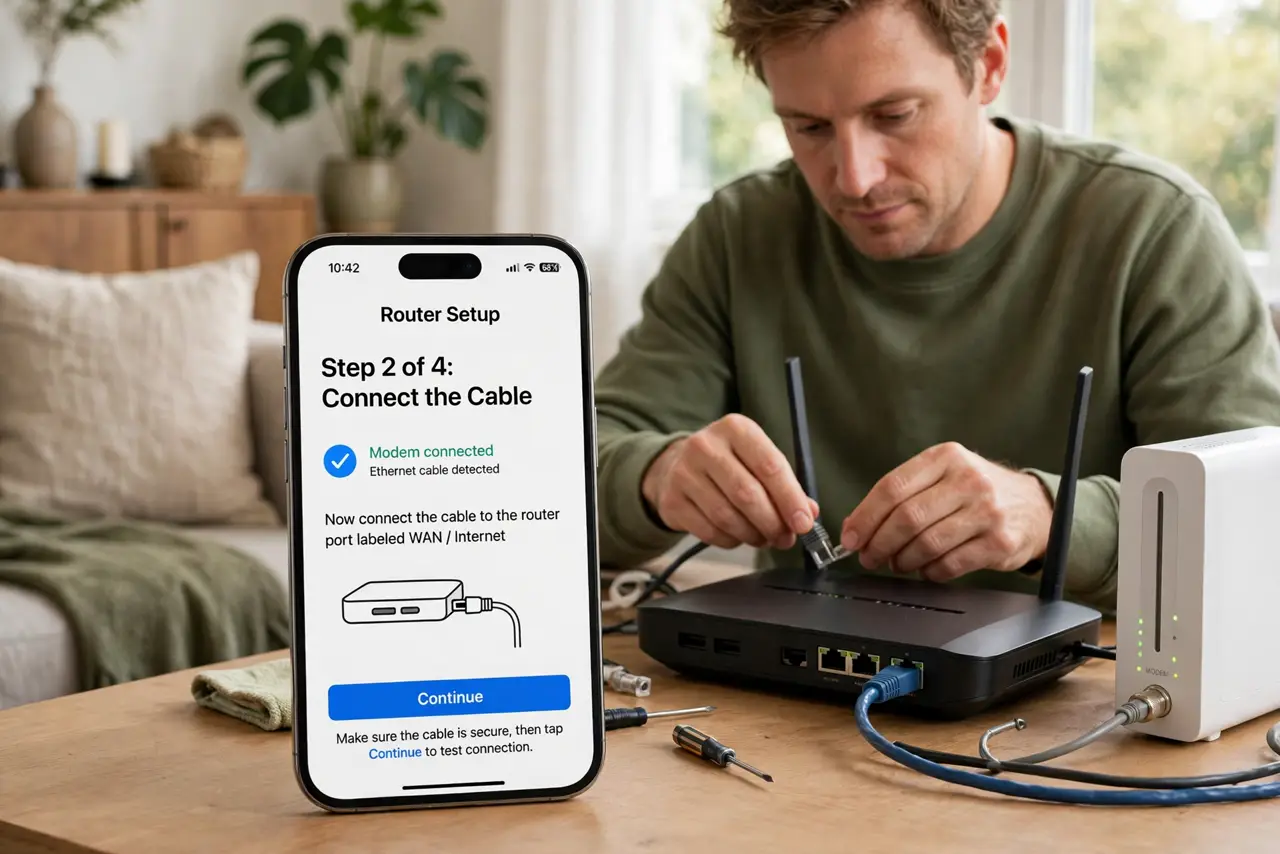
- Connect modem to the new router's WAN port. One Ethernet cable from the modem to the port labeled WAN or Internet on the new router — usually a different color. This is the single most important cable.
- Power up in the right order. Modem first, wait for its lights to settle, then the router. The restart order guide explains why this sequence matters.
- Run the setup app or wizard. Modern routers guide you via a phone app: it names the network, sets the password, and checks for firmware updates. Follow it completely — do not skip steps.
- Reuse your old Wi-Fi name and password. Keeping the same network name and password means every phone, TV, and smart plug reconnects automatically. New credentials mean rejoining everything by hand.
- Update firmware and change the admin password. Check for firmware updates on day one, and replace the default admin password. The default password warning explains why defaults are dangerous.
What NOT to do
- Do not plug the modem into a regular LAN port. The WAN/Internet port is the only correct one — wrong port, no internet.
- Do not skip the firmware update. New routers often ship with months-old firmware and known bugs.
- Do not place the router in a closet. Setup is the moment to choose a central, elevated spot — signal starts here.
- Do not keep the default admin password. It is printed in manuals everywhere and attackers know it.
Frequently asked questions
How long does router setup take?
Fifteen to thirty minutes with the app wizard, plus a few minutes for firmware updates. Budget half an hour and stay near the router.
Do I need to call my ISP?
Usually not for a router swap — the modem handles the ISP connection. You only call if the modem itself is new or the line needs activating.
Should I use the ISP's router instead?
Your own router is usually better and avoids rental fees. The ISP router comparison weighs the tradeoffs.