Sync Clipboard Across PCs
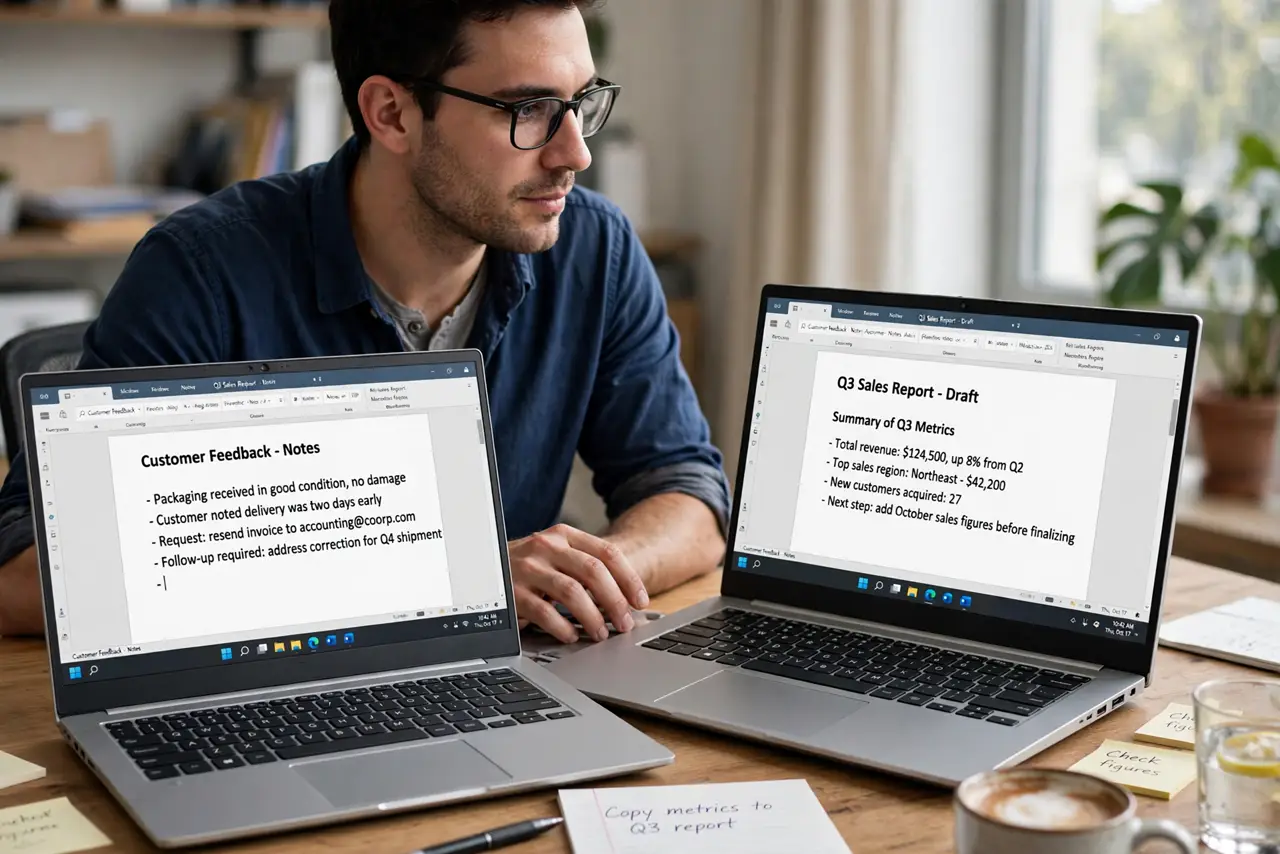
You copy a link on your desktop and walk to your laptop, only to realize the clipboard did not follow you. Windows can sync your clipboard across PCs through your Microsoft account, so text you copy on one machine is ready to paste on the other. Setup takes two minutes, and this guide covers the settings, the limits, and the privacy choices.
TL;DR / Quick Fix
Quick fix: turn on clipboard sync in Settings, System, Clipboard, on both PCs, and sign in with the same Microsoft account. Copy with Ctrl+C on one PC, then press Win+V on the other to paste. It syncs text up to a size limit. Never copy passwords through it.
Follow these steps
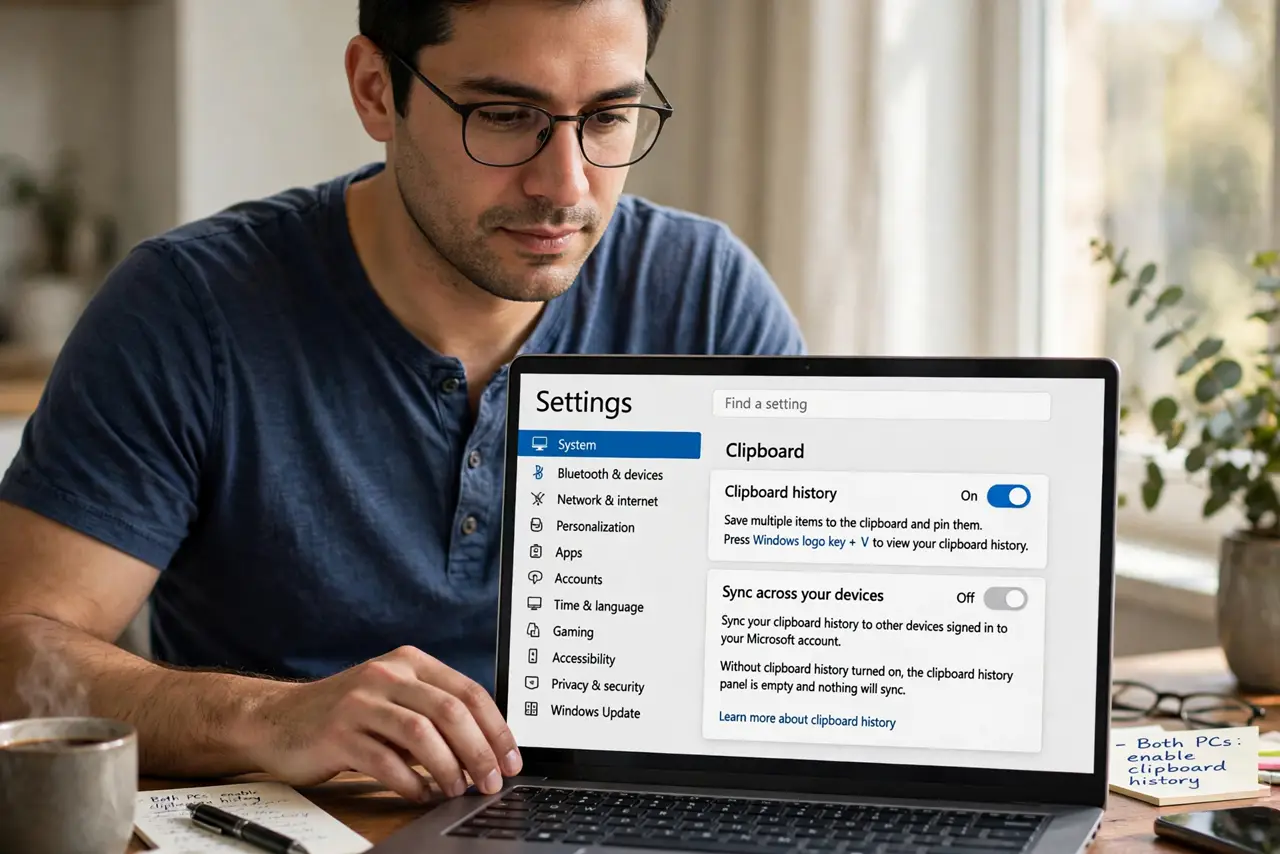
- Turn on clipboard history on both PCs. Open Settings, System, Clipboard, and switch on Clipboard history. This unlocks the Win+V panel that shows recent copies. Without history enabled, there is nothing to sync — the panel just stays empty.
- Enable Sync across devices. On the same Clipboard page, turn on Sync across devices. Choose to sync copied text automatically, or only items you pin manually. Manual syncing is the safer choice if you copy sensitive snippets.
- Sign in with the same Microsoft account. Both PCs must use the same Microsoft account for the cloud clipboard. If one PC uses a local account, sync silently fails — sign in or switch the account in Settings, Accounts.
- Copy on the first PC. Select text and press Ctrl+C as usual. Synced text travels through Microsoft servers, so avoid passwords — see the clipboard password warning before you copy anything secret.
- Paste on the second PC with Win+V. Press Win+V to open clipboard history, find the copied text, and click it. If the item is missing, the sync may have stalled — the sync failure guide walks through the usual causes.
- Pin items you reuse daily. In the Win+V panel, pin addresses, signatures, or code snippets so they survive restarts and sync reliably. Pinned items stay available even when automatic syncing hits its size limit.
What NOT to do
- Do not copy passwords through cloud clipboard sync. Synced text travels through servers — keep credentials in a password manager instead.
- Do not expect large images or files to sync. The cloud clipboard has size limits; use a shared folder or USB drive for big items.
- Do not mix Microsoft accounts across the PCs. Different accounts mean two separate clipboards that never meet.
- Do not leave automatic syncing on for shared computers. Anyone signed into that account sees your copied text.
Frequently asked questions
Does clipboard sync work without Wi-Fi?
No — both PCs need internet, since copied text travels through Microsoft servers. On the same desk with no connection, use a shared folder or a USB drive instead.
Is my copied text private?
It is encrypted in transit and tied to your Microsoft account, but it still passes through cloud servers. Treat it like email: fine for links and notes, wrong for passwords and private keys.
Why is an item missing on the second PC?
Usually a sign-in mismatch, a size limit, or a stalled sync. The sync failure checklist covers each cause in order.