Upgrade a Laptop SSD? How To
Your laptop takes forever to boot and programs crawl — but the machine itself is fine. A solid-state drive upgrade is the single most transformative laptop upgrade in existence, and on many models it is a fifteen-minute job with one screwdriver.
TL;DR / Quick Fix
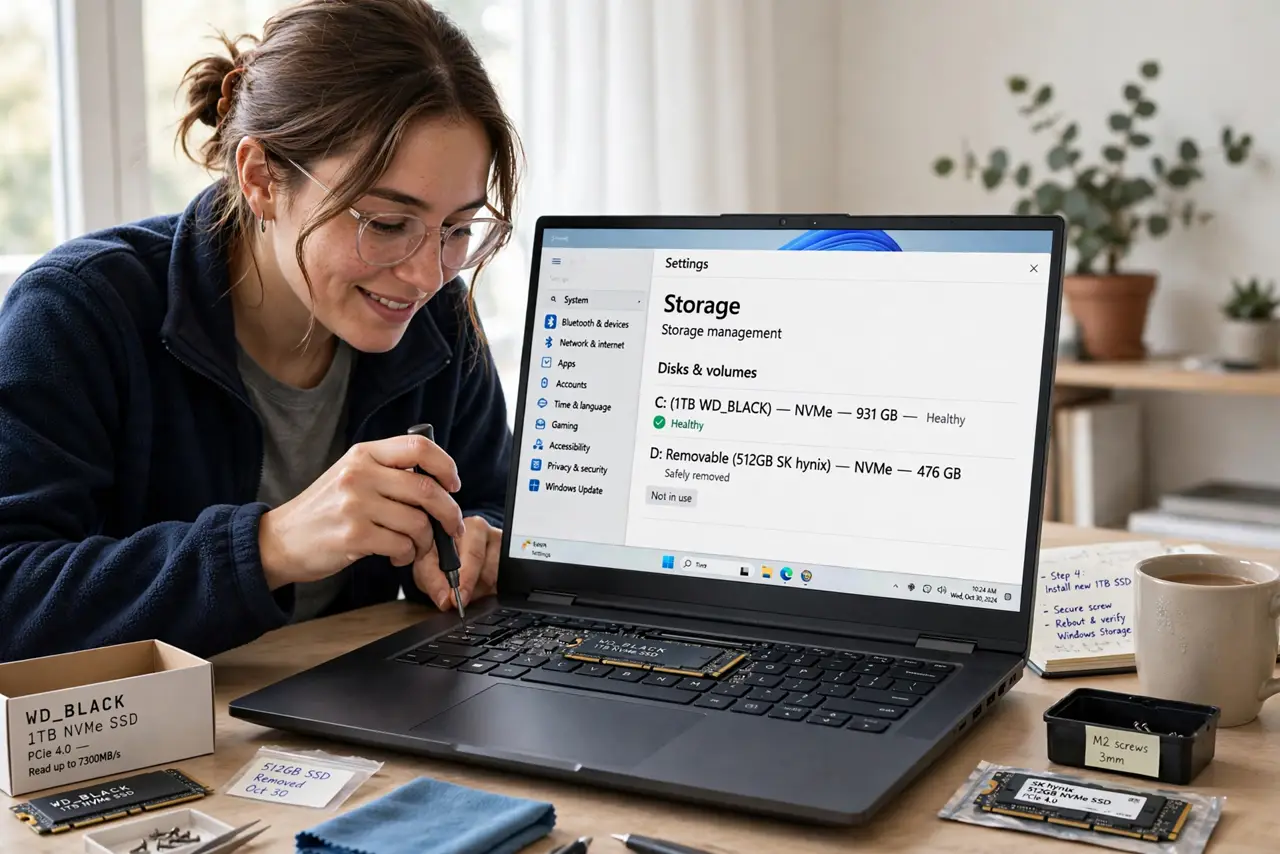
Quick fix: check your laptop takes a standard M.2 or 2.5-inch SSD (not soldered storage), clone or fresh-install onto the new drive, then swap. Back up first — always. The speed difference feels like a new laptop. See the NVMe vs SATA guide to pick the right type.
Follow these steps
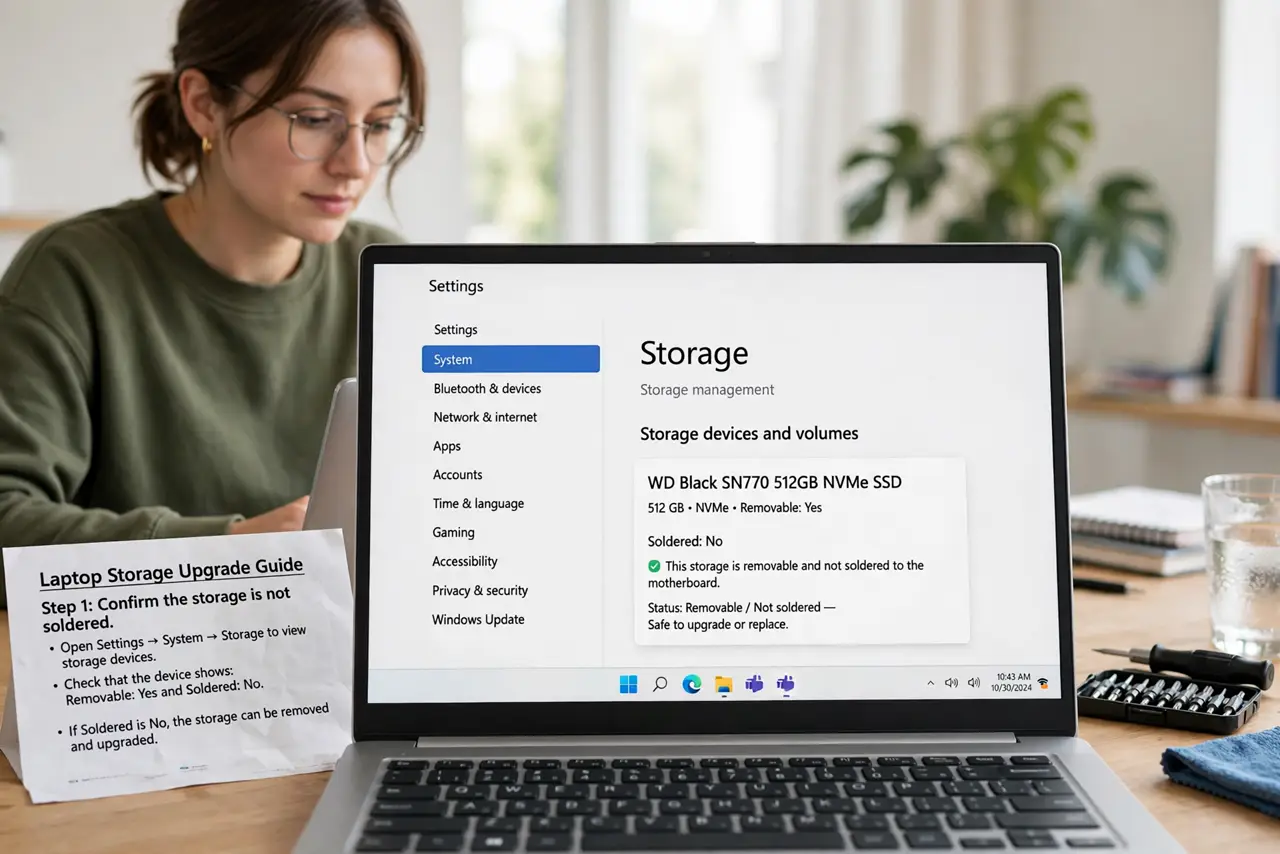
- Confirm the storage is not soldered. Some thin laptops solder the SSD like the RAM. Check the specs — if it is soldered, this upgrade does not exist for your machine.
- Identify the drive type. M.2 NVMe, M.2 SATA, or 2.5-inch SATA — the manual or a teardown video tells you. See NVMe vs SATA for the difference.
- Back up everything first. Cloning is reliable, but a backup is the parachute. See data recovery basics for why 'I will risk it' ends badly.
- Clone or fresh-install. Cloning keeps everything as-is — see clone to SSD. Fresh installs run cleaner but need reinstalling all your apps.
- Swap the drive. One or two screws, slide the old out, slide the new in. Keep track of the tiny screws — a magnetic tray earns its keep.
- Verify the new drive. Boot up, confirm the capacity shows correctly, and verify TRIM is enabled so the drive stays fast.
What NOT to do
- Do not buy the SSD before checking the type. An NVMe drive does not fit a SATA-only slot.
- Do not skip the backup. Cloning fails sometimes; the backup is what makes failure survivable.
- Do not force the M.2 stick flat. It seats at an angle, then screws down — forcing it straight cracks the slot.
- Do not toss the old drive immediately. Keep it as a backup for a week until the new setup proves itself.
Frequently asked questions
How much faster will it feel?
Boot times often drop from minutes to seconds. It is the closest thing to a new laptop for the money.
What size SSD should I get?
Match or exceed your current used space, with room to grow — see SSD size for the sizing logic.
Can I upgrade the SSD if RAM is soldered?
Often yes — many laptops solder RAM but keep a standard SSD slot. Check your model's specs.